The alarm rules page offers the feature to configure alarm tasks, supporting alarm conditions and notifications for the operation status of projects, tasks, and workflows.
2. Click the Project List in the left menu to find the target project that needs alert rule configuration.
3. After selecting the project, click to enter the Data Development Module.
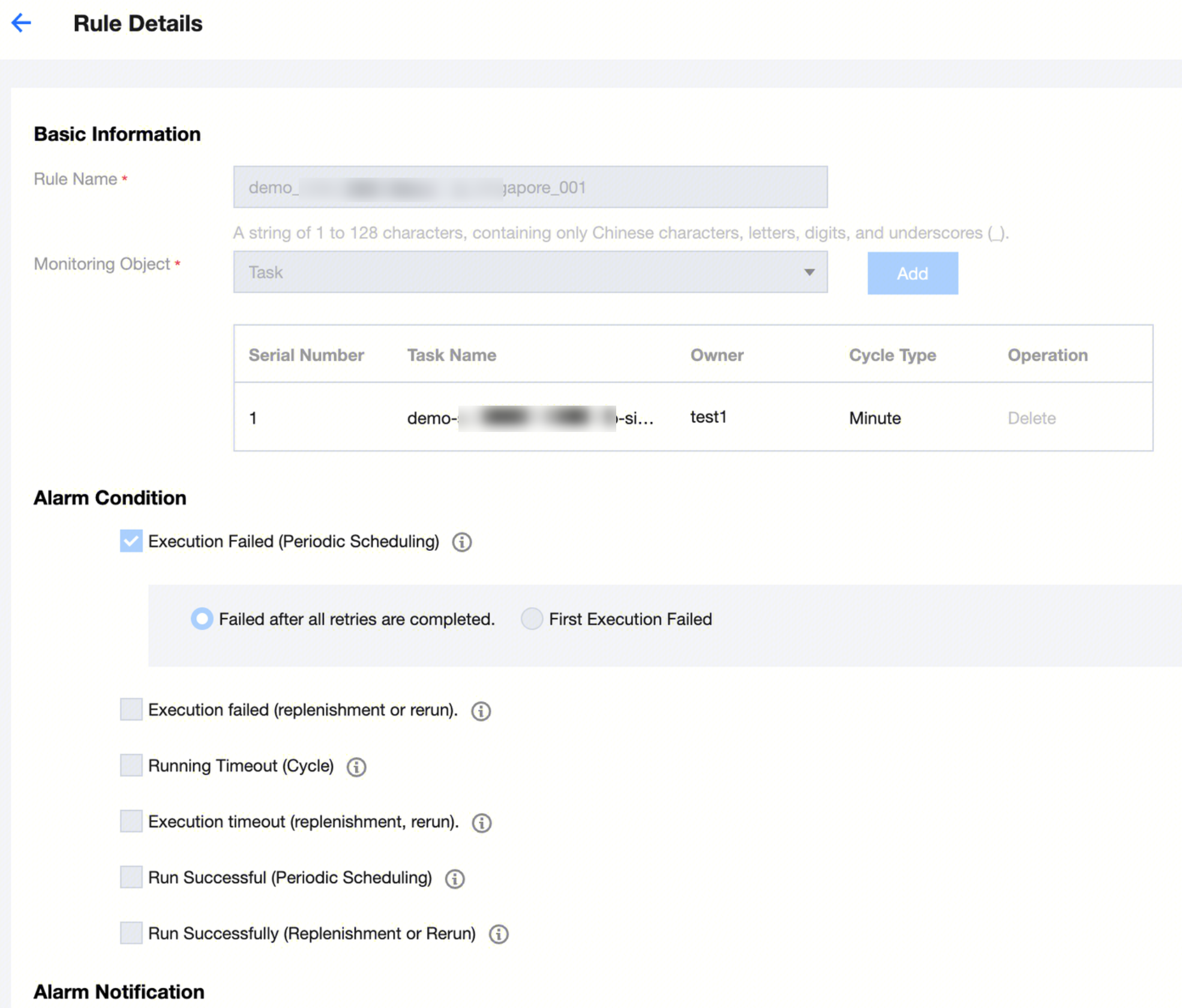
4. Click on Alarm Rule, in the left menu to enter the alarm rule management page, and click Create Rule, fill in the rule information.
Feature Overview
Information
Description
Basic information
Rule Name
Alert Rule Name, 1 - 128 characters, limited to Chinese, English, numbers, and underscores.
Monitoring Object
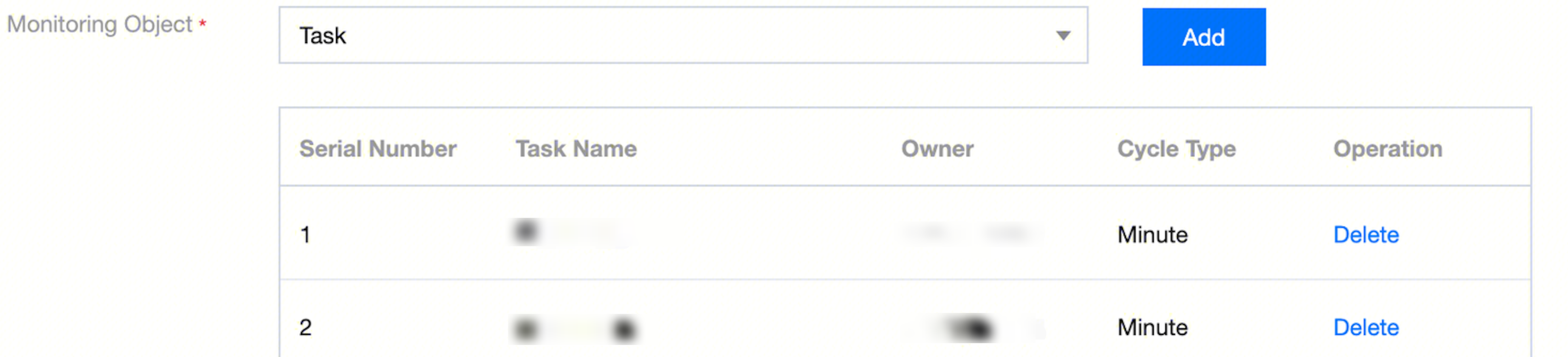
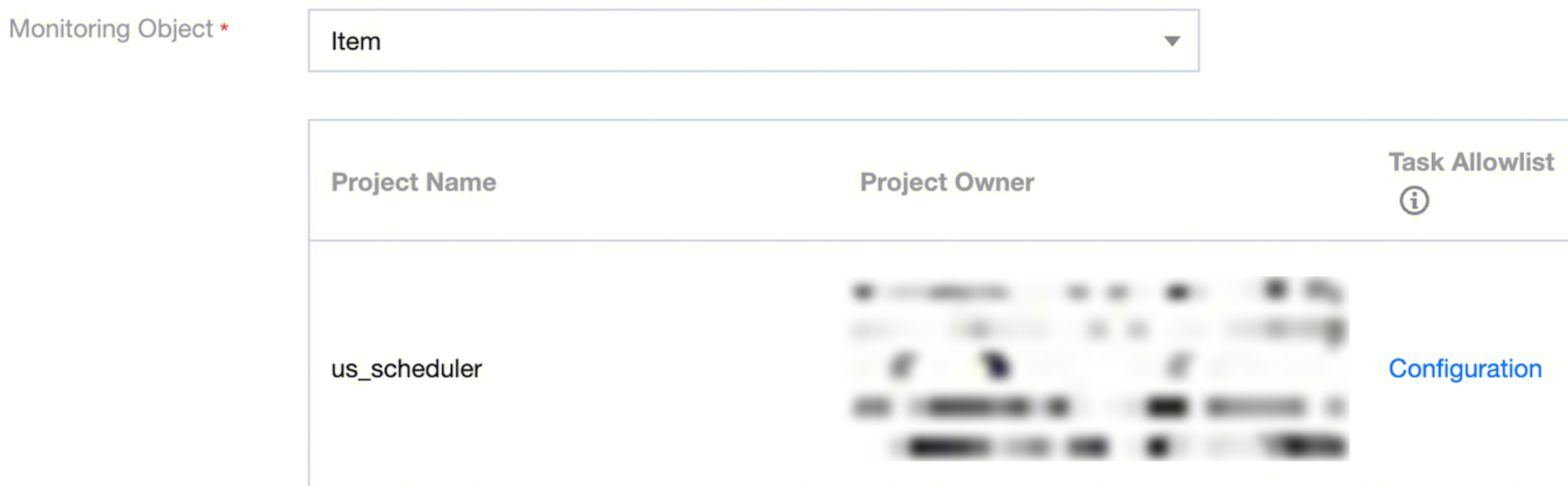
Select the monitoring object for which you want to set the alarm rules. Currently, computing tasks, workflows, and project configuration alert rules are supported.
Task Alerts: You can configure alarm rules for all computing task nodes that have been submitted to operations in the orchestration space.
Workflow Alerts: You can configure alarm rules for workflows that have been submitted to operations in the orchestration space. The monitoring objects of the rules are all computing tasks within the workflow. The allowlist capability is provided; tasks added to the allowlist will not be monitored by the alarm rules.
Project Alerts: Alarm rules can be set for all computing tasks that have been submitted to operations in the orchestration space within the current project. The allowlist capability is provided; tasks added to the allowlist will not be monitored by the alarm rules.
Alarm Conditions
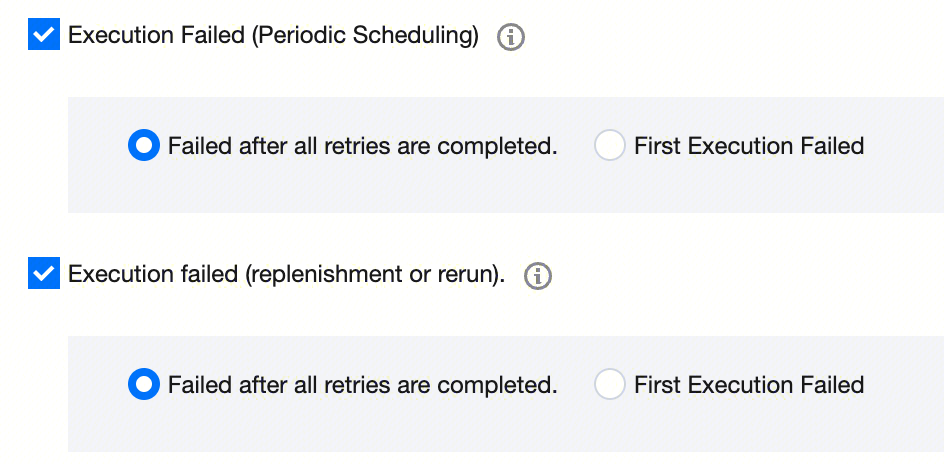
Operation Failure
An alert is triggered when the monitored task's instance fails to run. Configuration can be made for periodic execution, supplemental entries, or rerun execution. The rule trigger condition can be either "Failed after all retries are completed" or "First Execution failed".
Failed after all retries: According to the computational task scheduling strategy, if failure retries are configured, the alarm rule is triggered when all retries fail, and the instance fails.
First run failed: According to the computational task scheduling strategy, the alarm rule is triggered when the instance generated from the first run fails.
Operation Timeout
An alert will be triggered when a monitored task generates instance scheduling or exceeds the preset runtime. Configuration can be done for periodic execution or supplemental entry, as well as for rerun execution. Rules can be set for the following four key time requirements: "Estimated Running Time", "Estimated Completion Time", "Expected Waiting Time for Scheduling", and "Incomplete within Cycle".
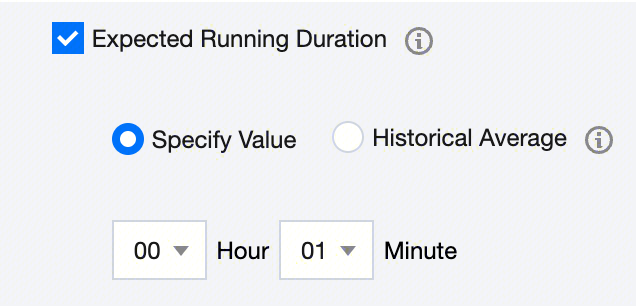
Expected Running Time: Calculated from the task instance start time. If not completed within the required time, an alert is triggered. You can use "Specified Value" or "Historical Average" to limit instance running time.
Specified Value: If the instance is not completed within the specified hour and minute time requirement, an alert rule is triggered.
Historical Average: Takes the instance running time of the last 10 successful runs of the computing task, removes the maximum and minimum values, and then takes the average. If less than 10 runs, it is invalid.
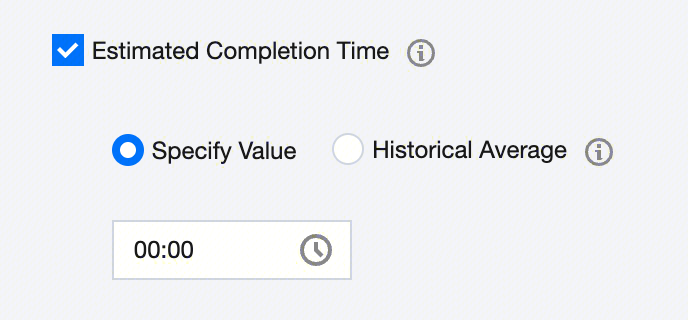
Estimated Completion Time: Calculated from the task instance start time. If not completed by the prescribed time point, an alert is triggered. You can use "Specified Value" or "Historical Average" to specify the time point by which the instance needs to be completed.
Specified Value: If the instance is not completed before the specified hour/minute time point, an alert rule is triggered.
Historical Average: Takes the instance running time of the last 10 successful runs of the computing task, removes the maximum and minimum values, and then takes the average. If less than 10 runs, it is invalid.
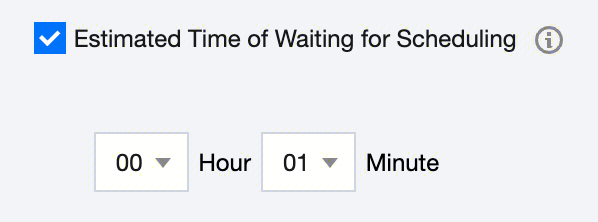
Estimated Time of Waiting for Scheduling: Limits the interval time from the planned scheduling time of the task instance to the actual start time. If it exceeds the set time period and has not started, an alert is triggered.
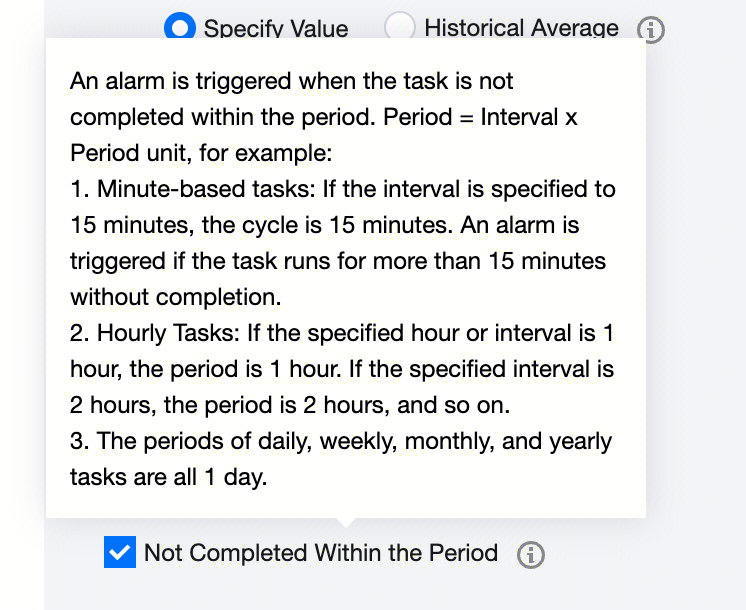
Incomplete within Cycle: An alert is triggered when the task instance does not complete within its current running cycle. Cycle = Interval * Periodic Unit, for example:
Minute Task: For a task with a 15-minute interval, the cycle is 15 minutes. Alert is triggered if the task exceeds 15 minutes without completion.
Hourly Task: If specified hour or interval is 1, the cycle is 1 hour; if the interval is 2, the cycle is 2 hours, and so on.
Day, Week, Month, and Annual Task: The cycle is 1 day.
Successful Run
An alert will be triggered when a monitored task generates a successful instance run. Configuration can be done for periodic execution or supplemental entry, as well as for rerun execution.
Alarm notification
Alarm Severity
Alert message content is distinguished according to the alert level of different alert types. Currently, there are three alert types to choose from: Normal, Important, and Urgent.
Recipient
After the alarm rule is triggered, an alarm message will be sent to the recipient. Currently, three methods are supported for setting alarm message recipients: "Designated Personnel", "Task Owner", and "On-duty Schedule".
Designated Users: You can specify one or multiple users as alert message recipients.
Task Owner: The owner of the task is set as the alert message recipient.
Duty Schedule: The pre-scheduled duty roster is set as the recipient, and alert messages will be sent to the duty users.
Alert Method
After the alarm rule is triggered, the sending channel for the alarm information. Currently supports Email, SMS, WeChat, Telephone, WeCom, HTTP, Enterprise WeChat group, FeiShu Group, and DingTalk Group push methods. Mobile, WeChat, and Email accounts can be configured in the Tencent Cloud Personal Center > CAM > Users module, WeCom accounts in the Tencent Cloud Personal Center > CAM > Joint Account module. HTTP is configured in the alarm channel.
Notification Frequency
Supports definition of the number of times an alarm is sent once and the interval time between each message.
Notification Muting
Supports setting a do-not-disturb time during which alarms will not be sent. Users can view alarm records in the alarm information.
Supports configuring do-not-disturb time by weekday and time, allowing multiple do-not-disturb periods.
View Alarm Rule List
Once the alarm rule is created, it will be displayed in the alarm rule list, showing rule name, alarm type, alert method, recipient information, and providing features like rule switch and rule details to help users manage and maintain alarm rules.
Description
Information
Description
Rule Name
Displays the alarm rule name and ID number.
Monitoring Object
Displays the tasks, workflows, and projects to which the alarm rule applies, and allows viewing of computing tasks involved in the alarm rule for these monitored objects.
Alarm Type
Displays the monitoring types of the alarm rule: failed, timed out, success.
Alarm Severity
Displays the alert level of the alarm rule: normal, important, urgent.
Alarm On-Off
Displays the current startup status of the alarm rule, allowing manual switching. When in stopped status, the alarm rule will not take effect and no alarm information will be generated.
Alert Method
Displays the sending channels for the alarm information of the alarm rule.
Recipient
Displays the recipients configured to receive the alarm information for the alarm rule.
Created by
Show the creator of the current alarm rules.
Operate alarm rules
Description
Information
Description
Rule Details
The rule details allow you to view various parameters configured when setting up the alarm rules, including rule name, monitored object, monitoring tasks, alarm conditions, and alarm notifications.
Alert Information
Jump to the alarm information list page generated after the corresponding alarm rule is triggered, where you can view the details of each alarm generated.
Delete
Displays the monitoring types of the alarm rule: failed, timed out, success.
Filter alarm rules
Enter the alarm rule name or ID in the search box to filter the list.
Alert Information
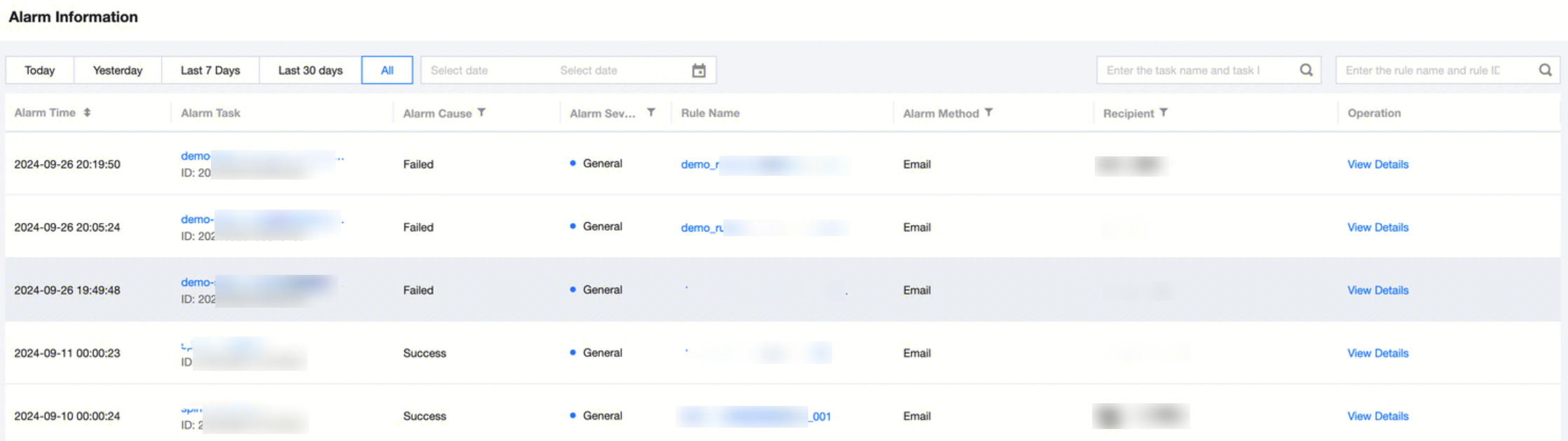
Alarm information generated after triggering the alarm rules for monitored objects will be displayed in the alarm information list. The list provides details and running logs of the alarm information as well as a basic information viewing feature.
2. Click the Project List in the left menu to find the target project to operate on the Data Management feature.
3. After selecting the project, click to enter the Data Development Module.
4. Click the Alarm Information in the left-side menu to enter the alarm information management page.
Description
Information
Description
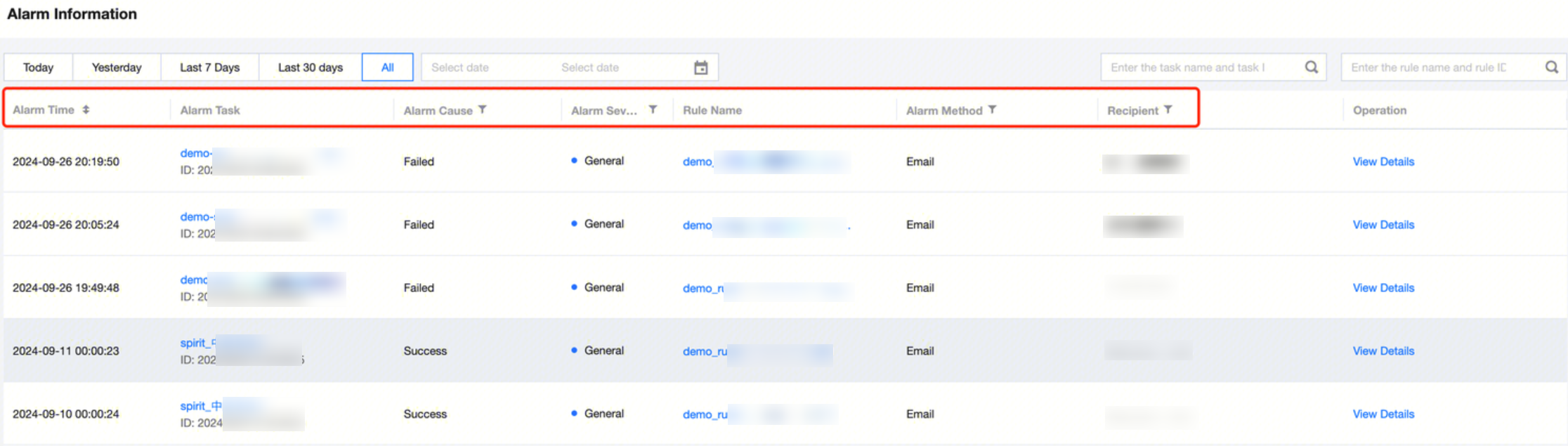
Alarm Time
Show the generation time of the alarm information.
Alarm Task
Display the name and instance ID of the task instance that triggered the alarm information. Click the instance name to jump to the corresponding instance management page.
Alarm Cause
Show the cause of the current alarm information triggering.
Alarm Severity
Alarm level of the displayed alarm information: Normal, Important, Emergency.
Rule Name
Displays the alarm rule that triggered this alarm information. Click the rule name to navigate to the corresponding alarm rule management page.
Alert Method
Displays the channel through which the alarm information is sent.
Recipient
Displays the recipients of the alarm information.
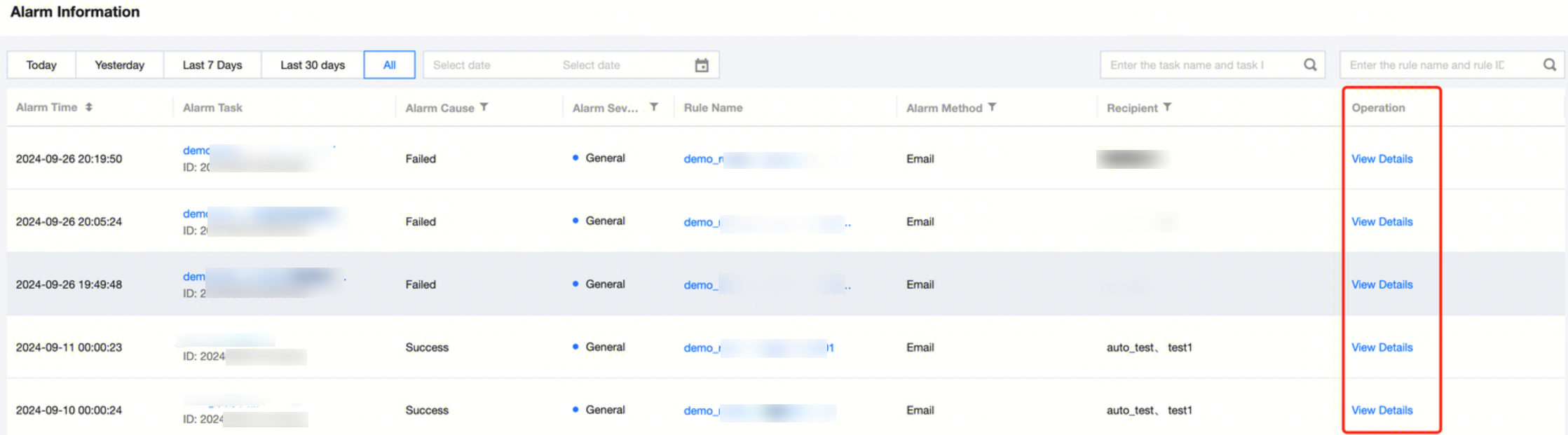
Operate alarm information
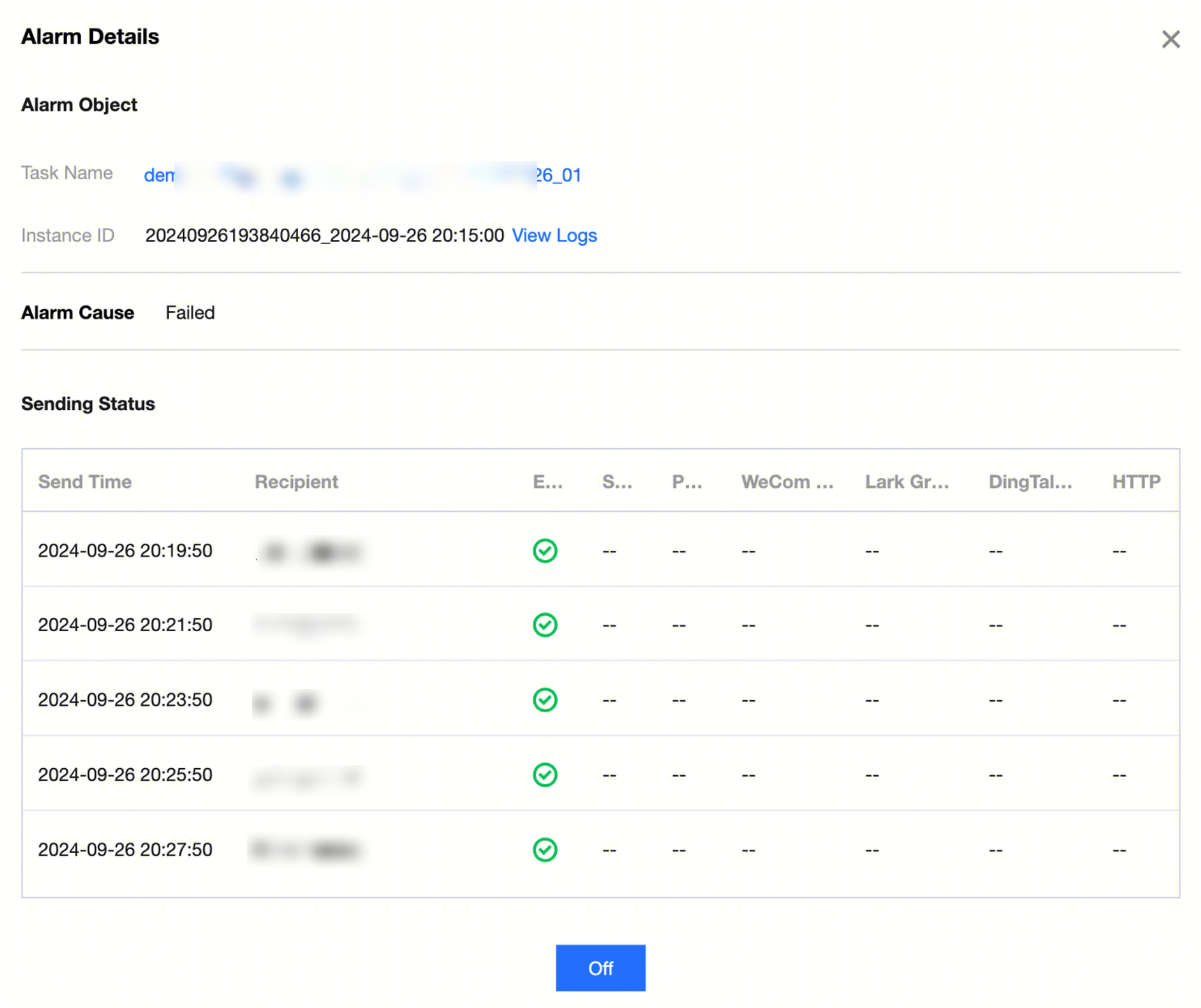
Click the 'View Details' under the action column. In the popup, you can see the alarm target, reason, and send status of the alarm information.
Feature Description
Information
Description
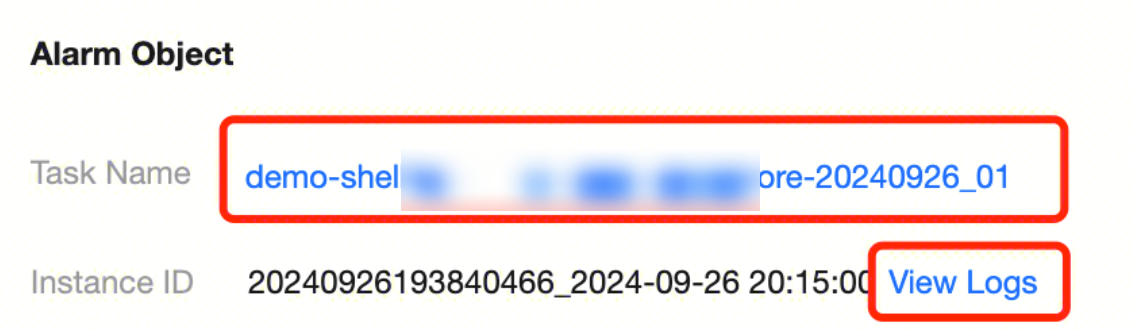
Alarm Object
Displays the task instance name and instance ID that triggered the alarm information.
Task Name: Displays the name of the computing task that triggered the alarm information. Click the task name to navigate to the page where the instance triggering the alarm is located.
Instance ID: Displays the instance ID that triggered the alarm information. Click 'View Logs' to navigate to the log information page of the corresponding instance.
Alarm Cause
Displays the trigger reason of the current alarm information based on the configured alarm rule trigger conditions.
For example, if the alarm condition selected: Run Timeout> Expected Completion Time.
Then the alarm reason displayed after the rule is triggered: Expected Completion Time Timeout.
Send Status
Displays the sending time of the current alarm information, recipients, and sending channels. From the status of the sending channels, you can see whether the message was successfully sent in each channel.
Sending Time: Displays the time the alarm information was sent to the recipient after the rule was triggered.
Recipient: Displays the recipient of the alarm information.
Sending Channel: Uses different icons to display the sending status of the alarm information across various channels.
Filter Alarm Information
Filter by Task Name, Task ID: Supports filtering the generated alarm information by the name and ID of the computational task that triggered the alarm.
Filter by Rule Name, Rule ID: Supports filtering the generated alarm information by the name and ID of the alarm rule that triggered the alarm.