A branch node is a Logical Control Node provided by WeData Data Development. It allows the system to execute different downstream tasks based on various branch logic.
Use Limits
Note:
1. Currently, the test run of the workflow does not support parameter passing between tasks. Therefore, during the debugging of a branch node, you can specify the parameter values to be tested in the project parameters or task parameters.
2. A branch node supports up to 50 branch conditions.
3. Currently, a branch node cannot be cloned across projects.
Branch Node Usage
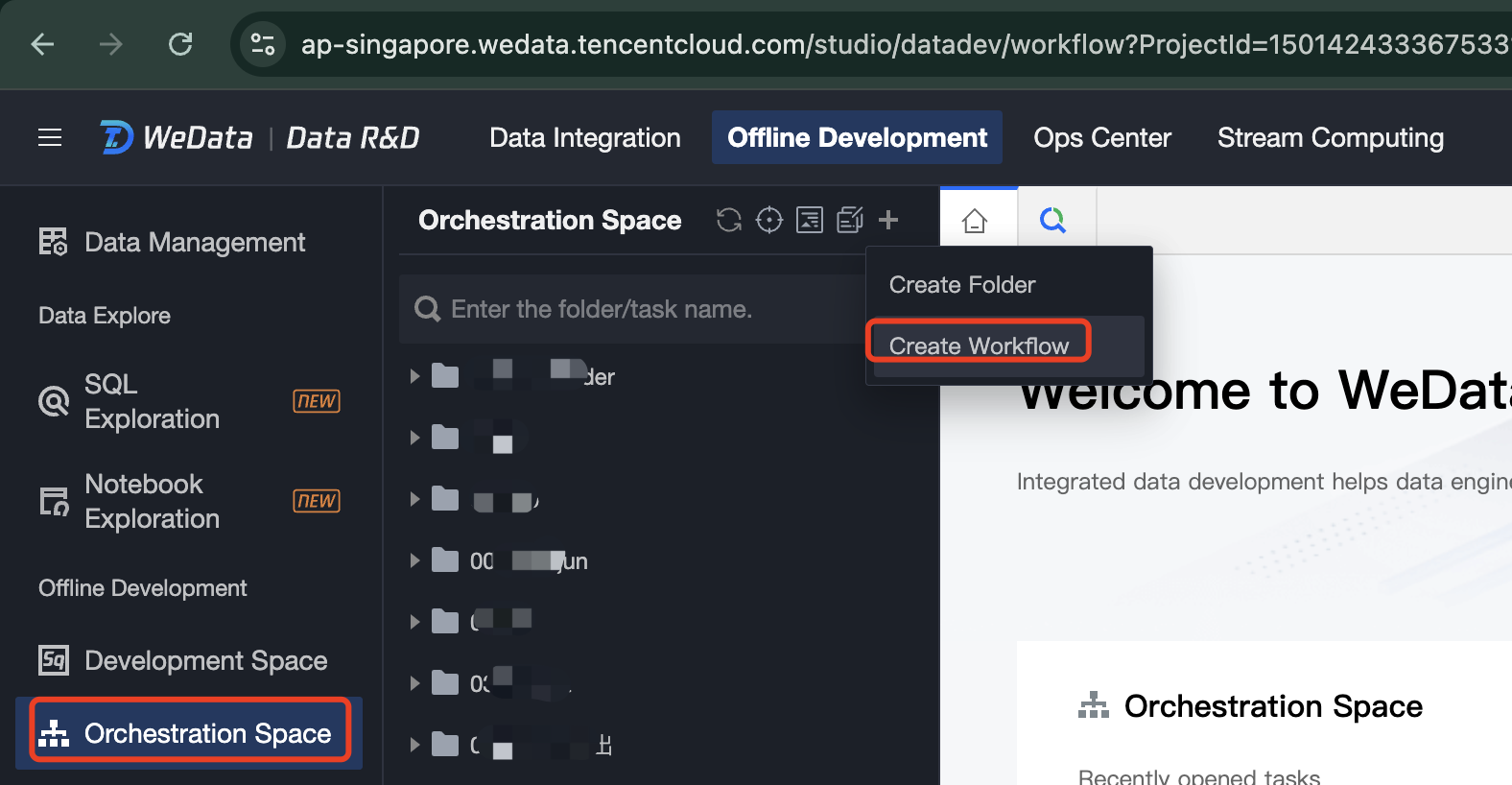
Enter the WeData console, go to Project Management, click Data Development in the project list. After entering the Data Development module, switch to Data Development > Orchestration Space interface.
1. Create a new workflow in the top left corner of the Orchestration Space.
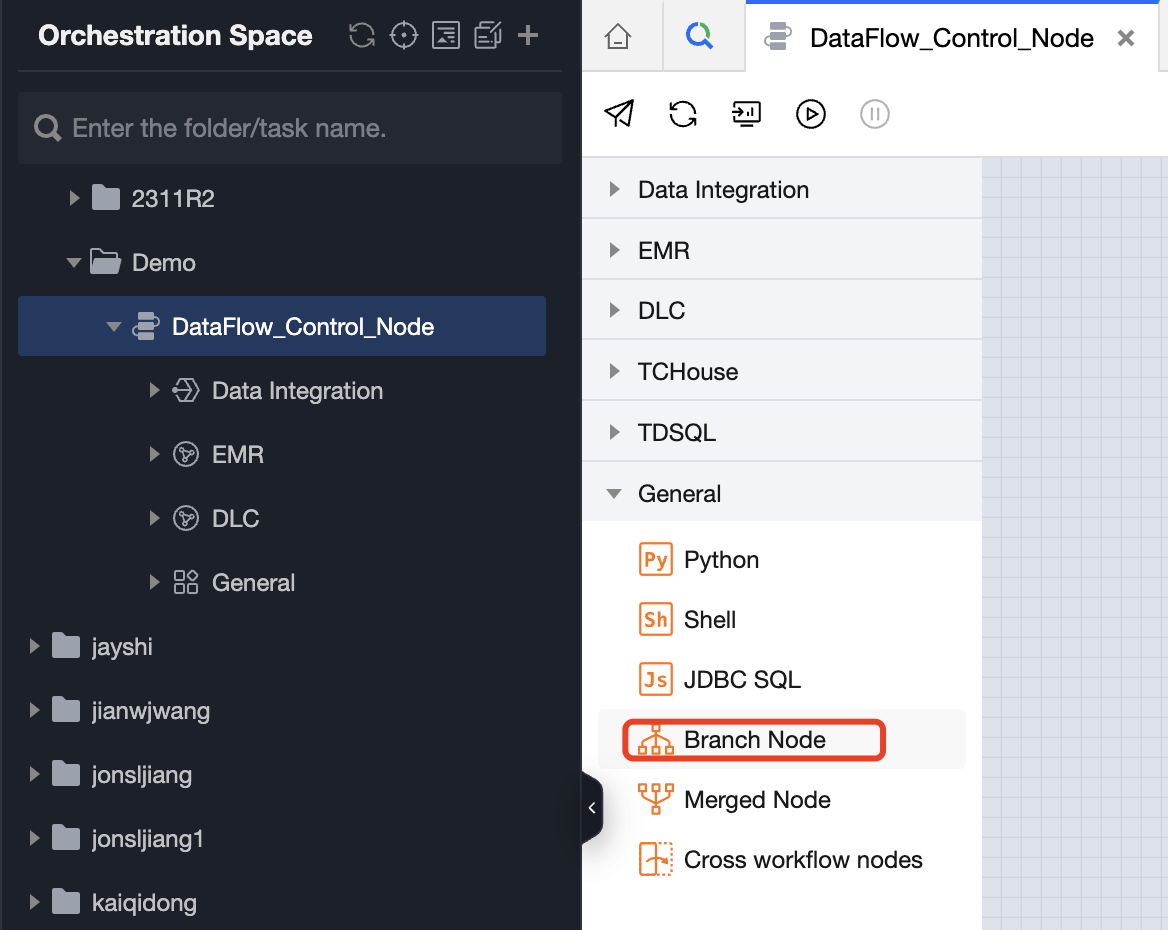
2. Double-click on the workflow, and under 'General', click on Branch Node to create a branch node.
3. In the dialog box for creating a new branch node task, enter the task name, click Confirm Create Task to go to the branch node configuration interface.
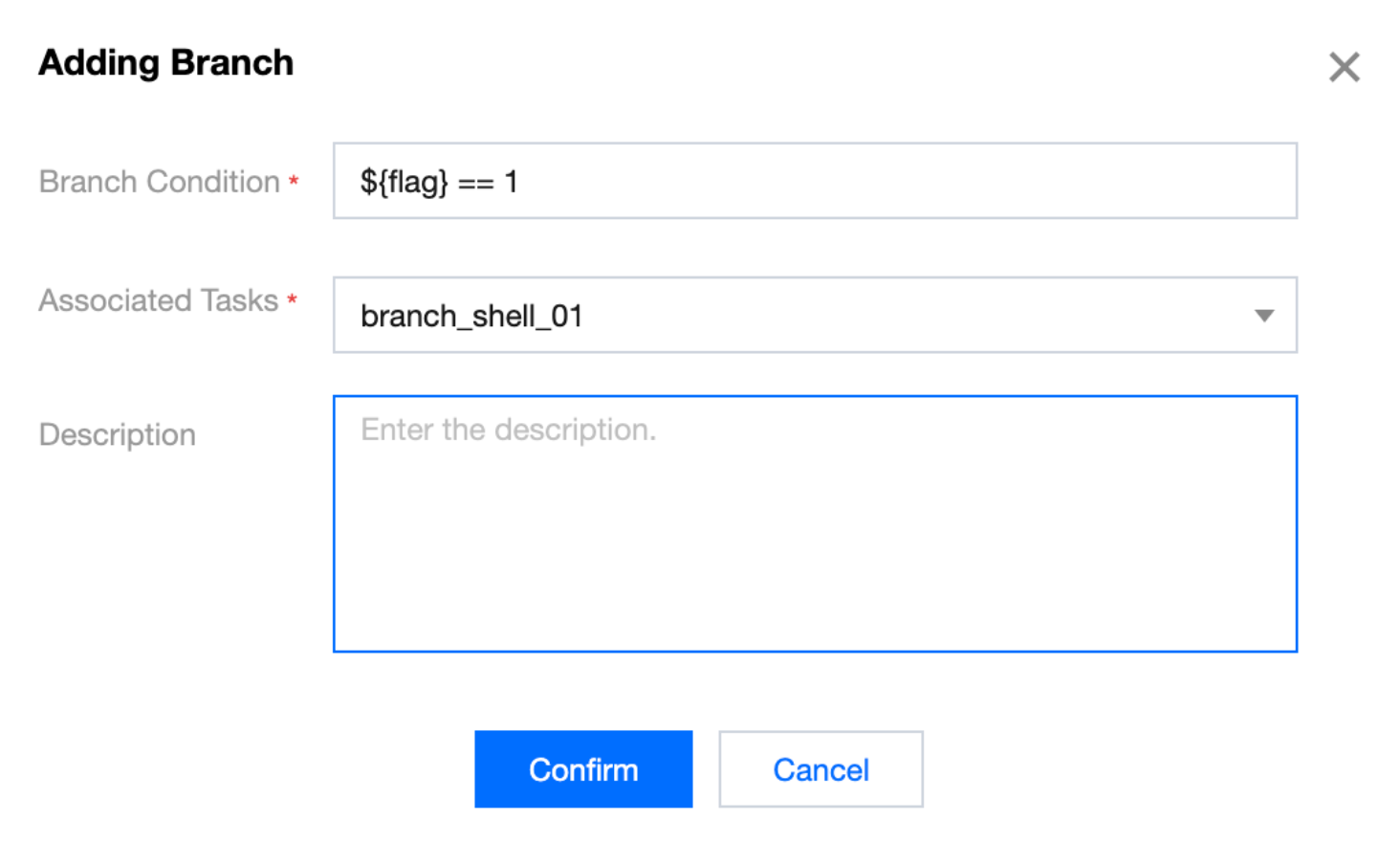
4. Configure the branch node conditions. Click Create Branch, input the branch conditions, associated tasks, and description information in the pop-up window.
Parameter name
Parameter description
Branch Conditions
Branch conditions only support logical judgment operations in Python. If the branch condition is determined to be true, it means the condition is met.
Associated Tasks
If the branch condition is determined to be true, the associated task will be automatically run.
Restrictions on Associated Tasks:
Note:
Duplicate selection of already selected associated tasks is not allowed.
Direct and indirect upstream tasks of branch nodes are not allowed.
When the branch condition is judged as false, the associated tasks will fail during workflow debug runs
In periodic scheduling, the status of instances will default to the 'skipped execution' state, and directly associated downstream tasks will also automatically change to the 'skipped execution' state.
Description
A simple description of the branch condition.
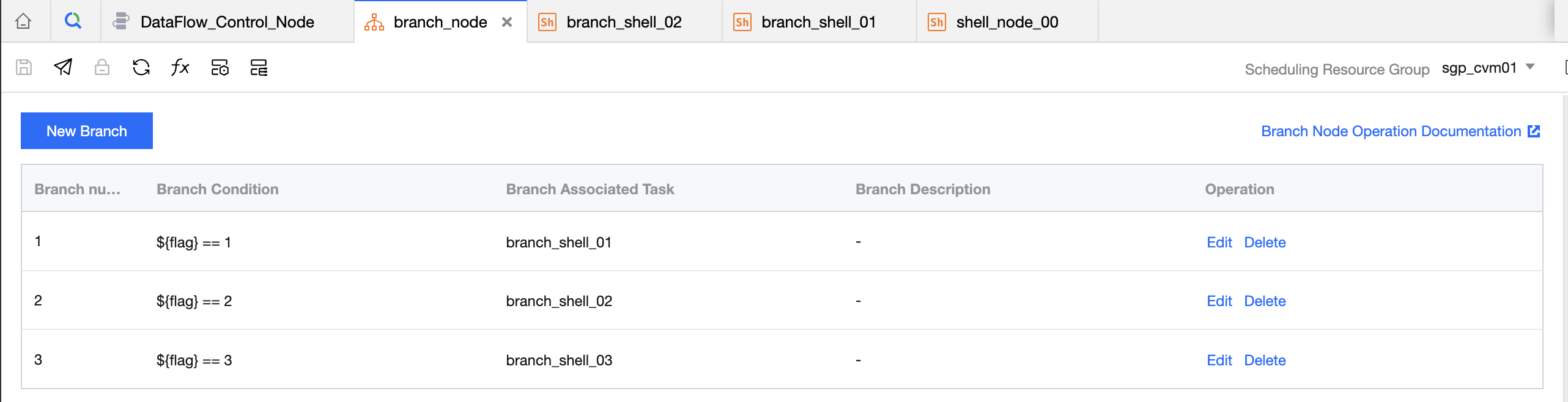
For example, in the configuration below, different scheduling parameter values execute different tasks. When ${flag} == 1, the branch_shell_01 task runs; when ${flag} == 2, the branch_shell_02 task runs.
5. click Save to save the branch node configuration.
6. click Submit in the toolbar to submit the task for periodic scheduling.
Configuration Samples
1. In Data Development > Orchestration Space, create a new workflow DataFlow_Control_Node.
2. In the workflow DataFlow_Control_Node, create a shell task shell_node_00. The task code is as follows:
echo"hello"echo"1,2,3"
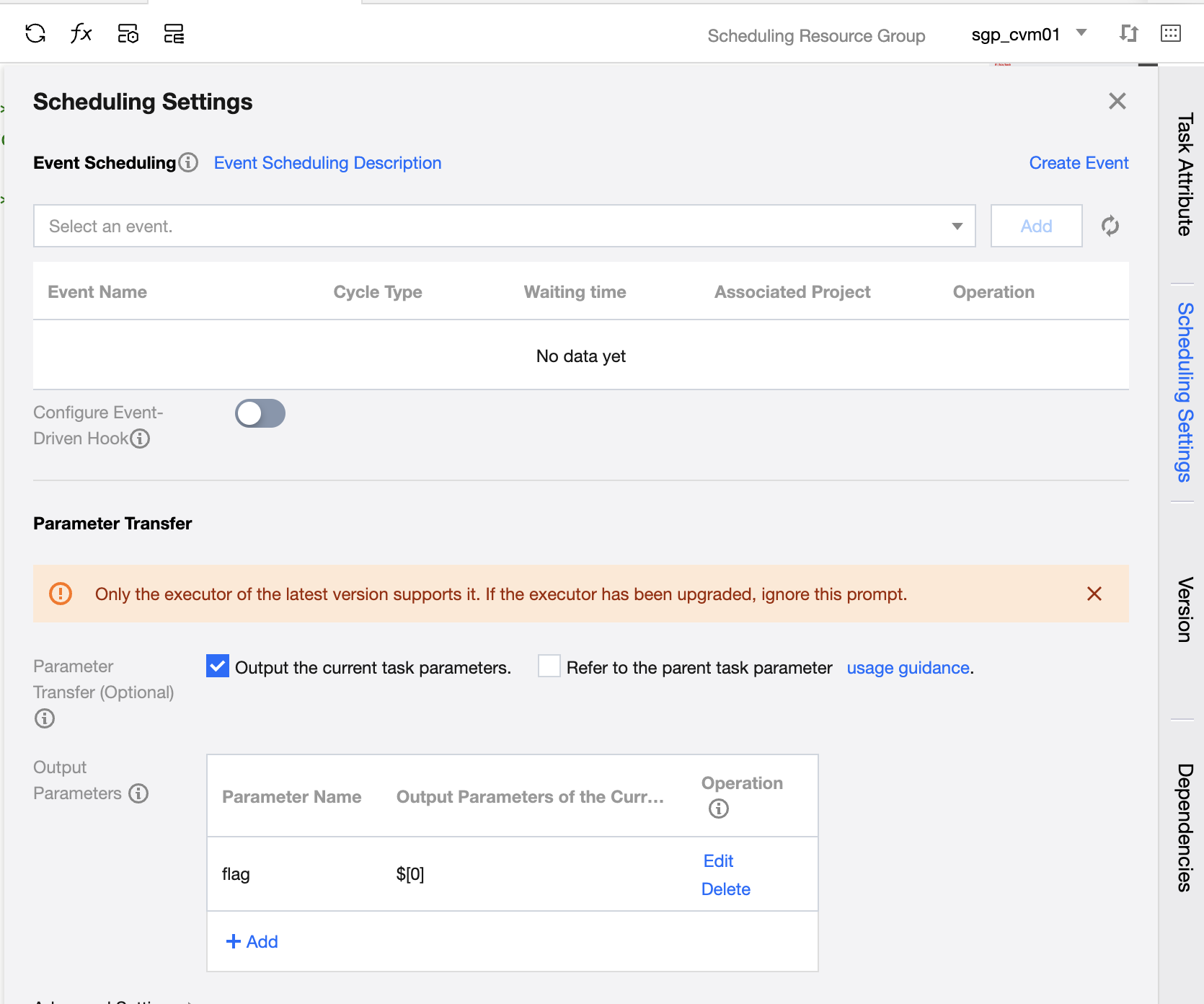
3. In the task's Scheduling Settings > Parameter Passing, configure the output of the current task parameter, parameter name flag. After the task completes its run, the flag value is 1.
4. Create downstream nodes for the branch node. For example, the branch node has three downstream tasks: branch_shell_01, branch_shell_02, and branch_shell_03. Print the corresponding task name in each of the three tasks. For example, the task code for the three branch shells is:
echo"hello - branch_shell_1"
echo"hello - branch_shell_2"
echo"hello - branch_shell_3"
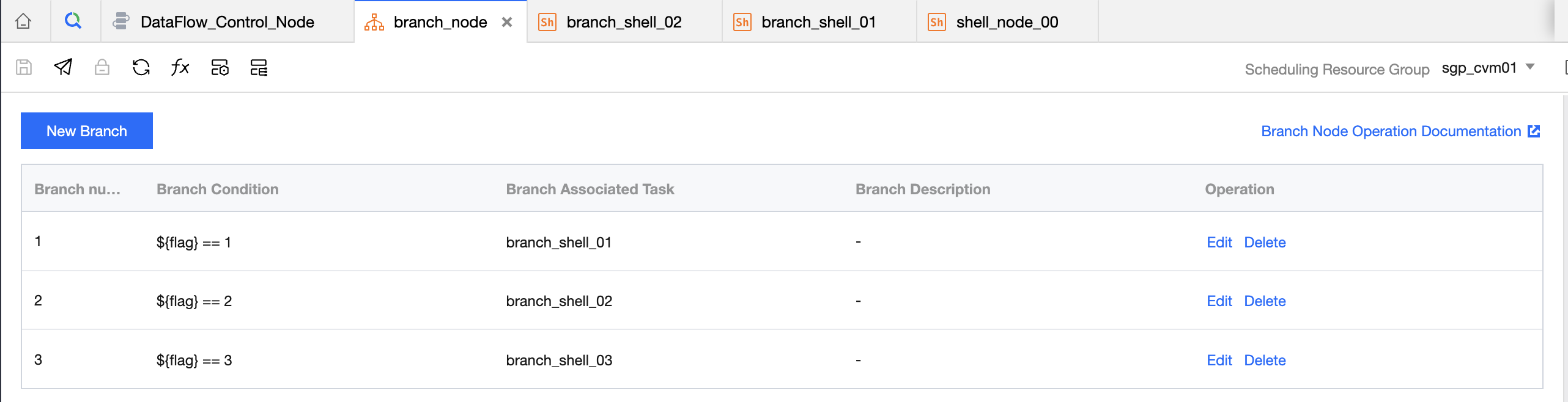
5. Create a branch node branch_node, configure the branch conditions and associated branch tasks, and save the task. The configuration is as follows:
Branch Conditions
Associated Branch Tasks
${flag} == 1
branch_shell_01
${flag} == 2
branch_shell_02
${flag} == 3
branch_shell_03
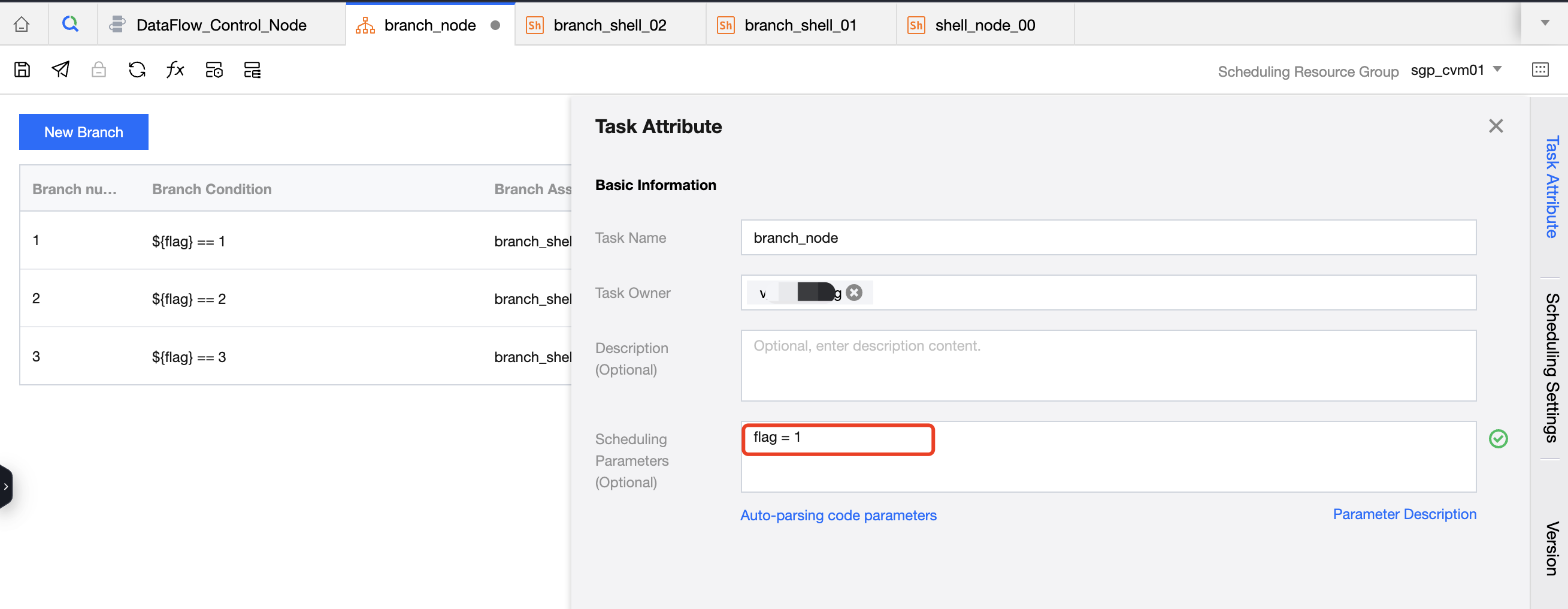
6. In Task Attributes > Scheduling Parameters, define the scheduling parameter value: flag = 1, and save the task.
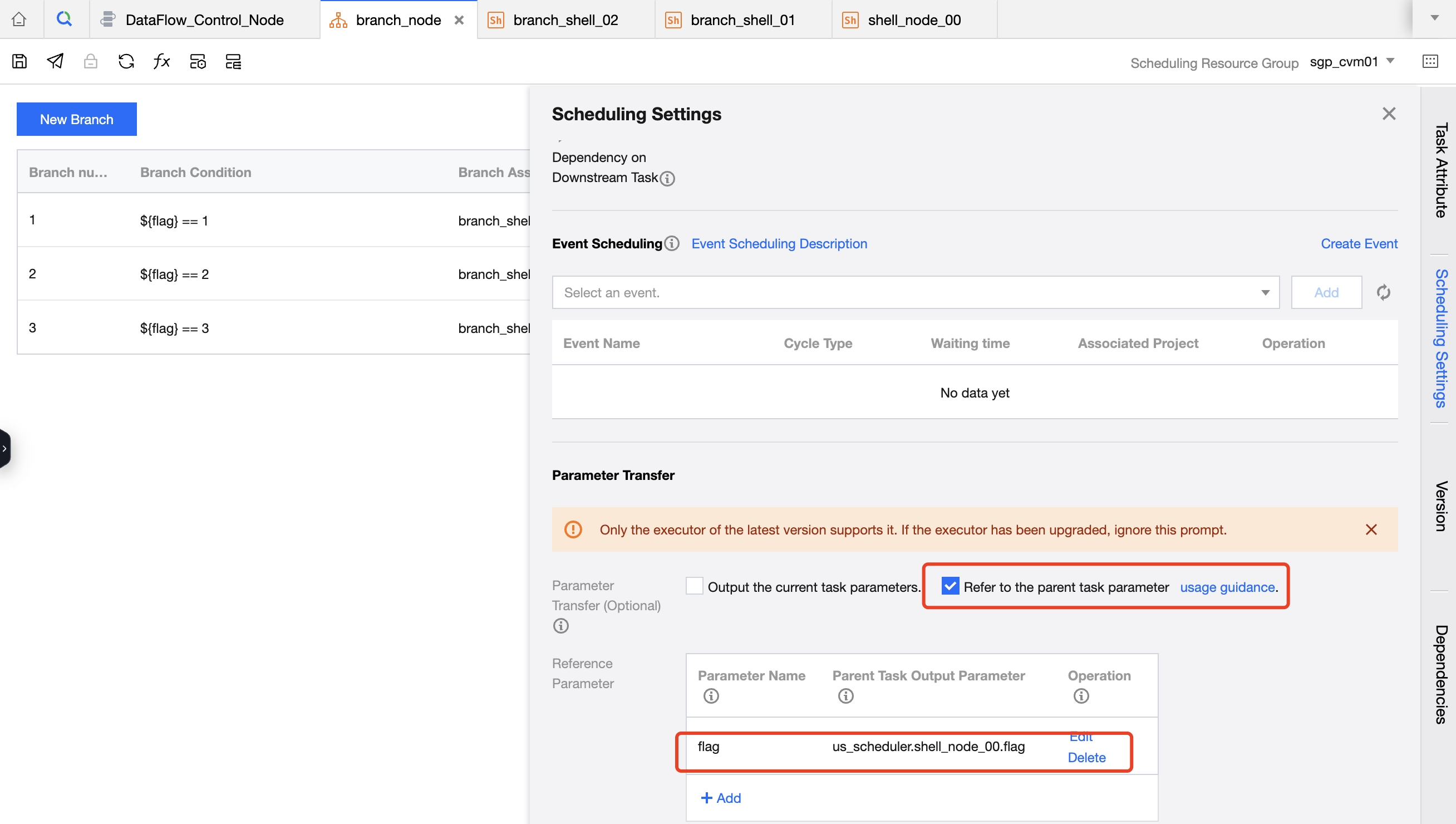
7. Set shell_node_00 as the upstream for branch_node. In Parameter Passing, check to reference the parent task parameters, set the parameter name to flag, and set the parent task output parameter to shell_node_00.flag.
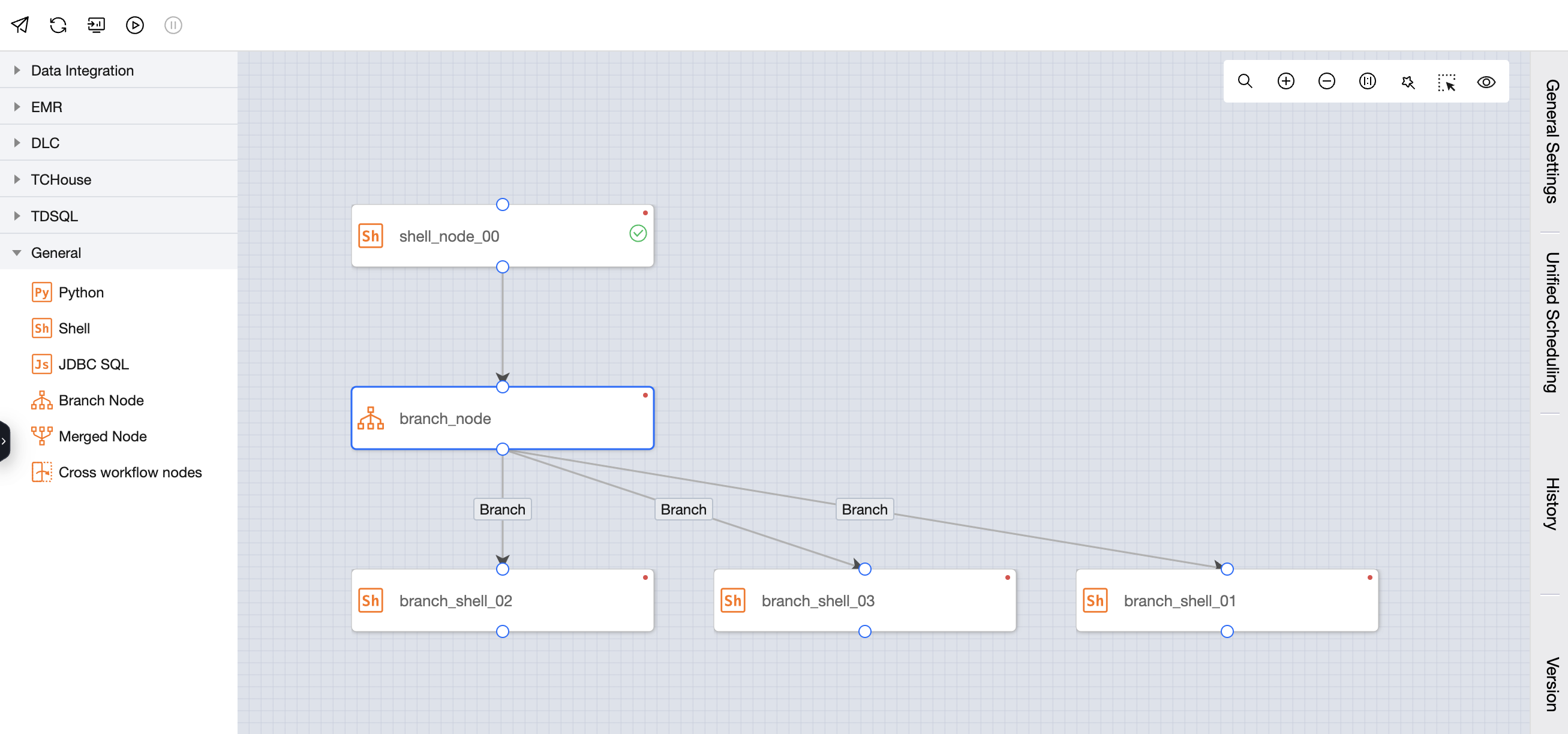
8. Finally, go back to the workflow to check. The workflow configuration is as follows:
9. Debug Run
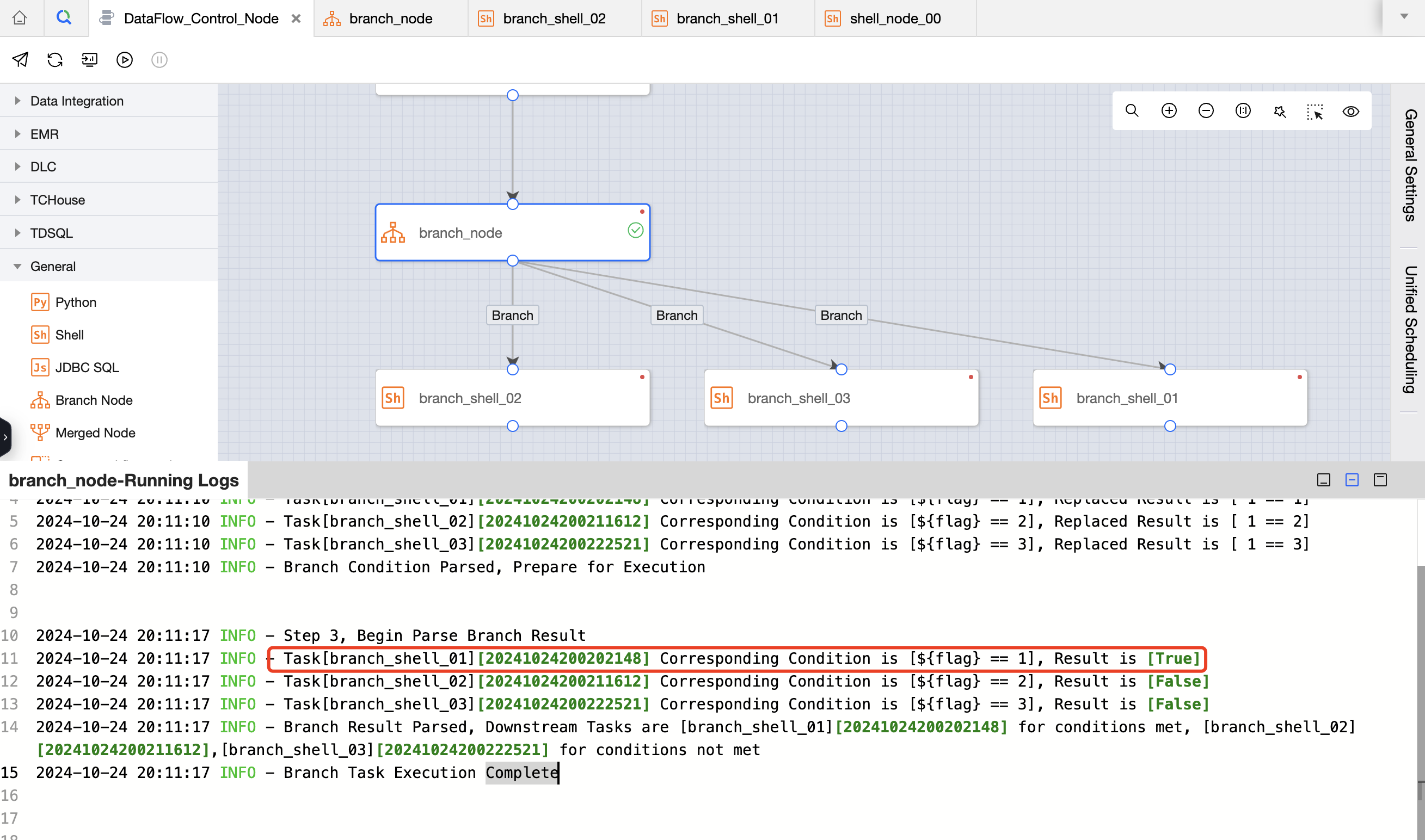
9.1 On the workflow toolbar, click Test Run to test the workflow and see the effect:
9.2 Right-click to view the running log of the branch node branch_node. Branch condition 1 is met, so branch_shell_01 is executed.
9.3 Right-click to view the execution log of the task branch_shell_02. Since the condition is not met, branch_shell_02 is skipped. Similarly, branch_shell_03 is skipped due to unmet conditions.
10. Submit for publishing and view periodic scheduling
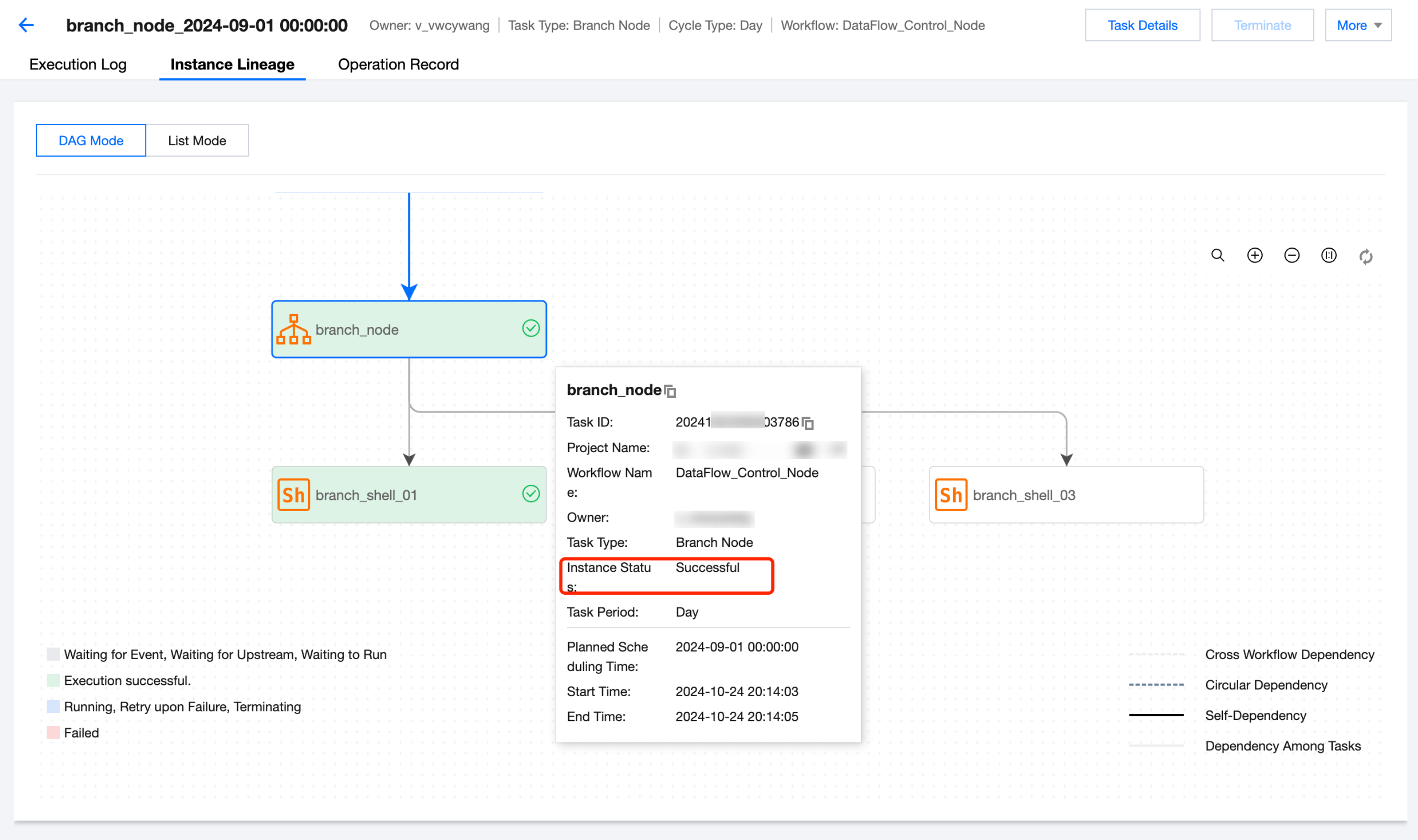
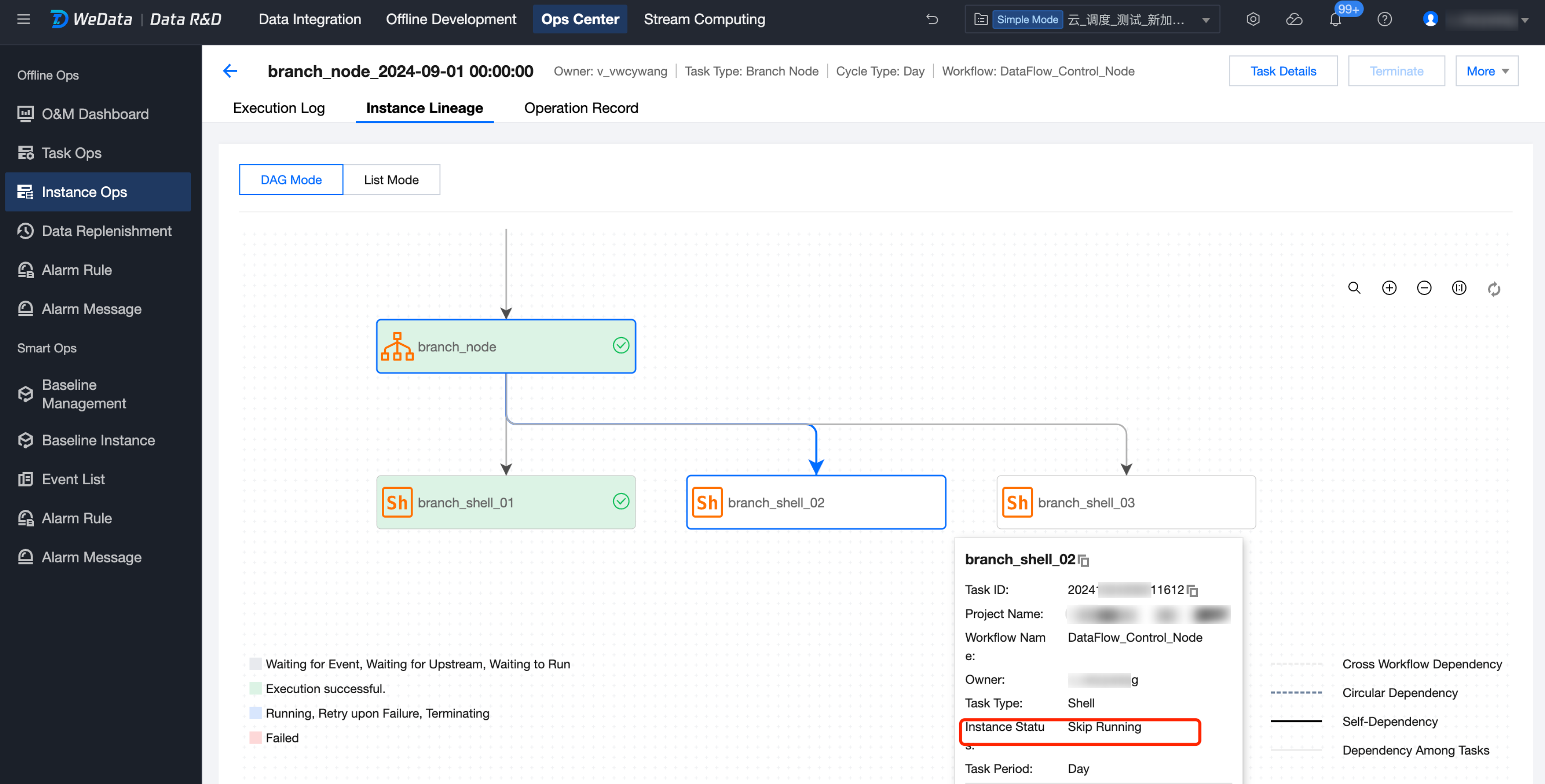
10.1 Click the Submit button on the workflow toolbar, select the tasks in the current workflow for submission, and you can view the instance status in periodic scheduling.
10.2 You can see that branch_shell_01 is in a successful state, and branch_shell_03 is in a skipped state.