You can manage GooseFS configurations through the GooseFS console on the GooseFS cluster details page. For practical guidance on GooseFS cluster configuration, please refer to GooseFS Cluster Configuration Practice. The following gives you a detailed introduction on how to manage GooseFS cluster configurations.
2. In the left navigation, click GooseFS Cluster List to enter the GooseFS cluster list page.
3. Select the GooseFS cluster to manage, open the cluster details page, choose the configuration management option from the sidebar, and enter the configuration management subpage.
4. GooseFS supports 4 configuration file modification methods. Click to modify the configuration, enter the edit page, proceed with editing, then click save to complete configuration distribution. Configuration items are described below:
goosefs-site.properties: GooseFS service configuration file, used to manage cluster data load, cache, and elimination policy configurations.
goosefs-env.sh: A dependent environment script file used to manage environment variables in the GooseFS cluster.
log4j.properties: The log output configuration for GooseFS service, used to manage various logs such as access logs, system logs, and monitoring information during operation.
core-site.xml: The configuration for the underlying storage system connected to GooseFS, used to manage storage systems integrated with the GooseFS cluster, such as Cloud Object Storage (COS) and Cloud HDFS (CHDFS).
5. Click save to distribute the configuration to all nodes in the cluster. The service must be restarted after the configuration is complete to take effect.
Note:
After configuration issuance, it will overwrite the existing historical configuration. Rollback is temporarily not supported after overwriting. Proceed with caution.
After configuration issuance, you need to restart the service on the node management page. Observe whether the configuration takes effect after the service restart. If not, try re-issuing the configuration.
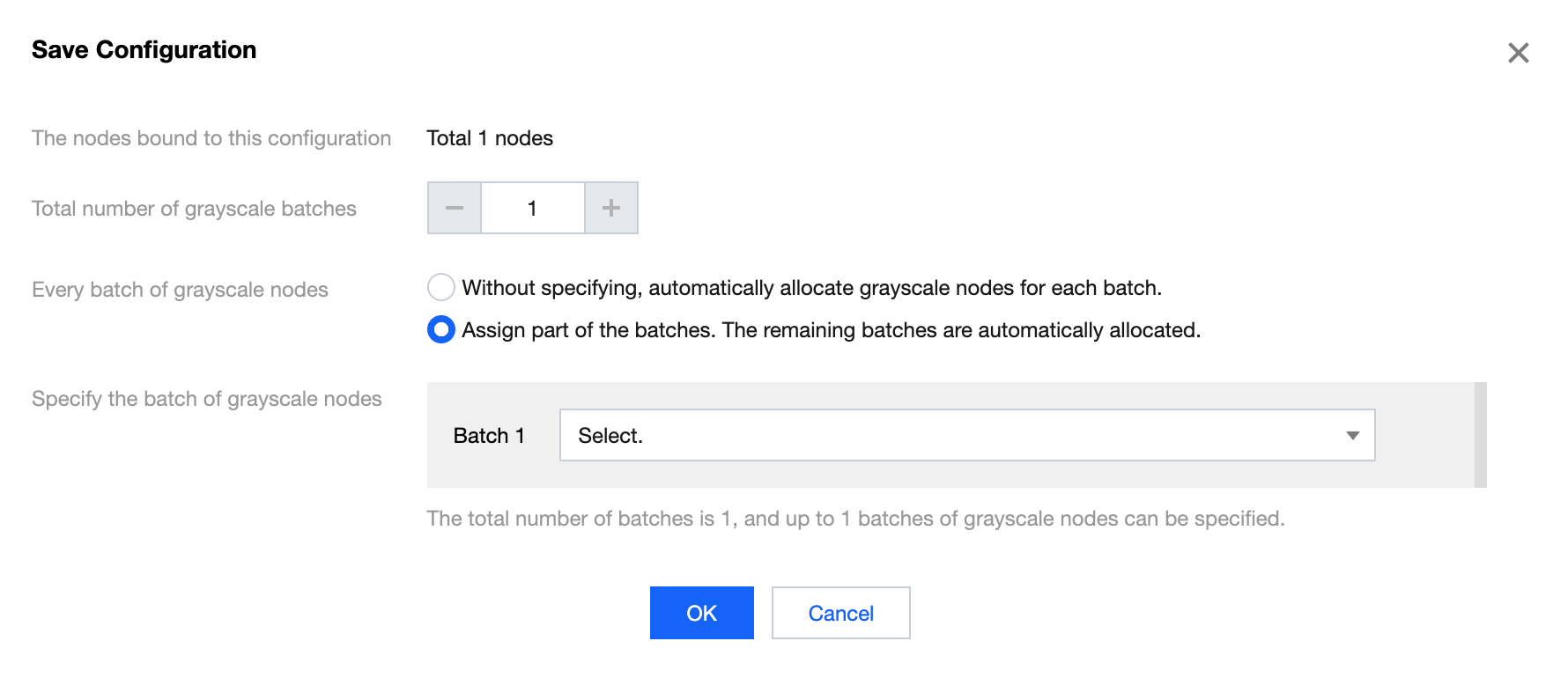
6. When releasing configurations for online services, you may need to configure grayscale settings node by node to observe whether the distributed configuration meets business expectations. GooseFS provides grayscale configuration capability. During the process of saving configurations, you can set grayscale batches and specify grayscale nodes for each batch.