Creating a Security Group
Download
포커스 모드
폰트 크기
Operation Scenario
A security group is a virtual firewall for CVM instances. Each CVM instance must belong to at least one security group. Tencent Cloud provides two templates: Open all ports to the Internet and Open ports 22, 80, 443, and 3389 and ICMP protocol to the Internet. With these templates, you can create a default security group when creating a CVM instance if you have not yet created a security group.
If you do not want your CVM instance to join the default security group, you can create another security group in the CVM console as follows:
Steps
1. Log in to CVM Console.
2. In the left sidebar, click Security Group to enter the security group management page.
3. On the security group management page, choose Region and click +Create.
4. In the Create a security group window that appears, complete the configuration, as shown in the following figure:
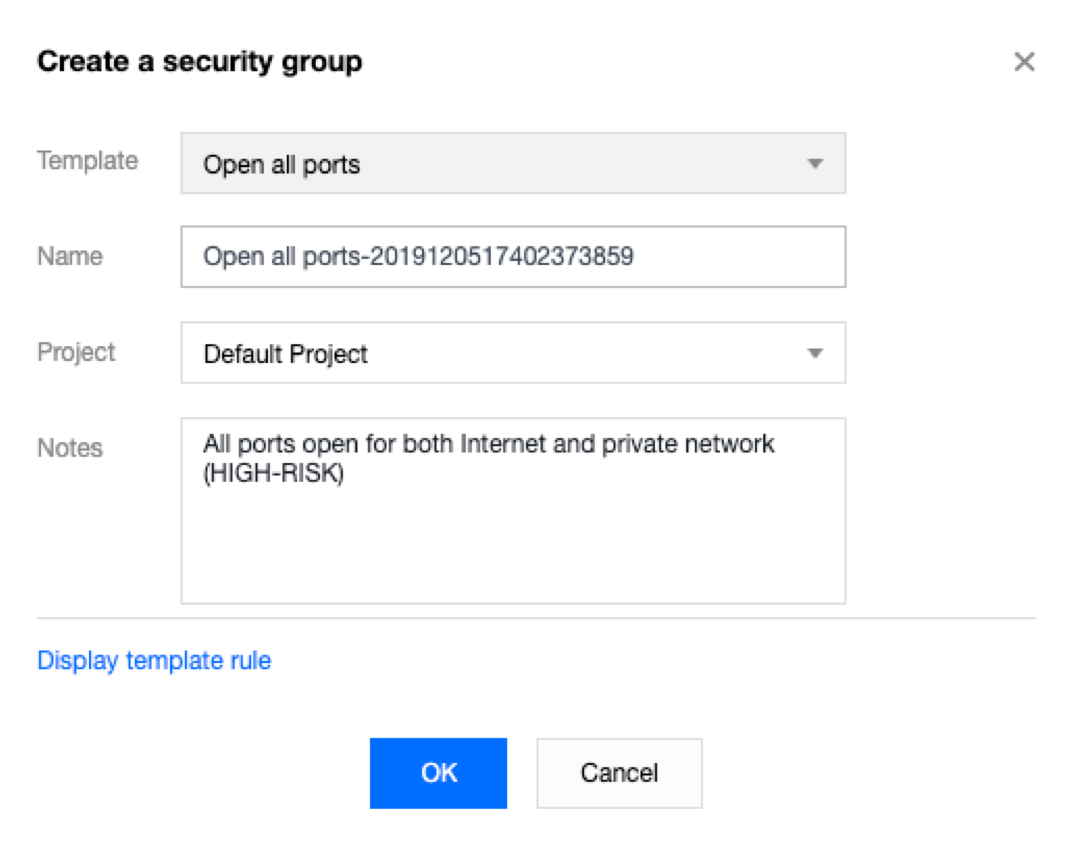
Template: based on the services to be deployed for the CVM instances in the security group, select an appropriate template to simplify security group rule configuration, as described in the following table:
Template | Description | Scenario |
Open all ports to the Internet | By default, all ports will be opened to the Internet and private network, which however may incur security risks. | - |
Open ports 22, 80, 443, and 3389 and the ICMP protocol to the Internet | By default, ports 22, 80, 443, and 3389 and the ICMP protocol will be opened to the Internet. In addition, all ports will be opened to the private network. | The web service needs to be deployed for instances in the security group. |
Custom | After creating a security group, you can add security group rules as required. For details about the operation, see Adding Security Group Rules. | - |
Name: customize the name of a security group.
Project: by default, the Default project is selected. You can also specify another project to facilitate future management.
Remarks: briefly describe the security group to facilitate future management.
5. Click OK to finish creating the security group.
If you select the Custom template when creating a security group, click Set rules now after the creation to add security group rules.
피드백