TencentDB for SQL Server supports both private and public network addresses, with the former enabled by default for you to access your instance over the private network and the latter enabled or disabled as needed. To access your database instance from a Linux or Windows CVM instance over the public network, you can enable the public network address. You can also enable public network access through CLB, but you must configure security group rules in this case.
This document describes how to bind a TencentDB for SQL Server instance to CLB to enable public network access, connect to the instance through SQL Server Management Studio (SSMS), and run a simple query.
Prerequisites
You have applied to use the real server feature. Currently, this feature is in beta testing. To experience this feature, submit a ticket for application.
Note:
Enabling the public network services through CLB is exclusively applicable when the CLB instances and the SQL Server instances belong to the same VPC network. It is currently not supported for instances across different VPC networks.
Step 1. Purchase a CLB instance
Note:
If you already have a CLB instance in the same region as TencentDB for SQL Server, skip this step.
Go to the CLB purchase page, select the configuration, and click Buy Now.
Note:
Region: You need to select the region where the TencentDB for SQL Server instance is.
Step 2. Configure the CLB instance
The following describes how to configure the CLB instance in the same VPC as the database instance and in a different VPC respectively.
Scenario: Deploying the CLB instance in the same VPC as the TencentDB for SQL Server instance
1. Enable cross-VPC access so that the CLB instance can be bound to another private IP.
a. Log in to the CLB console, select the region, and click the target instance ID in the instance list to enter the instance management page.
b. On the Basic Info page, click Configure in the Real Server section.
c. In the pop-up window, click Submit.
2. Configure a public network listener port.
a. Log in to the CLB console, select the region, and click the target instance ID in the instance list to enter the instance management page.
b. On the instance management page, select the Listener Management tab and click Create below TCP/UDP/TCP SSL Listener.
c. In the pop-up window, complete the settings and click Submit.
Step 3. Bind a TencentDB for SQL Server instance
1. After creating the listener, click it in Listener Management and click Bind on the right.
2. In the pop-up window, select Other Private IPs as the object type, enter the IP address and port of the TencentDB for SQL Server instance, and click OK.
Note:
The login account must be a standard account (bill-by-IP). If binding fails, submit a ticket for assistance.
Step 4. Configure the TencentDB for SQL Server security group
1. Log in to the TencentDB for SQL Server console, select a region, and click the ID of the target instance in the instance list or Manage in the Operation column to enter the instance management page.
2. On the instance management page, select the Security Group tab, click Configure Security Group, configure the security group rule to open all ports, and confirm that the security group allows access from public IPs. For more information on configuration, see Configuring Security Group.
Step 5. Connect to the TencentDB for SQL Server instance over the public network
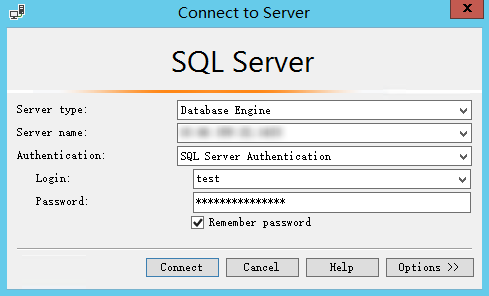
2. Start SSMS locally. On the Connect to Server page, enter the relevant information to connect to TencentDB. Click Connect and wait a few minutes before SSMS connects to your database instance.
Server type: Select Database Engine.
Server name: Enter the local IP address and port number of the CLB instance and separate them by a comma, such as 10.0.0.1,4000.
Authentication: Select SQL Server Authentication.
Login and Password: Enter the account name and password you configured when creating the instance account on the Account Management tab.
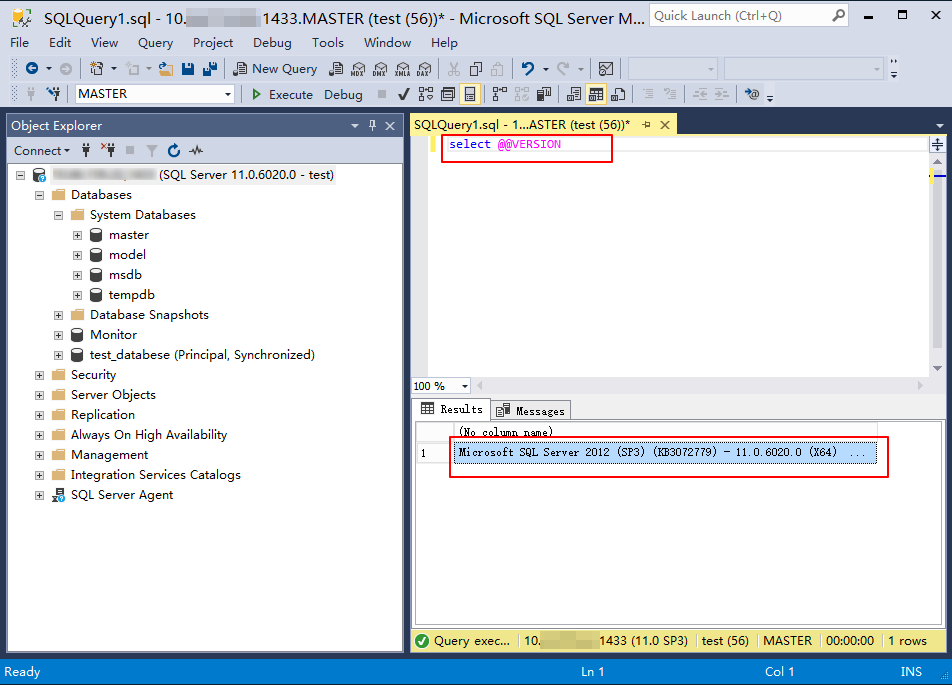
3. Once connected to the database, you can view the standard built-in system databases (master, model, msdb and tempdb) of SQL Server.
4. Now you can start creating your own databases and running queries for them. Select File > New > Query with Current Connection and type the following SQL query:
select @@VERSION
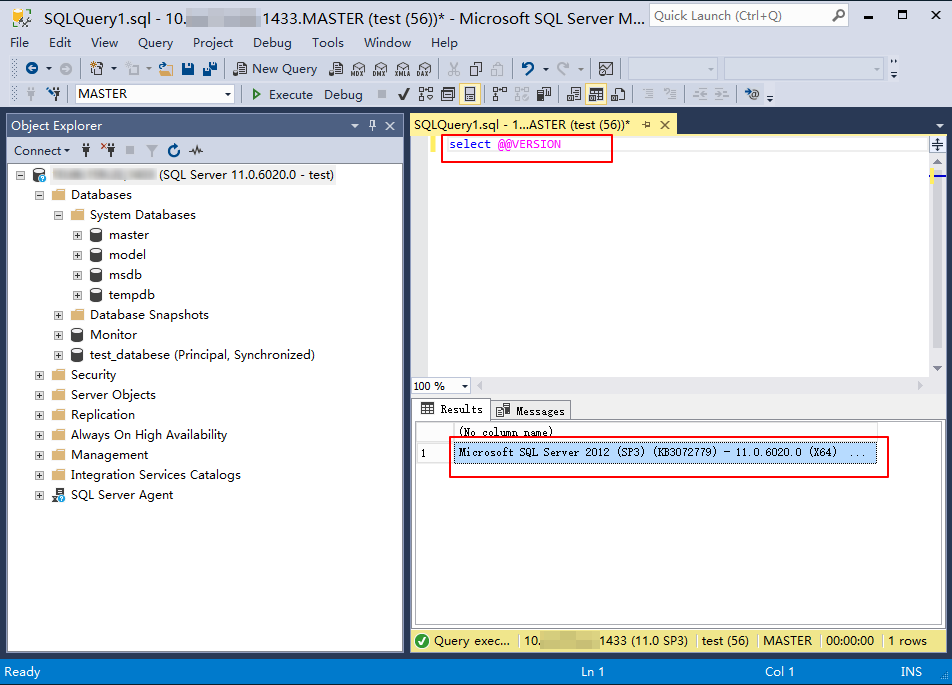
Run the query. SSMS returns the SQL Server version of TencentDB instance.