Configure Scheduled Backups
Download
포커스 모드
폰트 크기
TencentDB for SQL Server supports two methods for database backup: automatic backup and manual backup. For automatic backups, data backups are classified into two scenarios based on different backup retention policies: setting regular backup retention and setting periodic backup retention. The retention period for log backups in automatic backups remains consistent with that of regular data backups.
This article introduces you to how to set periodic backup retention via the console.
Notes for Automatic Backup Settings
Backup files are stored in an independent backup space and will not occupy the local disk space of the instance.
Do not perform DDL operations during backup to avoid table locking resulting in backup failure.
It is recommended to perform backups during off-peak hours.
If the amount of data is large, the process may take longer. Please be patient.
Read-only instances and Business Intelligence service instances do not support setting periodic backup retention.
Automatic Backup Settings Description
Increasing the retention period for data backups and log backups may result in additional backup storage billing costs.
Reducing the retention period for log backups may affect the data rollback cycle of the instance.
The free backup allowance is limited. If the free allowance is exceeded, the excess portion will be charged on a pay-as-you-go basis.
Local backups occupy the free storage allowance, while cross-region backups do not occupy the free storage allowance; that is, creating cross-region backups will incur billing costs.
Periodic retention applies only to local backups and not to cross-region backups. Cross-region backups are retained independently based on the retention period set for cross-region backups.
Differences and Explanations Between Regular Backups and Periodic Backups
Difference
Periodic backup builds upon regular automatic backups by providing a more flexible backup policy (allowing the number of retained backups to be set monthly, quarterly, or annually). It does not require retaining additional backup files, but the retention period for periodic backups differs from (and is longer than) that of regular backups.
Example Description
Instance A has its regular automatic backup cycle set to Monday, Tuesday, and Wednesday, with a periodic backup retention policy configured as monthly and retaining 2 backups. During the month, the instance will still perform automatic backups only on Mondays, Tuesdays, and Wednesdays. However, according to the periodic backup policy, the retention periods will differ. Among these backup files, regular backups are retained according to the set data backup retention period, while periodic backups follow the set periodic backup retention period. For example, if a Wednesday backup is designated as a periodic backup, its retention period will follow the periodic backup settings rather than retaining two copies of the same Wednesday backup file with different storage durations.
Enable Periodic Backup Retention
1. Log in to the SQL Server console.
2. Select a region above, locate the target instance, click Instance ID or Manage in the Operation column to go to the instance management page.

3. On the instance management page, select the Backup Management tab and click Auto Backup Settings.

4. In the pop-up dialog box, complete the settings for data backup and log backup, read and select the Backup Storage Billing Notes, and click OK.
Data Backup: The configuration items for data backup are set as follows.
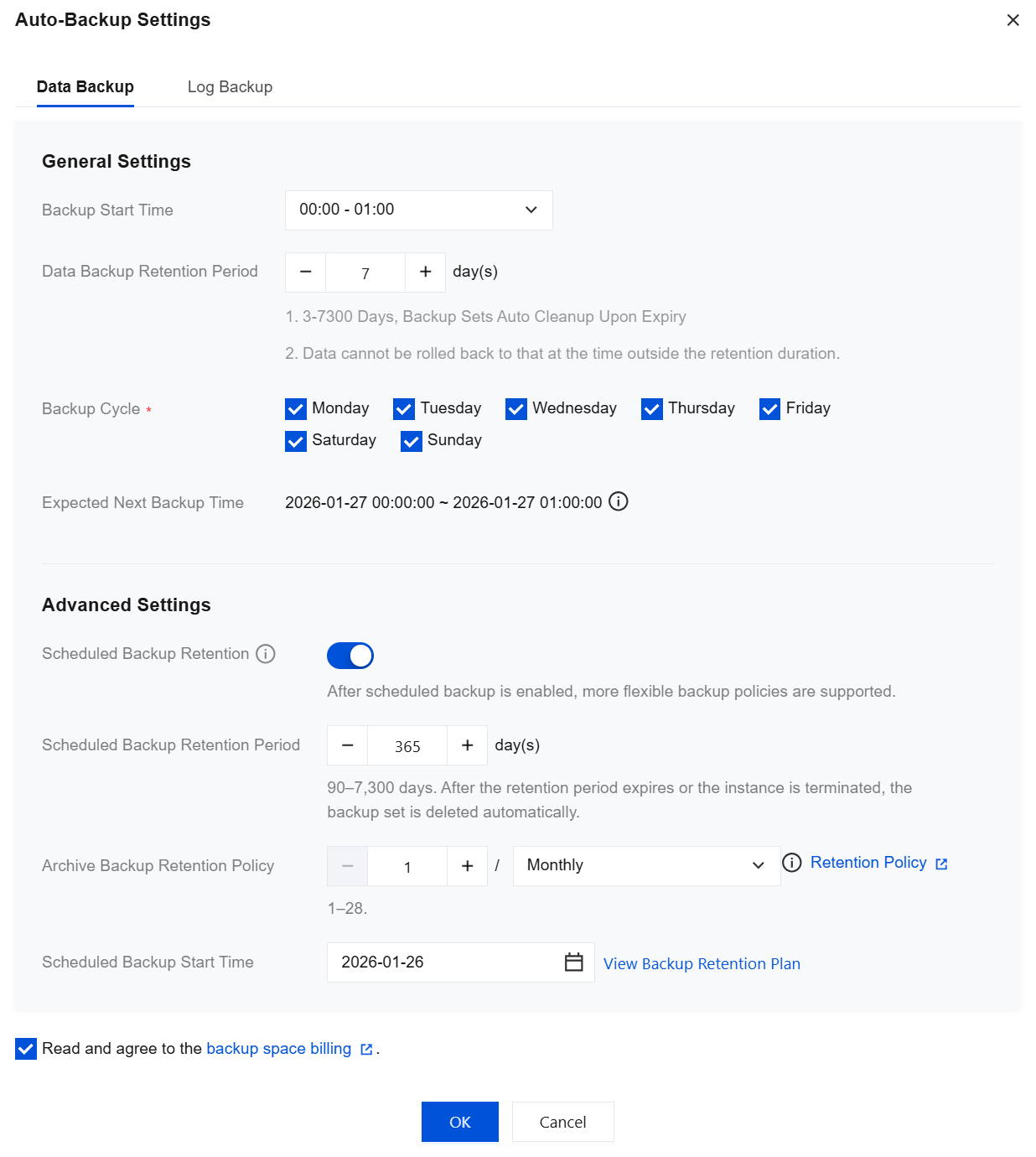
Parameter | Description |
Backup Start Time | Select a time period for backup initiation, preferably during off-peak hours. The backup start time indicates when the backup process begins, not when it ends. For example, if you select 00:00 - 01:00, the system will initiate a backup at a specific time point within this window. The exact initiation time depends on the backend backup policy and the backup system's status. Available time slots are as displayed on the console, such as 00:00 - 01:00, 01:00 - 02:00, and so on. |
Data Backup Retention Period | The default retention period is 7 days. You can customize the retention period (3-7300 days). Backups will be automatically deleted upon expiration. Note: You cannot roll back to a time point outside the retention period. Therefore, set the data backup retention period based on your actual business needs. |
Backup Cycle | Supports selecting any time from Monday to Sunday for performing backups. Note: To ensure that users' data backup retention time and backup cycle remain continuously available: If the backup retention days are set to less than 7 days, the backup cycle will default to daily backups, and all days from Monday to Sunday will be selected by default. If the backup retention days are set to 7 or more, backups must be performed at least twice a week. If only one backup is selected, the settings cannot be completed. |
Expected Next Backup Time | Displays the next backup time for the current instance. The console shows the time in Beijing (UTC+8). |
Scheduled Backup Retention | When scheduled backup retention is set up, you need to turn on this option to enable periodic backup retention. |
Scheduled Backup Retention Period | Backups are retained for 365 days by default. Custom retention periods (90 days - 7300 days) are supported. Backup sets are automatically deleted upon expiration or when the instance is terminated. Note: The retention period for scheduled backups must be longer than that for regular data backups. |
Archive Backup Retention Policy | Supports setting the number of backups to retain on a weekly, monthly, quarterly, or yearly basis. Note: The maximum number of retained backups varies for different time periods. When the number of backups to retain is set, ensure it is within the maximum limit. When the number of backups to retain is set to 1, the earliest valid backup in the current cycle will be preserved. When the number of backups to retain is set to 2, the first and an intermediate valid backup in the current cycle will be preserved. When the number of backups to retain > 2, backups are preserved at average time intervals within the current retention period. |
Scheduled Backup Start Time | Set the scheduled backup start time. The selectable time range is up to one month. |
Log backup: The configuration items for log backup are set as follows.
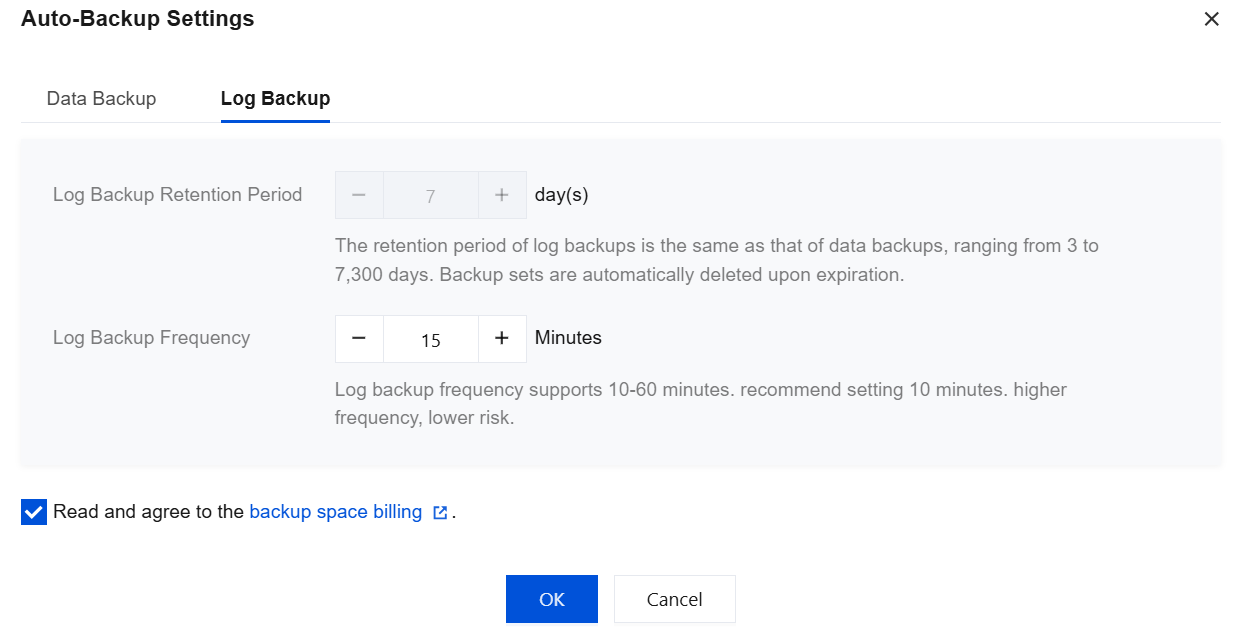
Parameter | Description |
Log Backup Retention Period | By default, it is consistent with the data backup retention period. Range: 3 - 7300 days. Backup sets are automatically deleted upon expiration. |
Log Backup Frequency | The default is 10 minutes. Range: 10 minutes - 60 minutes. It is recommended to set it to 10 minutes. The higher the frequency, the lower the risk. |
Modify Scheduled Backup Retention
After enabling periodic retention, you can modify the periodic retention policy. Refer to Enable periodic retention to reconfigure the parameters.
Note:
Changing the retention period for periodic backups will affect the retention duration of existing periodic backups, which will result in backups exceeding the retention period being cleaned up.
Changing the periodic backup retention policy will not affect backups retained under the previous policy, but will only affect new backups.
Changing the start time will not affect the start time of existing periodic backups, but only affects new backups.
Disable Regular Backup Retention
Note:
After it is disabled, no new periodic retention backups will be generated.
After disabling, existing backups will continue to be retained and automatically deleted upon expiration according to the original policy. You may also modify the periodic retention period to clean up existing periodic backups.
1. Log in to the SQL Server console.
2. Select a region above, locate the target instance, click Instance ID or Manage in the Operation column to go to the instance management page.
3. On the instance management page, select the Backup Management tab and click Auto Backup Settings.
4. In the pop-up window, set the button after Scheduled Backup Retention to disable, read and select Backup Storage Billing Notes, and click OK.
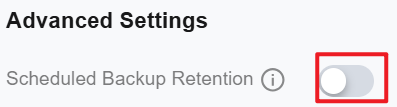
View Retention Plan
After setting the periodic backup retention policy and start date, you can click View Backup Retention Plan after the periodic backup start time to preview the backup schedule.

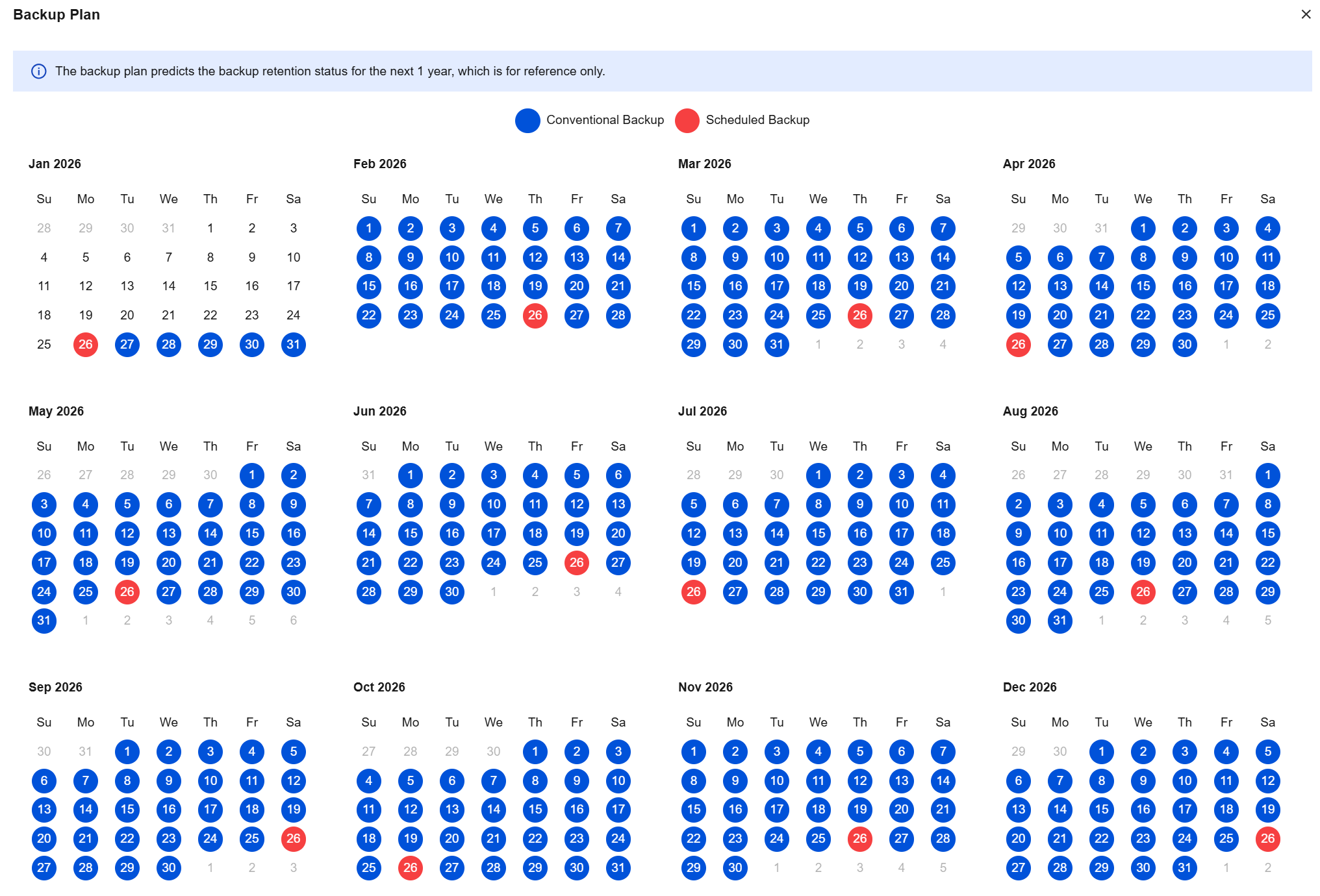
Blue dates indicate regular backup dates.
Red dates indicate periodic backup dates.
You can click Regular Backup or Periodic Backup to hide the corresponding date color coding for easier viewing.
The backup plan preview currently shows the backup retention status for the next year, for reference only.
Related APIs
API | Description |
This API (DescribeRegularBackupPlan) is used to query the instance's regular backup retention plan. |
피드백