Downloading Backup Files
Download
포커스 모드
폰트 크기
TencentDB for SQL Server console provides a list of backup files. You can download backup files via private and public network addresses, and use the downloaded backups to restore the database to another database (such as a self-built database). This document describes how to download backups (including local and cross-region backups) in the console.
Prerequisites
Backup files have been generated for your instance.
Operation Steps
Download Backup for Running Instances
1. Log in to the SQL Server console.
2. Select a region above, locate the target instance, click Instance ID or Manage in the Operation column to go to the instance management page.
3. On the instance management page, select the Backup Management page to view the corresponding backup files on the Data Backup tab or Log Backup tab.

4. In the data backup list or log backup list, locate the target backup file and perform corresponding operations based on the following scenarios.
Scenario 1: When the backup file format is archived backup files
4.1 In the Operation column of the backup list, click Download.
4.2 In the pop-up window, you can obtain the file download address, use the wget command for high-speed download, or choose local download.
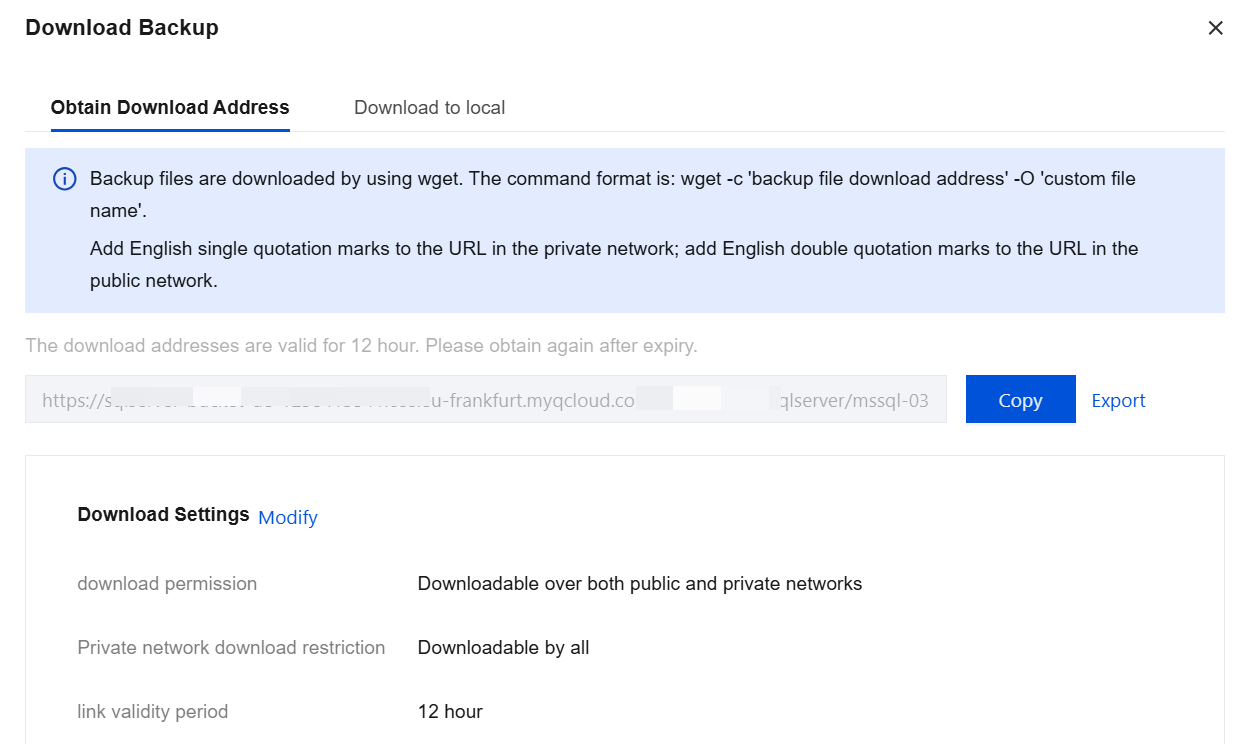
Only when you enable the cross-region backup feature and cross-region backups are generated will the region in the Download Address section be displayed. You can use the region drop-down list in the Download Address section to select the target region.
Copy the download address and use the wget command to download. The command format is as follows:
-- When in a private network environment, you must add English single quotes to the URL.wget -c'backup file download URL'-O'custom filename';-- When in a public network environment, you must add English double quotes to the URL.wget -c"backup file download URL"-O'custom filename';
You can also configure download limits as needed. Click Modify to set download permissions, private network download limits, and link validity period. After configuration, click OK to confirm. Click Cancel before the confirmation is performed to abort the current configuration.
download permission: Supports selecting Downloadable over both public and private networks or Downloadable only over a private network.
Private network download restriction: When the download permission is set to Downloadable over both public and private networks, the private network download limit defaults to Downloadable by all. When the download permission is set to Downloadable only over a private network, the private network download limit defaults to Downloadable by all, with options including Downloadable by all and Downloadable if conditions are met.
Downloadable if conditions are met: When Private network download restriction is set to Downloadable if conditions are met, you can restrict VPC and IP Address, with both conditions required.
VPC: You can set to include or exclude specific VPCs. All VPCs created under the current region are available for selection, and multiple selections are supported.
IP Address: You can set to include or exclude specific IP addresses. Multiple IP addresses should be separated by " , ".
link validity period: defaults to 12 hours, options include: 15 minutes, 30 minutes, 1 hour, 6 hours, 12 hours, 24 hours, 36 hours.
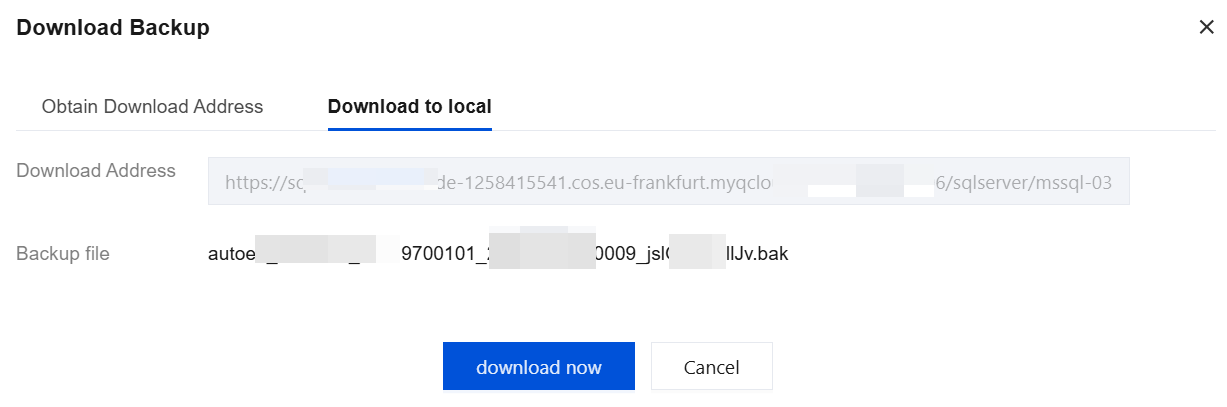
Only when you enable the cross-region backup feature and cross-region backups are generated will the region in the Download Address section be displayed. You can use the region drop-down list in the Download Address section to select the target region.
Click download now to download the backup file to your local device.
Note:
If you have set download restrictions before the backup file is downloaded, and your VPC and IP address are not within the permitted range, the local download option will not be displayed. To download the backup locally, ensure the VPC and IP address used meet your configured conditions, or modify the download restrictions.
Scenario 2: When the backup file is in the form of a single-database backup file
4.3 In the backup list's Operation column, click View Details.
4.4 In the pop-up window, locate the backup you want to download, and click Download in its Operation column.
4.5 The download operation at this point is the same as step 4.2 above.
Isolated Instance Backup Download
Instances in an isolated state also support backup download.
1. Log in to the SQL Server console.
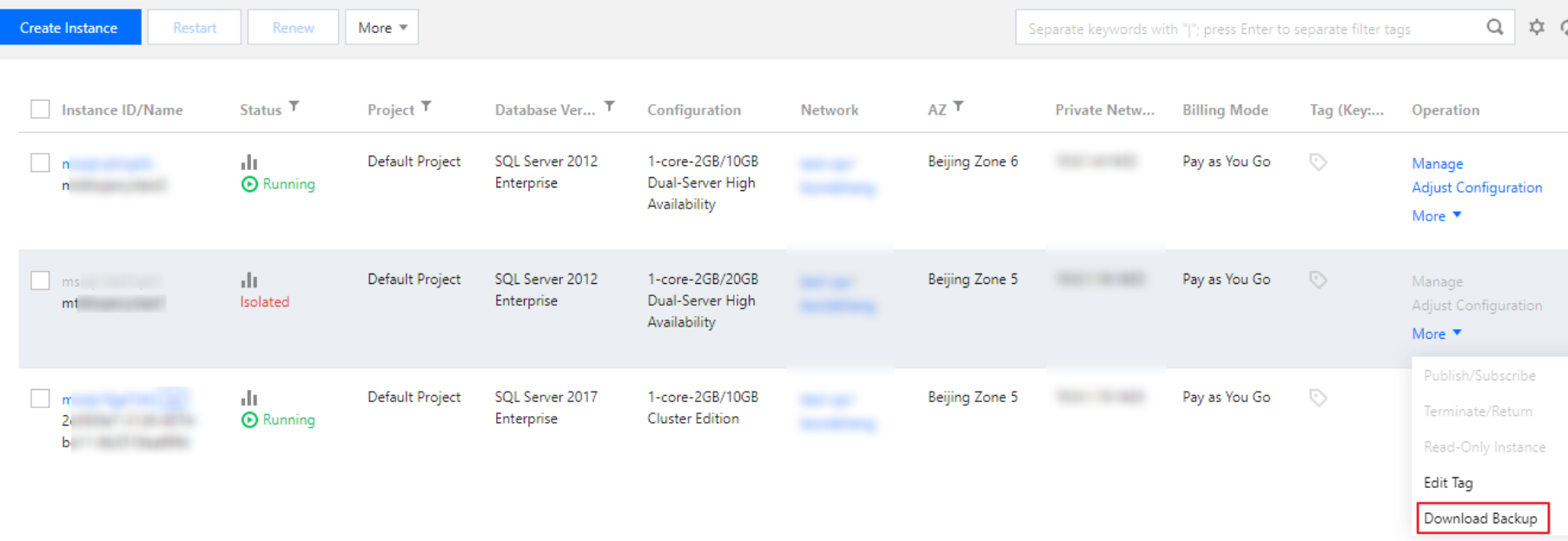
2. In the region selection bar at the top, locate the target instance, choose More > Download Backup in its Operation column, and go to the backup download page to proceed.
Note:
Isolated instance backup: The operations on the backup download page are the same as those for running instances. For the corresponding steps, you can refer to running instance backup download.
피드백