Scenarios
After enabling the Database Audit service, the system starts recording related operations of TencentDB for MongoDB. You can view the database audit log information at any time, including database request access time, client IP address, account name, execution statement, and time consumed by the execution statement.
Usage Instructions
Currently, only Tencent Cloud private network addresses are provided for downloading log files. You can download files via a Tencent Cloud CVM instance in the same region. (For example, to download the audit logs of a database instance in the Beijing region, use a CVM instance in the Beijing region.)
Log files are valid for 24 hours. You should download them promptly.
The number of log files for each database instance should not exceed 30. You need to delete the log files after download.
If the displayed status is Failed, there may be too many logs. You can narrow the time range to download log files in batches.
Prerequisites
The status of the replica set instance or sharded instance of TencentDB for MongoDB is Running.
Viewing Audit Logs
2. In the left sidebar, select MongoDB > Database Audit.
3. At the top of the right Database Audit page, select Region.
4. In the upper right corner of the audit instance list, select an instance with Audit Status being Enabled.
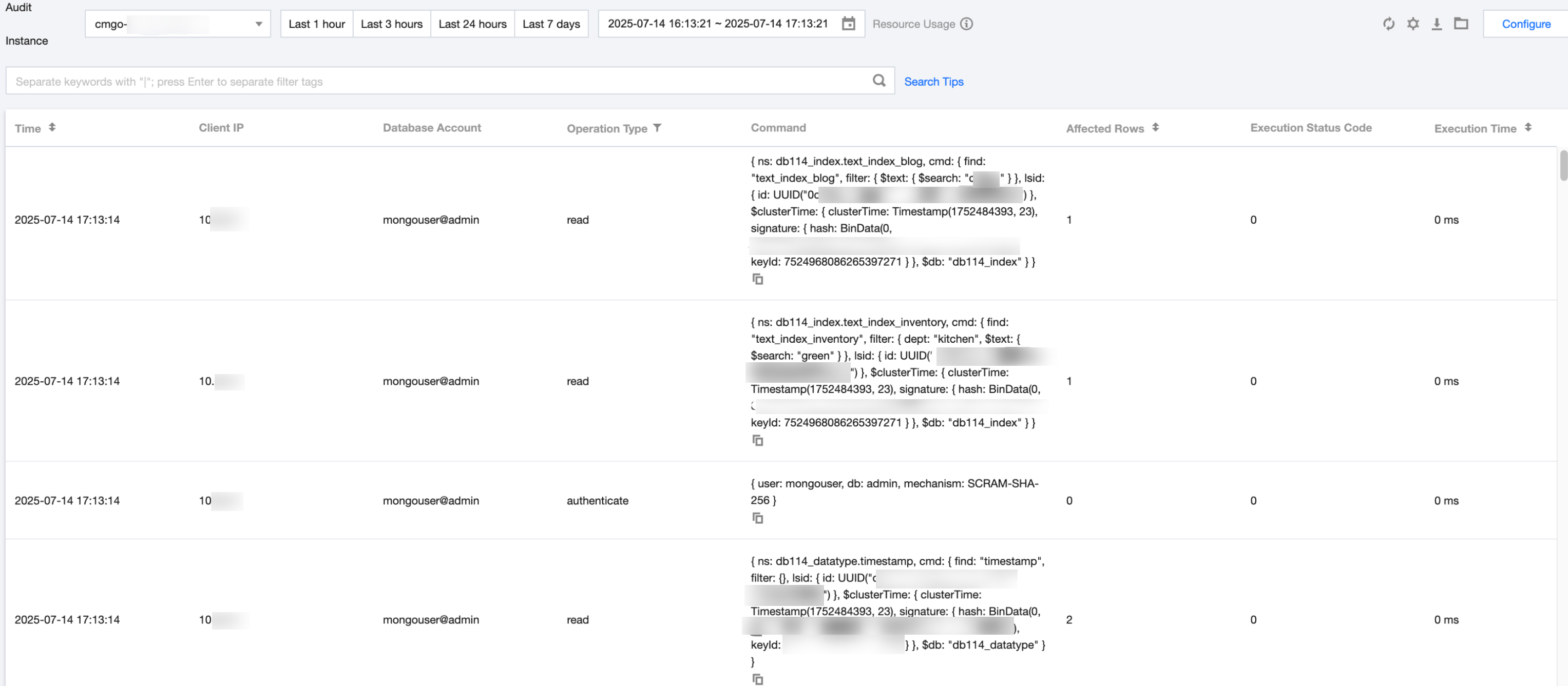
5. Click the instance ID with auditing enabled to redirect to the Audit Log page to view the corresponding log.
6. Select the time period for the audit log in the time box.
7. In the search box, you can search audit logs based on key information such as Client IP Address, Account Name, Operation Type, Execution Time, Number of Affected Rows, and Execution Status Code.
Note
Client IP addresses can be filtered using * as the condition. For example, if you search for Client IP address: 10.22.23.2*, IP addresses starting with 10.22.23.2 will be matched.
Operation type: You can perform a combined search by selecting the key tag Operation Type. Check multiple operation types for simultaneous search and use "|" to split conditions. If any one of the conditions is matched, the search results will be returned.
When you input multiple filter tags for searching, use the Enter key to split the filter tags. The search result will return audit logs that match all filter tags simultaneously.
8. View audit logs. The audit log fields are shown in the table below.
|
1 | Time | Operation time for database access. |
2 | Client IP | Client IP address for database access. |
3 | Database Account | Account name for database access. |
4 | Operation Type | Type of the operation statement executed for database access. Click to select the type to view in the drop-down list. |
4 | Command | Request statement executed for database access. |
5 | Affected Rows | Number of changed database rows after the operation statement is executed. |
6 | Execution Status Code | Status code returned after the operation statement is executed. 0: indicates successful execution. -1: indicates execution failure. 18: identity authentication failure. 334: MongoDB authentication protocol unavailable. |
7 | Execution Time | Time consumed by the operation statement. |
Generating and Downloading Audit Log Files
1. In the upper right corner of the audit log list, click . 2. In the Create Log File dialog box, click Generate File to initiate the log file creation task.
3. On the audit log file list page, view the audit log file.
Note
Currently, only Tencent Cloud private network addresses are provided for downloading log files. You can download files via a Tencent Cloud CVM instance in the same region. (For example, to download the audit logs of an instance in the Beijing region, use a CVM instance in the Beijing region.)
Log files are valid for 24 hours. You should download them promptly.
The number of log files for each database instance should not exceed 30. You need to delete the log files after download.
If the displayed status is Failed, there may be too many logs. You can narrow the time range to download log files in batches.
|
File Name | Name of the audit log file, automatically generated by the system. |
Creation Time | Generation time of the audit log file. |
Status | Status of the audit log file generation task, including generating and generated. |
Size | Size of the audit log file. |
Private Network Download Address | The private network address can be copied to download log files. |
Operation | Click Delete to clean up audit log files. |
More Operations
You can manage the audit log list through the following operations.
Click to customize audit log list fields. Click to refresh the audit log list. Click to directly go to the audit log file list page.