This document describes how to uninstall, restart, and stop CVM Agents.
Overview
CVM Agents include Sgagent and BaradAgent. Sgagent reports component information update and triggers BaradAgent, and BaradAgent reports CVM metric data.
Directions
The procedures for Linux and Windows are different. You can refer to the following directions as needed.
Linux
Windows
Uninstalling Agents
Step 1. Uninstall BaradAgent
1. Log in to the CVM instance and run the following command to go to the installation directory of BaradAgent:
cd /usr/local/qcloud/monitor/barad/admin
2. Run the following command to uninstall BaradAgent. Note that this command does not output the result. If the /usr/local/qcloud/monitor/barad folder does not exist, BaradAgent has been uninstalled successfully.
./uninstall.sh
Note:
BaradAgent reports some of the CVM metric data. Once uninstalled, BaradAgent stops reporting data. Sgagent consumes just a little memory. If you need to uninstall Sgagent, refer to the following directions.
Step 2. Uninstall Sgagent
1. Run the following command to go to the installation directory of Sgagent:
cd /usr/local/qcloud/stargate/admin
2. Run the following command to uninstall Sgagent. This command does not output the result. You can run the crontab -l |grep stargate command to check whether there is any scheduled task. If not, Sgagent has been uninstalled successfully.
./uninstall.sh
Restarting Agents
Step 1. Restart BaradAgent
1. Run the following command to go to the installation directory of BaradAgent:
cd /usr/local/qcloud/monitor/barad/admin
2. Run the following command to restart BaradAgent. If barad_agent run succ is displayed, BaradAgent has been restarted successfully.
./stop.sh
./trystart.sh
Step 2. Restart Sgagent
1. Run the following command to go to the installation directory of Sgagent:
cd /usr/local/qcloud/stargate/admin
2. Run the following command to restart Sgagent. If stargate agent run succ is displayed, Sgagent has been restarted successfully.
./restart.sh
Stopping Agents
Note:
The report of CVM metric data will only be stopped unless both Sgagent and BaradAgent are stopped. You can Stop BaradAgent to suspend data report for a while. However, BaradAgent will resume data report in one minute as it will be triggered by Sgagent. Therefore, to stop data report, stop both Sgagent and BaradAgent in sequence by referring to the following directions:
1. Run the following command to delete the scheduling Sgagent files:
rm -f /etc/cron.d/sgagenttask
2. Run the following command to enter the crontab file:
crontab -e
3. Press i to switch to the editing mode to delete the file information. After it is deleted, press Esc and enter :wq to save the file and exit.
4. Stop Sgagent.
4.1 Run the following command to go to the installation directory of Sgagent:
cd /usr/local/qcloud/stargate/admin
4.2 Run the following command to stop Sgagent:
./stop.sh
5. Stop BaradAgent.
5.1 Run the following command to go to the installation directory of BaradAgent:
cd /usr/local/qcloud/monitor/barad/admin
5.2 Run the following command to stop BaradAgent:
./stop.sh
Note:
After the command is successfully executed, the service will not be started automatically, and the monitoring data will be lost. To restart the service, both these two Agent services need to be restarted.
Starting, restarting, and stopping BaradAgent and Sgagent
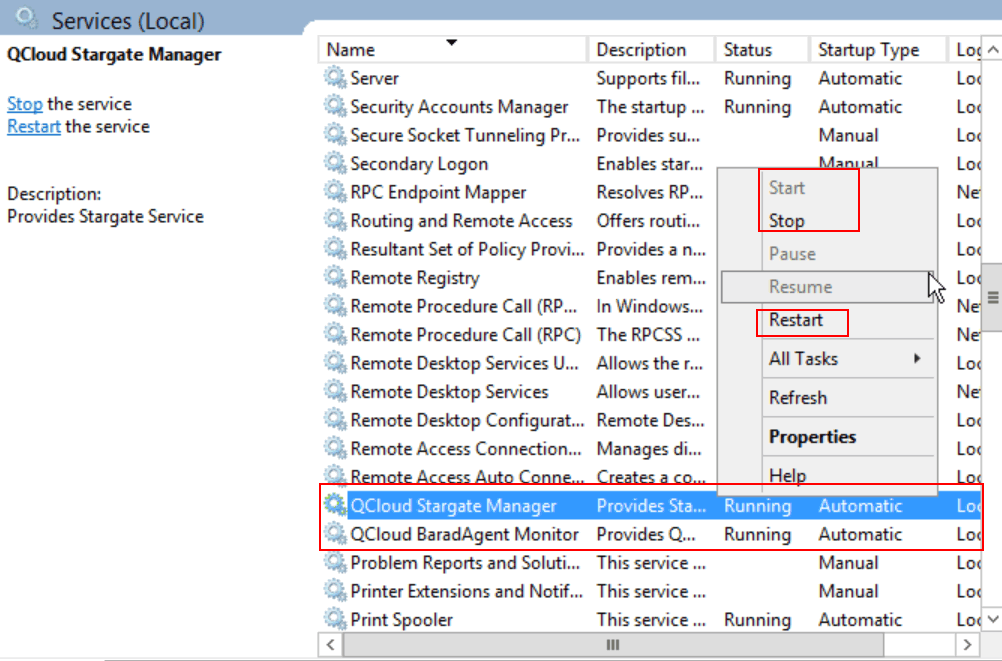
Run services.msc to open the Services Manager to find BaradAgent and Sgagent. Then, right-click a service to start, restart, or stop it.
Uninstalling BaradAgent and Sgagent
Use the following .bat file for uninstallation:
cd "C:\\Program Files\\QCloud\\Stargate\\admin"
uninstall.bat
cd "C:\\Program Files\\QCloud\\Monitor\\Barad\\admin"