To use Tencent Cloud Observability Platform to view CVM metric data and generate alarms, install the monitoring component Agent on the CVM instance to collect metric data.
Note:
To ensure the normal reporting of the monitoring data, TCP dport 80 in the CVM instance must be opened to the Internet. Agent reports data without relying on security groups or the network ACL. Therefore, you do not need to open TCP dport 80 of the security groups or the network ACL.
To run the following command to obtain the Agent installer, you must first log in to the CVM instance.
For CentOS, Agent can only be installed on CentOS 5.8 and above.
Installing Agent on a Linux CVM Instance
Installation directions
1. Download Agent over the Tencent Cloud private network (recommended) or public network.
Download over Tencent Cloud private network
After logging in to the CVM instance, you can run the following command to download Agent:
Before download Agent over the private network, please log in to the Linux instance to run the command and make sure that the instance uses the private network DNS; otherwise, the Agent download address cannot be resolved.
Download over public network
Agent download over the public network is suitable for cases where you don't log in to the CVM instance; for example, you can download it on your local computer:
If your local computer is on Windows, copy the download address below and paste it into your browser to download:
Agent can only run in the CVM instance. After downloading it over the public network, you need to upload it to the CVM instance first before you can perform the following installation and operation steps.
1. To install Agent, run the following command:
chmod +x linux_stargate_installer // Grant the permission to run the Agent installation script.
./linux_stargate_installer // Install Agent.
Note:
You can determine whether Agent is installed successfully by performing steps 3 and 4 below. If it cannot be added to scheduled tasks or started normally, the installation failed.
2. Run the following command to check whether the Agent has been added to scheduled tasks:
crontab -l |grep stargate
If the following command output is returned, Agent has been added to scheduled tasks. If no prompt appears, the installation has failed.
3. Run the following commands to check whether Agent-related processes have been launched:
ps ax |grep sgagent
ps ax |grep barad_agent
If the following command output is returned, the Agent-related processes have been properly launched and Agent has been successfully installed.
1. Download Agent over the Tencent Cloud private network (recommended) or public network.
Download over Tencent Cloud private network
After logging in to the CVM instance, copy the following Tencent Cloud private network download address and paste it into the private network browser to download Agent:
Before download Agent over the private network, please log in to the Windows instance to open the download address in the private network browser and make sure that the instance uses the private network DNS; otherwise, the Agent download address cannot be resolved.
Download over public network
Agent download over the public network is suitable for cases where you don't log in to the CVM instance; for example, you can download it on your local computer:
If your local computer is on Windows, copy the download address below and paste it into your browser to download:
Agent can only run in the CVM instance. After downloading it over the public network, you need to upload it to the CVM instance first before you can perform the following installation and operation steps.
2. Run the installer to automatically install the Agent.
Note:
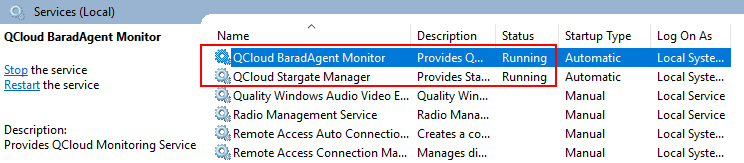
Note that there will not be any prompt when you run the installer. You can check whether the QCloud BaradAgent Monitor and QCloud Stargate Manager services are in the service list.
You can perform the following two steps to check whether the Agent has been installed successfully:
Run the service, and you will see that the QCloud BaradAgent Monitor and QCloud Stargate Manager services are running.
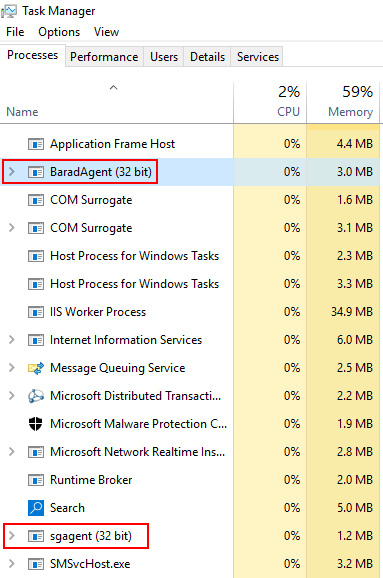
Run the task manager, and you will see the BaradAgent and sgagent processes.