Service Level Definition (abbreviated as SLA) is the specific target you define for the stress test scenario and is also an important basis for judging whether the stress test is abnormal.
When you configure an SLA rule for a scenario, PTS will compare the SLA indicators with the relevant data collected during the stress test task execution, then determine the target SLA status, and make corresponding handling according to the method you specify (for example, stop the stress test, send a notification, etc.).
2. In the left sidebar, choose PTS > Test Scenarios.
3. On the Test Scenarios page, click Create Scenario.
4. On the create a testing scenario page, choose the appropriate type and click Start to create.
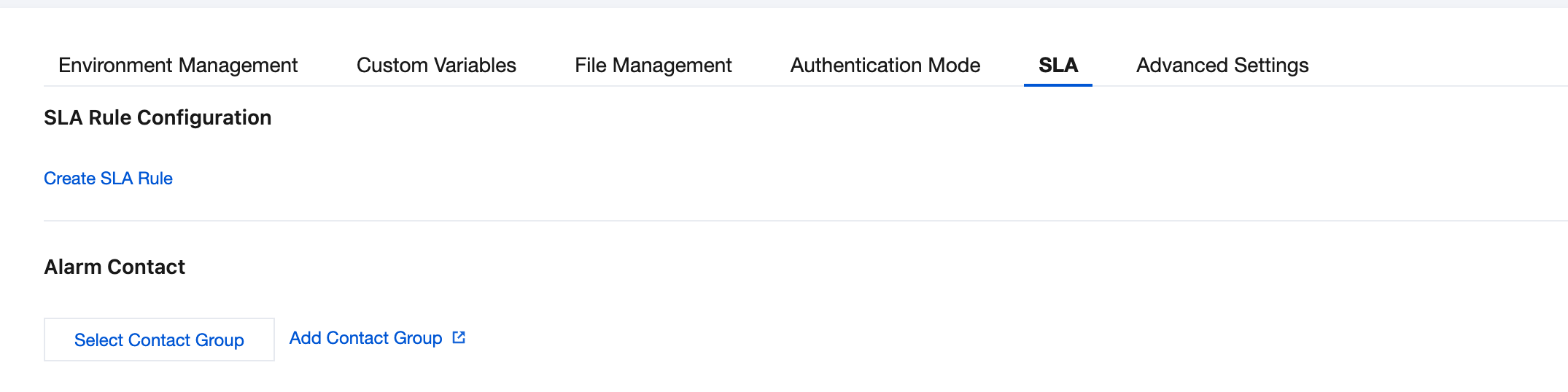
5. On the SLA page of the scene configuration, you can create SLA rules for this scene.
SLA Rule Configuration
An SLA rule mainly includes the following information:
SLA Regular Expression: Includes SLA indicators, aggregation methods, conditions, and thresholds.
Applicable Objects: All service API URLs that receive requests.
Whether to Terminate Stress Test: Whether to terminate the stress test task when the rule is triggered.
Alarm Contact Configuration
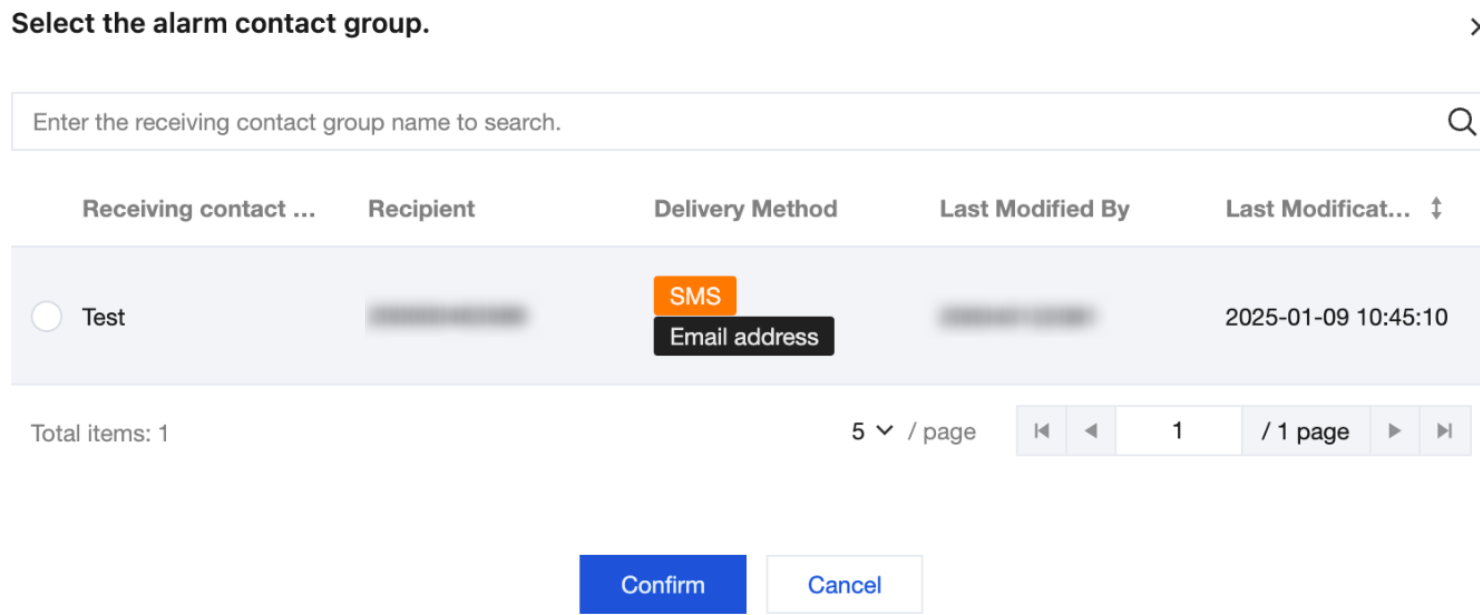
When an SLA rule is triggered, besides being able to stop the stress test in time, you can also configure alarm contacts to receive alarm messages. PTS can leverage the existing notification channels in your Tencent Cloud account to send you alarm messages. On the SLA configuration page of the scenario, you can Select Contact Group, and the pop-up list page will display all the contact groups shared by all scenarios in the current project:
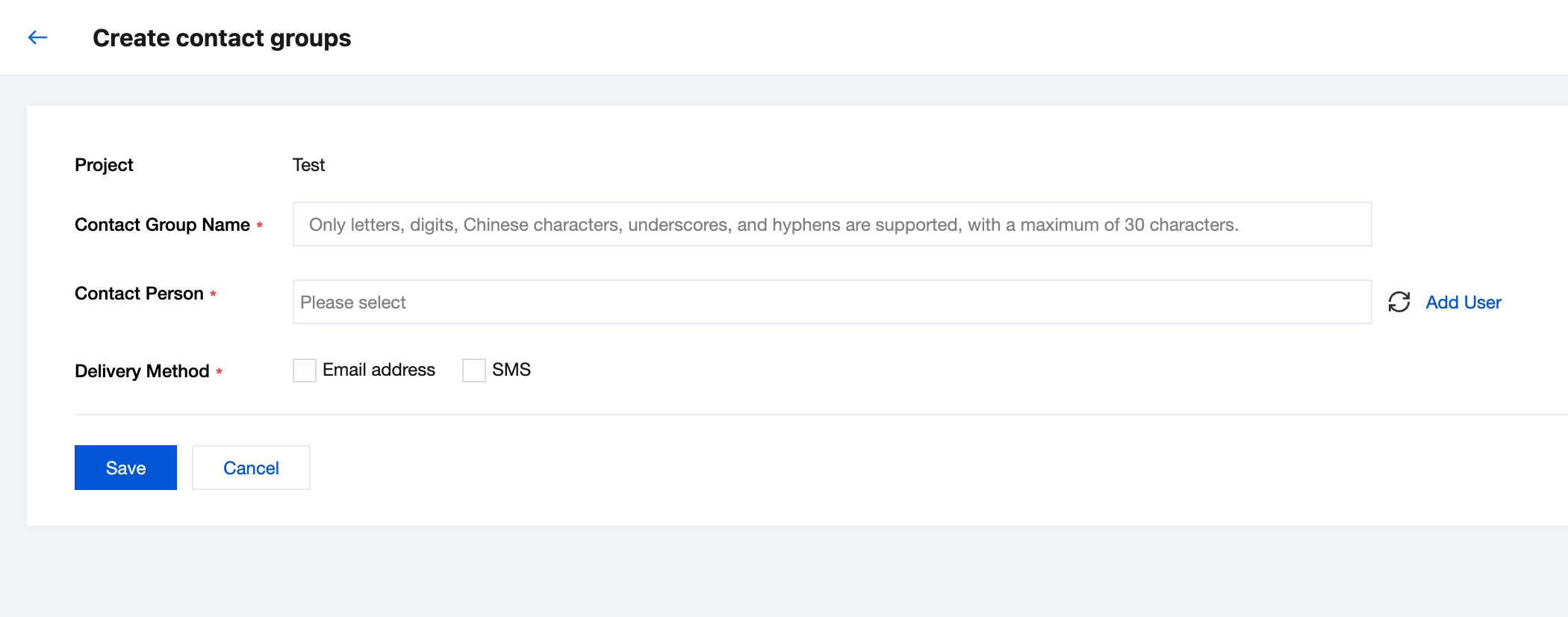
If the current list is empty, you need to create a new contact group first and add the corresponding Tencent Cloud account as a contact, using the existing notification channels under that contact account (for example, Short Message Service, email, etc.).
If the contact person you want to select does not exist, you can Add User to jump to the relevant page of Tencent Cloud Cloud Access Management and maintain the user information and notification channels under your account.
Besides the existing notification channels under your Tencent Cloud account, you can also create a WeCom chatbot by yourself and fill in its Webhook as the receiving channel. Then you can receive alarm messages sent by this bot through the WeCom group.
Configure Effect
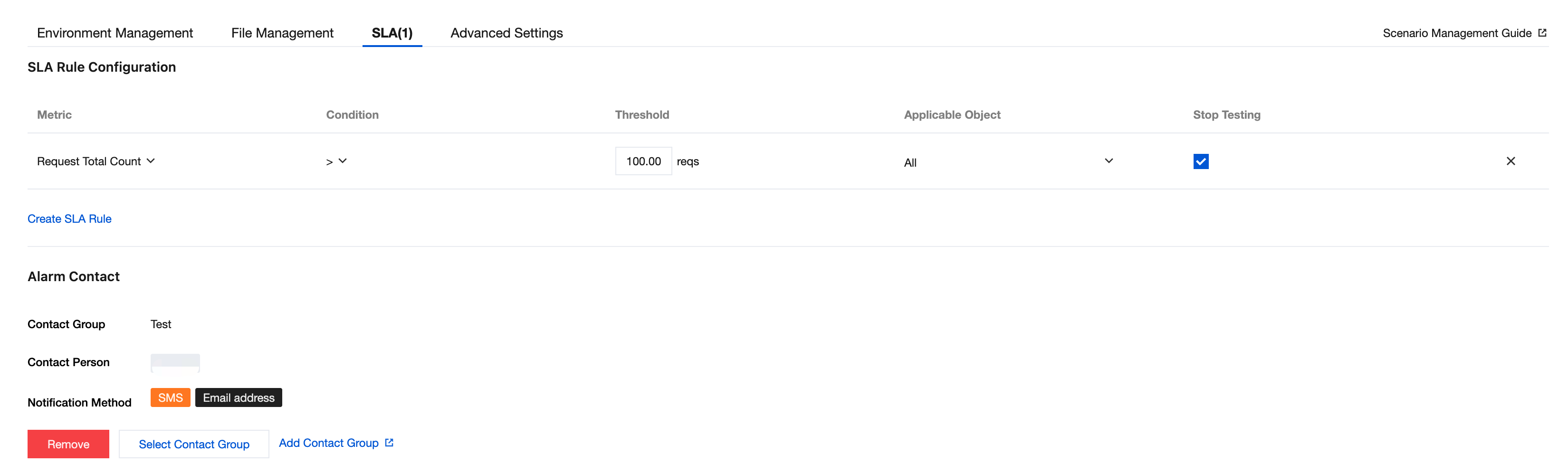
As shown in the figure, configure a SLA rule to stop the stress test and send a notification when the request count is greater than 100:
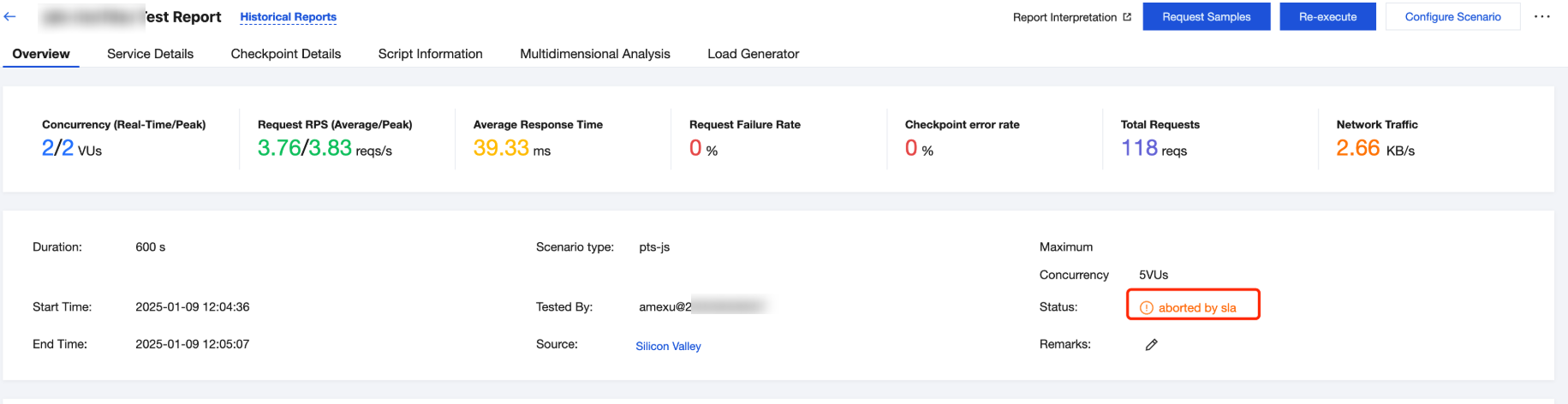
The stress test is interrupted when the request count exceeds 100:
Alarm notifications will also be sent to the corresponding contact persons and channels, such as SMS, mail, etc. In addition, you can view all the alarm history records under the same project on the Alarm Records page.