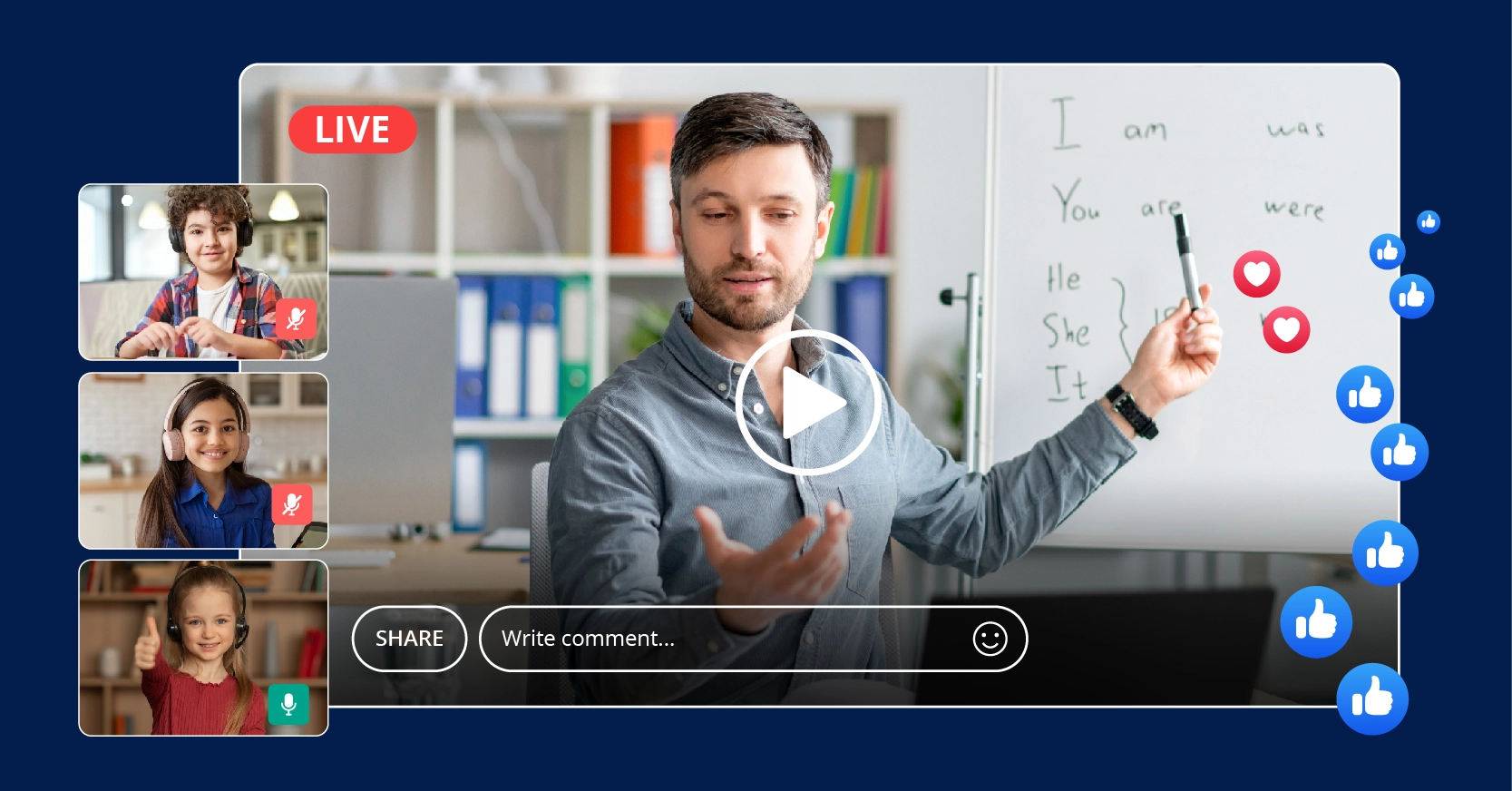
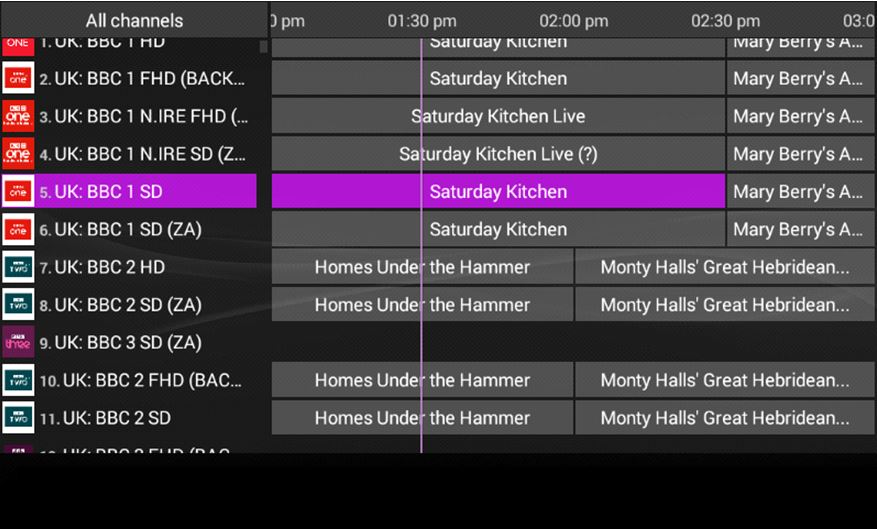
VOD's Virtual Live Streaming and Broadcast Channels allow users to assemble one or multiple on-demand videos for playback in a live streaming format. This capability can be applied to the following three scenarios:
Scenario
Description
Virtual Live Streaming
Virtual live classes: Teachers pre-record course content and play it for students at scheduled times.
Live commerce product showcases: Pre-record product promotion content creating a virtual live shopping experience.
Video Program Channels
Broadcast OTT channels: Preset TV program schedules in advance, enabling users to watch content in a traditional TV channel format.
Video platform screening room: Allow users to join a virtual "screening room" to watch the same video simultaneously while interacting in real time.
Virtual Live Streaming
Assume that the course originally streamed on CSS has been recorded to VOD (in HLS format) and is scheduled to be played back as a simulated live lesson at 20:00 Beijing Time on December 1, 2024.
In the RoundPlaylist.N parameter, enter the course video ID in FileId, and set AudioVideoType to Original.
Set StartTime to 2024-12-01T20:00+08:00 (Beijing time).
Specify PlaybackMode as Linear.
After the API call, retrieve the playlist URL from the response’s Url parameter and obtain the playlist ID from RoundPlayId.
2. Starting at 20:00 on December 1, 2024 (Beijing time), provide the playlist URL to players. The players will begin streaming the pre-recorded course in a live broadcast format.
3. After playback concludes, call the ModifyRoundPlay API by setting RoundPlayId to the channel ID and updating Status to Disabled to stop the playlist. Call the DeleteRoundPlay API to delete the playlist.
Note:
China’s online travel service provider, Ctrip, has utilized the broadcast channel feature to implement interactive virtual live rooms, enabling low-cost promotion of travel products.
Video Program Channels
Assume that a program channel needs to be set up, which will start broadcasting at 10:00 Beijing Time on December 1, 2024, and automatically stop after playing 5 programs.
The operation steps are as follow:
1. Upload the 5 videos to VOD and transcode them into HLS format using the transcoding template with ID 100240 (refer to the Transcoding Task Initiation section for transcoding guidelines).
In the RoundPlaylist.N parameter, specify the programs to be played in the channel, enter the uploaded video IDs in FileId, set AudioVideoType to Transcode, and set Definition to 100240 (transcoding template ID).
Set StartTime to 2024-12-01T10:00+08:00 (Beijing time).
Specify PlaybackMode as Linear.
After the API call, retrieve the playlist URL from the response’s Url parameter and obtain the playlist ID from RoundPlayId.
3. Starting at 10:00 on December 1, 2024 (Beijing time), provide the playlist URL to players. The players will sequentially play the 5 programs and automatically stop after the last program finishes.
4. After playback concludes, call the ModifyRoundPlay API by setting RoundPlayId to the channel ID and updating Status to Disabled to stop the playlist. Call the DeleteRoundPlay API to delete the playlist.