Overview
ConfigMap allows you to decouple configuration artifacts from images to ensure that the application is more portable. ConfigMap is a key-value pair. You can create a corresponding ConfigMap object using kubectl in the console, and use a ConfigMap by mounting a volume, through environment variables, or in the container's run command.
Using the Console
Creating a ConfigMap
2. In the left sidebar, click Cluster to open the TKE cluster list page.
3. Click the ID of the cluster where ConfigMap needs to be created to go to the cluster management page.
4. Select Configuration Management > ConfigMap to go to the ConfigMap information page.
5. Click Create to go to the Create ConfigMap page.
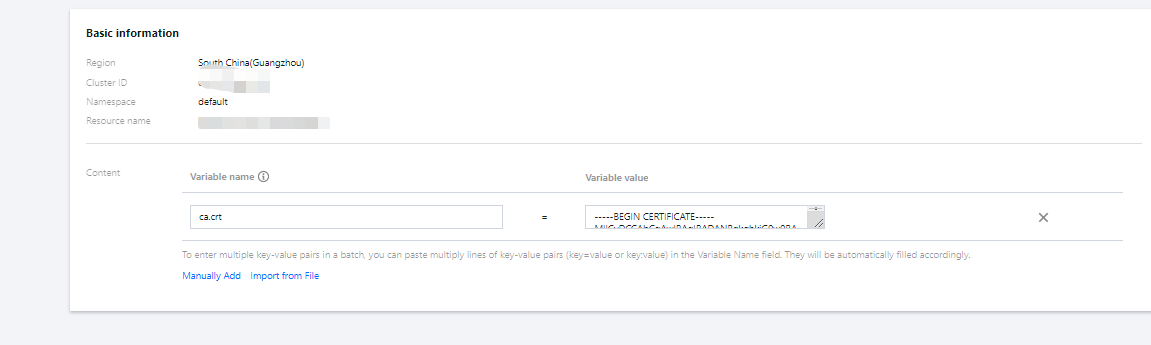
6. Set the ConfigMap parameters based on actual needs. Key parameters are as follows:
Name: customize the name of the container in the Pod.
Namespace: Select the namespace type and set the variable name and value based on actual needs.
Content: Add the variable name and variable value.
7. Click Create ConfigMap.
Using a ConfigMap
Method 1: Using the ConfigMap Type for a Volume
2. In the left sidebar, click Cluster to open the TKE cluster list page.
3. Click the ID of the cluster where Workload needs to be deployed to go to the cluster management page.
4. Under Workload, select any workload type to go to the relevant information page. For example, select Workload > DaemonSet to go to the DaemonSet information page.
5. Click Create to go to the Create DaemonSet page.
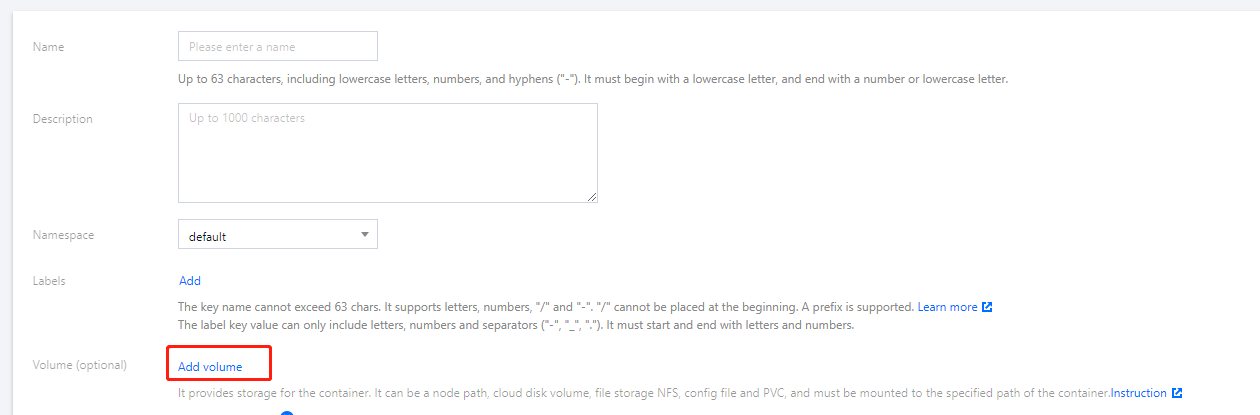
6. Set the workload name, namespace and other information as instructed. In Volume, click Add Volume.
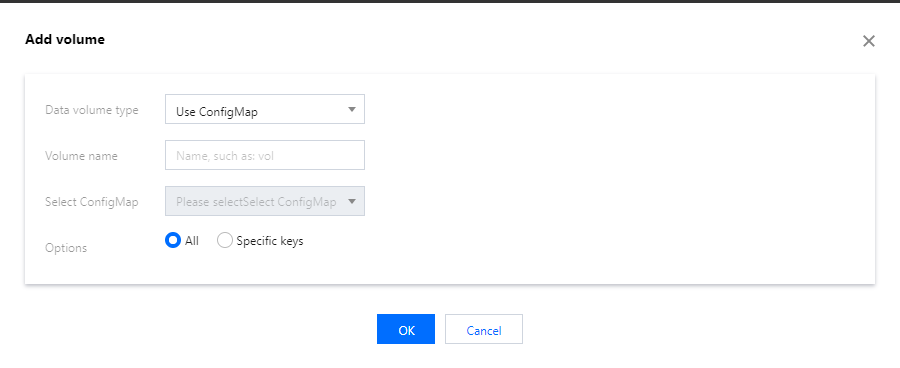
7. In the Add volume pop-up window, configure the mounting point and click OK.
Set Data volume type to Use ConfigMap, enter the volume name, and click the Select ConfigMap drop-down list to select an option.
Data volume type: Select Use ConfigMap.
Volume name: Enter a custom name.
Select ConfigMap: Select as needed.
Options: All and Specific keys are available.
Items: if you select Specific keys, you can mount to a specific path by adding an item. For example, if the mounting point is /data/config, and the file name is filename, the value of the key-value pair will be stored under /data/config/filename.
8. Click OK. Click Create Workload.
Method 2: Using the ConfigMap Type for an Environmental Variable
2. In the left sidebar, click Cluster to open the TKE cluster list page.
3. Click the ID of the cluster where Workload needs to be deployed to go to the cluster management page.
4. Under Workload, select any workload type to go to the relevant information page. For example, select Workload > DaemonSet to go to the DaemonSet information page.
5. Click Create to go to the Create DaemonSet page.
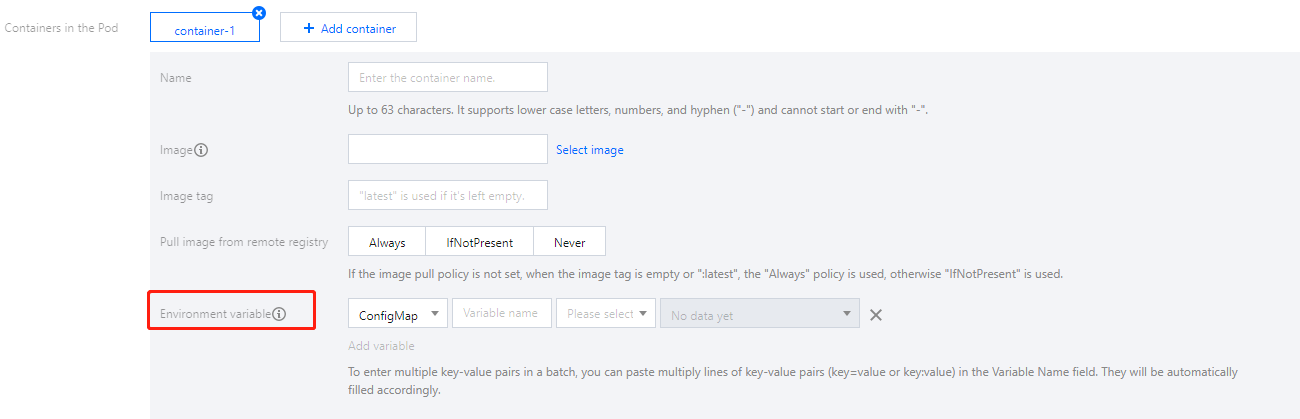
6. Set the workload name, namespace and other information as instructed. In Environment Variable under Containers in the Pod, click Add variable.
7. Select "ConfigMap" for the environment variable and select the resource based on actual needs.
8. Click Create Workload to complete the process.
Updating a ConfigMap
2. In the left sidebar, click Cluster to open the TKE cluster list page.
3. Click the ID of the cluster where ConfigMap needs to be updated to go to the cluster management page.
4. Select Configuration Management > ConfigMap to go to the ConfigMap information page.
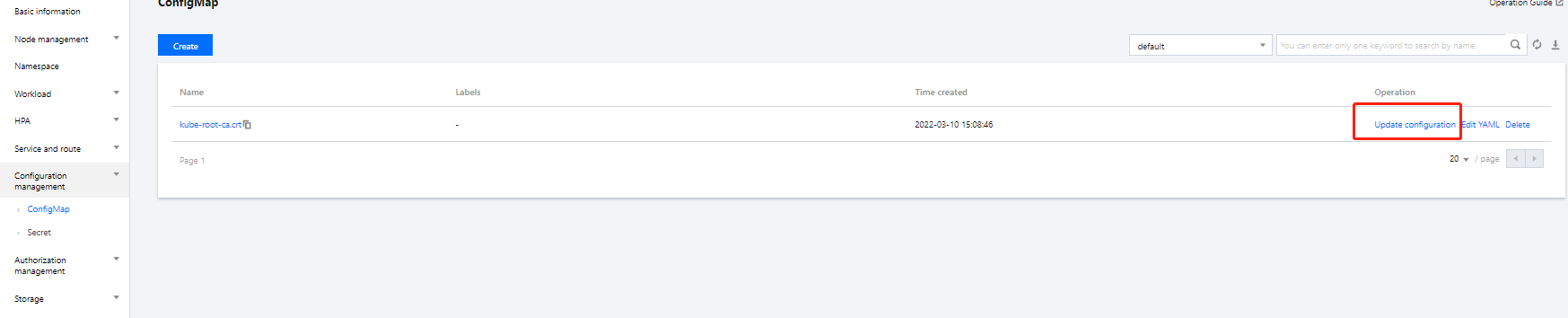
5. Click Update configuration in the Operation column of the ConfigMap whose configuration needs to be updated.
6. On the Update configuration page, edit the key-value pair and click Update ConfigMap.
Via kubectl
YAML sample
apiVersion: v1
data:
key1: value1
key2: value2
key3: value3
kind: ConfigMap
metadata:
name: test-config
namespace: default
data: The data of ConfigMap presented as key-value.
kind: This identifies the ConfigMap resource type.
metadata: Basic information such as ConfigMap name and Label.
metadata.annotations: An additional description of the ConfigMap. You can set additional enhancements to TKE through this parameter.
Creating a ConfigMap
Method 1: Creating Using the YAML Sample File
1. See the YAML sample to prepare the ConfigMap YAML file. 3. Run the following command to create the ConfigMap YAML file.
kubectl create -f ConfigMap YAML filename
For example, to create a ConfigMap YAML file named web.yaml, run the following command:
kubectl create -f web.yaml
4. Run the following command to check whether the Job is successfully created.
If a message similar to the following is returned, the creation is successful.
NAME DATA AGE
test 2 39d
test-config 3 18d
Method 2: Creating by Running a Command
Run the following command to create the ConfigMap in the directory.
kubectl create configmap <map-name> <data-source>
<map-name>: Name of the ConfigMap.
<data-source>: Directory, file, or literal.
Using a ConfigMap
Method 1: Using the ConfigMap Type for a Volume
Below is a YAML sample:
apiVersion: v1
kind: Pod
metadata:
name: nginx
spec:
containers:
- name: nginx
image: nginx:latest
volumeMounts:
name: config-volume
mountPath: /etc/config
volumes:
name: config-volume
configMap:
name: test-config ## Set the ConfigMap source
## items: ## Set the key mounting of the specified ConfigMap
## key: key1 ## Select the specified key
## path: keys ## Mount to the specified subpath
restartPolicy: Never
Method 2: Using the ConfigMap Type for an Environmental Variable
Below is a YAML sample:
apiVersion: v1
kind: Pod
metadata:
name: nginx
spec:
containers:
- name: nginx
image: nginx:latest
env:
- name: key1
valueFrom:
configMapKeyRef:
name: test-config ## Set the filename of the source ConfigMap
key: test-config.key1 ## Set the value source of the environment variable
restartPolicy: Never