This document describes how to grant specified permissions to a sub-account by customizing ClusterRoles and Roles in Kubernetes to fit your specific business requirements.
Policy Syntax Description
You can write your own policy syntax or use the Cloud Access Management (CAM) policy generator to create custom policies. An example YAML is shown below:
Role: for a namespace
apiVersion: rbac.authorization.k8s.io/v1
kind: Role
metadata:
name: testRole
namespace: default
rules:
- apiGroups:
- ""
resources:
- pods
verbs:
- create
- delete
- deletecollection
- get
- list
- patch
- update
- watch
ClusterRole: for a cluster
apiVersion: rbac.authorization.k8s.io/v1
kind: ClusterRole
metadata:
name: testClusterRole
rules:
- apiGroups:
- ""
resources:
- pods
verbs:
- create
- delete
- deletecollection
- get
- list
- patch
- update
- watch
Directions
Note:
This section describes how to bind a custom ClusterRole policy to a sub-account. This operation is basically the same as that for binding a Role policy. Following the directions below, you can bind policies to fit your specific business requirements.
1. Log in to the TKE console and click Cluster on the left sidebar.
2. On the Cluster Management page, click the ID of the target cluster.
3. On the cluster details page, select Authorization Management -> ClusterRole on the left sidebar, as shown in the following figure.
4. On the ClusterRole page, select Create using YAML in the upper-right corner.
5. On the editing page, enter the YAML content of the custom policy and then click Complete to create the ClusterRole policy.
For this step, the ClusterRole: for a cluster YAML is used as an example. After the policy is created, you can view the custom permission testClusterRole on the ClusterRole page.
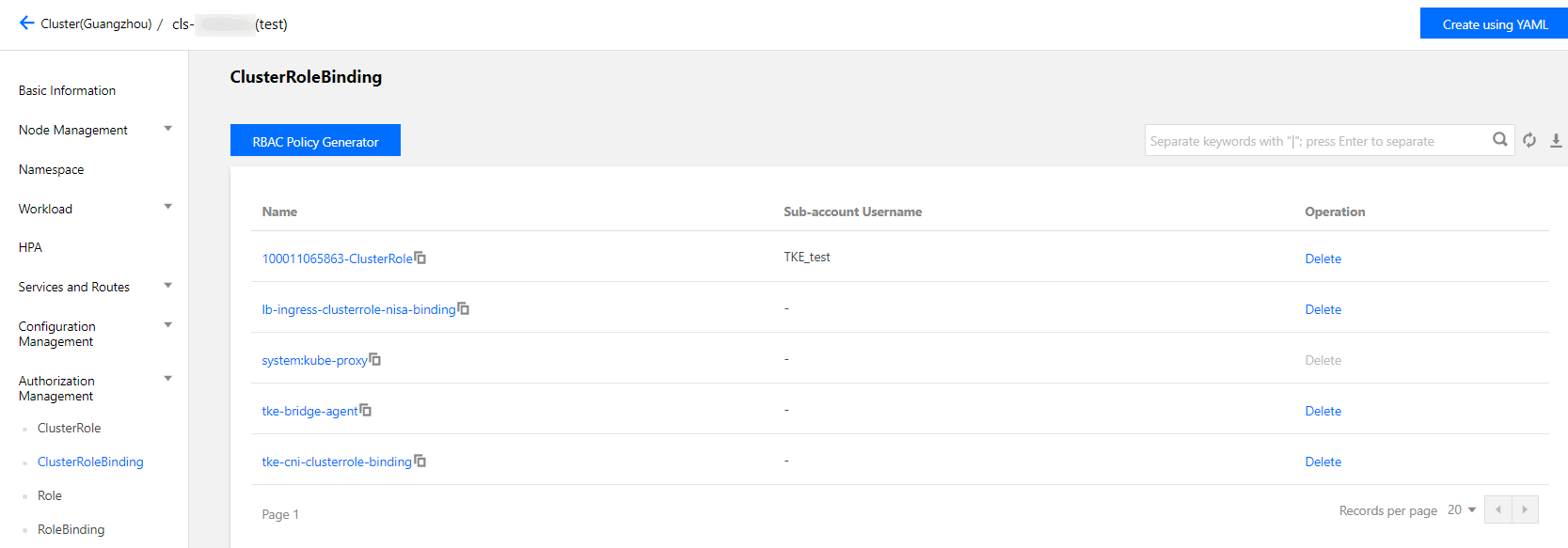
6. On the ClusterRoleBinding page, click RBAC Policy Generator.
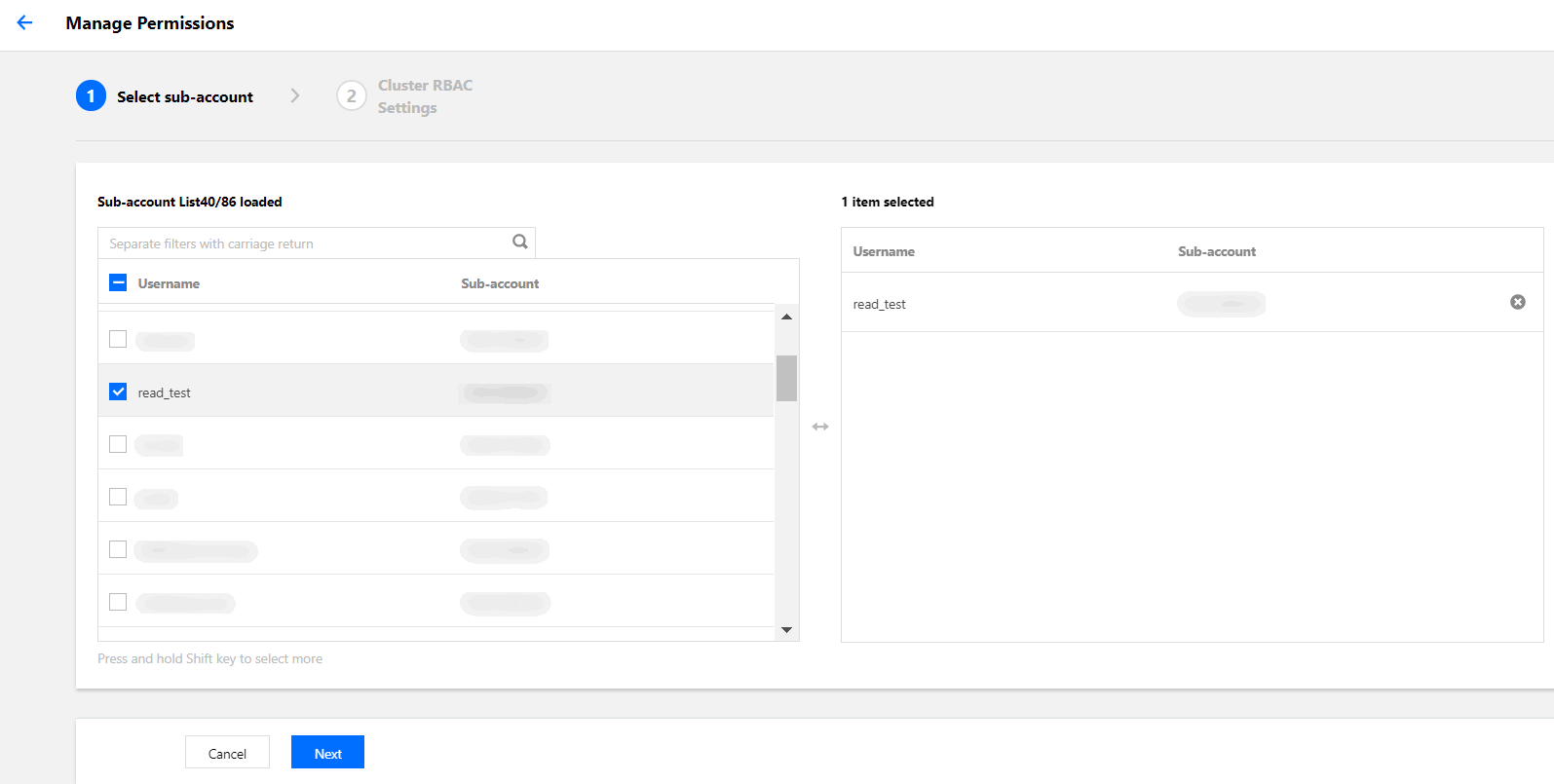
7. When you select a sub-account on the Administration Permissions page, select the target sub-account and click Next, as shown in the following figure.
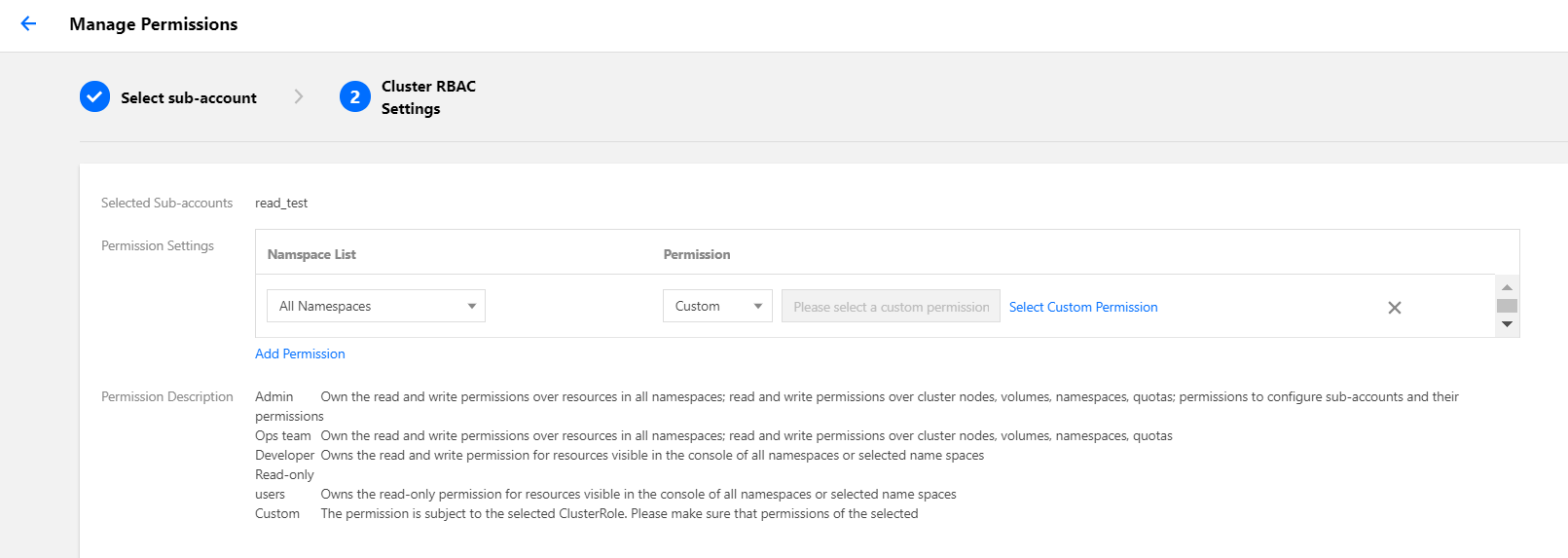
8. On the Cluster RBAC Setting page, set the permissions as instructed, as shown in the following figure.
Namespace List: specify the namespaces for which the permissions apply.
Permissions: select Custom and click Select Custom Permissions. Then, select the desired permissions from the custom permission list. Here, we select the previously created custom permission testClusterRole as an example.
Note:
You can also click Add Permission to continue customizing the permissions.