Solution 2: Single-Producer Single-Consumer Migration
Download
포커스 모드
폰트 크기
Scenarios
This document describes how to migrate data from a self-built Kafka cluster to TDMQ for CKafka (CKafka) using the single-producer single-consumer solution.
Prerequisites
You have purchased a CKafka instance.
You have migrated topics to the cloud.
Operation Steps
The prerequisite for ensuring message order is to strictly control data consumption by a single consumer. Therefore, the timing of the switch is critical.
The single-producer single-consumer method is straightforward and easy to operate. However, after the producer switches to the new cluster and before the old consumer switches to the new cluster, a certain amount of messages will be backlogged in the new cluster.
The migration steps are as follows:
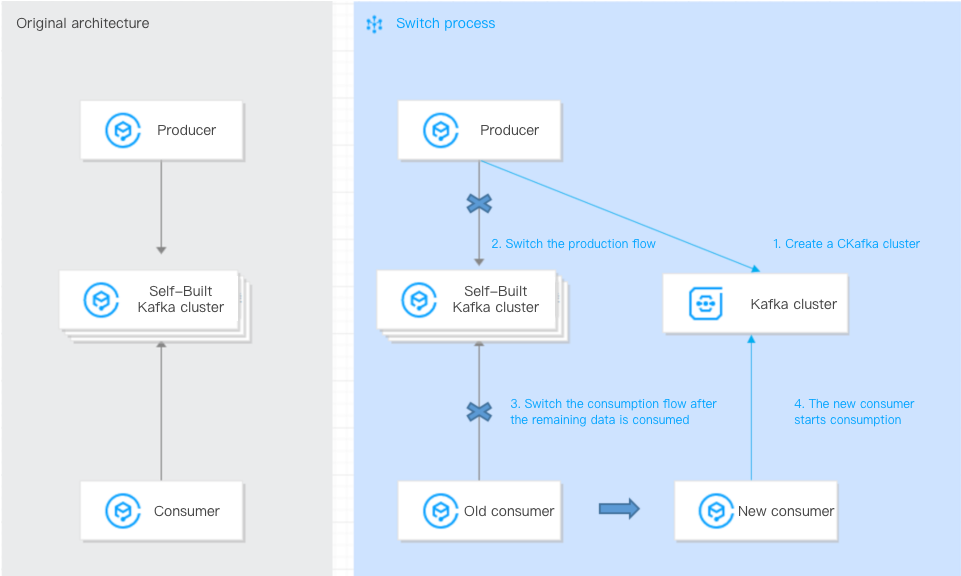
1. Switch the production flow so that the producer starts sending data to the CKafka instance.
Change the IP address in broker-list to the access network address of the CKafka instance. You can copy it from the Network column in the Access Method module on the instance details page in the console. Set topicName to the topic name in the CKafka instance.
./kafka-console-producer.sh --broker-list xxx.xxx.xxx.xxx:9092 --topic topicName
2. The original consumer requires no configuration changes. It continues to consume data from the self-built Kafka cluster until all data is consumed.
3. When the original consumer completes consumption, switch the consumer to the new CKafka cluster with the following configuration (a single consumer ensures message order). For the new consumer, change the IP address in
--bootstrap-server to the access network address of the CKafka instance:Note:
If the consumer is deployed on a Cloud Virtual Machine (CVM) instance, you can continue using the original consumer for consumption.
./kafka-console-consumer.sh --bootstrap-server xxx.xxx.xxx.xxx:9092 --from-beginning --new-consumer --topic topicName --consumer.config ../config/consumer.properties
4. The new consumer continues to consume data from the CKafka cluster, and the migration is completed. If the consumer is deployed on a CVM instance, you can continue using the original consumer for consumption.
Note:
The commands provided above are testing commands. In actual business operations, you only need to modify the broker address configured for the corresponding application and then restart the application.
피드백