As the SP, Tencent Cloud needs to configure the OIDC for the IdP to establish a trust relationship with the enterprise IdP. This enables users from the enterprise IdP to log in to Tencent Cloud via user-based SSO.
This document uses Azure Active Directory as an example of IdP.
Note
View the OIDC protocol configuration information, (Copy the link at Azure Active Directory > App Registration > Endpoints > OpenID Connect Metadata Document, and open it in browser for specific configuration details)
2. In the navigation pane on the left, click Identity Providers > User-Based SSO.
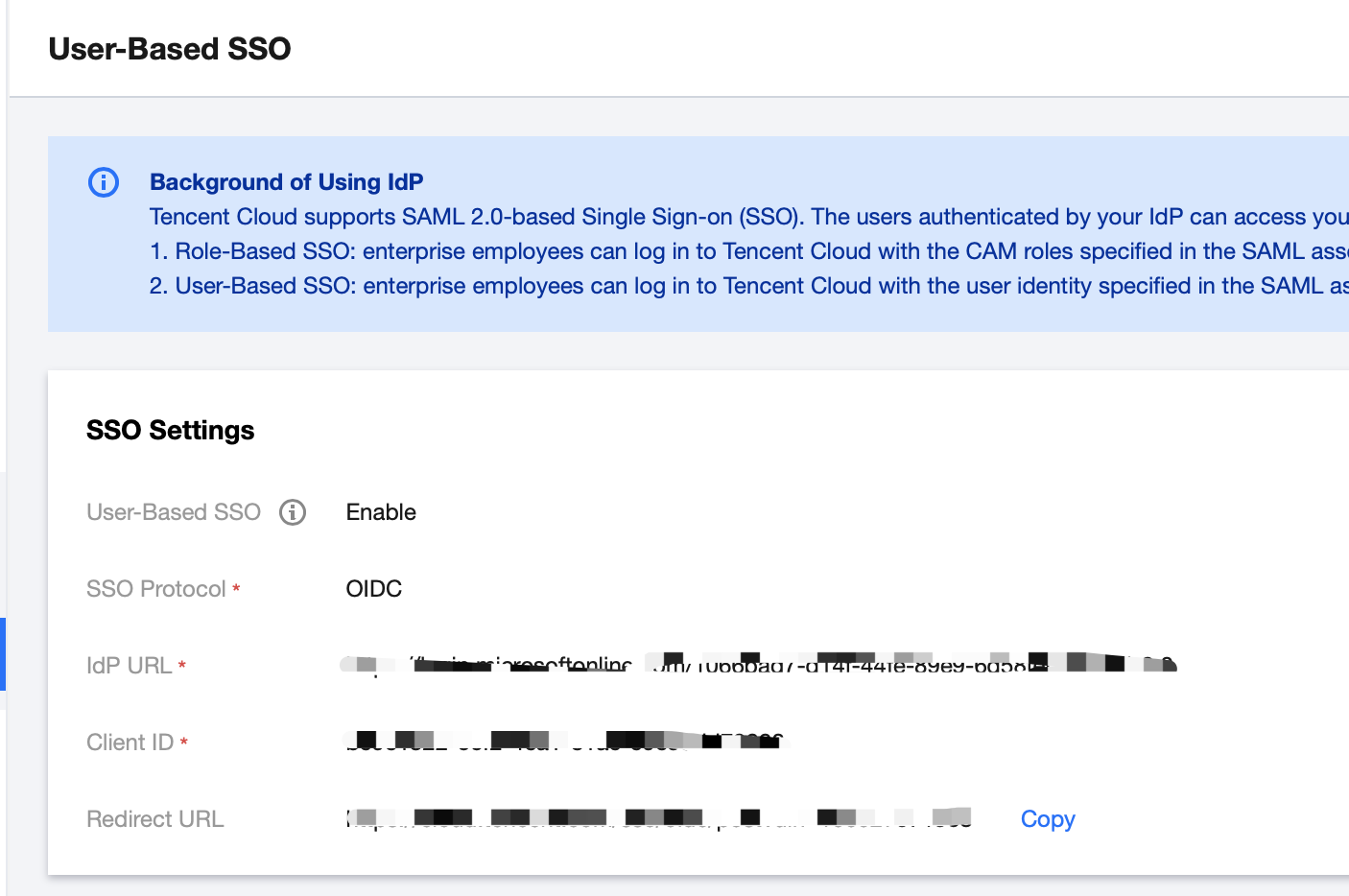
3. On the User-Based SSO Management page, you can view the current User-Based SSO status and configuration information.
4. By clicking on the switch button following User-Based SSO, you can either enable or disable it.
When user-based SSO is enabled: CAM sub-users cannot log in to Tencent Cloud via account ID and password. All CAM sub-users will be redirected to the IdP user login page for identity verification.
When user-based SSO is disabled: CAM users can login to Tencent Cloud via account ID and password, and the user-based SSO settings will not take effect.
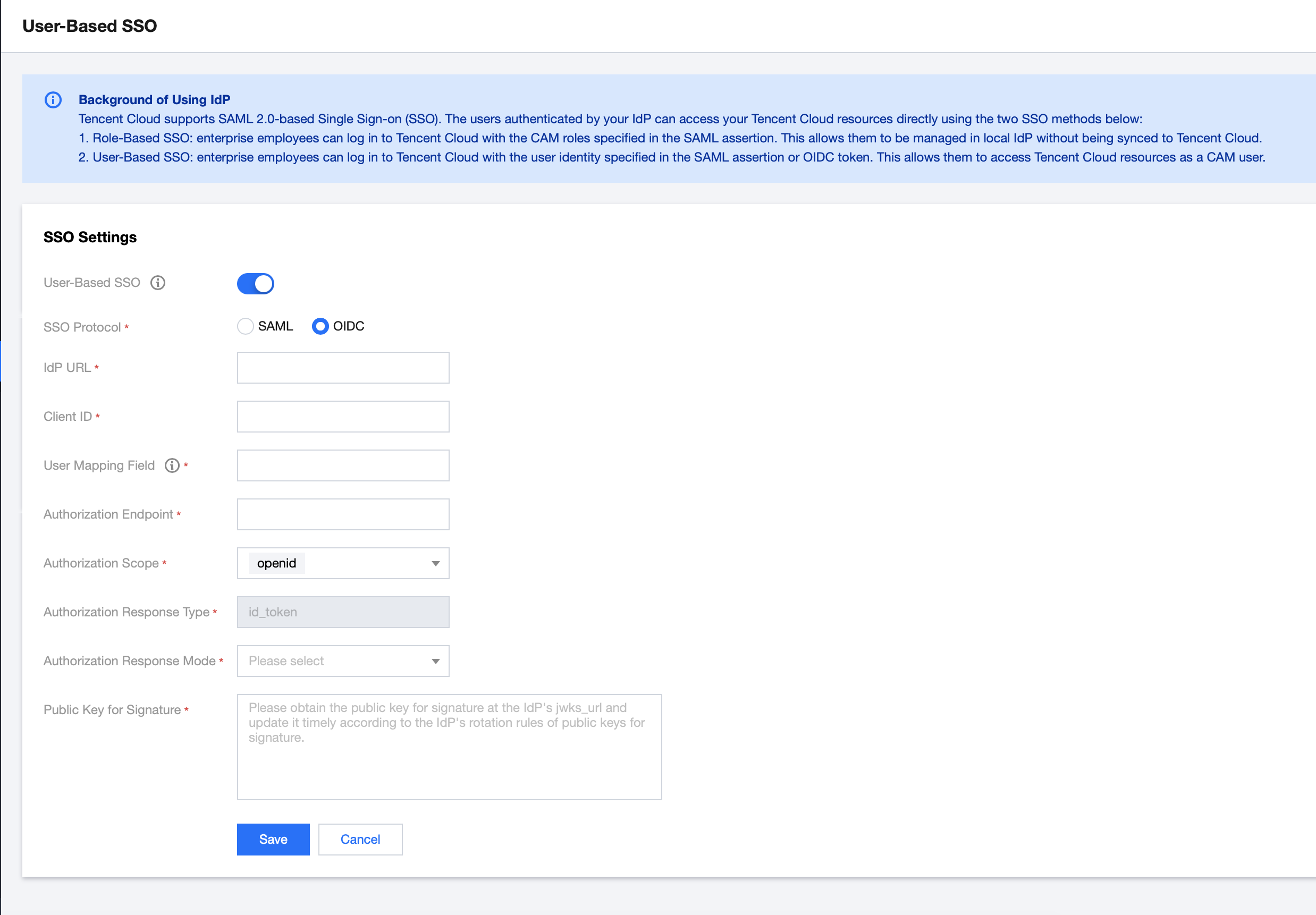
SSO Protocol: Select the OIDC type.
IdP URL: Identifier of OpenID Connect IdP. Corresponds to the 'issuer' field value in the OpenID Connect metadata document provided by the IdP.
Client ID: Client ID registered with the OpenID Connect IdP. It can be obtained from the Azure Active Directory > Enterprise Applications > OIDCSSO Application Overview page.
User Mapping Field: The field maps the CAM sub-user name in the OpenID Connect IdP. Optional values in the "claims_supported" provided in the OpenID Connect metadata document obtained from the IdP. In this example, the name field is used to map the CAM's username.
Authorization Request Endpoint: The address of the authorization request of the OpenID Connect IdP. Corresponds to the "authorization_endpoint" field value in the OpenID Connect metadata document provided by the IdP.
Authorization Request Scope: The range of information for the authorization request by the OpenID Connect IdP. By default, 'openid' is mandatory.
Authorization Request Response Type: The type of parameters returned by the authorization request from OpenID Connect IdP. By default, 'id_token' is mandatory.
Authorization Request Response Mode: The response mode of the authorization request by OpenID Connect IdP. 'form_post' and 'fragment' modes are optional, and 'form_post' is recommended.
Signature Public Key: The public key for verifying the signature of the OpenID Connect IdP ID Token. Corresponds to the content (obtained by visiting the link) linked in the "jwks_uri" field in the OpenID Connect metadata document provided by the IdP. For the security of your account, we recommend you to routinely rotate the signing public key.