tencent cloud

Tencent Real-Time Communication

소식 및 공지 사항
제품 업데이트
Tencent Cloud 오디오/비디오 단말 SDK 재생 업그레이드 및 권한 부여 인증 추가
TRTC 월간 구독 패키지 출시 관련 안내
제품 소개
제품 개요
기본 개념
제품 기능
제품 장점
응용 시나리오
성능 데이터
구매 가이드
Billing Overview
무료 시간 안내
Monthly subscription
Pay-as-you-go
TRTC Overdue and Suspension Policy
과금 FAQ
Refund Instructions
신규 사용자 가이드
Demo 체험
Call
개요(TUICallKit)
Activate the Service
Run Demo
빠른 통합(TUICallKit)
오프라인 푸시
Conversational Chat
온클라우드 녹화(TUICallKit)
AI Noise Reduction
UI 사용자 정의
Calls integration to Chat
Additional Features
No UI Integration
Server APIs
Client APIs
Solution
ErrorCode
릴리스 노트
FAQs
라이브 스트리밍
Billing of Video Live Component
Overview
Activating the Service (TUILiveKit)
Demo 실행
No UI Integration
UI Customization
Live Broadcast Monitoring
Video Live Streaming
Voice Chat Room
Advanced Features
Client APIs
Server APIs
Error Codes
Release Notes
FAQs
RTC Engine
Activate Service
SDK 다운로드
API 코드 예시
Usage Guidelines
API 클라이언트 API
고급 기능
RTC RESTFUL API
History
Introduction
API Category
Room Management APIs
Stream mixing and relay APIs
On-cloud recording APIs
Data Monitoring APIs
Pull stream Relay Related interface
Web Record APIs
AI Service APIs
Cloud Slicing APIs
Cloud Moderation APIs
Making API Requests
Call Quality Monitoring APIs
Usage Statistics APIs
Data Types
Appendix
Error Codes
콘솔 가이드
애플리케이션 관리
사용량 통계
모니터링 대시보드
개발 보조
Solution
Real-Time Chorus
FAQs
과금 개요
기능 관련
UserSig 관련
방화벽 제한 처리
설치 패키지 용량 축소 관련 질문
Andriod 및 iOS 관련
Web 관련
Flutter 관련
Electron 관련
TRTCCalling Web 관련
멀티미디어 품질 관련
기타 질문
Protocols and Policies
컴플라이언스 인증
보안 백서
정보 보안에 관한 참고 사항
Service Level Agreement
Apple Privacy Policy: PrivacyInfo.xcprivacy
TRTC 정책
개인 정보 보호 정책
데이터 처리 및 보안 계약
용어집

CDN으로 릴레이

PDF
포커스 모드
폰트 크기
마지막 업데이트 시간: 2024-07-24 16:43:38
본 문서는 시청자가 표준 라이브 스트리밍 플레이어를 사용하여 스트림을 볼 수 있도록 TRTC의 오디오/비디오 스트림을 CDN에 게시(릴레이)하는 방법을 설명합니다.

로컬 사용자의 스트림을 CDN에 게시


기능 소개

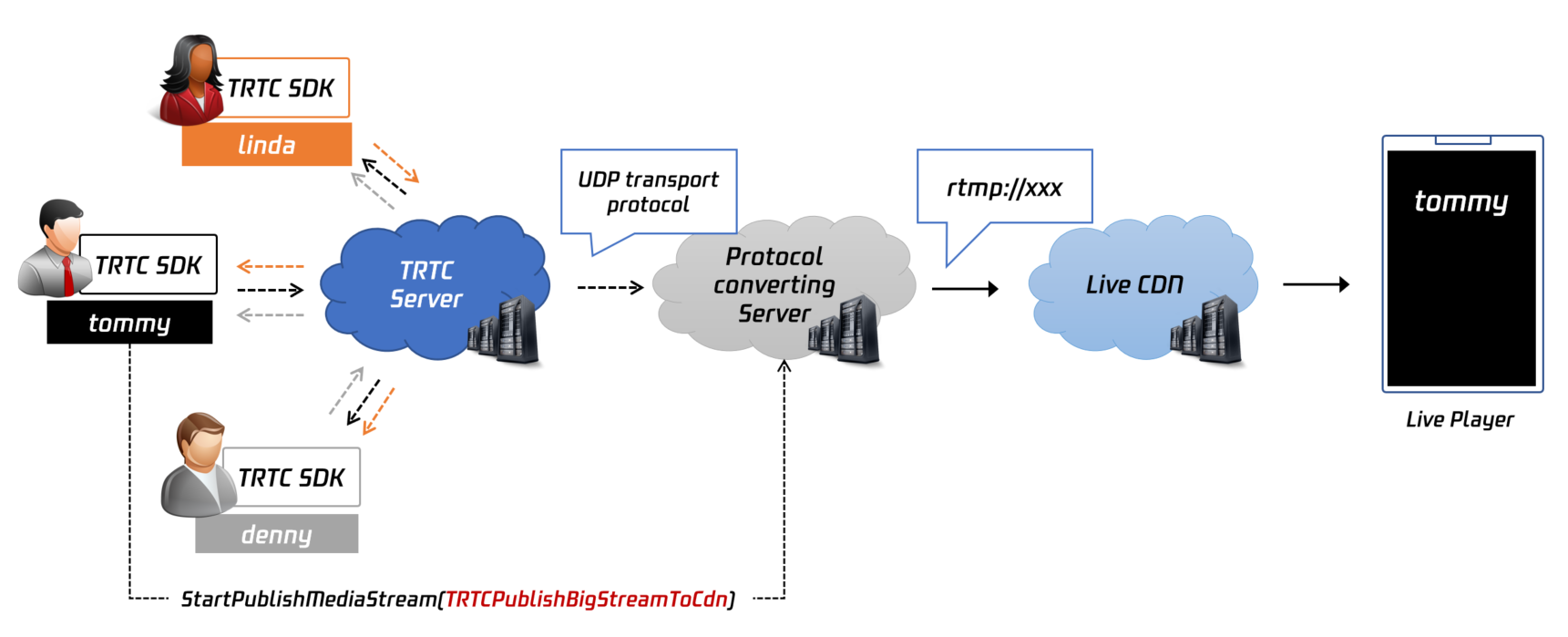
TRTCCloud의 startPublishMediaStream API를 사용하여 로컬 사용자의 오디오/비디오 스트림을 라이브 스트리밍 CDN(TRTC에서 ‘Relay to CDN’이라고 함)에 게시할 수 있습니다. TRTC 서버는 오디오/비디오 데이터를 CDN 서버로 직접 보냅니다. 데이터가 트랜스 코딩되지 않기 때문에 비용이 비교적 저렴합니다. 그러나 한 방에 오디오/비디오 스트림을 게시하는 여러 사용자가 있는 경우 각 사용자에 대한 CDN 스트림이 있습니다. 스트림을 재생하려면 여러 플레이어가 필요하며 동기화되어 재생되지 않을 수 있습니다.

작업 가이드

로컬 사용자의 스트림을 CDN에 게시하려면 아래 단계를 따르십시오.
1. TRTCPublishTarget 객체를 생성하고 TRTCPublishTarget 객체의 mode를 TRTCPublishBigStreamToCdn 또는 TRTCPublishSubStreamToCdn으로 설정합니다. 전자는 사용자의 기본 스트림(일반적으로 카메라)을 게시하는 데 사용되며 후자는 사용자의 서브 스트림(일반적으로 화면)을 게시하는 데 사용됩니다.
2. TRTCPublishTarget 객체의 cdnUrlList를 하나 이상의 CDN 주소(보통 rtmp://로 시작)로 설정합니다. Tencent Cloud CDN에 게시하는 경우 isInternalLine을 true로 설정합니다. 그렇지 않으면 false로 설정하십시오.
3. 데이터가 트랜스 코딩되지 않았으므로 TRTCStreamEncoderParamTRTCStreamMixingConfig를 비워 둡니다.
4. startPublishMediaStream을 호출합니다. onStartPublishMediaStream 콜백에서 반환된 taskId 매개변수가 비어 있지 않으면 로컬 API 호출이 성공한 것입니다.
5. 게시를 중지하려면 stopPublishMediaStream을 호출하고 onStartPublishMediaStream에서 반환된 taskId를 전달합니다.

샘플 코드

아래 코드는 로컬 사용자의 스트림을 라이브 스트리밍 CDN에 게시합니다:
Java
ObjC
C++
```
// 로컬 사용자의 스트림을 CDN에 게시
TRTCCloudDef.TRTCPublishTarget target = new TRTCCloudDef.TRTCPublishTarget();
target.mode = TRTC_PublishBigStream_ToCdn;

TRTCCloudDef.TRTCPublishCdnUrl cdnUrl= new TRTCCloudDef.TRTCPublishCdnUrl();
cdnUrl.rtmpUrl = "rtmp://tencent/live/bestnews";
cdnUrl.isInternalLine = true;
target.cdnUrlList.add(cdnUrl);

mTRTCCloud.startPublishMediaStream(target, null, null);
```

```
// 로컬 사용자의 스트림을 CDN에 게시
TRTCPublishTarget* target = [[TRTCPublishTarget alloc] init];
target.mode = TRTCPublishBigStreamToCdn;

TRTCPublishCdnUrl* cdnUrl = [[TRTCPublishCdnUrl alloc] init];
cdnUrl.rtmpUrl = @"rtmp://tencent/live/bestnews";
cdnUrl.isInternalLine = YES;

NSMutableArray* cdnUrlList = [NSMutableArray new];
[cdnUrlList addObject:cdnUrl];
target.cdnUrlList = cdnUrlList;

[_trtcCloud startPublishMediaStream:target encoderParam:nil mixingConfig:nil];
```

```
// 로컬 사용자의 스트림을 CDN에 게시
TRTCPublishTarget target;
target.mode = TRTCPublishMode::TRTCPublishBigStreamToCdn;

TRTCPublishCdnUrl* cdn_url_list = new TRTCPublishCdnUrl[1];
cdn_url_list[0].rtmpUrl = "rtmp://tencent/live/bestnews";
cdn_url_list[0].isInternalLine = true;

target.cdnUrlList = cdn_url_list;
target.cdnUrlListSize = 1;

trtc->startPublishMediaStream(&target, nullptr, nullptr);
delete[] cdn_url_list;
```


혼합 스트림을 CDN에 게시


기능 소개

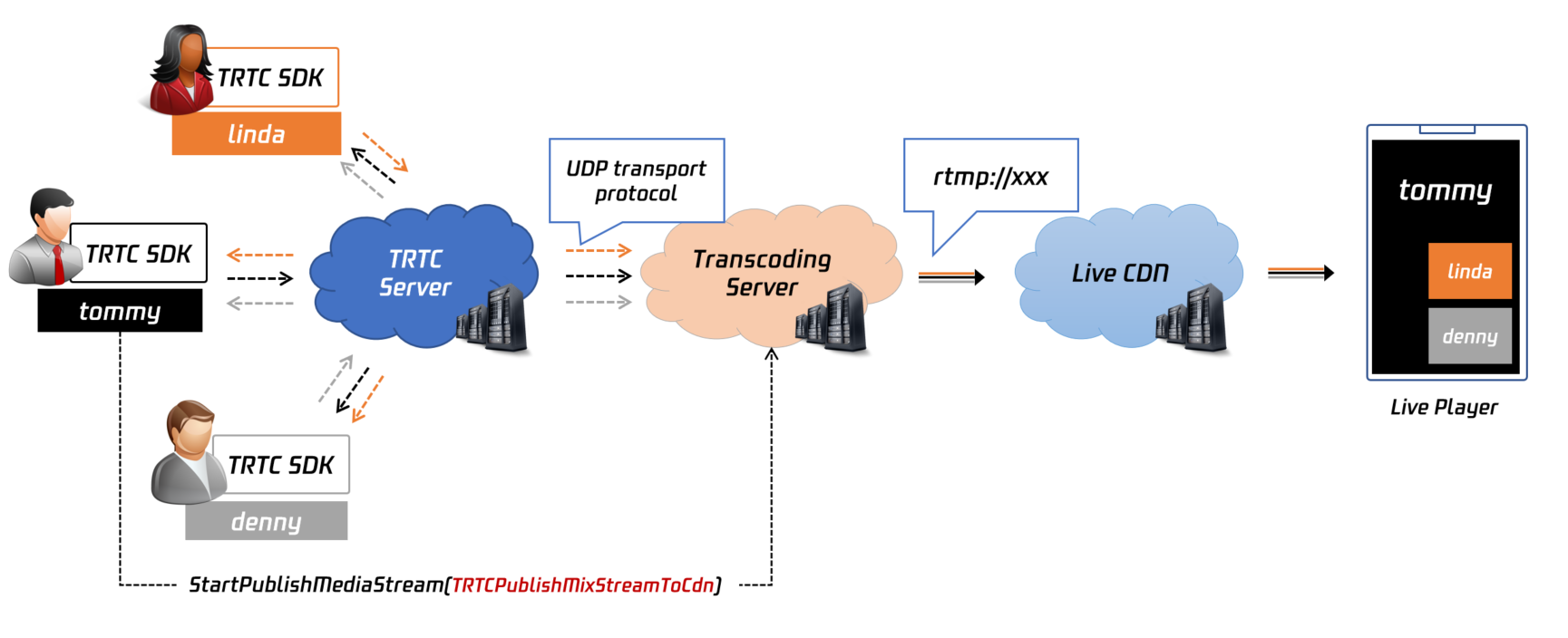
startPublishMediaStream을 호출하여 TRTC 룸에 있는 여러 사용자의 스트림을 하나의 스트림으로 믹싱하고 스트림을 CDN에 게시할 수 있습니다. API의 TRTCStreamEncoderParamTRTCStreamMixingConfig 매개변수를 사용하면 스트림 믹싱 및 트랜스 코딩에 대한 세부 정보를 결정할 수 있습니다.
스트림은 클라우드에서 먼저 디코딩 및 믹싱된 다음 지정한 스트림 믹싱 매개변수(TRTCStreamMixingConfig) 및 트랜스 코딩 매개변수(TRTCStreamEncoderParam)에 따라 다시 인코딩됩니다. 그 후에 CDN에 게시됩니다. 이 모드에서는 추가 트랜스 코딩 요금이 부과됩니다.

작업 가이드

아래 단계에 따라 한 방에서 여러 사용자의 스트림을 믹싱하고 믹싱된 스트림을 CDN에 게시할 수 있습니다. 1 TRTCPublishTarget 객체를 생성하고 TRTCPublishTarget의 mode를 TRTCPublishMixStreamToCdn으로 설정합니다. 2. TRTCPublishTarget 객체의 cdnUrlList를 하나 이상의 CDN 주소(보통 rtmp://로 시작)로 설정합니다. Tencent Cloud CDN에 게시하는 경우 isInternalLine을 true로 설정합니다. 그렇지 않으면 false로 설정하십시오. 3. 인코딩 매개변수 설정(TRTCStreamEncoderParam): 비디오 인코딩 매개변수: 해상도, 프레임 레이트(15fps 권장), 비트 레이트 및 GOP(3초 권장)를 지정합니다. 비트 레이트와 해상도는 적절한 매칭 관계가 있습니다. 아래 표에는 몇 가지 권장 해상도 및 비트 레이트 설정이 나와 있습니다. 오디오 인코딩 매개변수: startLocalAudio를 호출할 때 전달한 AudioQuality 값에 따라 코덱, 비트 레이트, 샘플링 레이트 및 사운드 채널을 지정합니다.
videoEncodedWidth
videoEncodedHeight
videoEncodedFPS
videoEncodedGOP
videoEncodedKbps
640
360
15
3
800kbps
960
540
15
3
1200kbps
1280
720
15
3
1500kbps
1920
1080
15
3
2500kbps
TRTCAudioQuality
audioEncodedSampleRate
audioEncodedChannelNum
audioEncodedKbps
audioEncodedCodecType
TRTCAudioQualitySpeech
48000
1
50
0
TRTCAudioQualityDefault
48000
1
50
0
TRTCAudioQualityMusic
48000
2
60
2
1. 오디오 믹싱 및 비디오 레이아웃에 대한 매개변수 설정(TRTCStreamMixingConfig): 오디오 믹싱 매개변수(audioMixUserList): 이 매개변수를 비워 두어 방의 모든 오디오를 믹싱하거나 오디오를 믹싱하려는 사용자의 ID로 설정할 수 있습니다. 비디오 레이아웃 매개변수(videoLayoutList): 비디오 레이아웃은 배열에 의해 결정됩니다. 배열의 각 TRTCVideoLayout 요소는 비디오 창의 위치, 크기 및 배경색을 결정합니다. fixedVideoUser를 지정하면 TRTCVideoLayout 요소에 의해 정의된 창에 특정 사용자의 비디오가 표시됩니다. fixedVideoUser를 null로 설정하면 TRTC 서버가 창에 표시할 비디오를 결정합니다.
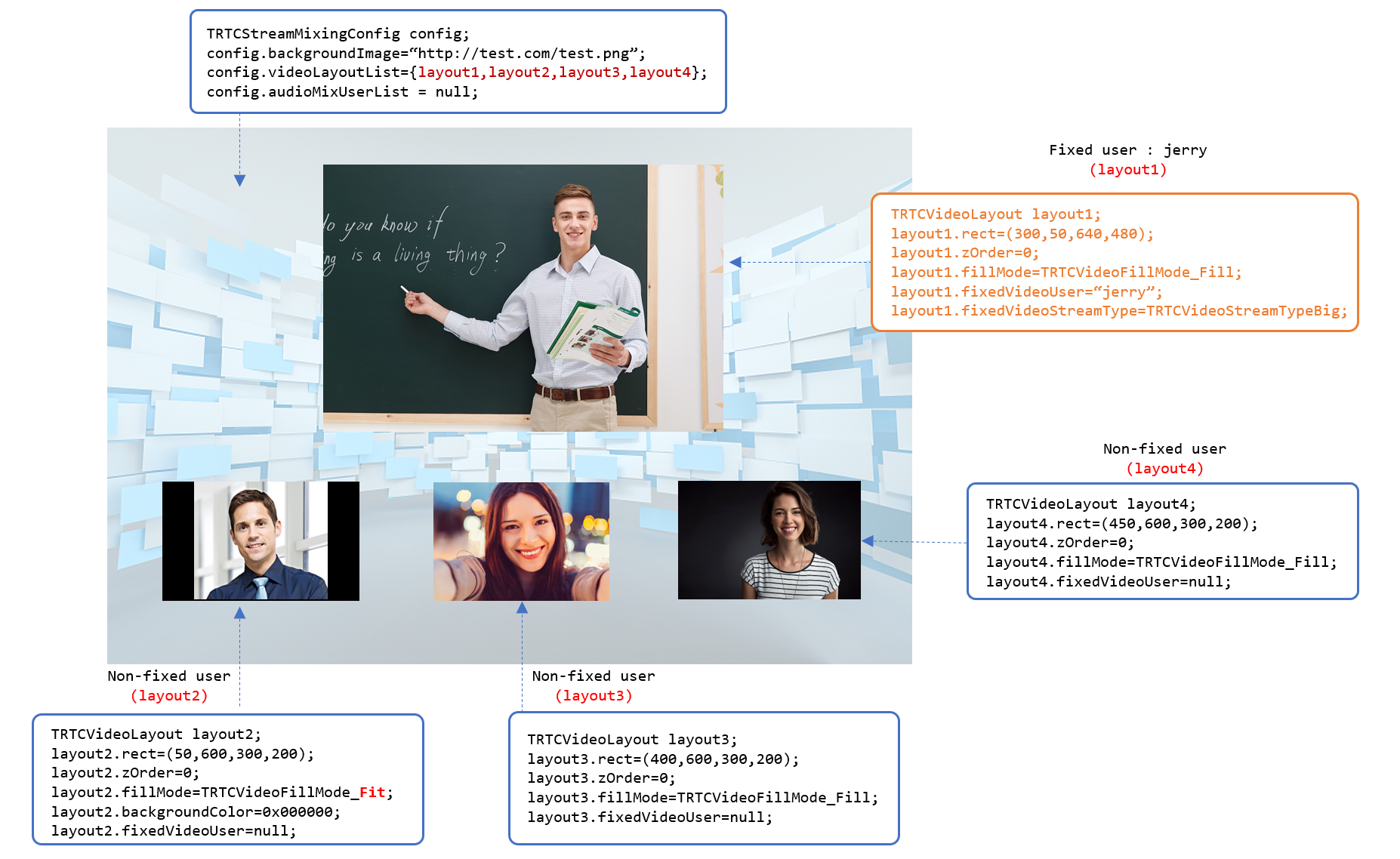
사례1: 4명의 사용자 스트림을 혼합하고 이미지를 배경으로 사용
layout1: 사용자 jerry의 카메라 비디오의 위치(캔버스의 위쪽 절반)와 크기(640x480)를 지정합니다.
layout2, layout3, layout4: 사용자 Id가 지정되지 않았기 때문에 TRTC는 자체 규칙에 따라 창에 다른 세 사용자의 비디오를 표시합니다.


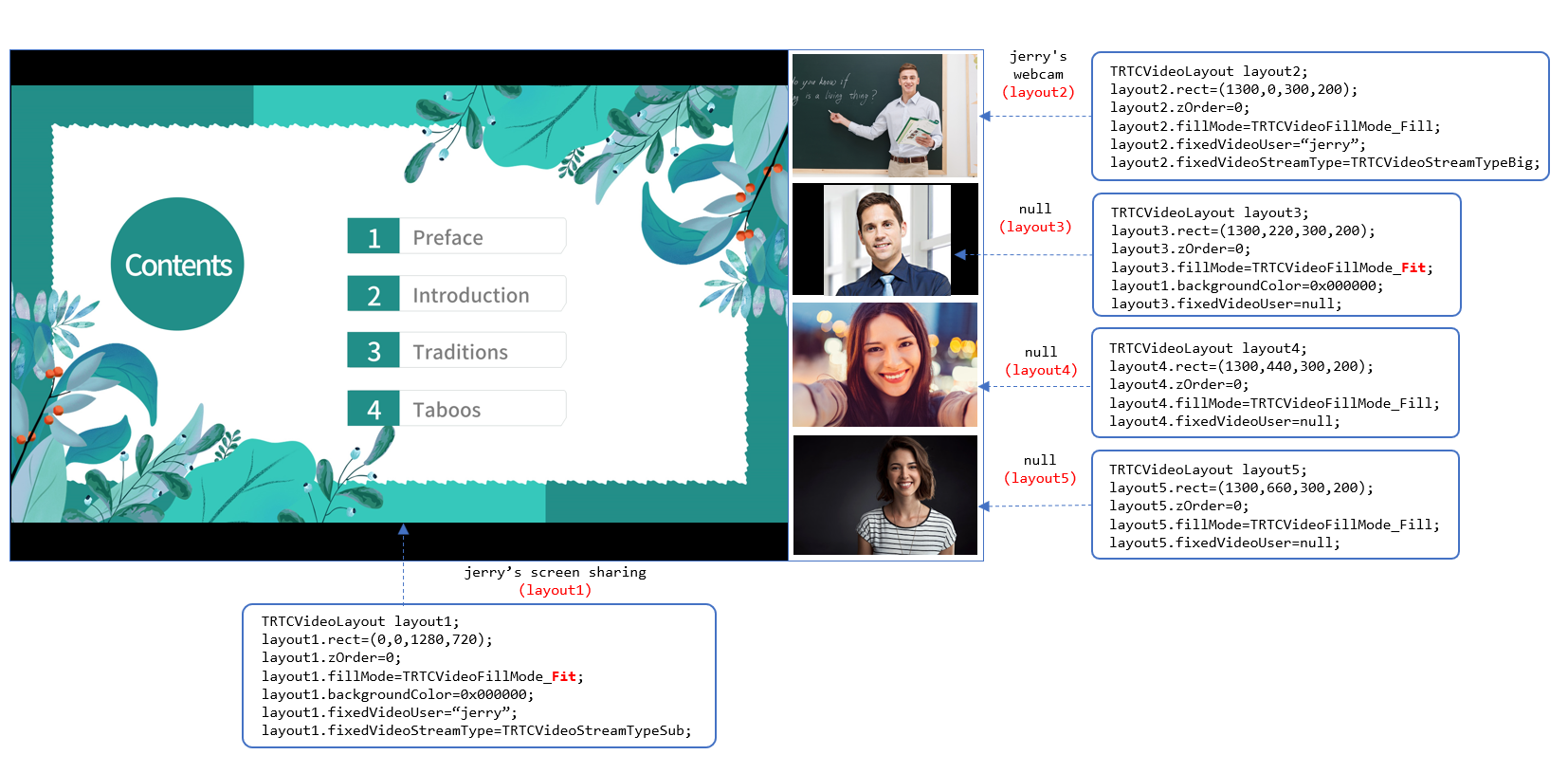
사례2: 한 사용자의 카메라 비디오와 화면에 다른 세 사용자의 카메라 비디오를 혼합
layout1: 사용자 jerry의 화면의 위치(왼쪽)와 크기(1280x720)를 지정합니다. 사용된 렌더링 모드는 가로 세로 맞춤(Fit)이며 배경색은 검정색입니다.
layout2: 사용자 jerry의 카메라 비디오의 위치(오른쪽 상단)와 크기(300x200)를 지정합니다. 사용된 렌더링 모드는 화면 채우기(Fill)입니다.
layout3, layout4, layout5: 사용자 Id가 지정되지 않았기 때문에 TRTC는 자체 규칙에 따라 창에 다른 세 사용자의 비디오를 표시합니다.


2. startPublishMediaStream을 호출합니다. onStartPublishMediaStream 콜백에서 반환된 taskId 매개변수가 비어 있지 않으면 로컬 API 호출이 성공한 것입니다.
3. 스트림 믹싱 매개변수(예: 비디오 레이아웃)를 변경하려면 updatePublishMediaStream을 호출하고 6단계에서 반환된 taskId와 새로운 TRTCStreamMixingConfig 매개변수를 전달합니다. 릴레이 중에는 TRTCStreamEncoderParam을 변경하지 않는 것이 좋습니다. 그렇게 하면 CDN 재생의 안정성에 영향을 미치기 때문입니다.
4. 게시를 중지하려면 stopPublishMediaStream을 호출하고 onStartPublishMediaStream에서 반환된 taskId를 전달합니다.

샘플 코드

아래 코드는 한 방에 있는 여러 사용자의 스트림을 믹싱하고 그 결과를 CDN에 게시합니다.
Java
ObjC
C++
```
// 게시 모드를 TRTC_PublishMixedStream_ToCdn으로 지정
TRTCCloudDef.TRTCPublishTarget target = new TRTCCloudDef.TRTCPublishTarget();
target.mode = TRTC_PublishMixedStream_ToCdn;

// 게시된 CDN 푸시 스트림 주소 지정
TRTCCloudDef.TRTCPublishCdnUrl cdnUrl= new TRTCCloudDef.TRTCPublishCdnUrl();
cdnUrl.rtmpUrl = "rtmp://tencent/live/bestnews";
cdnUrl.isInternalLine = true;
target.cdnUrlList.add(cdnUrl);


// 믹싱된 오디오/비디오 스트림의 2차 인코딩 매개변수 설정
TRTCCloudDef.TRTCStreamEncoderParam encoderParam
= new TRTCCloudDef.TRTCStreamEncoderParam();
encoderParam.videoEncodedWidth = 1280;
encoderParam.videoEncodedHeight = 720;
encoderParam.videoEncodedFPS = 15;
encoderParam.videoEncodedGOP = 3;
encoderParam.videoEncodedKbps = 1000;
encoderParam.audioEncodedSampleRate = 48000;
encoderParam.audioEncodedChannelNum = 1;
encoderParam.audioEncodedKbps = 50;
encoderParam.audioEncodedCodecType = 0;

// 화면의 레이아웃 매개변수 설정
TRTCCloudDef.TRTCStreamMixingConfig mixingConfig =
new TRTCCloudDef.TRTCStreamMixingConfig();
TRTCCloudDef.TRTCVideoLayout layout1 = new TRTCCloudDef.TRTCVideoLayout();
layout1.zOrder = 0;
layout1.x = 0;
layout1.y = 0;
layout1.width = 720;
layout1.height = 1280;
layout1.fixedVideoStreamType = TRTCCloudDef.TRTC_VIDEO_STREAM_TYPE_SUB;
layout1.fixedVideoUser.intRoomId = 1234;
layout1.fixedVideoUser.userId = "mike";

TRTCCloudDef.TRTCVideoLayout layout2 = new TRTCCloudDef.TRTCVideoLayout();
layout2.zOrder = 0;
layout2.x = 1300;
layout2.y = 0;
layout2.width = 300;
layout2.height = 200;
layout2.fixedVideoStreamType = TRTCCloudDef.TRTC_VIDEO_STREAM_TYPE_BIG;
layout2.fixedVideoUser.intRoomId = 1234;
layout2.fixedVideoUser.userId = "mike";

TRTCCloudDef.TRTCVideoLayout layout3 = new TRTCCloudDef.TRTCVideoLayout();
layout3.zOrder = 0;
layout3.x = 1300;
layout3.y = 220;
layout3.width = 300;
layout3.height = 200;
layout3.fixedVideoStreamType = TRTCCloudDef.TRTC_VIDEO_STREAM_TYPE_SUB;
layout3.fixedVideoUser = null;

mixingConfig.videoLayoutList.add(layout1);
mixingConfig.videoLayoutList.add(layout2);
mixingConfig.videoLayoutList.add(layout3);
mixingConfig.audioMixUserList = null;

// 혼합 스트림 시작
mTRTCCloud.startPublishMediaStream(target, encoderParam, mixingConfig);
```

```
// 게시 모드를 TRTCPublishMixStreamToCdn으로 지정
TRTCPublishTarget* target = [[TRTCPublishTarget alloc] init];
target.mode = TRTCPublishMixStreamToCdn;

// 게시된 CDN 푸시 스트림 주소 지정
TRTCPublishCdnUrl* cdnUrl = [[TRTCPublishCdnUrl alloc] init];
cdnUrl.rtmpUrl = @"rtmp://tencent/live/bestnews";
cdnUrl.isInternalLine = YES;

NSMutableArray* cdnUrlList = [NSMutableArray new];
[cdnUrlList addObject:cdnUrl];
target.cdnUrlList = cdnUrlList;

// 믹싱된 오디오/비디오 스트림의 2차 인코딩 매개변수 설정
TRTCStreamEncoderParam* encoderParam = [[TRTCStreamEncoderParam alloc] init];
encoderParam.videoEncodedWidth = 1280;
encoderParam.videoEncodedHeight = 720;
encoderParam.videoEncodedFPS = 15;
encoderParam.videoEncodedGOP = 3;
encoderParam.videoEncodedKbps = 1000;
encoderParam.audioEncodedSampleRate = 48000;
encoderParam.audioEncodedChannelNum = 1;
encoderParam.audioEncodedKbps = 50;
encoderParam.audioEncodedCodecType = 0;

// 화면의 레이아웃 매개변수 설정
TRTCStreamMixingConfig* config = [[TRTCStreamMixingConfig alloc] init];
NSMutableArray* videoLayoutList = [NSMutableArray new];
TRTCVideoLayout* layout1 = [[TRTCVideoLayout alloc] init];
layout1.zOrder = 0;
layout1.rect = CGRectMake(0, 0, 720, 1280);
layout1.fixedVideoStreamType = TRTCVideoStreamTypeSub;
layout1.fixedVideoUser.intRoomId = 1234;
layout1.fixedVideoUser.userId = @"mike";

TRTCVideoLayout* layout2 = [[TRTCVideoLayout alloc] init];
layout2.zOrder = 0;
layout2.rect = CGRectMake(1300, 0, 300, 200);
layout2.fixedVideoStreamType = TRTCVideoStreamTypeBig;
layout2.fixedVideoUser.intRoomId = 1234;
layout2.fixedVideoUser.userId = @"mike";

TRTCVideoLayout* layout3 = [[TRTCVideoLayout alloc] init];
layout3.zOrder = 0;
layout3.rect = CGRectMake(1300, 220, 300, 200);
layout3.fixedVideoStreamType = TRTCVideoStreamTypeSub;
layout3.fixedVideoUser = nil;

[videoLayoutList addObject:layout1];
[videoLayoutList addObject:layout2];
[videoLayoutList addObject:layout3];
config.videoLayoutList = videoLayoutList;
config.audioMixUserList = nil;

// 혼합 스트림 시작
[_trtcCloud startPublishMediaStream:target encoderParam:encoderParam mixingConfig:config];
```

```
// 게시 모드를 TRTCPublishMixStreamToCdn으로 지정
TRTCPublishTarget target;
target.mode = TRTCPublishMode::TRTCPublishMixStreamToCdn;

// 게시된 CDN 푸시 스트림 주소 지정
TRTCPublishCdnUrl* cdn_url = new TRTCPublishCdnUrl[1];
cdn_url[0].rtmpUrl = "rtmp://tencent/live/bestnews";
cdn_url[0].isInternalLine = true;
target.cdnUrlList = cdn_url;
target.cdnUrlListSize = 1;

// 믹싱된 오디오/비디오 스트림의 2차 인코딩 매개변수 설정
TRTCStreamEncoderParam encoder_param;
encoder_param.videoEncodedWidth = 1280;
encoder_param.videoEncodedHeight = 720;
encoder_param.videoEncodedFPS = 15;
encoder_param.videoEncodedGOP = 3;
encoder_param.videoEncodedKbps = 1000;
encoder_param.audioEncodedSampleRate = 48000;
encoder_param.audioEncodedChannelNum = 1;
encoder_param.audioEncodedKbps = 50;
encoder_param.audioEncodedCodecType = 0;

// 화면의 레이아웃 매개변수 설정
TRTCStreamMixingConfig config;
TRTCVideoLayout* video_layout_list = new TRTCVideoLayout[3];

TRTCUser* fixedVideoUser0 = new TRTCUser();
fixedVideoUser0->intRoomId = 1234;
fixedVideoUser0->userId = "mike";
video_layout_list[0].zOrder = 0;
video_layout_list[0].rect.left = 0;
video_layout_list[0].rect.top = 0;
video_layout_list[0].rect.right = 720;
video_layout_list[0].rect.bottom = 1280;
video_layout_list[0].fixedVideoStreamType =
TRTCVideoStreamType::TRTCVideoStreamTypeSub;
video_layout_list[0].fixedVideoUser = fixedVideoUser0;

TRTCUser* fixedVideoUser1 = new TRTCUser();
fixedVideoUser1->intRoomId = 1234;
fixedVideoUser1->userId = "mike";
video_layout_list[1].zOrder = 0;
video_layout_list[1].rect.left = 1300;
video_layout_list[1].rect.top = 0;
video_layout_list[1].rect.right = 300;
video_layout_list[1].rect.bottom = 200;
video_layout_list[1].fixedVideoStreamType =
TRTCVideoStreamType::TRTCVideoStreamTypeBig;
video_layout_list[1].fixedVideoUser = fixedVideoUser1;

video_layout_list[2].zOrder = 0;
video_layout_list[2].rect.left = 1300;
video_layout_list[2].rect.top = 220;
video_layout_list[2].rect.right = 300;
video_layout_list[2].rect.bottom = 200;
video_layout_list[2].fixedVideoStreamType =
TRTCVideoStreamType::TRTCVideoStreamTypeSub;
video_layout_list[2].fixedVideoUser = nullptr;

config.videoLayoutList = video_layout_list;
config.videoLayoutListSize = 3;
config.audioMixUserList = nullptr;

// 혼합 스트림 시작
trtc->startPublishMediaStream(&target, &encoder_param, &config);
delete fixedVideoUser0;
delete fixedVideoUser1;
delete[] video_layout_list;
```


FAQ

1. CDN 스트림의 상태를 수신할 수 있습니까? 오류가 발생하면 어떻게 해야 합니까? 답변: onCdnStreamStateChanged 콜백 이벤트를 수신하여 CDN 작업 중계의 최신 상태를 얻을 수 있습니다.
2. 단일 스트림 게시에서 혼합 스트림 게시로 전환하려면 어떻게 합니까? 먼저 게시를 중지하고 새 릴레이 작업을 만들어야 합니까? 답변: 단일 스트림 게시에서 혼합 스트림 게시로 전환하려면 현재 작업의 taskid를 전달하여 updatePublishMediaStream을 호출하기만 하면 됩니다. 게시 프로세스의 안정성을 보장하기 위해 단일 스트림 게시에서 오디오만 또는 비디오만 믹싱 및 게시로 전환할 수 없습니다. 기본적으로 단일 스트림을 게시하면 오디오 및 비디오 데이터가 모두 게시됩니다. 혼합 스트림 게시로 전환하는 경우 오디오와 비디오도 모두 게시해야 합니다.
3. 오디오 없이 비디오만 믹싱하는 방법은 무엇입니까? 답변: TRTCStreamEncodeParam에서 오디오 매개변수를 설정하지 말고 TRTCStreamMixingConfigaudioMixUserList를 비워 두십시오.
4. 혼합 스트림에 워터마크를 추가할 수 있습니까? 답변: 예, TRTCStreamMixingConfigwatermarkList를 사용하여 워터마크를 설정할 수 있습니다.
5. 온라인 학습 시나리오에서 교사가 공유하는 화면을 믹싱할 수 있나요? 답변: 예, 할 수 있습니다. 화면을 서브스트림으로 퍼블리싱하고 교사의 카메라 영상과 화면을 믹싱하는 것이 좋습니다. 스트림 믹싱 매개변수를 지정할 때 TRTCVideoLayoutfixedVideoStreamTypeTRTCVideoStreamTypeSub로 설정합니다.
6. 사전 설정 레이아웃을 사용할 때 오디오는 어떻게 믹싱됩니까? 답변: 사전 설정 레이아웃을 사용하는 경우 TRTC는 방에 있는 최대 16명의 사용자의 오디오를 믹싱합니다.

관련 요금

요금 계산

스트림을 믹싱하면 MCU 클러스터가 클라우드에서 스트림을 디코딩하고 다시 인코딩하므로 추가 트랜스 코딩 요금이 부과됩니다. 트랜스 코딩 요금은 트랜스 코딩된 스트림의 해상도와 트랜스 코딩 시간에 따라 다릅니다. CDN 릴레이 요금은 매월 사용되는 최대 대역폭을 기준으로 청구됩니다. 자세한 내용은 혼합 트랜스코딩 및 릴레이 과금을 참고하십시오.

요금 절약

클라이언트 측 API를 사용하는 경우 다음 조건 중 하나가 충족되면 백엔드에서 스트림 믹싱이 중지됩니다.
스트림을 믹싱하기 위해 startPublishMediaStream을 호출한 앵커가 방을 나갔습니다.
stopPublishMediaStream을 호출하여 스트림 믹싱을 중지합니다.
다른 모든 경우에 TRTC는 계속해서 클라우드에서 스트림을 혼합합니다. 따라서 비용을 줄이기 위해 더 이상 스트림을 혼합하지 않으려면 위의 방법 중 하나를 사용하여 중지하십시오.
도움말 및 지원

문제 해결에 도움이 되었나요?

피드백