Console Webhook Configuration
다운로드
포커스 모드
폰트 크기
Log in to the TencentRTC Live console, select the target application to enter the application management page. In the left navigation bar, choose Live > Configuration > Live Webhook. You can configure the webhook URL and enable the webhooks based on your actual business needs.
Configure Webhook URL
1. On the Live Webhook page, edit the webhook URL in the Live webhook configuration area.
2. In the pop-up Live webhook configuration dialog box, enter the webhook URL.
Note:
The new callback URL takes effect after 2 minutes of successful modification.
The callback URL must start with
http:// or https://.If you have not applied for a domain name, you can directly configure an IP, such as
http://123.123.123.123/imcallback.Only can be used English letters (a-z, case-insensitive), numbers (0-9), and "-" (hyphen in English, i.e., middle hyphen).
Do not use spaces or special characters, such as !, $, &, ?.
- "-" cannot appear consecutively, be registered individually, or be placed at the beginning and ending.
Domain name length not exceeding 63 characters.
The callback URL in IM includes port 80/443 by default. When replacing the callback URL, port adjustment is involved. Avoid mutually prefixed ports before and after replacement, such as changing
https://xxx:443 to https://xxx:4433 or https://xxx to https://xxx:4433.3. Click Confirm to save the configuration.
Configure Event Webhook
1. On the Live webhook page, you can directly enable/disable the webhook switch in the Live webhook configuration area.
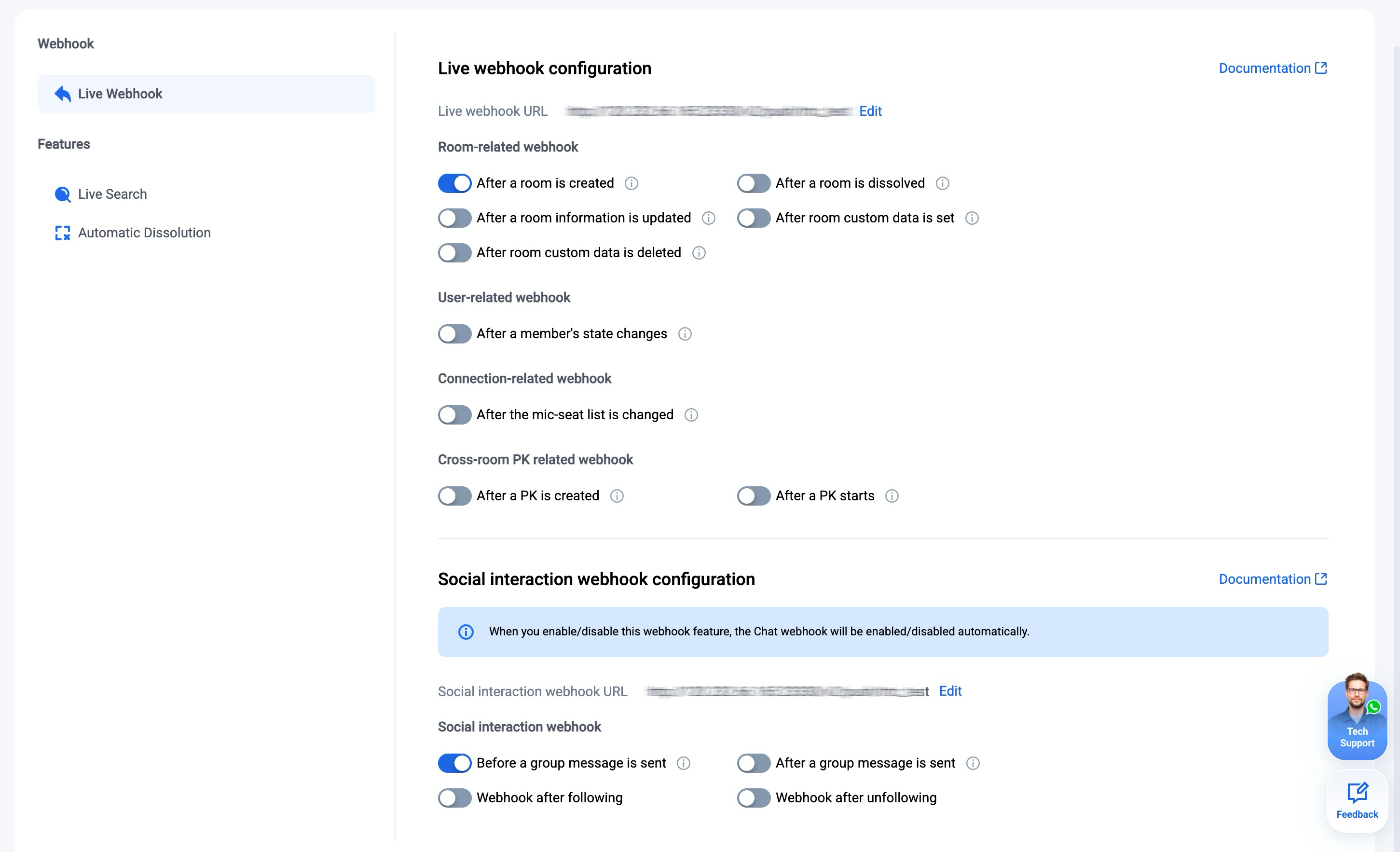
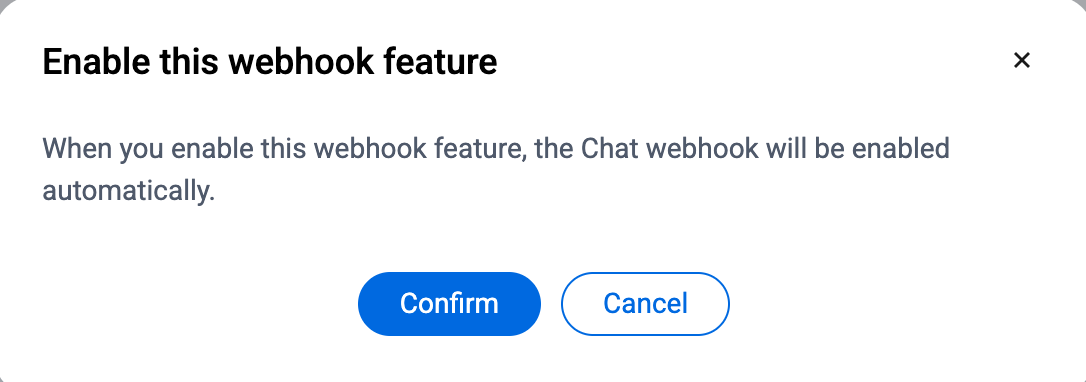
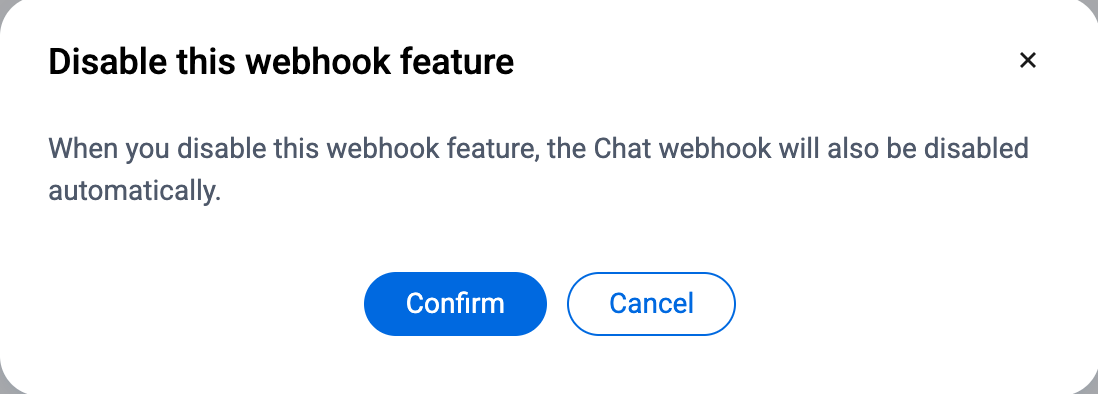
2. Since the social interaction webhook shares the same functionality as the Chat webhook, in the social interaction webhook area, enabling/disabling the required webhooks will require a confirmation popup to take effect after enabling/disabling.
피드백