제품 업데이트
Tencent Cloud 오디오/비디오 단말 SDK 재생 업그레이드 및 권한 부여 인증 추가
TRTC 월간 구독 패키지 출시 관련 안내
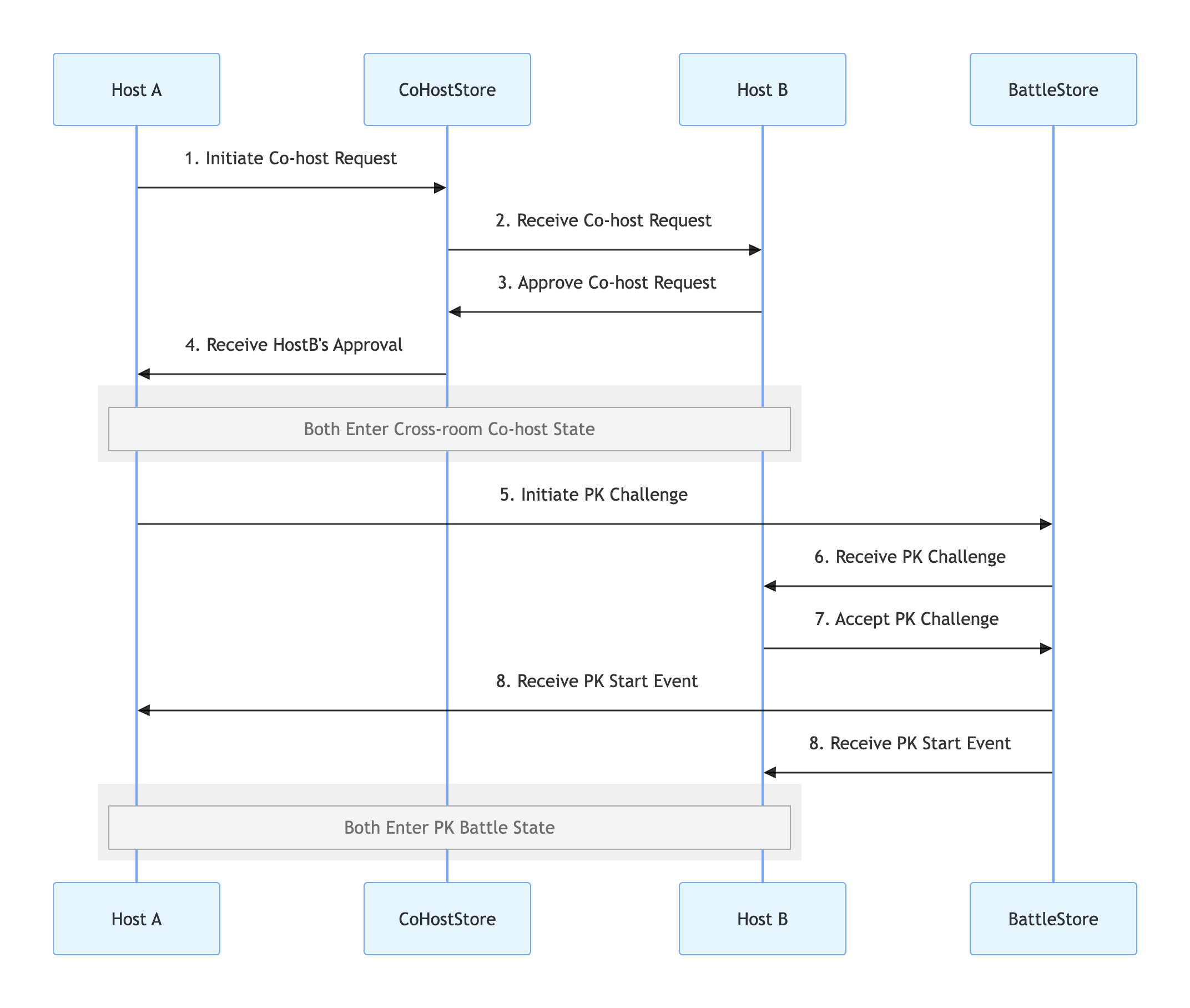
requestHostConnection method.import androidx.appcompat.app.AppCompatActivityimport io.trtc.tuikit.atomicxcore.api.CompletionHandlerimport io.trtc.tuikit.atomicxcore.api.live.CoHostLayoutTemplateimport io.trtc.tuikit.atomicxcore.api.live.CoHostStore// Host A's Activityclass HostAActivity : AppCompatActivity() {private val liveId = "hostA_roomID" // Host A's Room IDprivate val coHostStore = CoHostStore.create(liveId)// User clicks the "Co-host" button and selects Host Bfun inviteHostB(targetHostLiveId: String) {val layout = CoHostLayoutTemplate.HOST_DYNAMIC_GRID // Select a layout templateval timeout = 30 // Invitation timeout (seconds)coHostStore.requestHostConnection(targetHostLiveID = targetHostLiveId,layoutTemplate = layout,timeout = timeout,extraInfo = null,completion = object : CompletionHandler {override fun onSuccess() {println("Co-hosting invitation sent, waiting for response...")}override fun onFailure(code: Int, desc: String) {println("Invitation failed to send: $desc")}})}}
import android.os.Bundleimport androidx.appcompat.app.AppCompatActivityimport io.trtc.tuikit.atomicxcore.api.live.CoHostListenerimport io.trtc.tuikit.atomicxcore.api.live.CoHostStoreimport io.trtc.tuikit.atomicxcore.api.live.SeatUserInfoclass HostAActivity : AppCompatActivity() {private val liveId = "hostA_roomID" // Host A's Room IDprivate val coHostStore = CoHostStore.create(liveId)private val coHostListener = object : CoHostListener() {override fun onCoHostRequestAccepted(invitee: SeatUserInfo) {println("Host ${invitee.userName} accepted your co-hosting invitation")}override fun onCoHostRequestRejected(invitee: SeatUserInfo) {println("Host ${invitee.userName} rejected your invitation")}override fun onCoHostRequestTimeout(inviter: SeatUserInfo, invitee: SeatUserInfo) {println("Invitation timed out, no response received")}}override fun onCreate(savedInstanceState: Bundle?) {super.onCreate(savedInstanceState)// ... initialization code ...// Initialize CoHostStorecoHostStore.addCoHostListener(coHostListener)}}
CoHostListener.import androidx.appcompat.app.AppCompatActivityimport io.trtc.tuikit.atomicxcore.api.live.CoHostListenerimport io.trtc.tuikit.atomicxcore.api.live.CoHostStoreimport io.trtc.tuikit.atomicxcore.api.live.SeatUserInfo// Host B's Activityclass HostBActivity : AppCompatActivity() {private val liveId = "hostB_roomID" // Host B's Room IDprivate val coHostStore = CoHostStore.create(liveId)private val coHostListener = object : CoHostListener() {override fun onCoHostRequestReceived(inviter: SeatUserInfo, extensionInfo: String) {println("Received co-hosting invitation from Host ${inviter.userName}")// Display invitation dialog to respond// showInvitationDialog(inviter)}}}
// Part of HostBActivityfun acceptInvitation(fromHostLiveId: String) {coHostStore.acceptHostConnection(fromHostLiveID = fromHostLiveId, completion = null)}fun rejectInvitation(fromHostLiveId: String) {coHostStore.rejectHostConnection(fromHostLiveID = fromHostLiveId, completion = null)}
requestBattle method.// Part of HostAActivityclass HostAActivity : AppCompatActivity() {private val liveId = "hostA_roomID" // Host A's Room IDprivate val battleStore = BattleStore.create(liveId)fun startPK(opponentUserId: String) {val config = BattleConfig(duration = 300) // PK lasts 5 minutesbattleStore.requestBattle(config = config,userIDList = listOf(opponentUserId),timeout = 30,completion = null)}}
BattleListener to monitor key events such as the start and end of PK.// Part of HostAActivityclass HostAActivity : AppCompatActivity() {private val liveId = "hostA_roomID" // Host A's Room IDprivate val battleStore = BattleStore.create(liveId)private val battleListener = object : BattleListener() {override fun onBattleStarted(battleInfo: BattleInfo,inviter: SeatUserInfo,invitees: List<SeatUserInfo>) {println("PK started")}override fun onBattleEnded(battleInfo: BattleInfo, reason: BattleEndedReason?) {println("PK ended")}}override fun onCreate(savedInstanceState: Bundle?) {super.onCreate(savedInstanceState)// ... other initialization code ...battleStore.addBattleListener(battleListener)}}
BattleListener.// Add to HostBActivityclass HostBActivity : AppCompatActivity() {private val liveId = "hostB_roomID" // Host B's Room IDprivate val battleStore = BattleStore.create(liveId)private val battleListener = object : BattleListener() {override fun onBattleRequestReceived(battleID: String, inviter: SeatUserInfo, invitee: SeatUserInfo) {println("Received PK challenge from Host ${inviter.userName}")// Pop up a dialog for Host B to choose "Accept" or "Reject"// showPKChallengeDialog(battleID, inviter)}}override fun onCreate(savedInstanceState: Bundle?) {super.onCreate(savedInstanceState)// ... other initialization code ...battleStore.addBattleListener(battleListener)}}
// Part of HostBActivity// User clicks "Accept Challenge"fun acceptPK(battleId: String) {battleStore.acceptBattle(battleID = battleId, completion = null)}// User clicks "Reject Challenge"fun rejectPK(battleId: String) {battleStore.rejectBattle(battleID = battleId, completion = null)}
exitBattle:fun stopPK(battleId: String) {battleStore.exitBattle(battleID = battleId, completion = object : CompletionHandler {override fun onSuccess() {println("PK ended")// Handle UI refresh in onBattleEnded event}override fun onFailure(code: Int, desc: String) {println("Failed to end PK: $desc")}})}
exitHostConnection:fun stopConnection() {coHostStore.exitHostConnection(completion = object : CompletionHandler {override fun onSuccess() {println("Co-hosting disconnected, back to solo live")// UI will receive onCoHostUserLeft event}override fun onFailure(code: Int, desc: String) {println("Failed to disconnect co-hosting: $desc")}})}
private val battleListener = object : BattleListener() {override fun onBattleEnded(battleInfo: BattleInfo, reason: BattleEndedReason?) {println("Received PK end event, reason: $reason")// Remove PK score view, progress bar, etc.// runOnUiThread { removeBattleUI() }}}private val coHostListener = object : CoHostListener() {override fun onCoHostUserLeft(userInfo: SeatUserInfo) {println("Host ${userInfo.userName} has left the co-hosting session")// Remove the other host's video view and restore solo live layout// runOnUiThread { resetToSingleStreamLayout() }}}
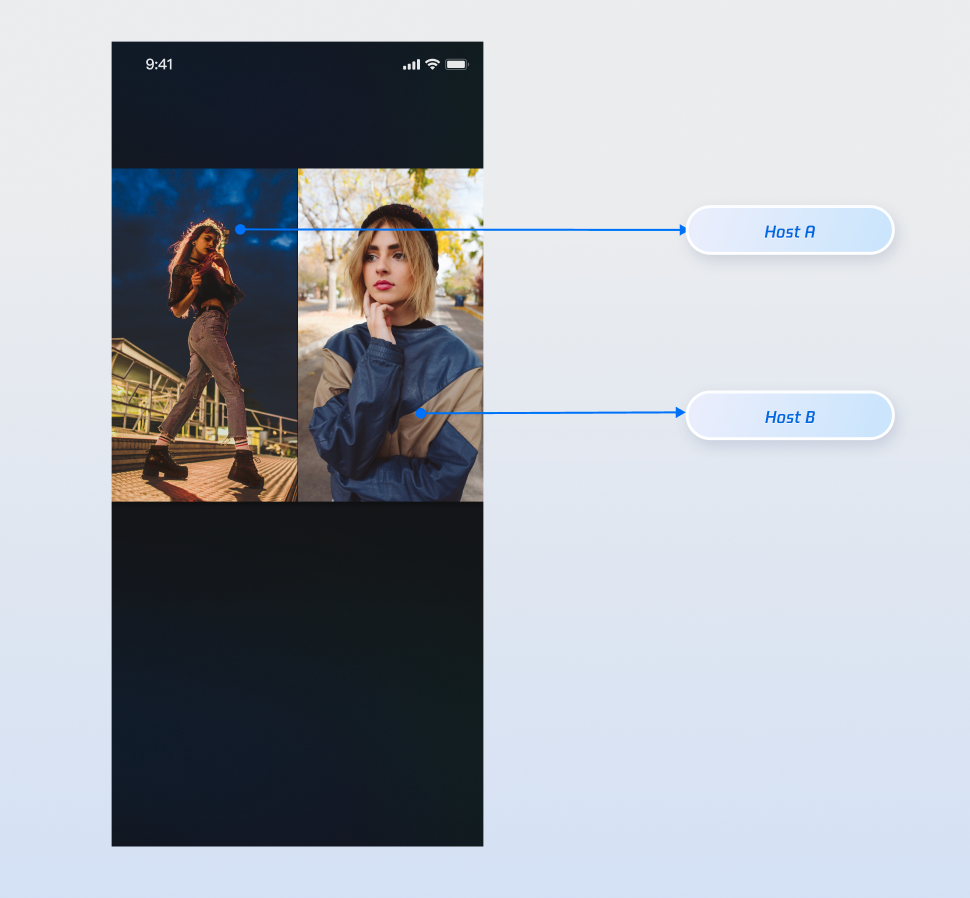
VideoViewAdapter interface to overlay custom views on video streams, such as nicknames, avatars, PK progress bars, or placeholder images when the host’s camera is off.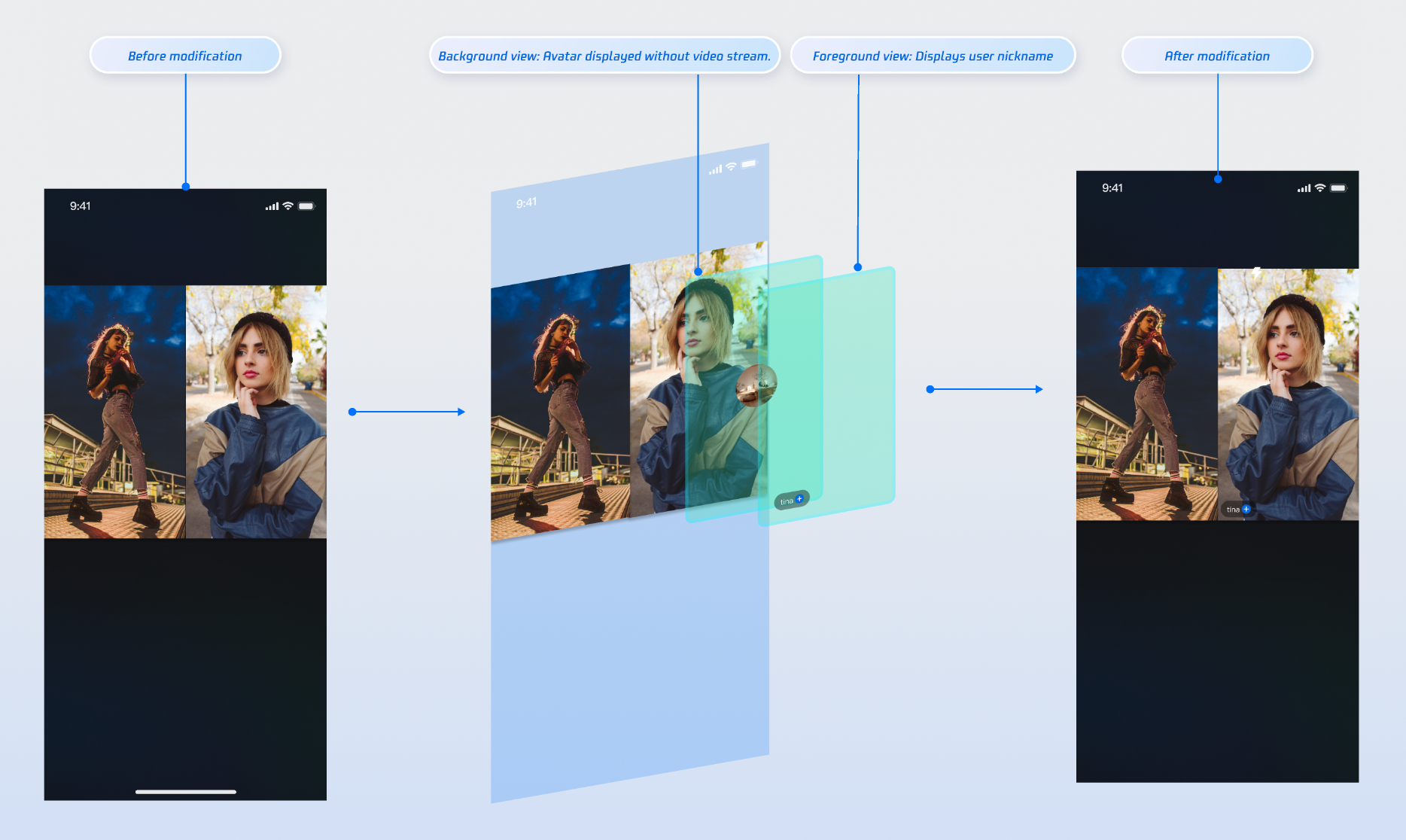
CustomSeatView to display user information above the video stream.import android.content.Contextimport android.graphics.Colorimport android.view.Gravityimport android.widget.LinearLayoutimport android.widget.TextView// Custom user information overlay view (Foreground)class CustomSeatView(context: Context) : LinearLayout(context) {private val nameLabel: TextViewinit {orientation = VERTICALsetBackgroundColor(Color.parseColor("#80000000")) // Semi-transparent black backgroundnameLabel = TextView(context).apply {setTextColor(Color.WHITE)textSize = 14fgravity = Gravity.CENTER}addView(nameLabel)val layoutParams = nameLabel.layoutParams as LayoutParamslayoutParams.setMargins(5, 0, 5, 5)}fun setUserName(userName: String) {nameLabel.text = userName}}
CustomAvatarView to serve as a placeholder when the user has no video stream.import com.tencent.cloud.tuikit.engine.room.TUIRoomDefineimport android.view.Viewimport androidx.appcompat.app.AppCompatActivityimport io.trtc.tuikit.atomicxcore.api.ViewLayerimport io.trtc.tuikit.atomicxcore.api.VideoViewAdapter// 1. In your Activity, implement the VideoViewAdapter interfaceclass YourActivity : AppCompatActivity(), VideoViewAdapter {// ... Other code ...// 2. Fully implement the interface method to handle both view layersoverride fun createCoHostView(coHostUser: TUIRoomDefine.SeatFullInfo?, viewLayer: ViewLayer?): View? {val seatInfo = coHostUser ?: return nullval userId = seatInfo.userIdif (userId.isNullOrEmpty()) {return null}return when (viewLayer) {ViewLayer.FOREGROUND -> {val seatView = CustomSeatView(this)seatView.setUserName(seatInfo.userName ?: "")seatView}ViewLayer.BACKGROUND -> {val avatarView = CustomAvatarView(this)// You can load the user's real avatar here using seatInfo.userAvataravatarView}null -> null}}}
VideoViewAdapter.createCoHostView method, returning the appropriate view based on viewLayer.import com.tencent.cloud.tuikit.engine.room.TUIRoomDefineimport android.view.Viewimport androidx.appcompat.app.AppCompatActivityimport io.trtc.tuikit.atomicxcore.api.ViewLayerimport io.trtc.tuikit.atomicxcore.api.VideoViewAdapter// 1. In your Activity, implement the VideoViewAdapter interfaceclass YourActivity : AppCompatActivity(), VideoViewAdapter {// ... Other code ...// 2. Fully implement the interface method to handle both view layersoverride fun createCoHostView(coHostUser: TUIRoomDefine.SeatFullInfo?, viewLayer: ViewLayer?): View? {val seatInfo = coHostUser ?: return nullval userId = seatInfo.userIdif (userId.isNullOrEmpty()) {return null}return when (viewLayer) {ViewLayer.FOREGROUND -> {val seatView = CustomSeatView(this)seatView.setUserName(seatInfo.userName ?: "")seatView}ViewLayer.BACKGROUND -> {val avatarView = CustomAvatarView(this)// You can load the user's real avatar here using seatInfo.userAvataravatarView}null -> null}}}
Parameter | Type | Description |
seatInfo | SeatFullInfo? | Seat information object containing user details |
seatInfo.userId | String? | User ID on the seat |
seatInfo.userName | String? | User nickname on the seat |
seatInfo.userAvatar | String? | User avatar URL |
seatInfo.userMicrophoneStatus | DeviceStatus | User microphone status |
seatInfo.userCameraStatus | DeviceStatus | User camera status |
viewLayer | ViewLayer | View layer enum FOREGROUND: Foreground widget view, always displayed on top of the videoBACKGROUND: Background widget view, under the foreground view, displayed only when the user has no video stream (e.g., camera off), typically used for the user's default avatar or a placeholder image |
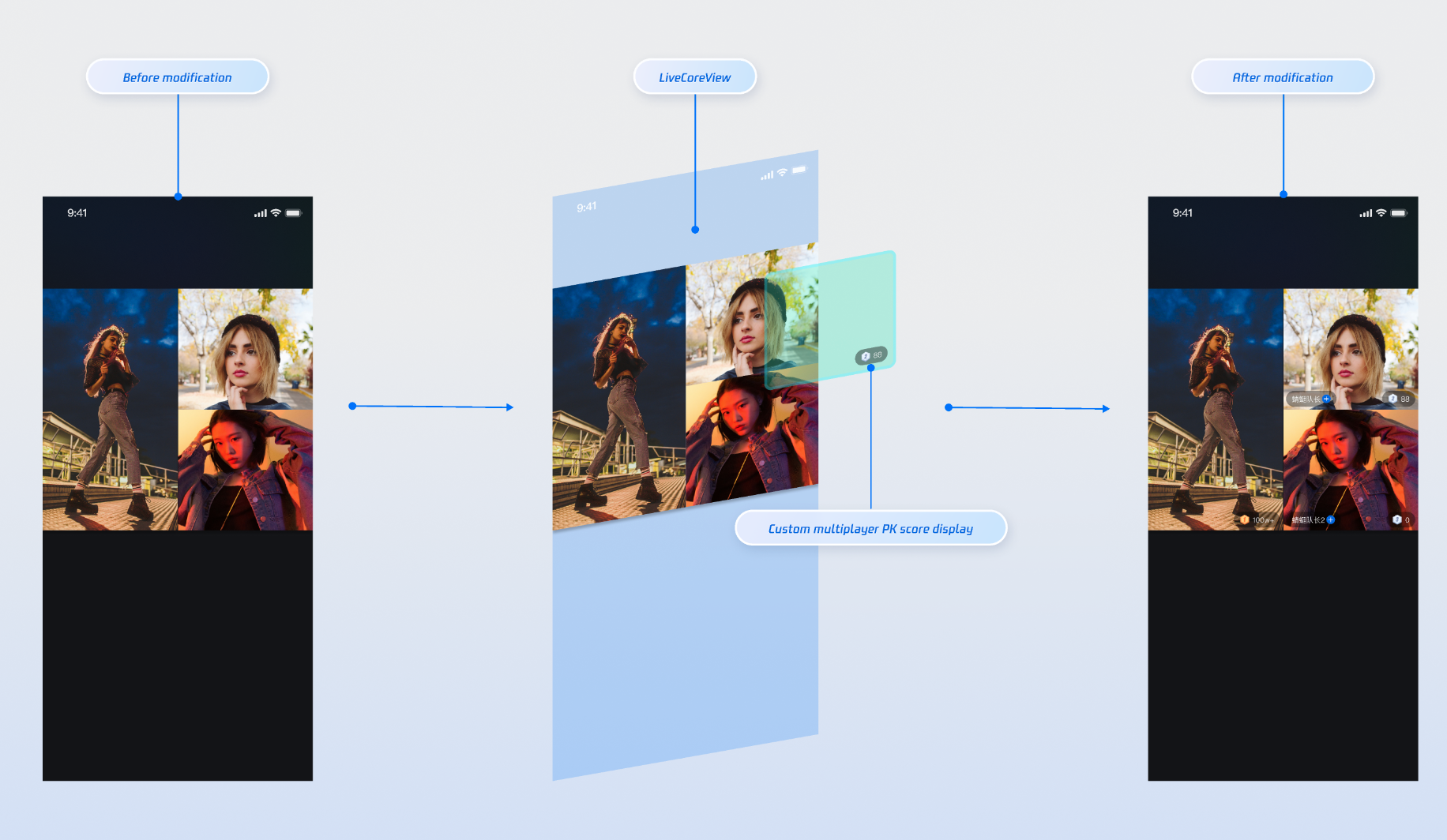
import android.content.Contextimport android.graphics.Colorimport android.view.Gravityimport android.widget.LinearLayoutimport android.widget.TextViewimport com.tencent.cloud.tuikit.engine.extension.TUILiveBattleManager.BattleUserimport io.trtc.tuikit.atomicxcore.api.BattleStoreimport kotlinx.coroutines.CoroutineScopeimport kotlinx.coroutines.Dispatchersimport kotlinx.coroutines.launch// Custom PK User Viewclass CustomBattleUserView(context: Context,private val liveId: String,private val battleUser: BattleUser) : LinearLayout(context) {private lateinit var scoreView: LinearLayoutprivate lateinit var scoreLabel: TextViewprivate val battleStore: BattleStoreinit {orientation = VERTICALgravity = Gravity.BOTTOM or Gravity.ENDsetBackgroundColor(Color.TRANSPARENT)isClickable = falsebattleStore = BattleStore.create(liveId)// UI LayoutsetupUI()// Subscribe to score changessubscribeBattleState()}private fun setupUI() {scoreView = LinearLayout(context).apply {setBackgroundColor(Color.parseColor("#66000000"))orientation = VERTICALgravity = Gravity.CENTER}scoreLabel = TextView(context).apply {setTextColor(Color.WHITE)textSize = 14fgravity = Gravity.CENTER}scoreView.addView(scoreLabel)addView(scoreView)val layoutParams = scoreView.layoutParams as LayoutParamslayoutParams.width = LayoutParams.WRAP_CONTENTlayoutParams.height = 48 // 24dplayoutParams.setMargins(0, 0, 10, 10)}// Subscribe to PK score changesprivate fun subscribeBattleState() {CoroutineScope(Dispatchers.Main).launch {battleStore.battleState.battleScore.collect { battleScore ->val score = battleScore[battleUser.userId] ?: 0// Update UIscoreLabel.text = score.toString()}}}}
VideoViewAdapter.createBattleView method.// 1. Have your Activity implement the VideoViewAdapter interfaceclass YourActivity : AppCompatActivity(), VideoViewAdapter {override fun createBattleView(battleUser: BattleUser?): View? {battleUser ?: return null// CustomBattleUserView is your custom PK user information viewreturn CustomBattleUserView(this, liveId, battleUser)}}
Parameter | Type | Description |
battleUser | BattleUser? | PK user info object |
battleUser.roomId | String | PK room ID |
battleUser.userId | String | PK user ID |
battleUser.userName | String | PK user nickname |
battleUser.avatarUrl | String | PK user avatar URL |
battleUser.score | UInt | PK score |
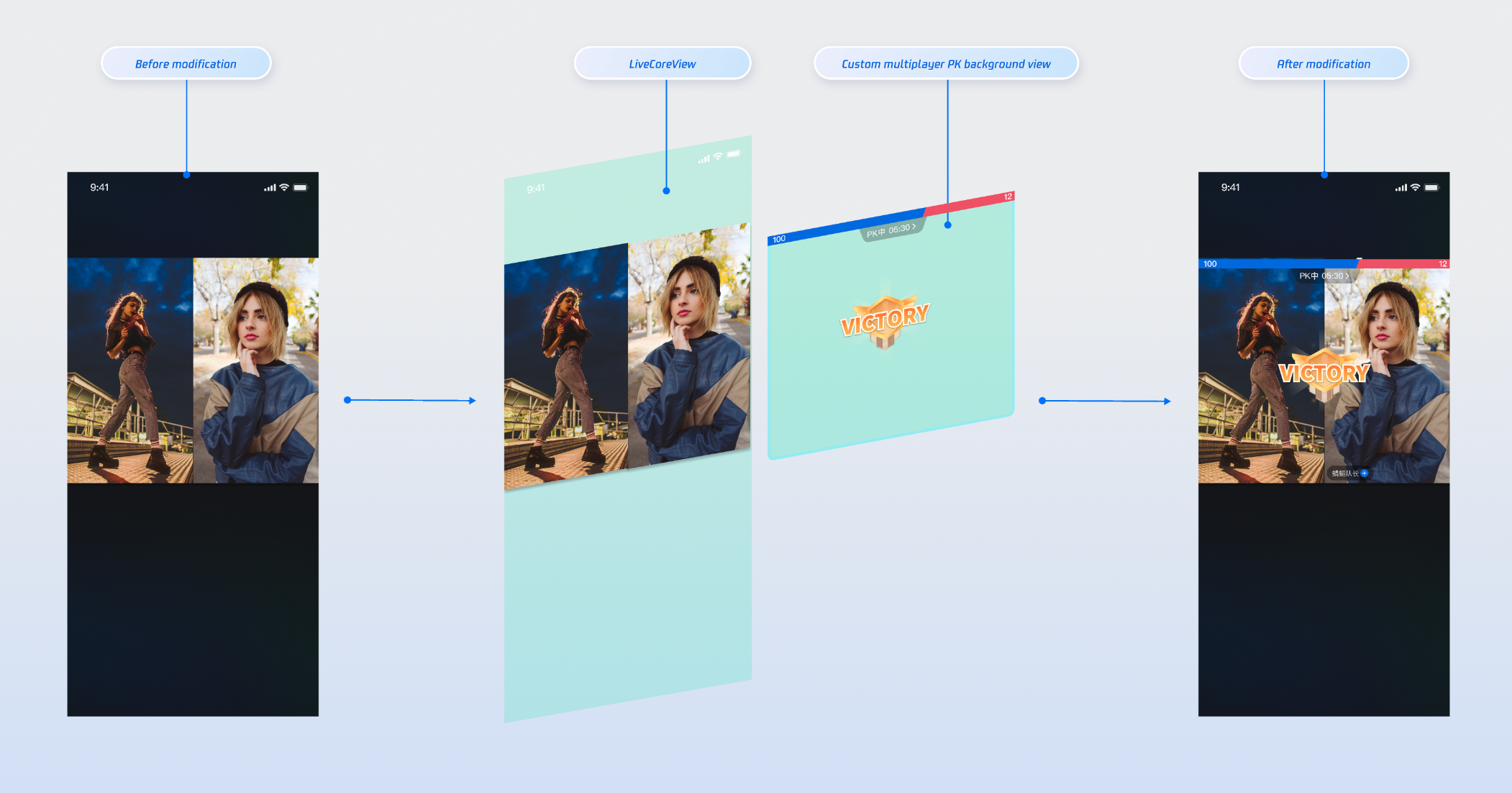
VideoViewAdapter.createBattleContainerView method.// Have your Activity implement the VideoViewAdapter interface and set the adapterclass YourActivity : AppCompatActivity(), VideoViewAdapter {override fun createBattleContainerView(): View? {return CustomBattleContainerView(this)}}
LiveKit backend uses pure numeric calculation and accumulation. You must calculate the PK score according to your own business logic before calling the update API. See the following PK score calculation examples:Gift Type | Score Calculation Rule | Example |
Basic Gift | Gift value × 5 | 10 RMB gift → 50 points |
Intermediate Gift | Gift value × 8 | 50 RMB gift → 400 points |
Advanced Gift | Gift value × 12 | 100 RMB gift → 1200 points |
Special Effect Gift | Fixed high score | 520 RMB gift → 1314 points |
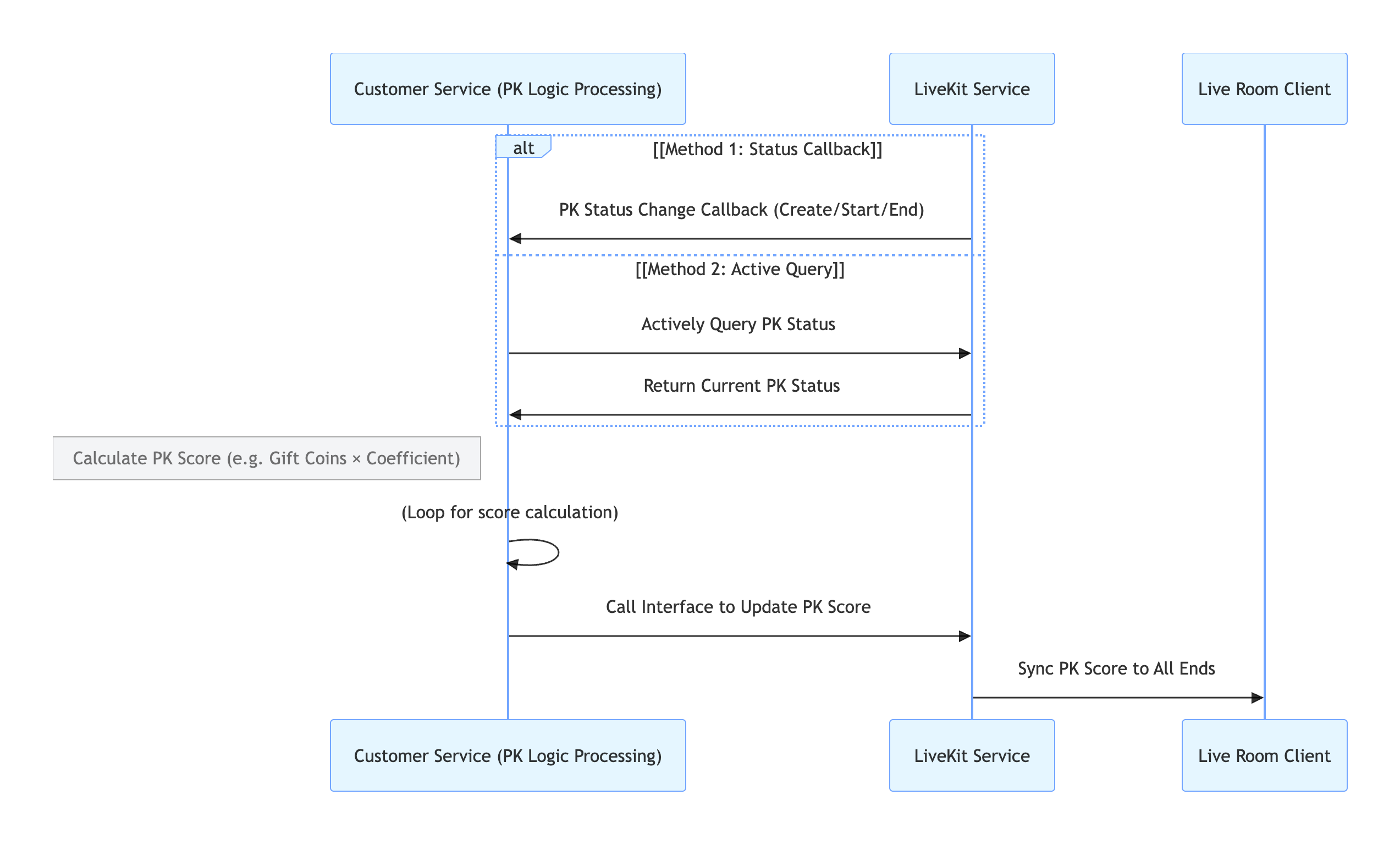
LiveKit backend actively notify your system when PK starts or ends.API | Function Description | Request Example |
Active API - Query PK Status | Check whether the current room is in PK | |
Active API - Update PK Score | Update the calculated PK score | |
Callback Configuration - PK Start Callback | Receive real-time notification when PK starts | |
Callback Configuration - PK End Callback | Receive real-time notification when PK ends |
Store/Component | Description | API Reference |
LiveCoreView | Core view component for displaying and interacting with live video streams. Handles video rendering and view widgets, supports host streaming, audience co-hosting, host connections, and more. | |
DeviceStore | Controls audio/video devices: microphone (on/off, volume), camera (on/off, switch, quality), screen sharing, and real-time device status monitoring. | |
CoHostStore | Handles host cross-room connections: supports multiple layout templates (dynamic grid, etc.), initiates/accepts/rejects connections, and manages co-host interactions. | |
BattleStore | Manages host PK battles: initiate PK (set duration/opponent), manage PK status (start/end), synchronize scores, and listen for battle results. |
targetHostLiveId is correct and that the other host's live room is broadcasting normally.CoHostStore and BattleStore include built-in heartbeat and timeout detection. If one party exits abnormally, the other party is notified via events such as onCoHostUserLeft or onUserExitBattle. You can update the UI accordingly, for example, by displaying "The other party has disconnected" and ending the interaction.VideoViewAdapter?LiveCoreView automatically manages views returned by delegate methods, including adding and removing them. No manual lifecycle management is required.피드백