제품 업데이트
Tencent Cloud 오디오/비디오 단말 SDK 재생 업그레이드 및 권한 부여 인증 추가
TRTC 월간 구독 패키지 출시 관련 안내
BarrageState module from the AtomicXCore framework.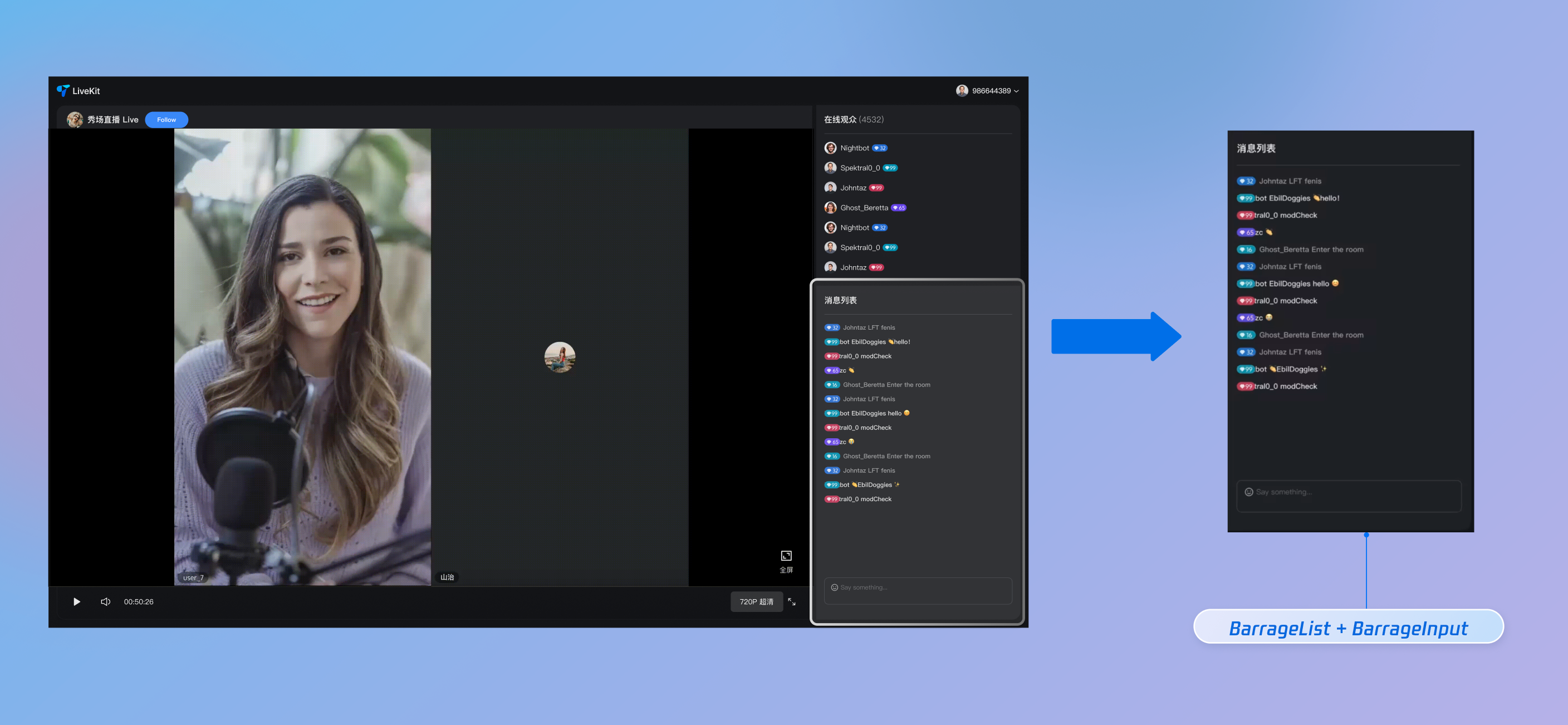
BarrageState delivers a complete live comments solution for your live streaming app. Main features include:BarrageState instance linked to your current live room's liveId, and watch the messageList to receive the latest list of live comment messages.import { useBarrageState } from 'tuikit-atomicx-vue3';import { watch } from 'vue'const { messageList } = useBarrageState()// Watch for real-time updates to messageList and update your UI accordinglywatch(messageList, (newVal, oldVal) => {console.log(newVal)});
sendTextMessage method to broadcast a plain text message to everyone in the live room.import { useBarrageState } from 'tuikit-atomicx-vue3'const { sendTextMessage } = useBarrageState();const sendMessage = async () => {try {await sendTextMessage({text: 'Welcome to the live room!',extensionInfo: {color: '#ff0000',fontSize: '16px'}});} catch (error) {console.error('Failed to send message:', error);}}
Parameter | Type | Description |
text | string | Text content to send. |
extensionInfo | Record<string, string> | Additional extension info for custom business use. |
businessId and data.import { useBarrageState } from 'tuikit-atomicx-vue3'import { watch } from 'vue';const { sendCustomMessage } = useBarrageState();// Send a custom live comment, for example, a giftconst sendGiftMessage = async (giftId: string, giftCount: number) => {// 1. Set a business-specific IDconst businessId = 'live_gift';// 2. Encode business data as a JSON stringconst giftData = { gift_id: giftId, gift_count: giftCount };// 3. Call the API to send the custom messagetry {await sendCustomMessage({businessId,data: JSON.stringify(giftData)});} catch (error) {console.error('Failed to send gift message:', error);}};
Parameter | Type | Description |
businessId | string | Unique business identifier, such as "live_gift", used by the receiver to distinguish different custom messages. |
data | string | Business data, typically a JSON-formatted string. |
import { useBarrageState } from 'tuikit-atomicx-vue3'const { appendLocalTip } = useBarrageState()const systemTip = {liveId: 'live123',sender: {userId: 'system',userName: 'jasper',avatarUrl: '',},sequence: Date.now(), // Message sequence number for sortingtimestampInSecond: Math.floor(Date.now() / 1000), // 10-digit Unix timestampmessageType: 0, // Message type enum value (e.g., 0 for plain text message; see API enum definition)textContent: 'Welcome to the live room', // Text content to displayextensionInfo: { type: 'system' }, // Extension field for special UI rendering}appendLocalTip(systemTip)
disableSendMessage API from LiveAudienceState to mute or unmute a specific user. This status persists—even if the user rejoins the live room, their mute state remains.import { useLiveAudienceState } from 'tuikit-atomicx-vue3';const { disableSendMessage } = useLiveAudienceState()// If isDisable is true, the user is muted.// If isDisable is false, the user is unmuted.await disableSendMessage({ userId: 'user123', isDisable: true });
updateLiveInfo API from LiveListState.import { useLiveListState } from 'tuikit-atomicx-vue3';// 1. Get a LiveListState instanceconst { updateLiveInfo } = useLiveListState();const setGlobalMute = async (shouldMute: boolean) => {try {// 2. Call the update API// LiveListState will automatically merge and update the live room info based on the parametersawait updateLiveInfo({// Maps to the isMessageDisable field in LiveInfo// true: mute all audience members// false: allow audience members to send messagesisMessageDisable: shouldMute});console.log(`Global mute status updated to: ${shouldMute}`);} catch (error) {console.error('Failed to update global mute:', error);}};// Example usage: Enable global muteawait setGlobalMute(true);
sendCustomMessage. BarrageState supports flexible custom message formats, so you can define message structures and styles to fit your business needs.{ "type": "colored_text", "text": "This is a colored live comment!", "color": "#FF5733" }
data parameter of sendCustomMessage. Set businessId to a unique identifier for your business, such as "barrage_style_v1".messageType is 'CUSTOM' and whether the businessId matches. If so, parse the data string (usually as JSON), and render your custom UI style based on the parsed data (for example, color, text).sendTextMessage method includes error handling. Review the callback result for success or failure. If it fails, the error message will indicate the reason (such as "You have been muted", "Network error", etc.).barrageState after the corresponding liveId live stream has started. If you start listening before joining the live room, you may miss some messages.liveId used to create the BarrageState instance, join the live room, and send messages is exactly the same—including case sensitivity.AtomicXCore supports retrieving historical chat messages, but you need to enable this feature in the server console. Once configured, the SDK handles everything automatically—no additional client code is required.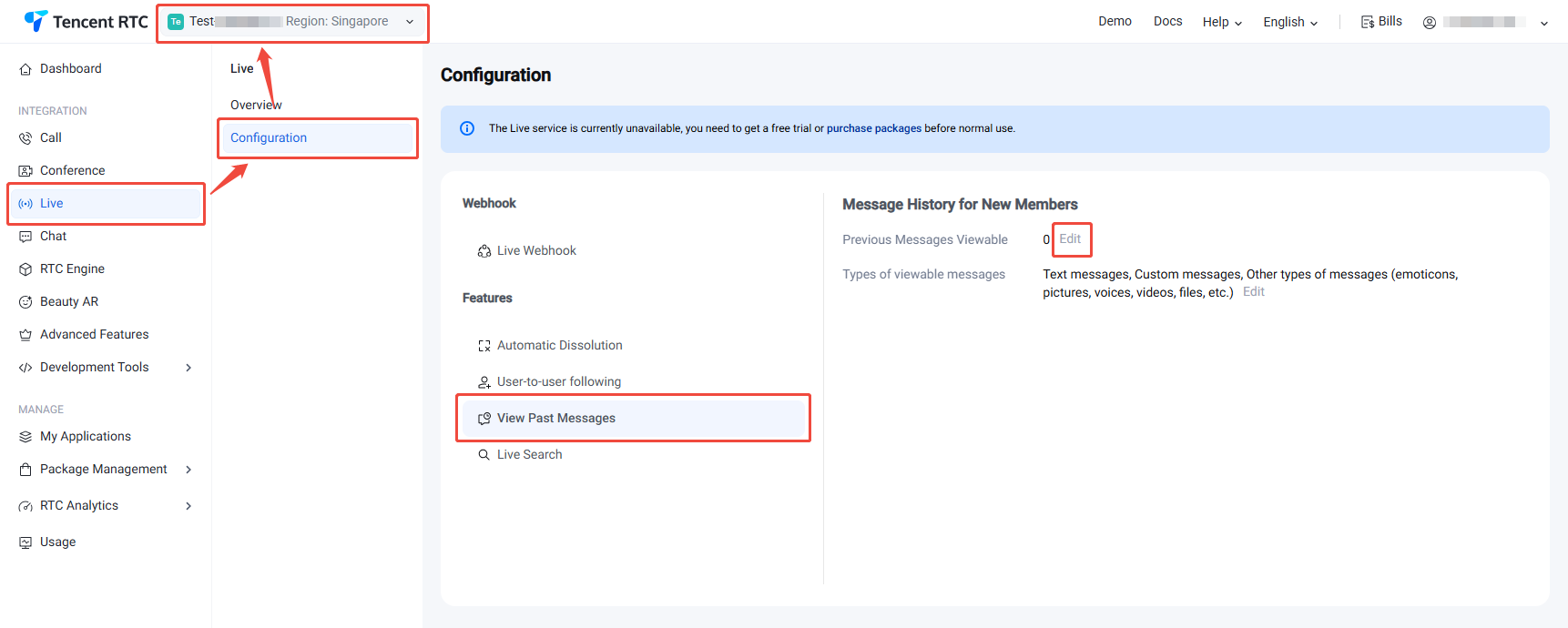
AtomicXCore automatically retrieves the configured number of historical chat messages in the background. These messages are delivered to the UI layer through the BarrageState subscription channel, just like real-time messages. Your application will receive and display these historical chat messages in the same way as live messages.피드백