제품 업데이트
Tencent Cloud 오디오/비디오 단말 SDK 재생 업그레이드 및 권한 부여 인증 추가
TRTC 월간 구독 패키지 출시 관련 안내
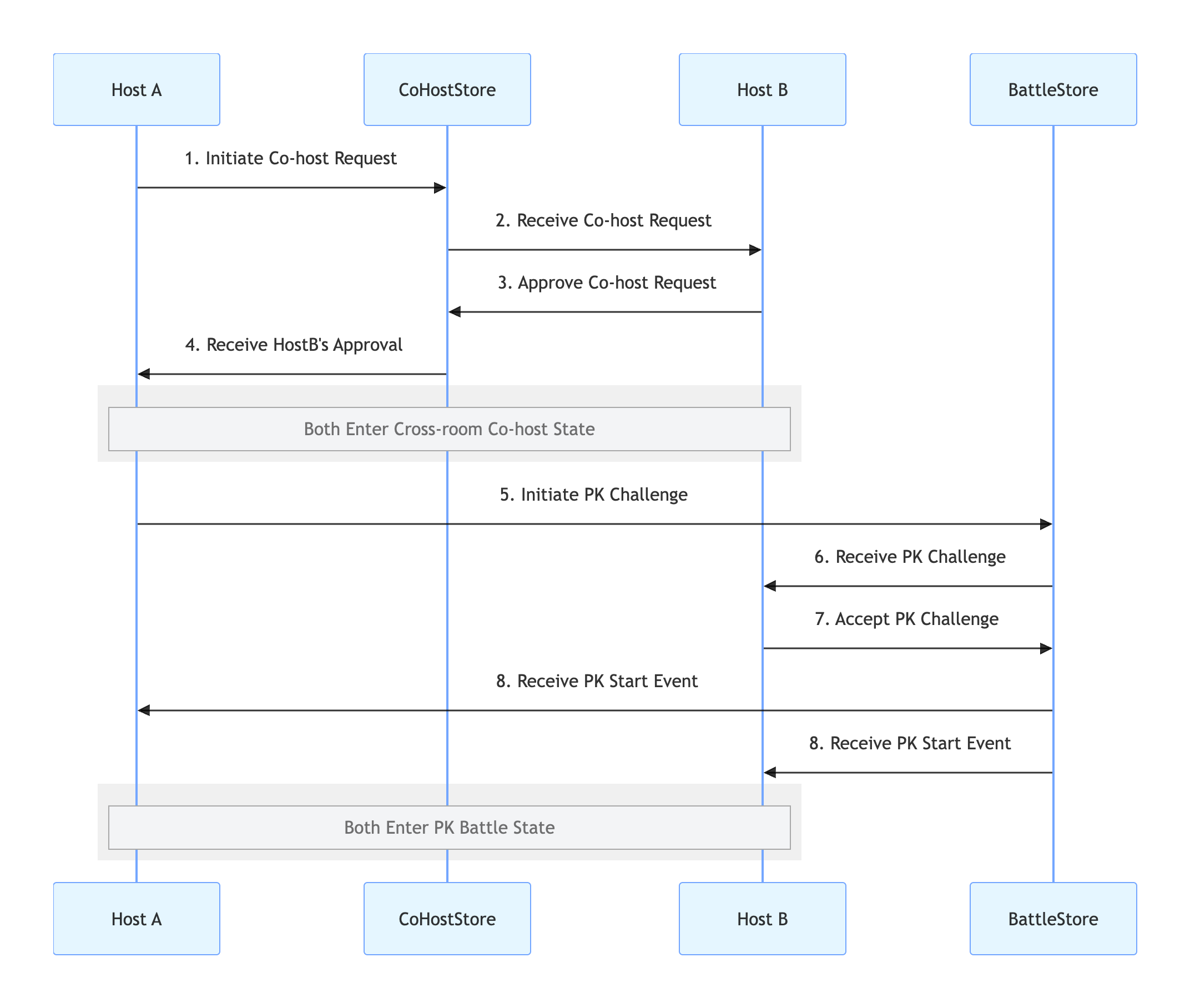
requestHostConnection:import 'package:atomic_x_core/atomicxcore.dart';// Host A's pageclass AnchorAPage extends StatefulWidget {final String liveId;const AnchorAPage({Key? key, required this.liveId}) : super(key: key);@overrideState<AnchorAPage> createState() => _AnchorAPageState();}class _AnchorAPageState extends State<AnchorAPage> {late final CoHostStore _coHostStore;late final CoHostListener _coHostListener;@overridevoid initState() {super.initState();_coHostStore = CoHostStore.create(widget.liveId);_setupListeners();}// User clicks the "Co-Host" button and selects Host BFuture<void> inviteHostB(String targetHostLiveId) async {final layout = CoHostLayoutTemplate.hostDynamicGrid; // Select layout templateconst timeout = 30; // Timeout in secondsfinal result = await _coHostStore.requestHostConnection(targetHostLiveID: targetHostLiveId,layoutTemplate: layout,timeout: timeout,);if (result.isSuccess) {print('Co-host invitation sent, waiting for response...');} else {print('Failed to send invitation: ${result.errorMessage}');}}@overridevoid dispose() {_coHostStore.removeCoHostListener(_coHostListener);super.dispose();}}
CoHostListener to receive Host B’s response:// Set up listener during _AnchorAPageState initializationvoid _setupListeners() {_coHostListener = CoHostListener(onCoHostRequestAccepted: (invitee) {print('Host ${invitee.userName} accepted your co-host invitation');},onCoHostRequestRejected: (invitee) {print('Host ${invitee.userName} rejected your invitation');},onCoHostRequestTimeout: (inviter, invitee) {print('Invitation timed out, no response from the other side');},onCoHostUserJoined: (userInfo) {print('Host ${userInfo.userName} joined the co-host session');},onCoHostUserLeft: (userInfo) {print('Host ${userInfo.userName} left the co-host session');},);_coHostStore.addCoHostListener(_coHostListener);}
CoHostListener on Host B’s side to listen for incoming invitations:import 'package:atomic_x_core/atomicxcore.dart';// Host B's pageclass AnchorBPage extends StatefulWidget {final String liveId;const AnchorBPage({Key? key, required this.liveId}) : super(key: key);@overrideState<AnchorBPage> createState() => _AnchorBPageState();}class _AnchorBPageState extends State<AnchorBPage> {late final CoHostStore _coHostStore;late final CoHostListener _coHostListener;@overridevoid initState() {super.initState();_coHostStore = CoHostStore.create(widget.liveId);_setupListeners();}void _setupListeners() {_coHostListener = CoHostListener(onCoHostRequestReceived: (inviter, extensionInfo) {print('Received co-host invitation from host ${inviter.userName}');// _showInvitationDialog(inviter);},);_coHostStore.addCoHostListener(_coHostListener);}@overridevoid dispose() {_coHostStore.removeCoHostListener(_coHostListener);super.dispose();}}
// Part of _AnchorBPageStateFuture<void> acceptInvitation(String fromHostLiveId) async {final result = await _coHostStore.acceptHostConnection(fromHostLiveId);if (result.isSuccess) {print('Accepted co-host invitation');} else {print('Failed to accept invitation: ${result.errorMessage}');}}Future<void> rejectInvitation(String fromHostLiveId) async {final result = await _coHostStore.rejectHostConnection(fromHostLiveId);if (result.isSuccess) {print('Rejected co-host invitation');} else {print('Failed to reject invitation: ${result.errorMessage}');}}
requestBattle:// Part of _AnchorAPageStatelate final BattleStore _battleStore;late final BattleListener _battleListener;@overridevoid initState() {super.initState();_coHostStore = CoHostStore.create(widget.liveId);_battleStore = BattleStore.create(widget.liveId);_setupListeners();_setupBattleListeners();}Future<void> startPK(String opponentUserId) async {final config = BattleConfig(duration: 300); // PK duration: 5 minutesfinal result = await _battleStore.requestBattle(config: config,userIDList: [opponentUserId],timeout: 30,);if (result.isSuccess) {print('PK request sent, battleID: ${result.battleID}');} else {print('PK request failed: ${result.errorMessage}');}}
BattleListener to track PK events:// Add in _AnchorAPageState's _setupBattleListeners methodvoid _setupBattleListeners() {_battleListener = BattleListener(onBattleStarted: (battleInfo, inviter, invitees) {print('PK started');},onBattleEnded: (battleInfo, reason) {print('PK ended, reason: $reason');},onUserJoinBattle: (battleID, battleUser) {print('User ${battleUser.userName} joined the PK');},onUserExitBattle: (battleID, battleUser) {print('User ${battleUser.userName} exited the PK');},);_battleStore.addBattleListener(_battleListener);}@overridevoid dispose() {_coHostStore.removeCoHostListener(_coHostListener);_battleStore.removeBattleListener(_battleListener);super.dispose();}
BattleListener:// Add in _AnchorBPageState's _setupBattleListeners methodvoid _setupBattleListeners() {_battleListener = BattleListener(onBattleRequestReceived: (battleId, inviter, invitee) {print('Received PK challenge from host ${inviter.userName}');// Show dialog for Host B to accept or reject// _showPKChallengeDialog(battleId);},onBattleStarted: (battleInfo, inviter, invitees) {print('PK started');},onBattleEnded: (battleInfo, reason) {print('PK ended');},);_battleStore.addBattleListener(_battleListener);}
// Part of _AnchorBPageState// User clicks "Accept Challenge"Future<void> acceptPK(String battleId) async {final result = await _battleStore.acceptBattle(battleId);if (result.isSuccess) {print('Accepted PK challenge');} else {print('Failed to accept PK: ${result.errorMessage}');}}// User clicks "Reject Challenge"Future<void> rejectPK(String battleId) async {final result = await _battleStore.rejectBattle(battleId);if (result.isSuccess) {print('Rejected PK challenge');} else {print('Failed to reject PK: ${result.errorMessage}');}}
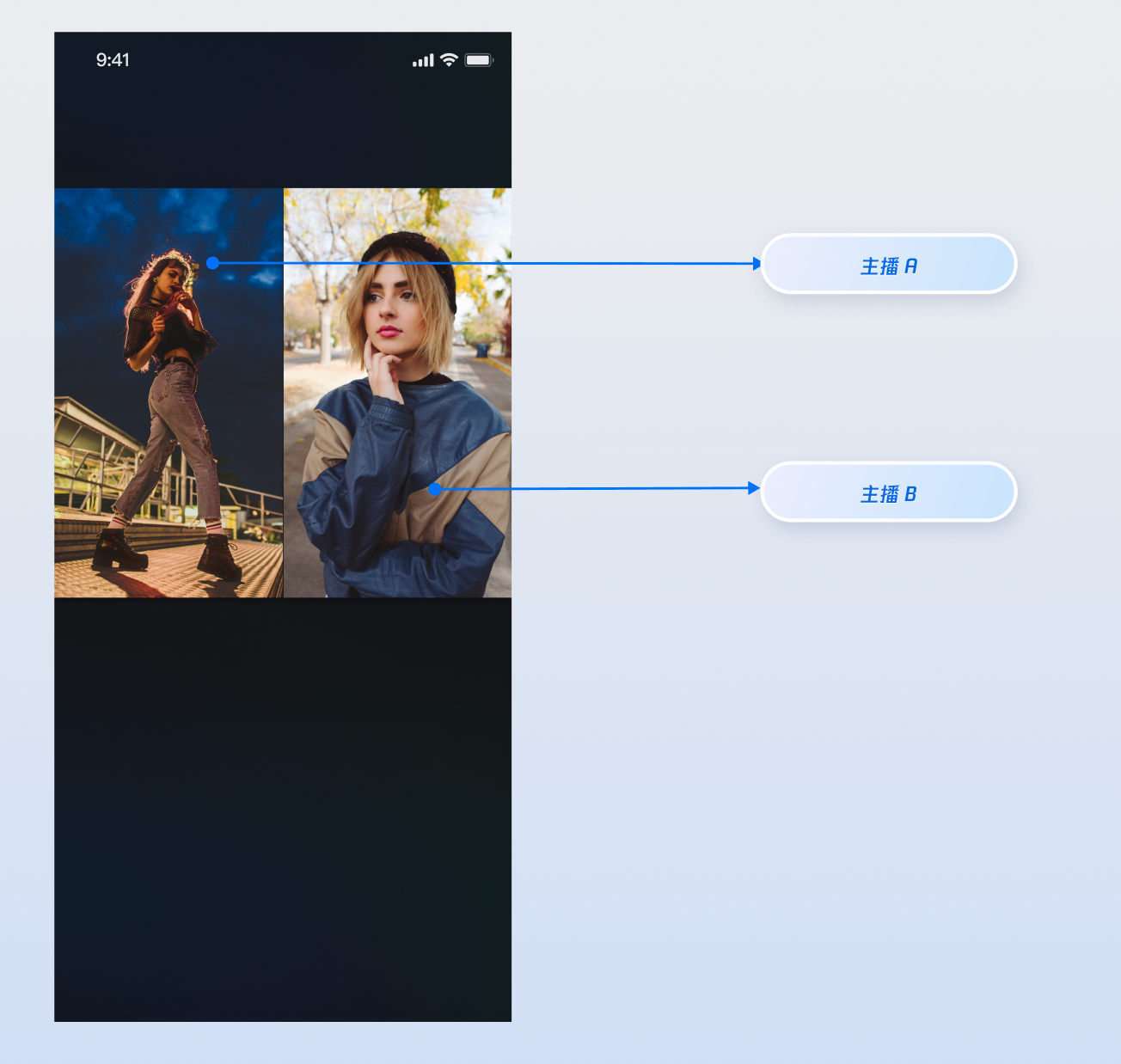
VideoWidgetBuilder parameter of LiveCoreWidget to overlay custom widgets on the video stream. You can display nicknames, avatars, PK progress bars, or show a placeholder image when the camera is off to enhance the viewing experience.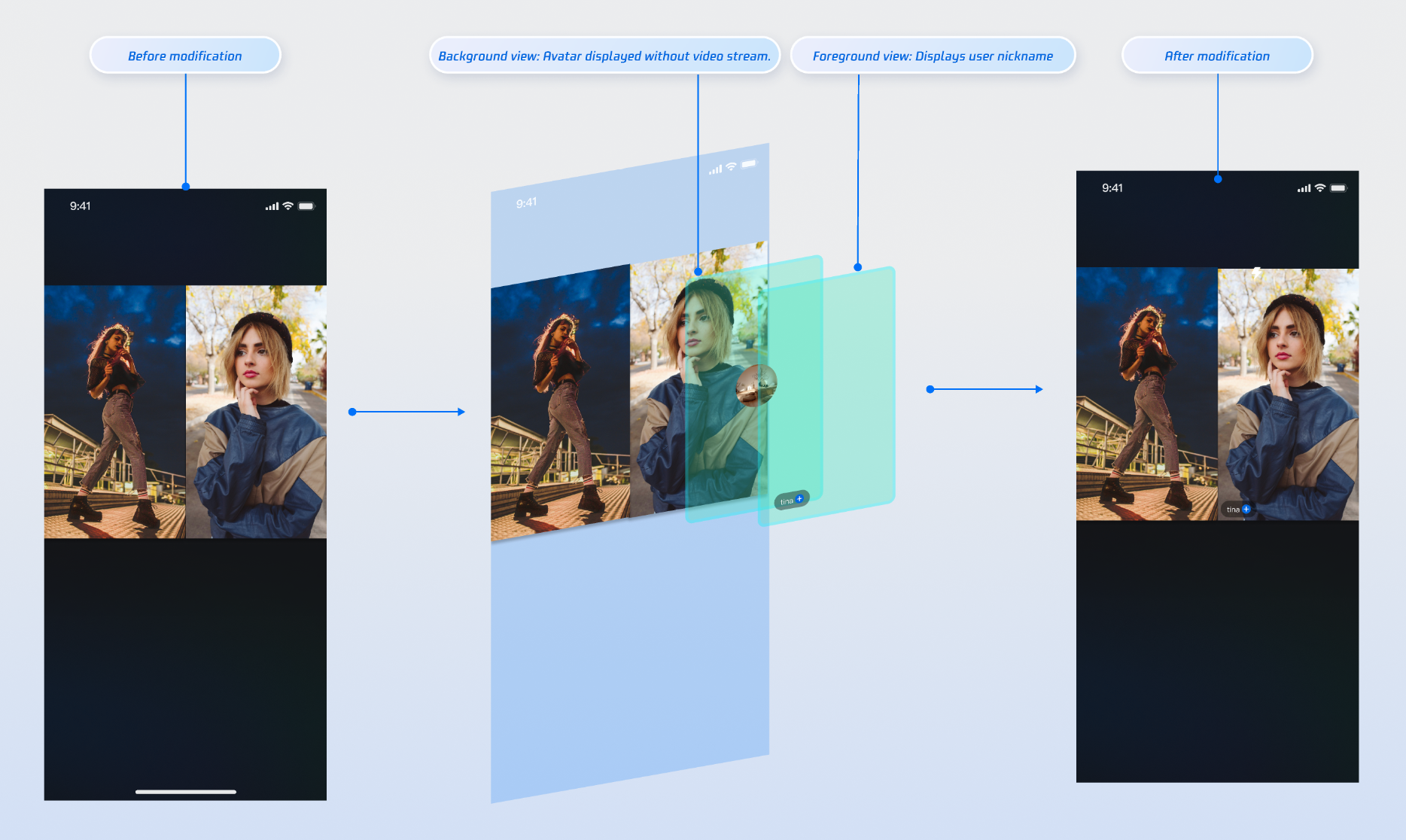
CustomCoHostForegroundView) to display user info above the video stream.import 'package:flutter/material.dart';import 'package:rtc_room_engine/rtc_room_engine.dart';/// Custom floating view for co-host info (foreground)class CustomCoHostForegroundView extends StatelessWidget {final SeatFullInfo seatInfo;const CustomCoHostForegroundView({Key? key,required this.seatInfo,}) : super(key: key);@overrideWidget build(BuildContext context) {return Container(color: Colors.transparent,child: Align(alignment: Alignment.bottomLeft,child: Container(margin: const EdgeInsets.all(5.0),padding: const EdgeInsets.symmetric(horizontal: 8, vertical: 4),decoration: BoxDecoration(color: Colors.black.withOpacity(0.5),borderRadius: BorderRadius.circular(12),),child: Text(seatInfo.userInfo.userName,style: const TextStyle(color: Colors.white,fontSize: 14,),),),),);}}
CustomCoHostBackgroundView) to display a placeholder when the user’s video stream is unavailable.import 'package:flutter/material.dart';import 'package:rtc_room_engine/rtc_room_engine.dart';/// Custom co-host avatar placeholder view (background)class CustomCoHostBackgroundView extends StatelessWidget {final SeatFullInfo seatInfo;const CustomCoHostBackgroundView({Key? key,required this.seatInfo,}) : super(key: key);@overrideWidget build(BuildContext context) {final avatarUrl = seatInfo.userInfo.avatarUrl;return Container(decoration: BoxDecoration(color: Colors.grey[800],),child: Center(child: Column(mainAxisSize: MainAxisSize.min,children: [ClipOval(child: avatarUrl.isNotEmpty? Image.network(avatarUrl,width: 60,height: 60,fit: BoxFit.cover,errorBuilder: (context, error, stackTrace) {return _buildDefaultAvatar();},): _buildDefaultAvatar(),),const SizedBox(height: 8),Text(seatInfo.userInfo.userName,style: const TextStyle(color: Colors.white,fontSize: 12,),),],),),);}Widget _buildDefaultAvatar() {return Container(width: 60,height: 60,color: Colors.grey,child: const Icon(Icons.person, size: 40, color: Colors.white),);}}
coHostWidgetBuilder callback in VideoWidgetBuilder to return the appropriate widget based on viewLayer.import 'package:flutter/material.dart';import 'package:atomic_x_core/atomicxcore.dart';import 'package:rtc_room_engine/rtc_room_engine.dart';/// Live page with custom co-host viewclass CustomCoHostLiveWidget extends StatefulWidget {final String liveId;const CustomCoHostLiveWidget({Key? key,required this.liveId,}) : super(key: key);@overrideState<CustomCoHostLiveWidget> createState() => _CustomCoHostLiveWidgetState();}class _CustomCoHostLiveWidgetState extends State<CustomCoHostLiveWidget> {late LiveCoreController _controller;@overridevoid initState() {super.initState();_controller = LiveCoreController.create();_controller.setLiveID(widget.liveId);}@overridevoid dispose() {_controller.dispose();super.dispose();}/// Build custom co-host viewWidget _buildCoHostWidget(BuildContext context,SeatFullInfo seatFullInfo,ViewLayer viewLayer,) {if (viewLayer == ViewLayer.foreground) {// Foreground: always on top of the video, for nickname, etc.return CustomCoHostForegroundView(seatInfo: seatFullInfo);} else {// Background: shown only when user has no video stream, for avatar placeholderreturn CustomCoHostBackgroundView(seatInfo: seatFullInfo);}}@overrideWidget build(BuildContext context) {return Scaffold(body: LiveCoreWidget(controller: _controller,videoWidgetBuilder: VideoWidgetBuilder(coHostWidgetBuilder: _buildCoHostWidget,),),);}}
Parameter | Type | Description |
seatFullInfo | SeatFullInfo | Seat info object containing detailed user data. |
seatFullInfo.userInfo.userId | String | User ID for the seat. |
seatFullInfo.userInfo.userName | String | User nickname for the seat. |
seatFullInfo.userInfo.avatarUrl | String | User avatar URL for the seat. |
viewLayer | ViewLayer | Widget layer enum: ViewLayer.foreground: foreground widget, always above the video ViewLayer.background: background widget, shown only when the user has no video stream (e.g., camera off), typically used for avatars or placeholders |
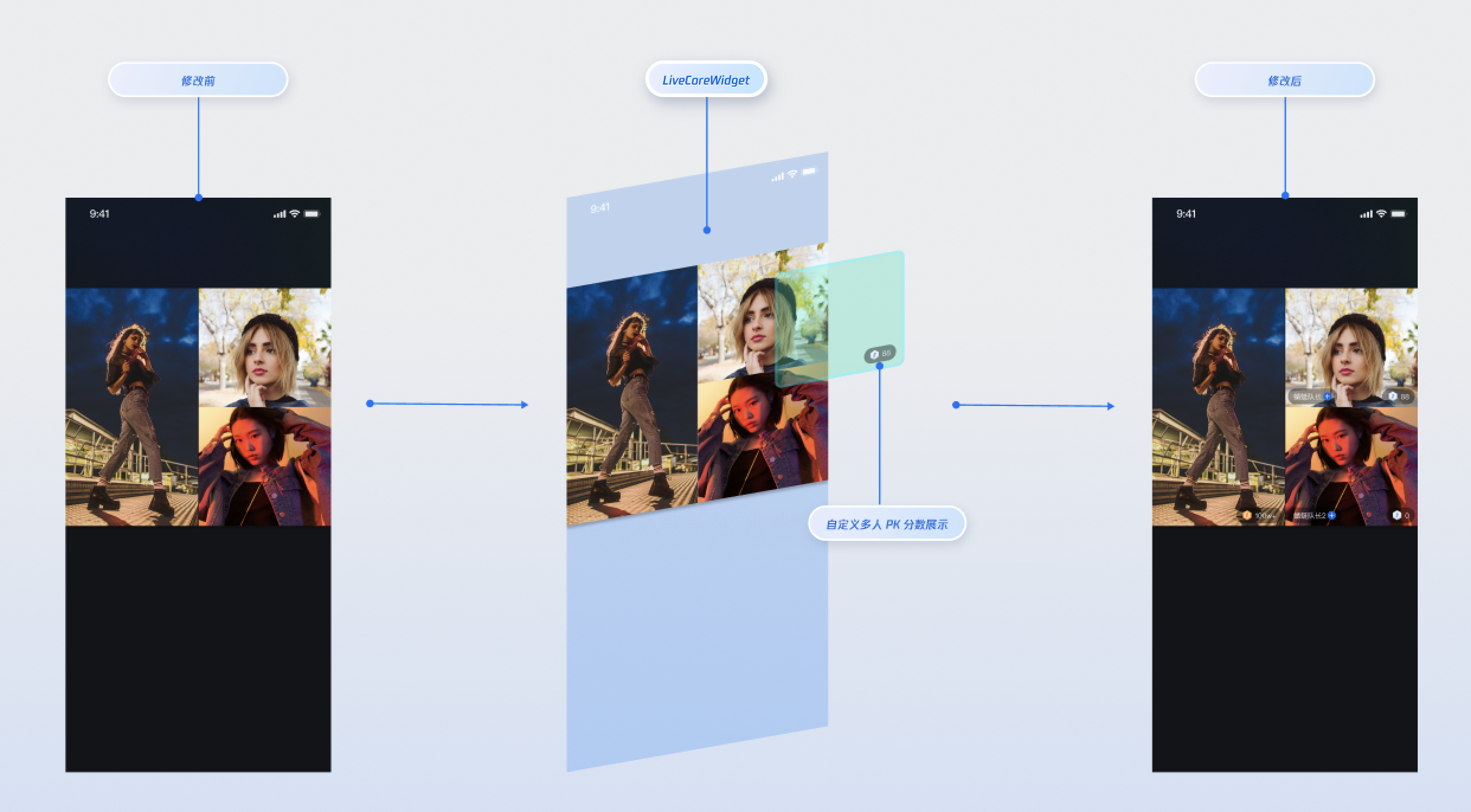
import 'package:flutter/material.dart';import 'package:atomic_x_core/atomicxcore.dart';import 'package:rtc_room_engine/rtc_room_engine.dart';/// Custom PK user viewclass CustomBattleUserView extends StatefulWidget {final String liveId;final TUIBattleUser battleUser;const CustomBattleUserView({Key? key,required this.liveId,required this.battleUser,}) : super(key: key);@overrideState<CustomBattleUserView> createState() => _CustomBattleUserViewState();}class _CustomBattleUserViewState extends State<CustomBattleUserView> {late final BattleStore _battleStore;late final VoidCallback _scoreChangedListener = _onScoreChanged;int _score = 0;@overridevoid initState() {super.initState();_battleStore = BattleStore.create(widget.liveId);_subscribeBattleState();}/// Subscribe to PK score changesvoid _subscribeBattleState() {_battleStore.battleState.battleScore.addListener(_scoreChangedListener);// Initialize score_updateScore(_battleStore.battleState.battleScore.value);}void _onScoreChanged() {_updateScore(_battleStore.battleState.battleScore.value);}void _updateScore(Map<String, int> battleScore) {final score = battleScore[widget.battleUser.userId] ?? 0;if (mounted && score != _score) {setState(() {_score = score;});}}@overridevoid dispose() {_battleStore.battleState.battleScore.removeListener(_scoreChangedListener);super.dispose();}@overrideWidget build(BuildContext context) {return IgnorePointer(child: Align(alignment: Alignment.bottomRight,child: Container(margin: const EdgeInsets.all(5),padding: const EdgeInsets.symmetric(horizontal: 8, vertical: 4),decoration: BoxDecoration(color: Colors.black.withOpacity(0.4),borderRadius: BorderRadius.circular(12),),child: Text('$_score',style: const TextStyle(color: Colors.white,fontSize: 14,fontWeight: FontWeight.bold,),),),),);}}
battleWidgetBuilder callback in VideoWidgetBuilder to build your custom PK widget.import 'package:flutter/material.dart';import 'package:atomic_x_core/atomicxcore.dart';import 'package:rtc_room_engine/rtc_room_engine.dart';/// Live page with custom PK viewclass CustomBattleLiveWidget extends StatefulWidget {final String liveId;const CustomBattleLiveWidget({Key? key,required this.liveId,}) : super(key: key);@overrideState<CustomBattleLiveWidget> createState() => _CustomBattleLiveWidgetState();}class _CustomBattleLiveWidgetState extends State<CustomBattleLiveWidget> {late LiveCoreController _controller;@overridevoid initState() {super.initState();_controller = LiveCoreController.create();_controller.setLiveID(widget.liveId);}@overridevoid dispose() {_controller.dispose();super.dispose();}/// Build custom PK user viewWidget _buildBattleWidget(BuildContext context, TUIBattleUser battleUser) {return CustomBattleUserView(liveId: widget.liveId,battleUser: battleUser,);}@overrideWidget build(BuildContext context) {return Scaffold(body: LiveCoreWidget(controller: _controller,videoWidgetBuilder: VideoWidgetBuilder(battleWidgetBuilder: _buildBattleWidget,),),);}}
Parameter | Type | Description |
battleUser | TUIBattleUser | PK user info object |
battleUser.roomId | String | Room ID for the PK |
battleUser.userId | String | PK user ID |
battleUser.userName | String | PK user nickname |
battleUser.avatarUrl | String | PK user avatar URL |
battleUser.score | int | PK score |
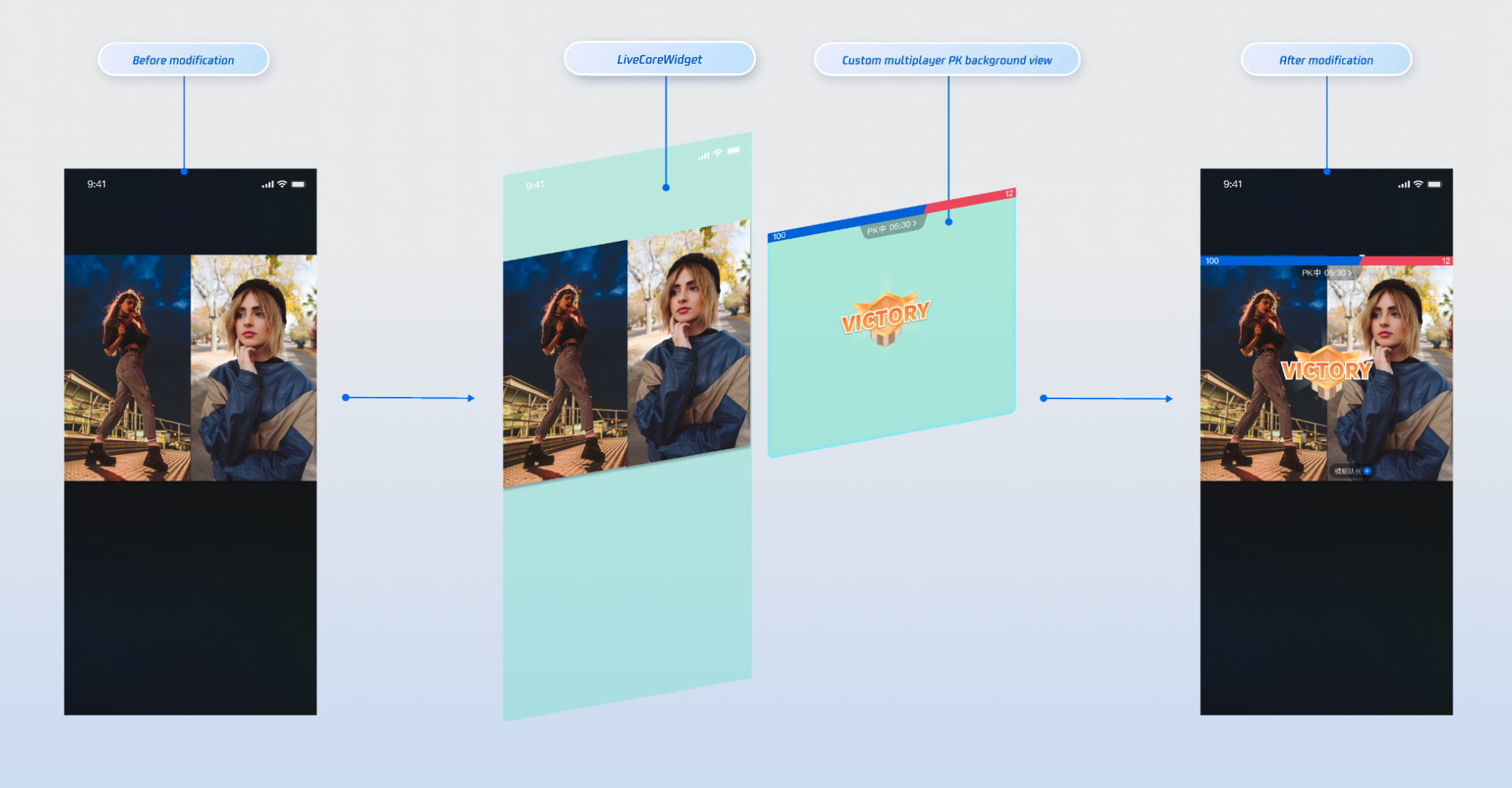
CustomBattleContainerView). For reference, see battle_info_widget.dart.battleContainerWidgetBuilder callback in VideoWidgetBuilder to build your PK container widget.import 'package:flutter/material.dart';import 'package:atomic_x_core/atomicxcore.dart';/// Live page with custom PK container viewclass CustomBattleContainerLiveWidget extends StatefulWidget {final String liveId;const CustomBattleContainerLiveWidget({Key? key,required this.liveId,}) : super(key: key);@overrideState<CustomBattleContainerLiveWidget> createState() => _CustomBattleContainerLiveWidgetState();}class _CustomBattleContainerLiveWidgetState extends State<CustomBattleContainerLiveWidget> {late LiveCoreController _controller;@overridevoid initState() {super.initState();_controller = LiveCoreController.create();_controller.setLiveID(widget.liveId);}@overridevoid dispose() {_controller.dispose();super.dispose();}/// Build PK container viewWidget _buildBattleContainerWidget(BuildContext context) {// CustomBattleContainerView is your custom PK global viewreturn CustomBattleContainerView(liveId: widget.liveId);}@overrideWidget build(BuildContext context) {return Scaffold(body: LiveCoreWidget(controller: _controller,videoWidgetBuilder: VideoWidgetBuilder(battleContainerWidgetBuilder: _buildBattleContainerWidget,),),);}}
import 'package:flutter/material.dart';import 'package:atomic_x_core/atomicxcore.dart';import 'package:rtc_room_engine/rtc_room_engine.dart';/// Complete custom view live pageclass FullCustomLiveWidget extends StatefulWidget {final String liveId;const FullCustomLiveWidget({Key? key,required this.liveId,}) : super(key: key);@overrideState<FullCustomLiveWidget> createState() => _FullCustomLiveWidgetState();}class _FullCustomLiveWidgetState extends State<FullCustomLiveWidget> {late LiveCoreController _controller;@overridevoid initState() {super.initState();_controller = LiveCoreController.create();_controller.setLiveID(widget.liveId);}@overridevoid dispose() {_controller.dispose();super.dispose();}/// Build custom co-host viewWidget _buildCoHostWidget(BuildContext context,SeatFullInfo seatFullInfo,ViewLayer viewLayer,) {if (viewLayer == ViewLayer.foreground) {return CustomCoHostForegroundView(seatInfo: seatFullInfo);} else {return CustomCoHostBackgroundView(seatInfo: seatFullInfo);}}/// Build custom PK user viewWidget _buildBattleWidget(BuildContext context, TUIBattleUser userInfo) {return CustomBattleUserView(liveId: widget.liveId,battleUser: userInfo,);}/// Build PK container viewWidget _buildBattleContainerWidget(BuildContext context) {return CustomBattleContainerView(liveId: widget.liveId);}@overrideWidget build(BuildContext context) {return Scaffold(body: LiveCoreWidget(controller: _controller,videoWidgetBuilder: VideoWidgetBuilder(coHostWidgetBuilder: _buildCoHostWidget,battleWidgetBuilder: _buildBattleWidget,battleContainerWidgetBuilder: _buildBattleContainerWidget,),),);}}
Gift Type | Score Calculation Rule | Example |
Basic Gift | Gift Value × 5 | 10 CNY Gift → 50 Points |
Intermediate Gift | Gift Value × 8 | 50 CNY Gift → 400 Points |
Advanced Gift | Gift Value × 12 | 100 CNY Gift → 1200 Points |
Special Effect Gift | Fixed high score | 99 CNY Gift → 999 Points |
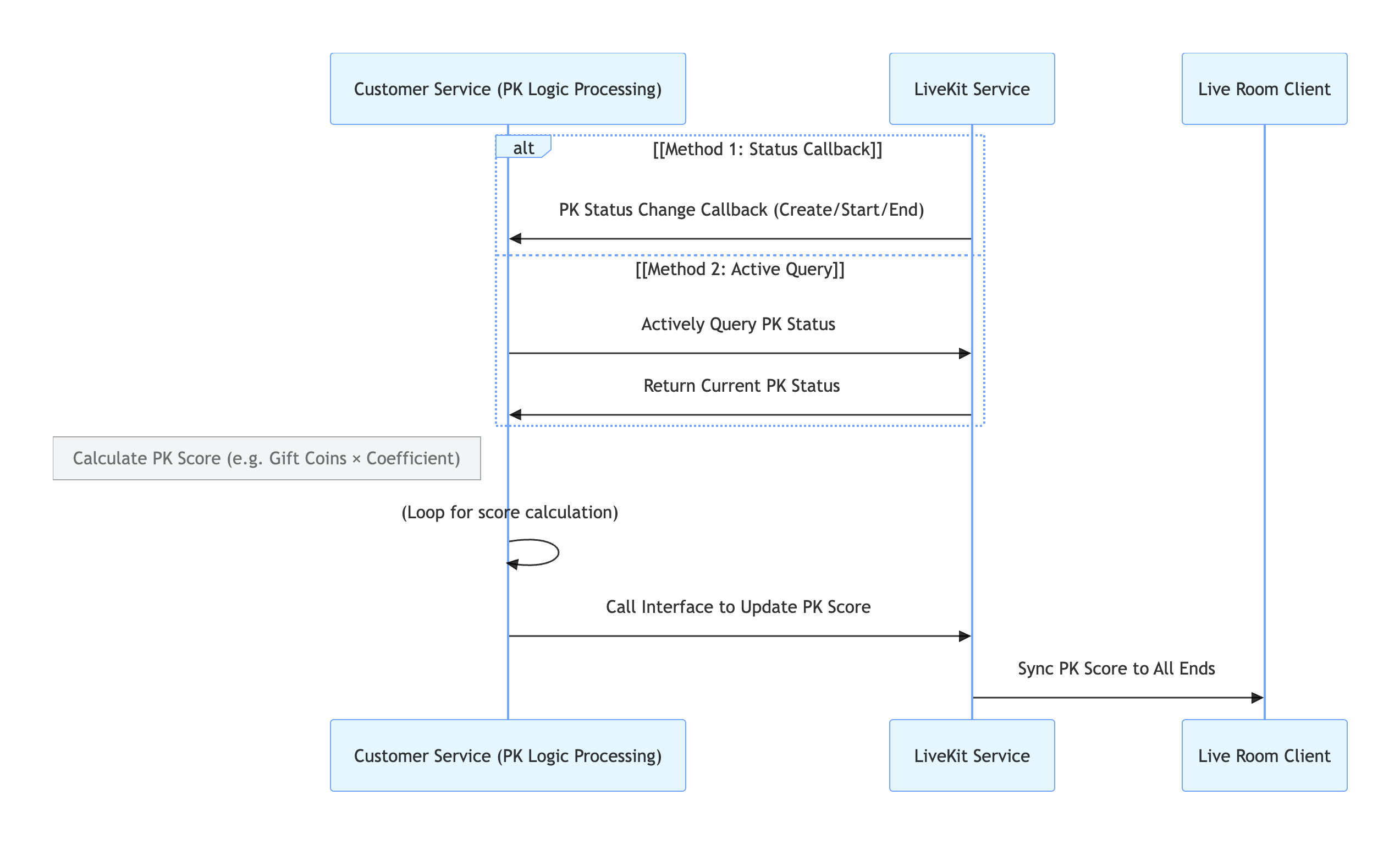
API | Description | Request Example |
Active API - Query PK Status | Check if the current room is in PK | |
Active API - Update PK Score | Update the calculated PK score | |
Callback Configuration - PK Start Callback | Receive notification when PK starts | |
Callback Configuration - PK End Callback | Receive notification when PK ends |
Store/Component | Description | API Documentation |
LiveCoreWidget | Core component for live video display and interaction. Handles video rendering and widget management; supports host live, audience co-hosting, host co-hosting, and more. | |
LiveCoreController | Controller for LiveCoreWidget. Used to set live ID, control preview, etc. | |
VideoWidgetBuilder | Video view adapter. Customize co-host, PK user, PK container, and other video stream widgets. | |
DeviceStore | Audio/video device control: microphone (mute/unmute, volume), camera (on/off, switch, quality), screen sharing, real-time device status monitoring. | |
CoHostStore | Cross-room co-hosting for hosts. Supports multiple layout templates (dynamic grid, etc.), initiate/accept/reject co-hosting, manage co-host interaction. | |
BattleStore | Host PK battle. Initiate PK (set duration/opponent), manage PK status (start/end), sync scores, listen for battle results. |
targetHostLiveId is correct and the other host’s live room is active.onCoHostUserLeft or onUserExitBattle. You can handle these events in your UI, for example, by displaying a message like "The other side has disconnected" and ending the session.VideoWidgetBuilder?coHostWidgetBuilder, battleWidgetBuilder, and battleContainerWidgetBuilder. Manual management is not required. To handle user interactions (such as click events), simply add event handlers when creating your custom view.피드백