This document describes how to verify your ownership of a domain name after you apply for a DV certificate.
Note:
Complete verification as soon as possible. The CA will reject your certificate application if you fail to complete or pass verification within 3 days.
After passing verification, download the certificate from Certificate Management and install it.
Domain name ownership can be verified by using the following methods:
Verification Method
Use Case
Manual DNS verification
This method is for domain names that are hosted with any platform.
File verification
This method is for scenarios where there are limitations in using automatic DNS validation and manual DNS validation.(The process is complicated and requires a certain foundation for creating a site.)
Prerequisites
For manual DNS verification, you need to first complete the application for a DV certificate.
For file verification, you need to obtain the username and password for logging into the server.
Directions
Manual DNS verification
Note:
The following operations apply only to domains hosted with Tencent Cloud DNSPod DNS. For domains hosted with other providers, please go to the corresponding DNS hosting provider for DNS resolution.
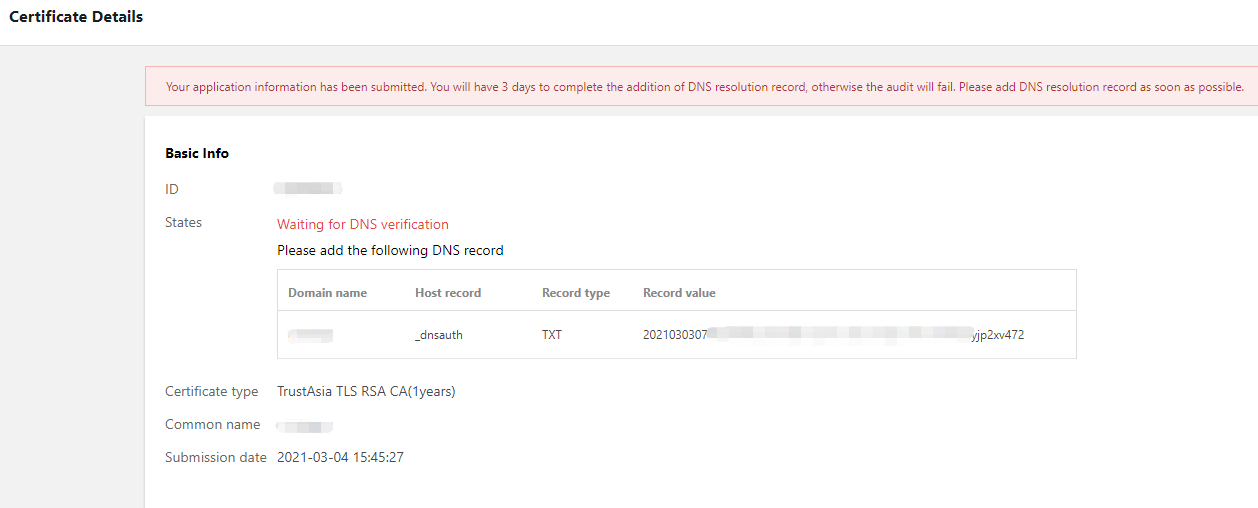
2. On the Certificate List page, click the ID of the DV certificate of which you want to view the details to enter the Certificate Details page, as shown in the fo
llowing f
igure.
3. Add the DNS record.
If your domain (for example, www.tencent.com) is hosted with Tencent Cloud DNSPod DNS:
3.1.1 Go to the Certificate Details page to obtain the host record and record value.
3.1.2 Log in to the DNSPod Console to view the domain name for which a certificate has been applied, and then click DNS on the Operation column to go to the Record Management page.
3.1.3 Click Add Record and set a record type.
If your domain is hosted with other providers, go to the Certificate Details page to obtain the host record and record value, and then go to the corresponding DNS hosting provider to add a DNS record.
4. After the record is added, the system periodically checks for the record value. If the record value is detected and matches the specified value, the domain ownership verification will be completed, as shown in the following figure:
Note:
DNS usually takes effect within 10 minutes to 24 hours. The actual time depends on the ISP refresh time.
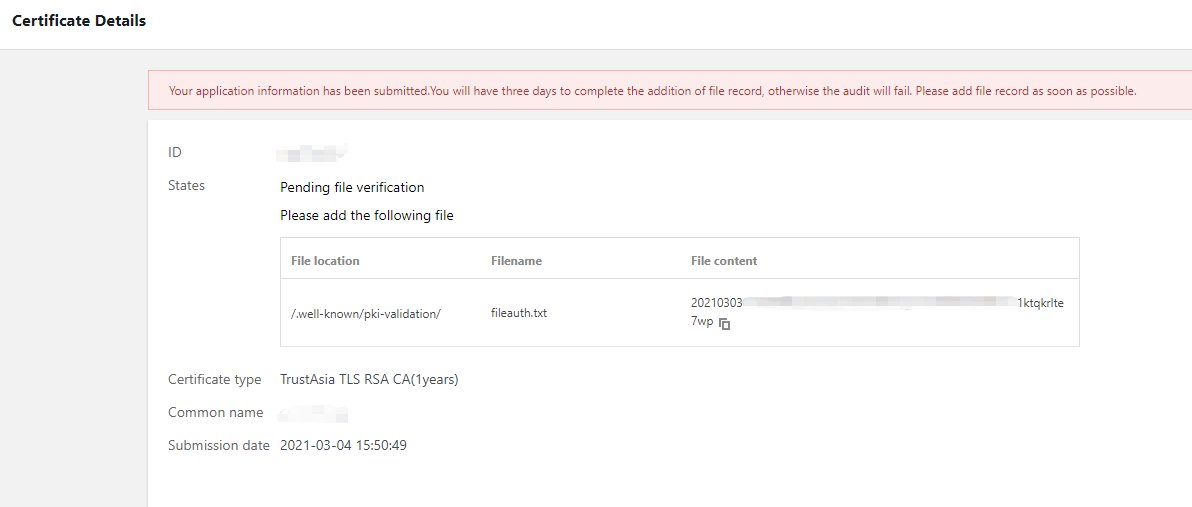
2. On the Certificate List page, click the ID of the DV certificate of which you want to view the details to enter the Certificate Details page, as shown in the following figure.
3. Log in to the server and make sure that the domain name points to the server.
Note:
If your domain is hosted with Tencent Cloud DNSPod DN, point the domain name to your server.
4. Create the specified file in the website root directory, including the file directory, name, and content.
Note:
The website root directory refers to the folder where you store the website programs on the server. Its name may be wwwroot, htdocs, public_html, or webroot.Use the filename and file content displayed on the Certificate Details page after the domain ownership is verified.
Example
The root directory of your website is C:/inetpub/wwwroot. You can create a file as shown in the following table in the wwwroot folder.
File Directory
File Name
File Content
/.well-known/pki-validation
fileauth.txt
2019080603......ep939jlu32alzeo
Note
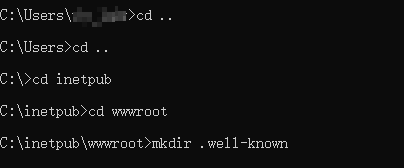
On Windows, you need to create a file and folder that begin with a dot by running commands.
For example, to create a .well-known folder, open a command prompt window and execute the command mkdir .well-known to create it. See the following figure.
5. Open a browser and access the corresponding URL based on the type of the domain name to be verified.
URL format: http://Domain name/File directory/File name or https://Domain name/File directory/File name
Access the URL to obtain the file content, for example, 2019080603......ep939jlu32alzeo.
If the domain name for file verification is example.tencent.com, access the URL http://example.tencent.com/.well-known/pki-validation/fileauth.txt or https://example.tencent.com/.well-known/pki-validation/fileauth.txt for verification.
Note:
For second-level domains prefixed with www, for example, www.tencent.com, perform the following 2 steps:
Second, perform file verification for the primary domain name tencent.com (you do not need to reapply for a certificate). Verify the domain name according to the method specified in URL format and ensure that the file content is consistent.
If the domain name for file verification is a wildcard domain name *.tencent.com, access the URL http://tencent.com/.well-known/pki-validation/fileauth.txt or https://tencent.com/.well-known/pki-validation/fileauth.txt for verification.
Note:
Both HTTP and HTTPS are supported, and either can be accessed.
File verification does not support any redirect. Instead, it directly returns status code 200 and file content.
6. Wait for the CA's review. After the certificate is issued, the file and directory can be cleared.
Note:
If any problems occur during this process, please contact us.