DBbrain supports the feature of health report email push. Users can easily know about the health status of the database instance without logging in to the console.
To help more relevant business personnel know about the health status of the database instance in time, users can also customize the health reports and the recipients to send to as needed.
Currently, the health reports are generated by three methods: manual trigger, scheduled tasks and database inspection. All of these reports can be sent via email. Users can send the reports to the specified recipient’s email once the reports are created, or select the historical reports to send to the specified recipient's email.
Note:
Currently, health report email push is supported only for TencentDB for MySQL (excluding the basic single-node instance).
Usage Limits
The email notification function supports instance names up to 20 characters in length. If an instance name exceeds this limit, the system will reject the request.
Sending Health Report Generated by Manual Trigger via Email
2. Select Performance Optimization on the left sidebar.
3. At the top of the page, select the database type, and then select the instance ID or the shard ID.
4. Select the Health Report tab, click Create Health Report.
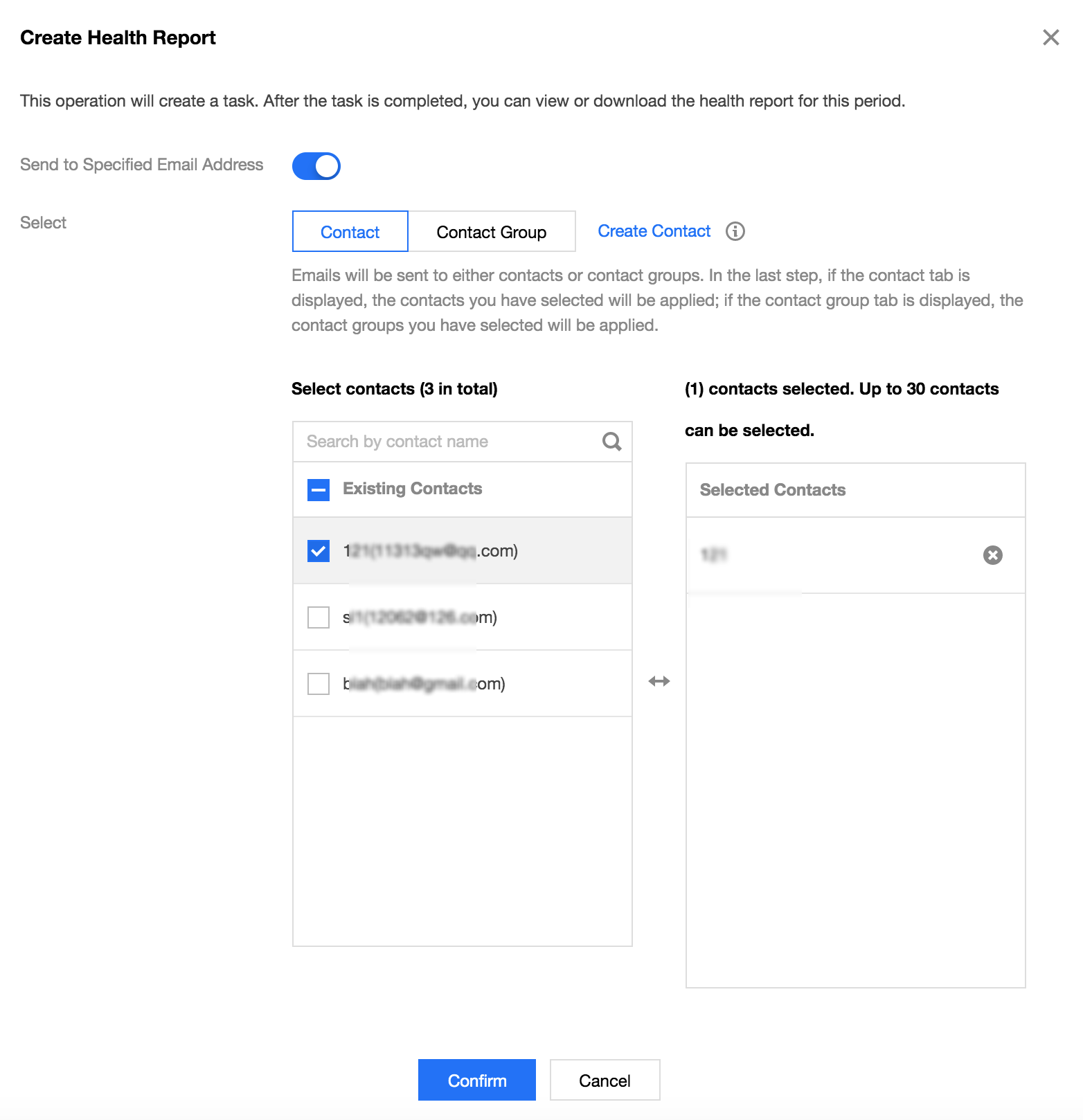
5. In the pop-up window, enable Send to Specified Email Address, select Contact or Contact Group, and click Confirm. The generated health reports will be sent to the email of the specified contact or contact group.
Note:
You can only select either contact or contact group. For contact and contact group management, see Contact Management.
Single email push supports concurrent delivery to recipient group members and individual recipients, with a hard limit of 30 total recipients.
The health report will be sent based on the selected email address. To avoid email block, please add the email allowlist policy in advance: dbbrain@qcloudmail.com.
Sending Health Report Generated by Scheduled Tasks via Email
2. Select Performance Optimization on the left sidebar.
3. At the top of the page, select the database type, and then select the instance ID or the shard ID.
4. Select the Health Report tab, and click Regular Health Report.
5. Enable the Performance Optimization Health Report switch, then click
on the right side of the receive cycle option.
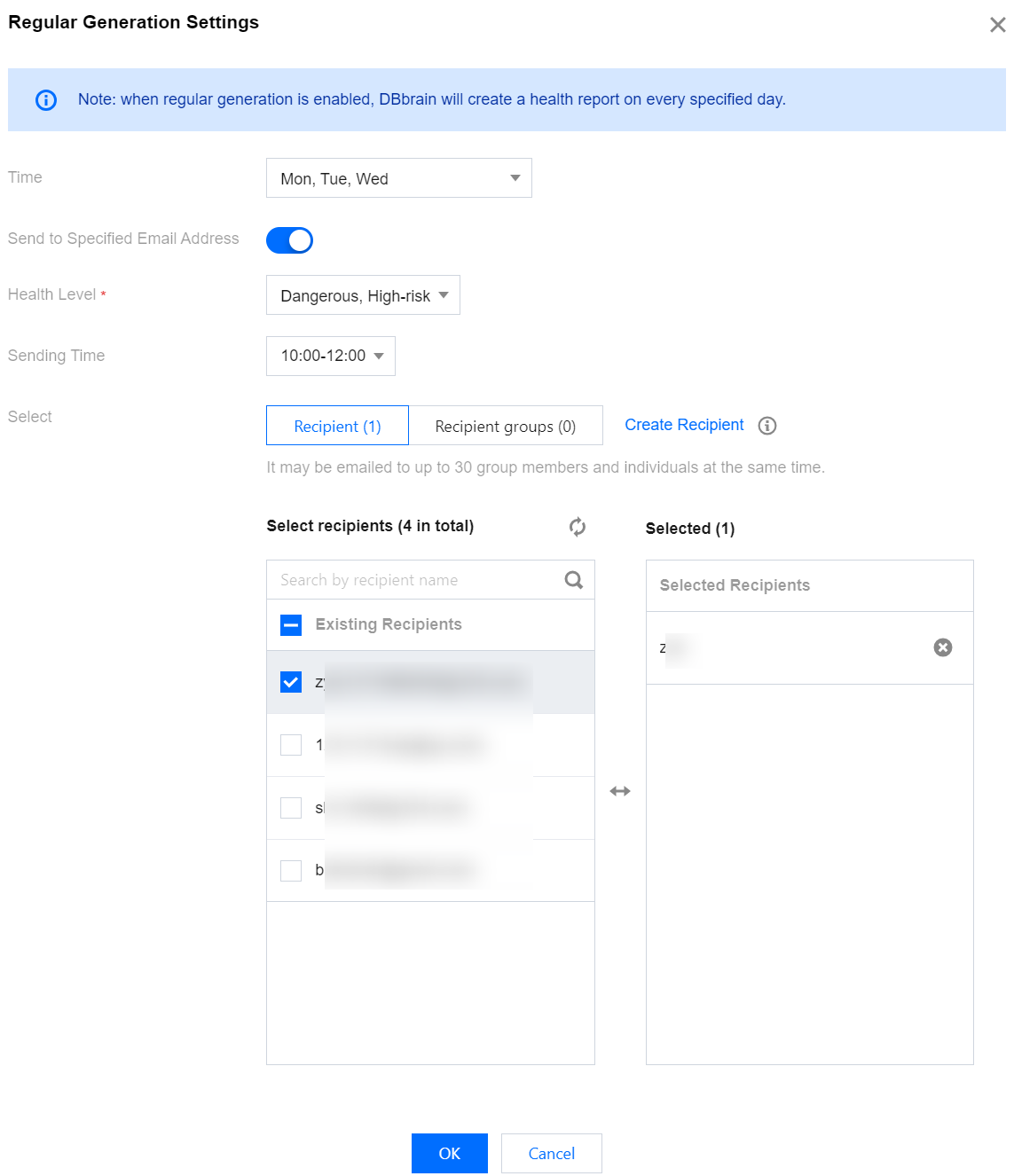
6. In the pop-up Regular Generation Settings dialog box, select the time (including the entire week or specific days like Monday to Sunday), enable the Send to Specified Email switch, configure the health level, select the send time, select a contact or contact group, and then click OK.
The generated health reports will be regularly sent to the specified contacts or contact group's email.
Note:
You can only select either contact or contact group. For contact and contact group management, see Contact Management.
Single email push supports concurrent delivery to recipient group members and individual recipients, with a hard limit of 30 total recipients.
The health report will be sent based on the selected email address. To avoid email block, please add the email allowlist policy in advance: dbbrain@qcloudmail.com.
2. In the left sidebar, choose Performance Optimization.
3. At the top of the page, select the database type, and then select the instance ID or the shard ID.
4. Select the Health Report tab. In the Health Report list, click the Email option in the Operation column for a specific report, or select multiple health reports and click Batch Send.
2. In the Instance Overview, Instance Management, Monitoring & Alarm, Performance Optimization, and Full-link Analysis pages, click Email History in the upper-right corner.
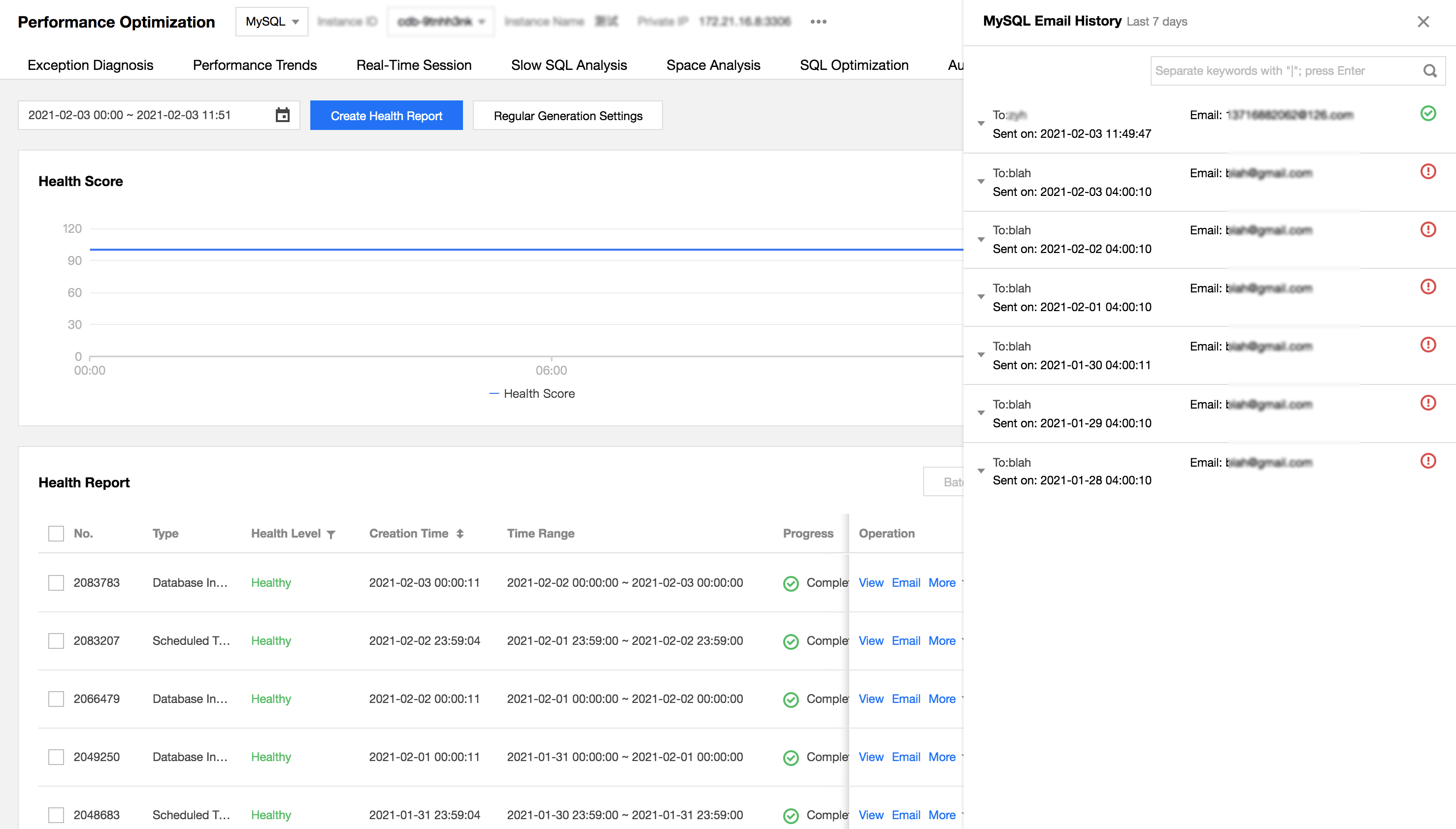
3. In the Email Records, you can view the email recipients, basic instance information, and the email sending status.
The recipient information includes recipient, email, and sending time. When the recipient is a contact group, click Number of Recipients to view the details of the contacts in the group.
The instance basic information includes instance ID/name and report time range.
The email sending status includes all succeeded, partially succeeded, and all failed. When the status is partially succeeded or all failed, please check whether the email address is correct.
Email Content
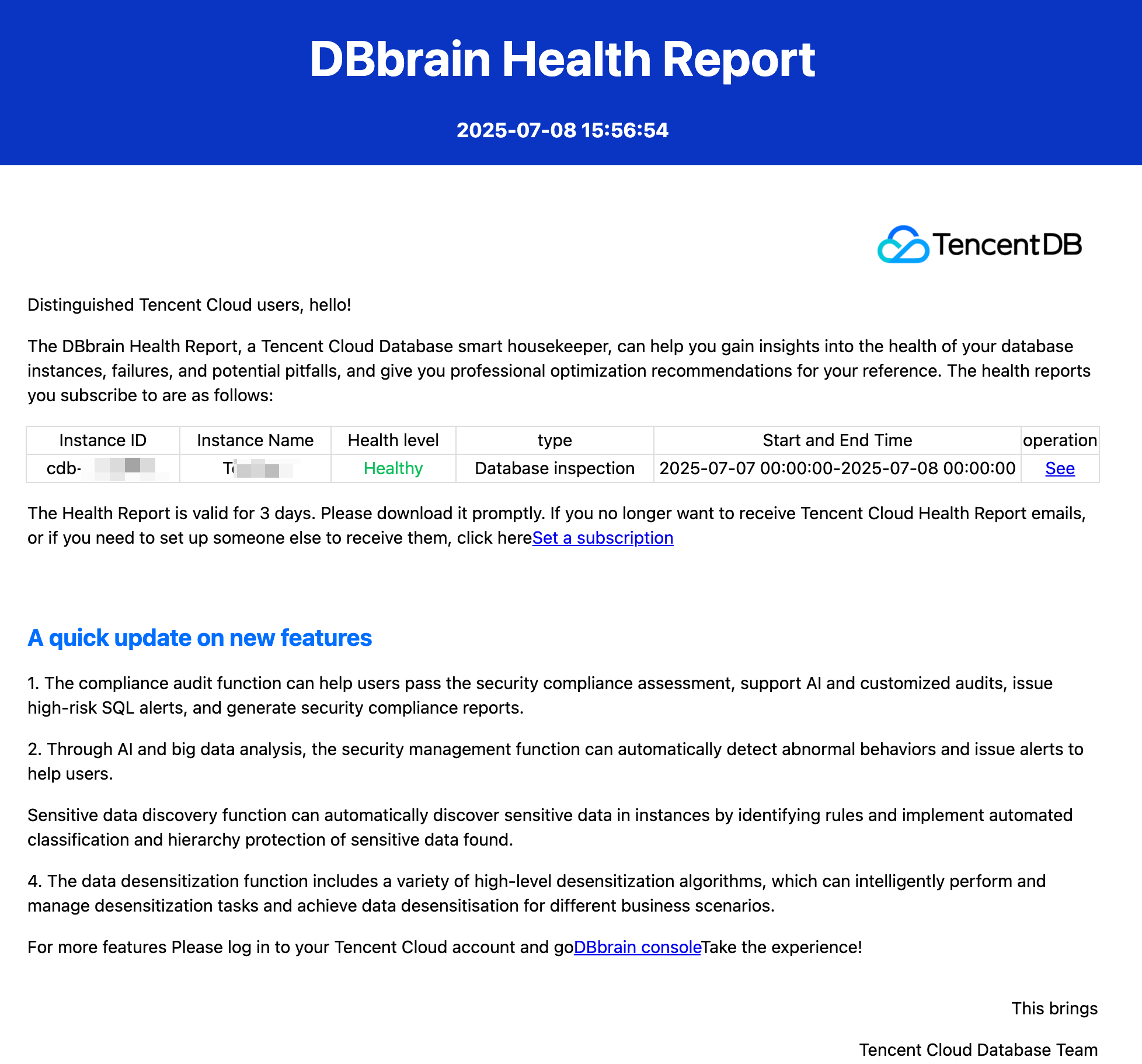
After the email of the health report is sent successfully, user will receive an email which involves the instance ID, instance name, health level, type, time range, operation, etc. Click View in the Operation column, and you can directly download the PDF file of the health report for this instance in the email.
Note:
The health report is valid for 3 days. Please download it before it expire.