Inspection Report SES
Download
Modo Foco
Tamanho da Fonte
This document introduces how to configure the SES template and historical inspection report SES.
Enabling and Setting Inspection Report SES Template
1. Log in to the DBbrain console.
2. In the left sidebar, select Monitoring & Alarm > Database Inspection.
3. In the upper right corner of the page, click Email Settings.
4. In the pop-up dialog box, enable Send to Specified Email Address, select an existing email template or create one, and click OK.
The health report generated by the database inspection will be sent to the designated contacts or contact group emails as per the selected template.
Note:
In Email Settings, you can select up to 5 database inspection SES templates.
Last Modified column displays the information of the last editor of the template. The health report will be sent based on the instance permissions of the last editor.
The health report SES will be sent based on the selected email address. To avoid email block, add the email allowlist policy in advance: dbbrain@qcloudmail.com.
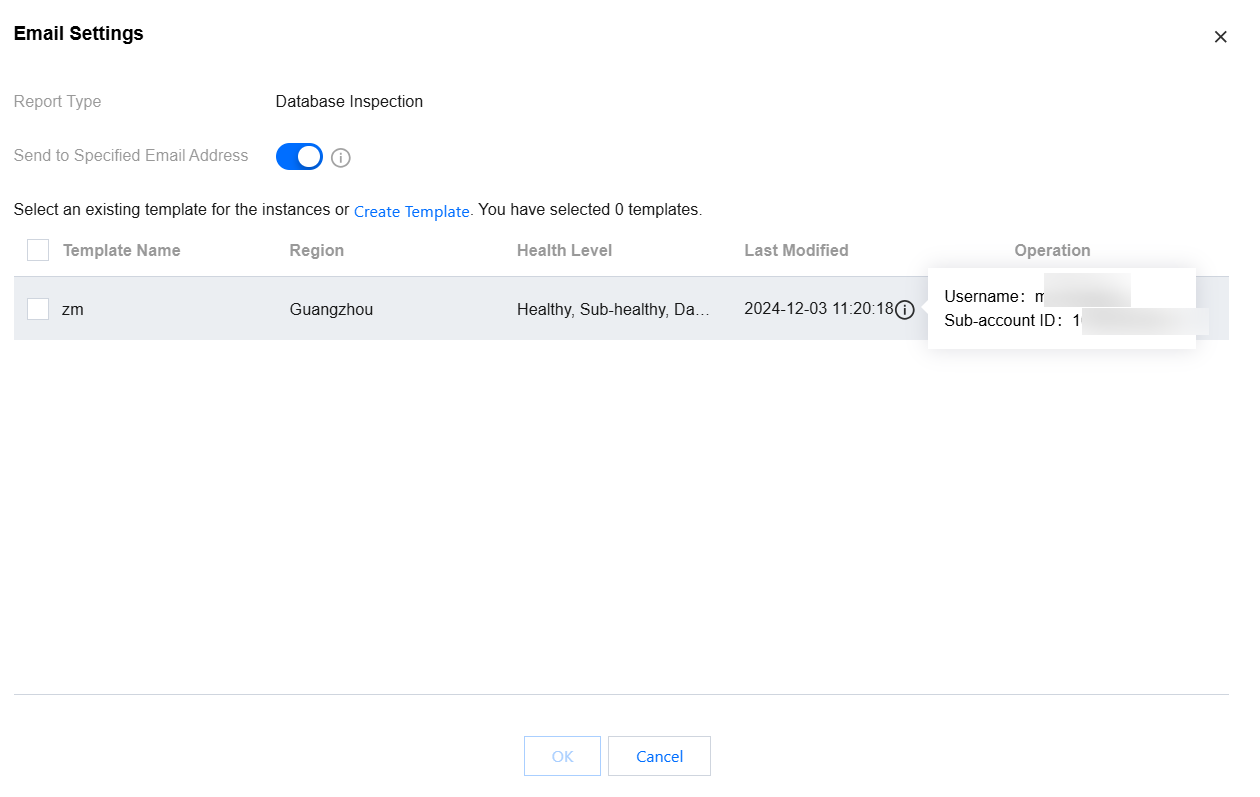
Existing template
Select the desired email template from the template list. The existing template supports edit and delete operations.
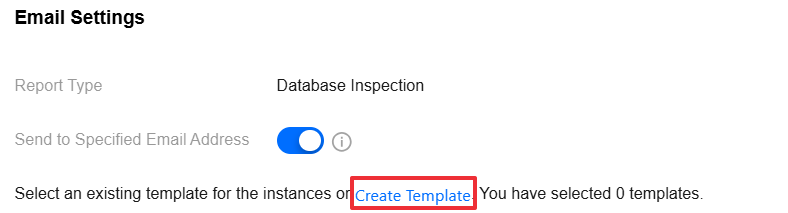
Create a template
4.1.1 In the Email Settings dialog box, click Create Template.
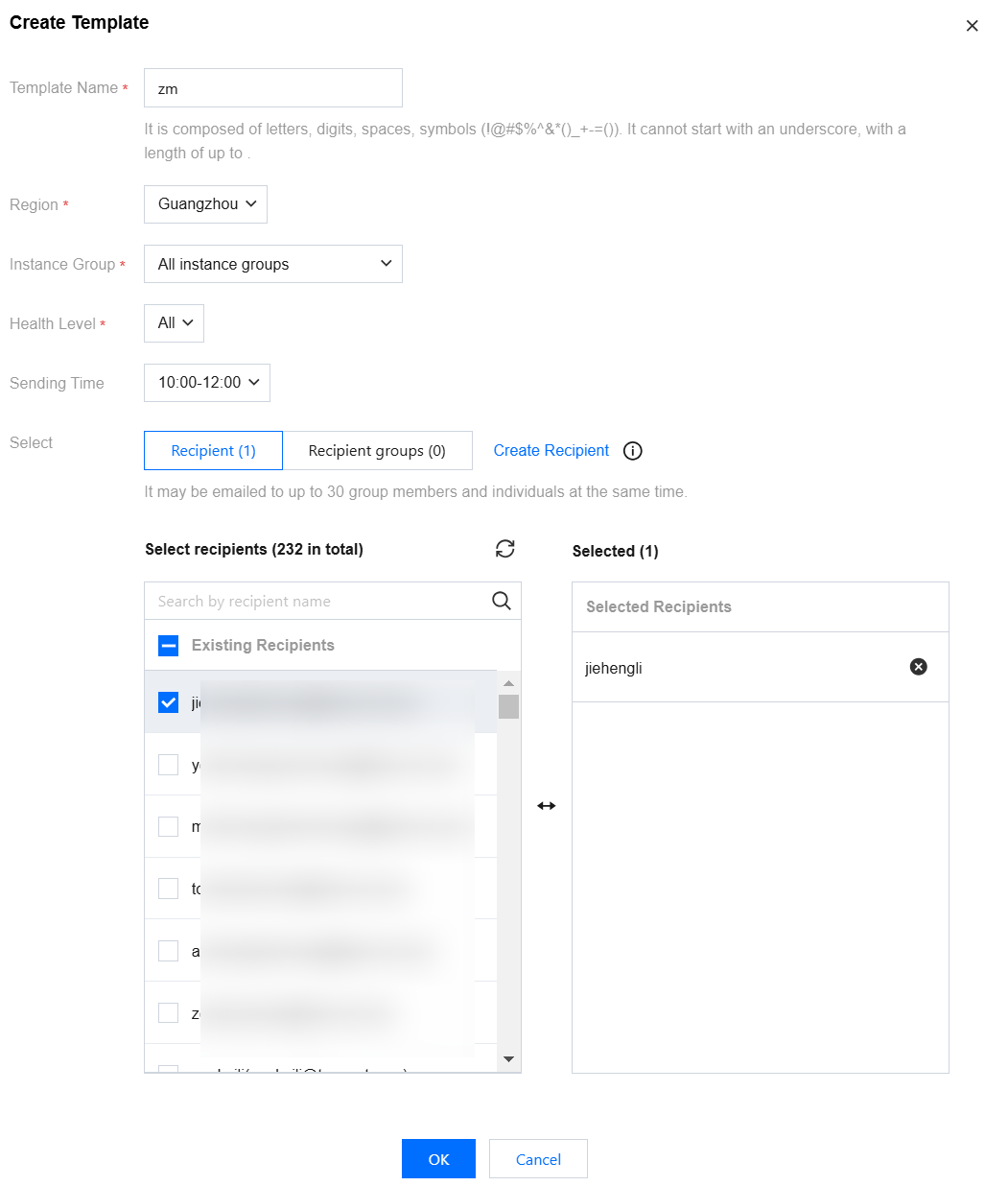
4.1.2 In the pop-up dialog box, fill in the template name, select region, instance group, health level, send time, contact person or contact group, and click OK to complete the template creation.
Note:
After the region and health level are set, the generated health report will be sent according to the selected region and health level.
The health report is sent on the premise that the instance in the region has enabled the database inspection.
Single email push supports concurrent delivery to recipient group members and individual recipients, with a hard limit of 30 total recipients.
Historical Inspection Report SES
1. Log in to the DBbrain console.
2. In the left sidebar, select Monitoring & Alarm > Database Inspection.
3. In the Database Inspection list, click Email in the Operation column, or select multiple database inspection records and click Batch Send.
4. In the pop-up dialog box, after selecting a contact or contact group, click OK. The generated health report will be sent to the contact or contact group's email.
Related Operations
To view the operation of email records, see SES Records.
To view the operation of SES content, see SES Content.
Ajuda e Suporte
Esta página foi útil?
Você também pode entrar em contato com a Equipe de vendas ou Enviar um tíquete em caso de ajuda.
comentários