This document describes how to use qemu-img to convert image files to VHD or RAW format. Currently, you can import image files in RAW, VHD, QCOW2, or VMDK to Tencent Cloud CVM. Image files in other formats need to be converted before being imported.
Directions
Select the method according to the operating system of the CVM instance:
Windows
Linux
Note:
This document uses Windows 10 as an example to describe how to convert the image format. As the steps may vary by operating system, proceed based on the actual conditions.
Installing qemu-img
Download qemu-img here and install it. This document takes C:\\Program Files\\qemu as the installation path as an example.
Configuring environment variable
1. Right-Click Start and select System in the pop-up menu.
2. In the pop-up window, select Advanced system settings.
3. In the System Properties pop-up window, select the Advanced tab and click Environment Variables.
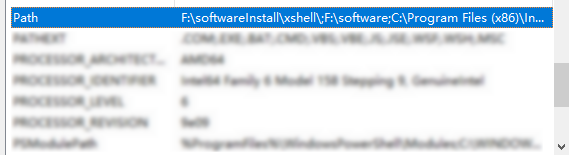
4. In the Environment Variables window, select Path in System variables and click Edit as shown below:
5. In the Edit environment variable pop-up window, click Create, enter the installation path of qemu-img C:\\Program Files\\qemu, and click OK.
6. In the Environment Variables window, click OK again.
Verifying environment variable configuration
1. Press Win + R to open the Run window.
2. In the Run window, enter cmd to open the command line.
3. Run the following command to determine whether the environment variable has been configured successfully based on the returned result:
qemu-img --help
Converting image format
1. Run the following command on the command line to switch to the directory of the image file:
cd<directory of the source image file>
2. Run the following command to convert the image format:
-O (in uppercase): target image format and source and target image filenames.
For example, run the following command to convert the test.qcow2 image file to test.raw:
qemu-img convert -f qcow2 -O raw test.qcow2 test.raw
After conversion, the target file will be displayed in the directory of the source image file.
Note:
This document uses Ubuntu 20.04 and CentOS 7.8 as an example to describe how to convert the image format. As the steps may vary by operating system, proceed based on the actual conditions.
Installing qemu-img
1. Run the following command to install qemu-img:
Ubuntu:
apt-get update # Update the package list
apt-getinstall qemu-utils # Install qemu-img
CentOS:
yum install qemu-img
2. Run the following command to convert the image format:
qemu-img convert -f qcow2 -O raw test.qcow2 test.raw
The parameters are described as follows:
-f: source image file format.
-O (in uppercase): target image format and source and target image filenames.
After conversion, the target file will be displayed in the directory of the source image file.