In addition to basic event filtering, EventBridge provides simple data processing capabilities. After you pass in data and configuration items to EventBridge, EventBridge formats the data and distributes the structured data obtained after processing to downstream targets, creating a bridge between data sources and data processing systems.
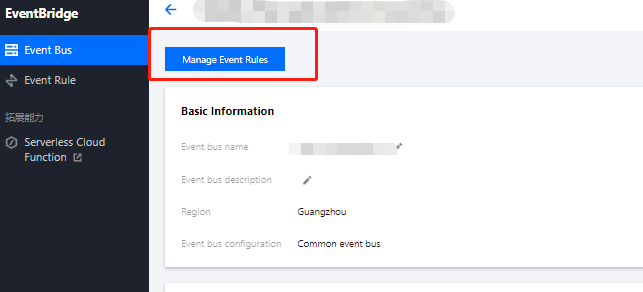
2. On the event bus details page, click Manage Event Rules and configure a new rule as shown below:
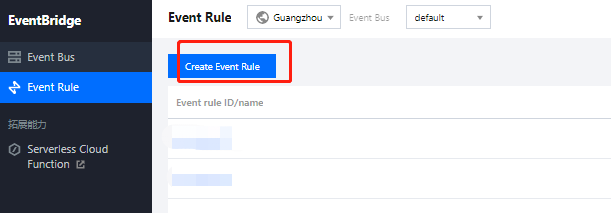
3. Go to the Event Rule page and click Create Event Rule.
4. Enter the basic task information as instructed and select Enable data conversion.
5. Click Next and set the data conversion rule.
Rule pattern: Select Template data or Custom.
Parsing mode: Select JSON.
6. After selecting a parsing mode, click OK to start data parsing.
7. After data parsing is completed, set the filtering rule and data processing mode.
Note:
Currently, the output format is JSON.
Filter: Only data that meets the configured filter rule is output. The filter supports the following matching modes: Prefix match, Suffix match, Inclusion match (contains), Exclusion match (except), Data matching, and IP matching.
Data processing: Valid values of TYPE are Default, Preset, Mapping, Custom.
TYPE = Default: VALUE is mapped based on the parsing result and cannot be modified.
TYPE = Preset: You can select a system preset value for VALUE. Currently, DATE (timestamp) is supported.
TYPE = Mapping: You can select an existing key. The final output value of VALUE is mapped by the specified key.
TYPE = Custom: You can enter a custom value for VALUE.
8. Click Test to check the test result.
9. Click Next to complete data target binding.
Editing a rule
On the Event Rule Details page, click Edit in the upper-right corner of the Data conversion module to modify a data processing rule. You can also add or delete a data processing rule on the page.
Filter rule description
The filter allows you to configure filtering rules such as field sizes to filter data. Only data that meets the specified rules will be retained.
Notes
Filter matching is exact matching down to the character and case-sensitive. During matching, no standardized operations will be performed on strings.
Values to be matched must be in JSON format, which include strings and numeric values enclosed in quotation marks as well as keywords not enclosed in quotation marks (true, false, and null).
Prefix match
You can perform key value matching by comparing a specified prefix with the prefix in data.
For example, for data {"password":"topicname"}, you can specify top as the prefix of the password value so that {"password":"topicname"} can be normally matched.
Suffix match
You can perform key value matching by comparing a specified suffix with the suffix in data.
For example, for data {"password":"topicname"}, you can specify name as the suffix of the password value so that {"password":"topicname"} can be normally matched.
Inclusion match
You can specify a field to be included in data as a match condition.
For example, for data {"password":"topicname"}, you can specify na to be included in the password value so that {"password":"topicname"} can be normally matched.
Exclusion match
You can specify a field to be excluded from data as a match condition.
For example, for data {"password":"topicname"}, you can specify topicname to be excluded from the password value so that {"password":"topicname"} cannot be normally matched.
Numeric match
You can specify the value or value range of a certain field as a match condition.
For example, for data { "numeric": 10}, you can specify the value of numeric to be less than 15 (<15) as a match condition so that { "numeric": 10} can be normally matched.
The following are examples of value match rules:
Greater than 10: Enter `>10`
Greater than or equal to 10: Enter `>=10`
Greater than or equal to 10, and less than or equal to 20: Enter `>=10&<=20`
Greater than or equal to 10, or less than or equal to 5: Enter `>=10|<=5`
IP match
You can specify an IP in CIDR notation as a match condition. For example, you can enter 1.2.3.4/24 to match IPs whose leading 24 bits start with "1.2.3.".