tencent cloud

Tencent Kubernetes Engine

Release Notes and Announcements
Release Notes
Announcements
Release Notes
Product Introduction
Overview
Strengths
Architecture
Scenarios
Features
Concepts
Native Kubernetes Terms
Common High-Risk Operations
Regions and Availability Zones
Service Regions and Service Providers
Open Source Components
Purchase Guide
Purchase Instructions
Purchase a TKE General Cluster
Purchasing Native Nodes
Purchasing a Super Node
Getting Started
Beginner’s Guide
Quickly Creating a Standard Cluster
Examples
Container Application Deployment Check List
Cluster Configuration
General Cluster Overview
Cluster Management
Network Management
Storage Management
Node Management
GPU Resource Management
Remote Terminals
Application Configuration
Workload Management
Service and Configuration Management
Component and Application Management
Auto Scaling
Container Login Methods
Observability Configuration
Ops Observability
Cost Insights and Optimization
Scheduler Configuration
Scheduling Component Overview
Resource Utilization Optimization Scheduling
Business Priority Assurance Scheduling
QoS Awareness Scheduling
Security and Stability
TKE Security Group Settings
Identity Authentication and Authorization
Application Security
Multi-cluster Management
Planned Upgrade
Backup Center
Cloud Native Service Guide
Cloud Service for etcd
TMP
TKE Serverless Cluster Guide
TKE Registered Cluster Guide
Use Cases
Cluster
Serverless Cluster
Scheduling
Security
Service Deployment
Network
Release
Logs
Monitoring
OPS
Terraform
DevOps
Auto Scaling
Containerization
Microservice
Cost Management
Hybrid Cloud
AI
Troubleshooting
Disk Full
High Workload
Memory Fragmentation
Cluster DNS Troubleshooting
Cluster kube-proxy Troubleshooting
Cluster API Server Inaccessibility Troubleshooting
Service and Ingress Inaccessibility Troubleshooting
Common Service & Ingress Errors and Solutions
Engel Ingres appears in Connechtin Reverside
CLB Ingress Creation Error
Troubleshooting for Pod Network Inaccessibility
Pod Status Exception and Handling
Authorizing Tencent Cloud OPS Team for Troubleshooting
CLB Loopback
API Documentation
History
Introduction
API Category
Making API Requests
Elastic Cluster APIs
Resource Reserved Coupon APIs
Cluster APIs
Third-party Node APIs
Relevant APIs for Addon
Network APIs
Node APIs
Node Pool APIs
TKE Edge Cluster APIs
Cloud Native Monitoring APIs
Scaling group APIs
Super Node APIs
Other APIs
Data Types
Error Codes
TKE API 2022-05-01
FAQs
TKE General Cluster
TKE Serverless Cluster
About OPS
Hidden Danger Handling
About Services
Image Repositories
About Remote Terminals
Event FAQs
Resource Management
Service Agreement
TKE Service Level Agreement
TKE Serverless Service Level Agreement
Contact Us
Glossary

Build test

PDF
Modo Foco
Tamanho da Fonte
Última atualização: 2024-12-23 16:52:18
This step describes how to publish one or more images in the TKE image repository, and how to use an image to create a Deployment in the TKE console.

Building configuration

1. Log in to the Jenkins backend and click the task "test" created in the Slave pod building configuration step from the task list.
2. Click Build with Parameters in the left sidebar to open the "Project test" panel and configure the following parameters:
mbranch: select the branch required for building. This document uses origin/nginx as an example.
name: select the name of the image to be built based on your actual needs. This document uses nginx as an example.
version: enter a custom image tag. This document uses v1 as an example.
3. Click Start Building. After the building is successfully completed, go to the TKE console and choose Image Repository > My Images to view the built image.

Publishing in the Console

1. Log in to the TKE console and click Clusters in the left sidebar.
2. Select the target cluster ID and go to the cluster management page of the Deployment to be created.
3. Click Create to go to the "Create a workload" page. See Creating a Deployment for the configuration of key parameters. In "Containers in the pod", choose Select Image > My Images. Then, select the image that was successfully uploaded during the preceding building process.
4. Click Save to finish creating the Deployment. On the Pod Management page, the nginx pod is running normally if the deployment was successful.
1. Log in to the Jenkins backend and click System Management in the left sidebar. Click System Configuration on the "Manage Jenkins" panel that appears.
2. On the "System Configuration" page, customize the "number of executors". This document uses 10 as an example.
Note:
The number of executors is 10, indicating that 10 jobs can be executed at the same time.
3. For other configuration items, ensure that they are consistent with those in the Configuring the slave pod template step.
4. Create 10 tests by referring to the Slave pod building configuration step, as shown in the following figure.
5. Configure building for multiple tasks by referring to the Building Configuration step.
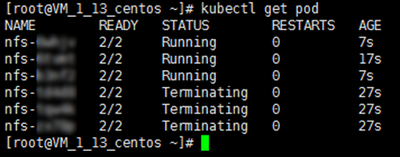
6. After the building is completed successfully, you can log in to the node and query the job pod by running the following command.
kubectl get pod
If the result similar to the following is returned, the call was successful.


Ajuda e Suporte

Esta página foi útil?

comentários