Tencent Cloud File Storage (CFS) provides a scalable shared file storage service that can be used with various Tencent Cloud services such as CVM, TKE, and batch operations. The standard NFS file system access protocol used by CFS offers shared data sources for multiple computing nodes. It supports elastic capacity and performance scaling. Your existing applications can be mounted for use without modification required. As a highly available and reliable distributed file system, CFS is suitable for various scenarios such as big data analysis, media processing, and content management.
CFS is very cost-effective and pay-as-you-go on an hourly basis, so you only need to pay for the actually used storage space. For more information on CFS billing, see Billing Overview.
Tencent Cloud SCF can be seamlessly integrated with CFS. After proper configuration, your functions can easily access files stored in CFS. You can enjoy the following advantages of CFS:
The execution space of functions is unlimited.
Multiple functions can share the same file system to share files.
Directions
Associating authorization policy
Note:
To use the CFS service, SCF needs permission to operate on your CFS resources.
Follow the steps below to grant the permission to your account:
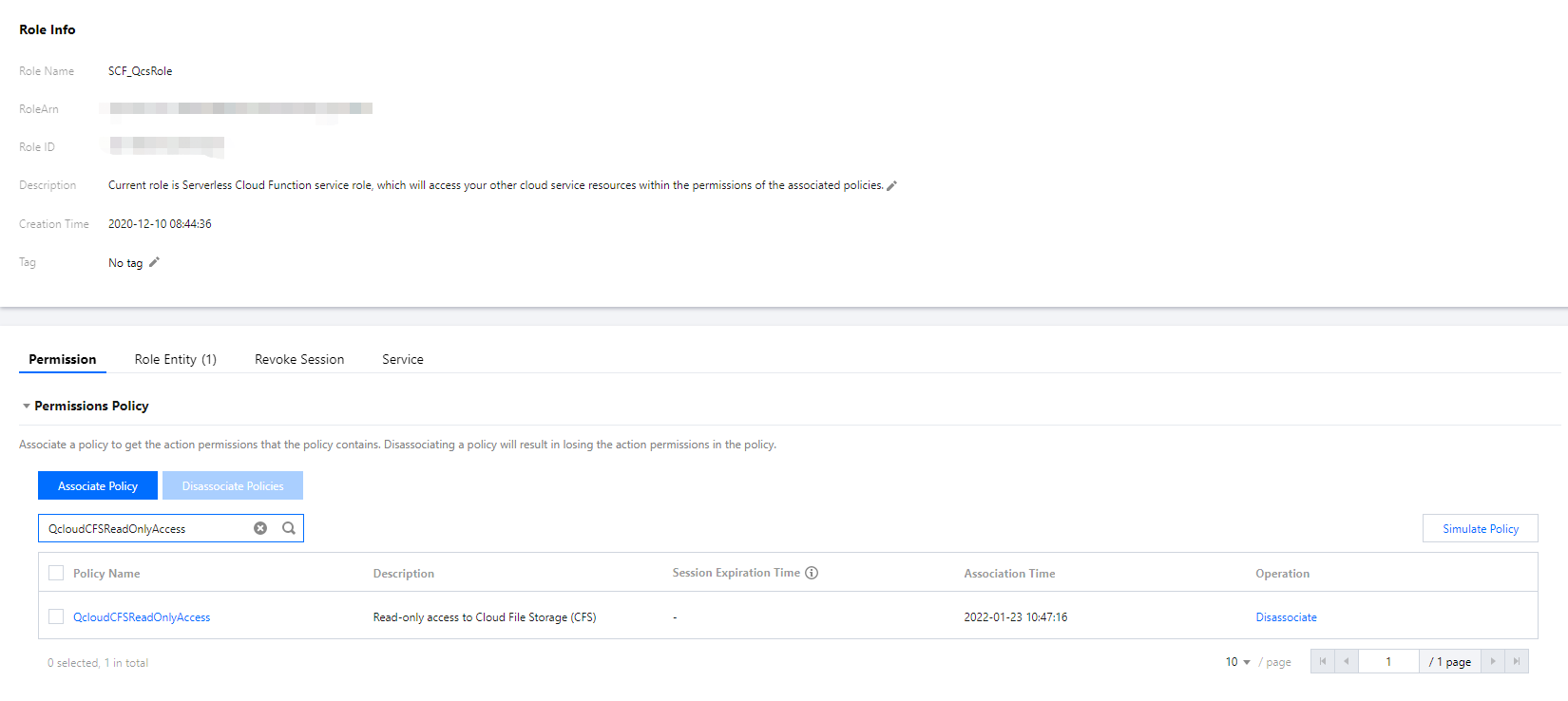
1. Associate the SCF_QcsRole role with the QcloudCFSReadOnlyAccess policy as instructed in Modifying a Role. The result of a successful association is shown below:
If you don't perform this operation for your currently used account, problems such as the failure to save functions and the unavailability of CFS features may occur.
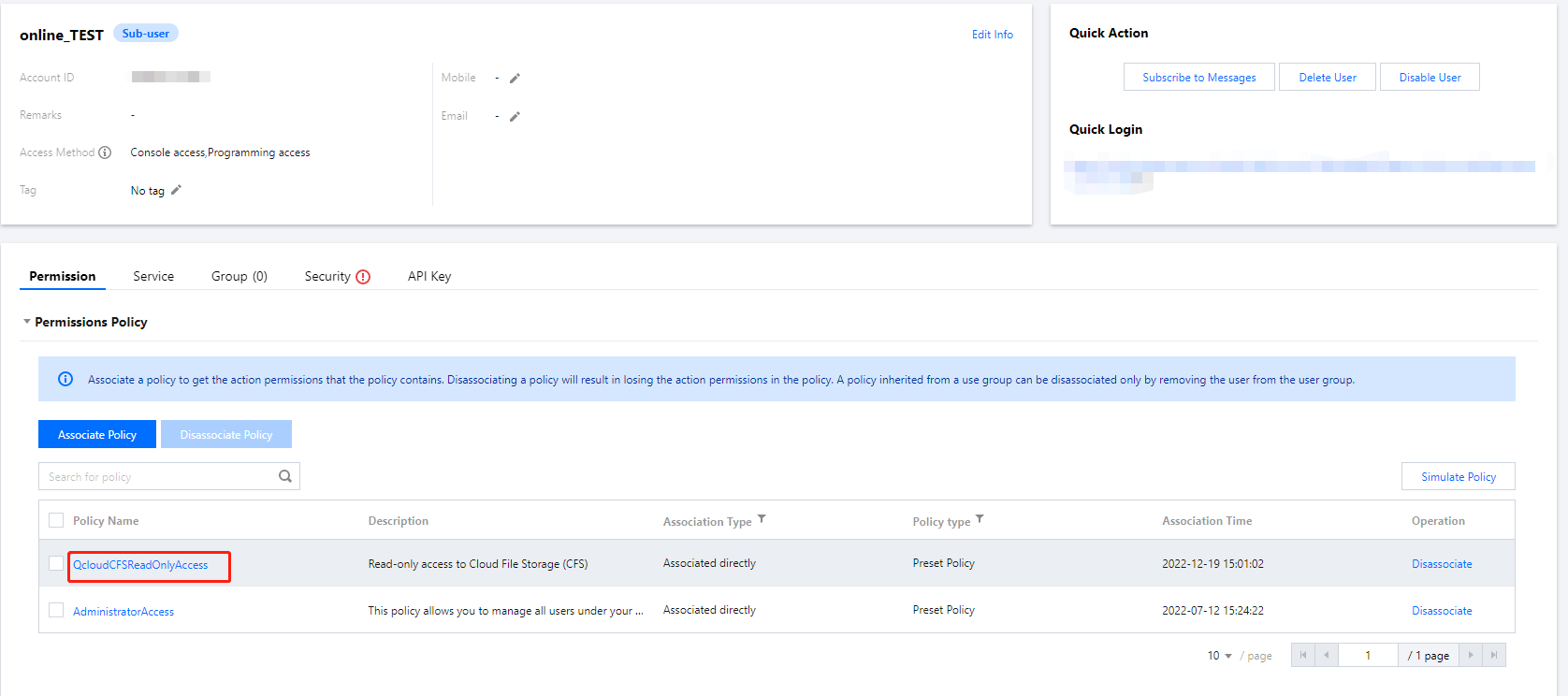
2. If the currently used account is a sub-account, request the root account to associate the sub-account with the QcloudCFSReadOnlyAccess policy as instructed in Setting Sub-user Permissions. The result of a successful association is shown below:
If you don't perform this operation for your currently used sub-account, problems such as the unavailability of CFS features may occur.
Currently, SCF allows only CFS file systems whose network type is VPC to be added as mount targets. When creating a CFS file system, select the same VPC as that of the target function to enable communication.
Mounting and using CFS file system
1. Log in to the SCF console and select Function Service on the left sidebar.
2. On the Function Service page, select the name of the function to be configured.
3. On the Function configuration tab of the Function management page, click Edit in the top-right corner.
4. Check Enable for VPC, and select the VPC where your CFS file system resides, as shown below:
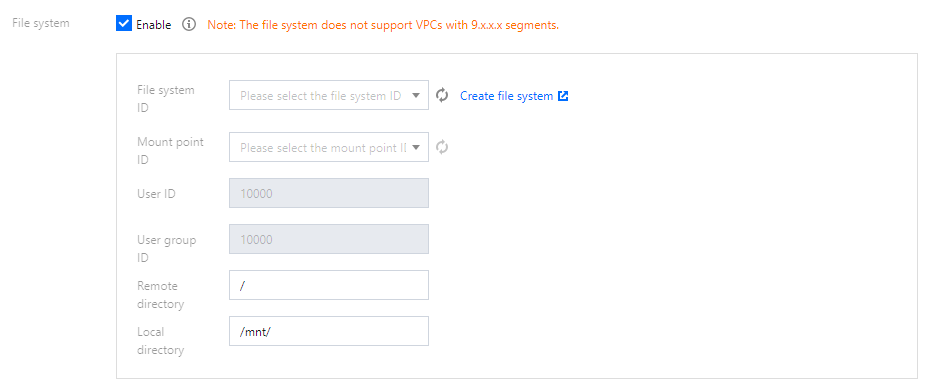
5. Check Enable for File System, and enter the following information to mount the file system, as shown below:
User ID and User group ID: IDs of the user and user group in CFS file system. SCF uses "10000" for both the user ID and user group ID by default to manipulate your CFS file system. Set the file owner and corresponding group permission as needed and ensure that your CFS file system has the required permission. A simple example is to run the chown 10000:10000 -R /mnt/folder command. For more information, see Managing Permissions.
Remote directory: The remote directory in the CFS file system to be accessed by the function, which consists of a file system and a remote directory.
Local Directory: Mount target of the local file system. You can use a subdirectory in the /mnt/ directory to mount the CFS file system.
File System ID: Select the file system to be mounted in the drop-down list.
Mount Target ID: Select the ID of the mount target corresponding to the file system in the drop-down list.
6. Click Save at the bottom of the page.
You can run the following function code to start using the CFS file system.