Overview
When you have multiple cloud product resources under your Tencent Cloud account such as CVM instances, CBS instances, and COS buckets and other resources under your account, you can create tags during the tag planning phase, and bind specific cloud resources during the tag application phase to implement classified management.
Note:
The character content of the tag key and tag value cannot be written at will, but needs to meet usage limits. See Use Limits. Directions
Method 1: Unified Creation of Tags
Case Scenario
Preset tags are created in the tag planning phase, and then these tags are bound to specific cloud resources in the tag application phase for classified management. This is suitable for scenarios where your account has a tag administrator to plan tags in advance and you do not want each sub-user to create tags arbitrarily. It is recommended to grant each sub-user only the read-only permission for tags.
Characteristics
The tag administrator completes the unified creation of tags.
Other sub-users only use tags and do not create them. When sub-users edit resource tags, they can only select existing tags from the dropdown list and cannot create new tags directly. If it is necessary to create tags (provided that sub-users have the corresponding permission), sub-users need to go to the Tag console's Tag List to complete the creation. Operation Guide
2. In the left sidebar, click Tag List to enter the Tag List page.
3. Click Create Tag.
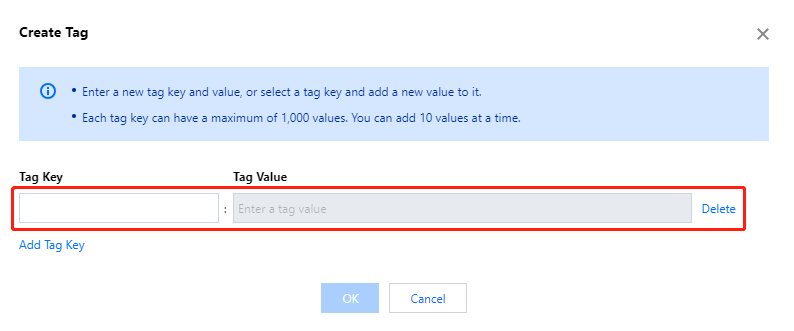
4. In the Create Tag dialog, you can create a new tag or add tag values for an existing tag.
Note:
For more information on the use limits of tag keys and values, see Use Limits. 1. You can enter the tag key and tag value.
Note:
To create multiple tags, click Add Tag Key and enter multiple tag keys and tag values simultaneously.
2. After entering values, click OK.
Method 1
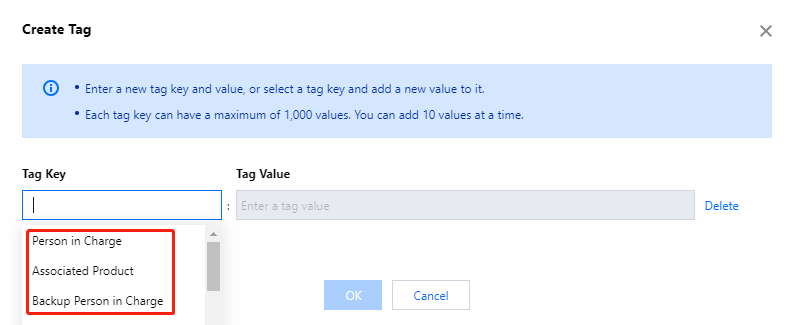
1.1 Select an existing tag key, enter a new tag value, then click OK.
Method 2
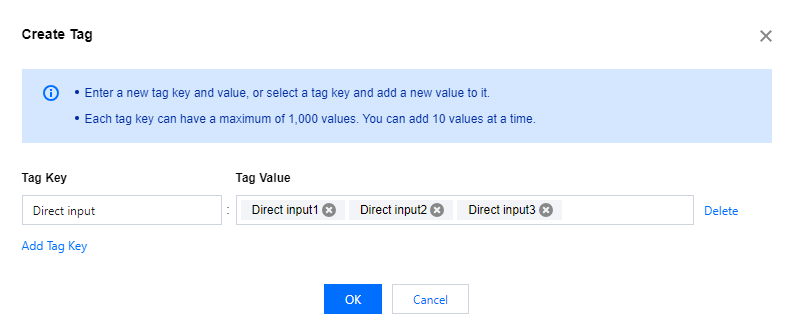
1.1 You can also create a new tag key, and enter a new tag value (supports creating multiple tag keys at the same time).
1.2 Click OK to complete the creation of the tag.
Method 2: Customization of Tags at Will
Case Scenario
Tags serve as a flexible resource management tool under your account. Sub-users can customize tags according to their own needs.
Characteristics
Each sub-user can create and use tags.
Currently, this method is in the product experience stage. If necessary, you can submit a ticket to apply for it. Operation Guide
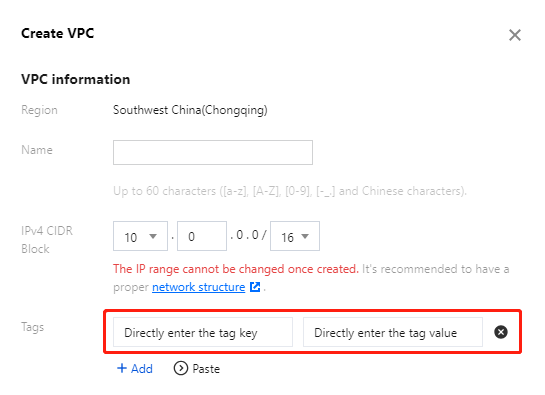
1. Log in to the VPC console (You can log in to any cloud product console, with VPC as an example here). 2. In the tag editing section of the Create VPC dialog box, directly enter the tag to complete the creation.
Note:
Difference between this method and Method 1: In Method 1, you can only select an existing tag in the tag editing section, and you cannot create a tag by entering a new key value.
This method allows you to directly enter a tag that has not been created. After submission, the creation will be completed, provided that the tag key value also complies with the rules. See Use Limits. Next