WhatsApp Access Control & Security Configuration Guide
1. Introduction
After deploying OpenClaw on Tencent Cloud Lighthouse and connecting it to WhatsApp, have you ever encountered this issue: OpenClaw starts automatically sending messages to your contacts right after configuration! This can catch you off guard and potentially cause unnecessary social awkwardness.
This is actually normal behavior for an AI Agent operating in default mode — it doesn't mean there's a system malfunction. However, without proper access control, it can indeed pose usage risks and social disruptions.
Don't worry! This guide provides a controllable and secure configuration solution to help you precisely manage WhatsApp message-triggering logic, striking the perfect balance between "accessible" and "controllable" for your AI assistant.
2. Background
2.1 Symptoms
Recently, Lighthouse users on the International site have reported a frequently occurring issue: after configuring the WhatsApp channel, OpenClaw proactively sends messages to contacts, and in some cases, even sends system prompts such as openclaw access not config to recent chat windows.
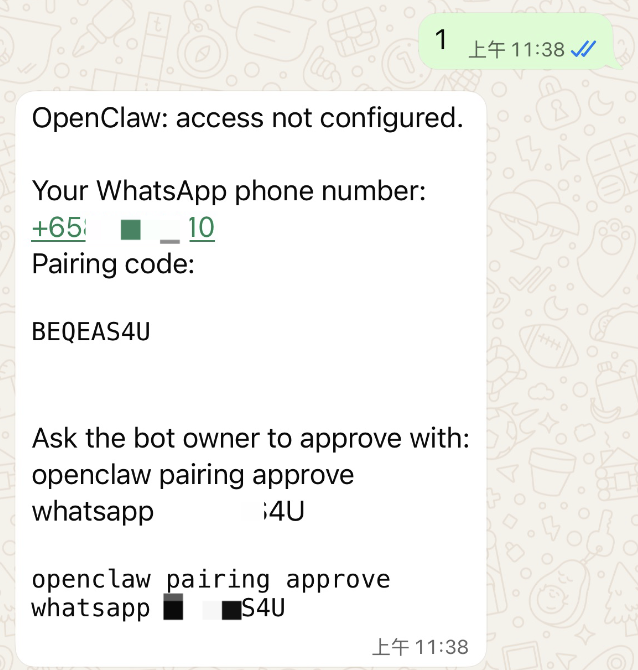
2.2 Root Cause Analysis
Connecting WhatsApp to OpenClaw essentially means taking over your account directly. In the default pairing mode, any incoming message triggers OpenClaw's response mechanism. This means:
| Scenario | Default Behavior | Impact |
|---|---|---|
| A friend sends you a message | AI response is triggered immediately | May expose the existence of the AI assistant |
| Someone @mentions you in a group chat | Triggers the pairing process | Causes unnecessary disturbance |
| A stranger sends a private message | Also triggers a response | Poses a security risk |
💡 Helpful Tip: To address this issue, we have changed the default mode to
Allowlistin the latest version. However, if your version has not been upgraded yet, or if you wish to manually switch modes, please continue reading this tutorial.
3. Connection Modes Explained
OpenClaw offers three WhatsApp connection modes. You can choose flexibly based on your needs:
| Mode | dmPolicy Value | Characteristics | Use Case |
|---|---|---|---|
| Pairing Mode | pairing |
Requires pairing each time someone sends a message | Open testing environments |
| Private Mode | private |
Fully private; does not respond to any messages | Strict privacy protection |
| Allowlist Mode | allowlist |
Only responds to specified contacts | Precise control (Recommended) |
🔥 Highly Recommended: For most users, we recommend using the
allowlistmode combined with theallowFromwhitelist to achieve precise message control.
4. Step-by-Step Instructions
4.1 Log In to the Lighthouse Instance
-
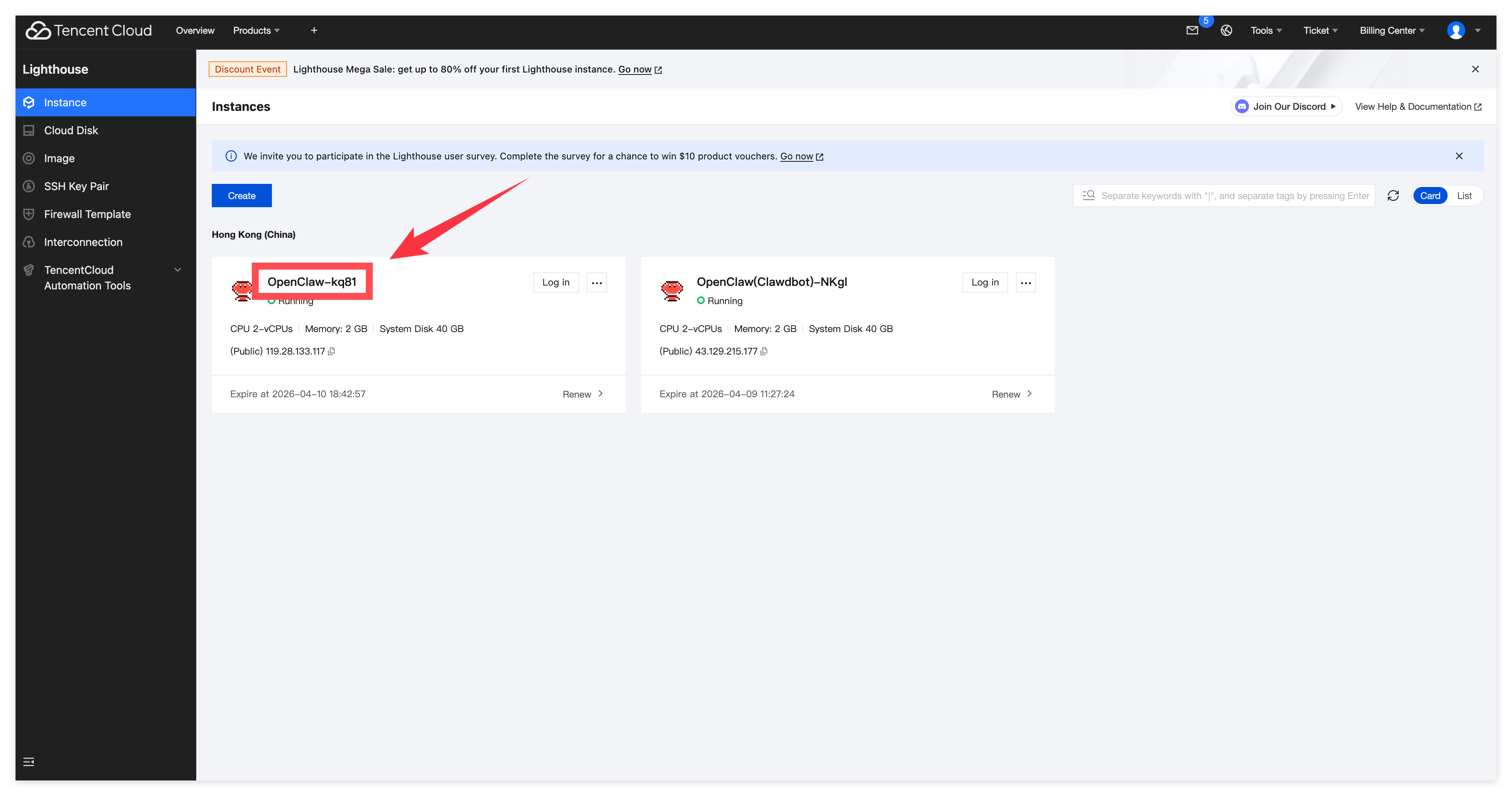
Open the Tencent Cloud Console and navigate to the Lighthouse page.
-
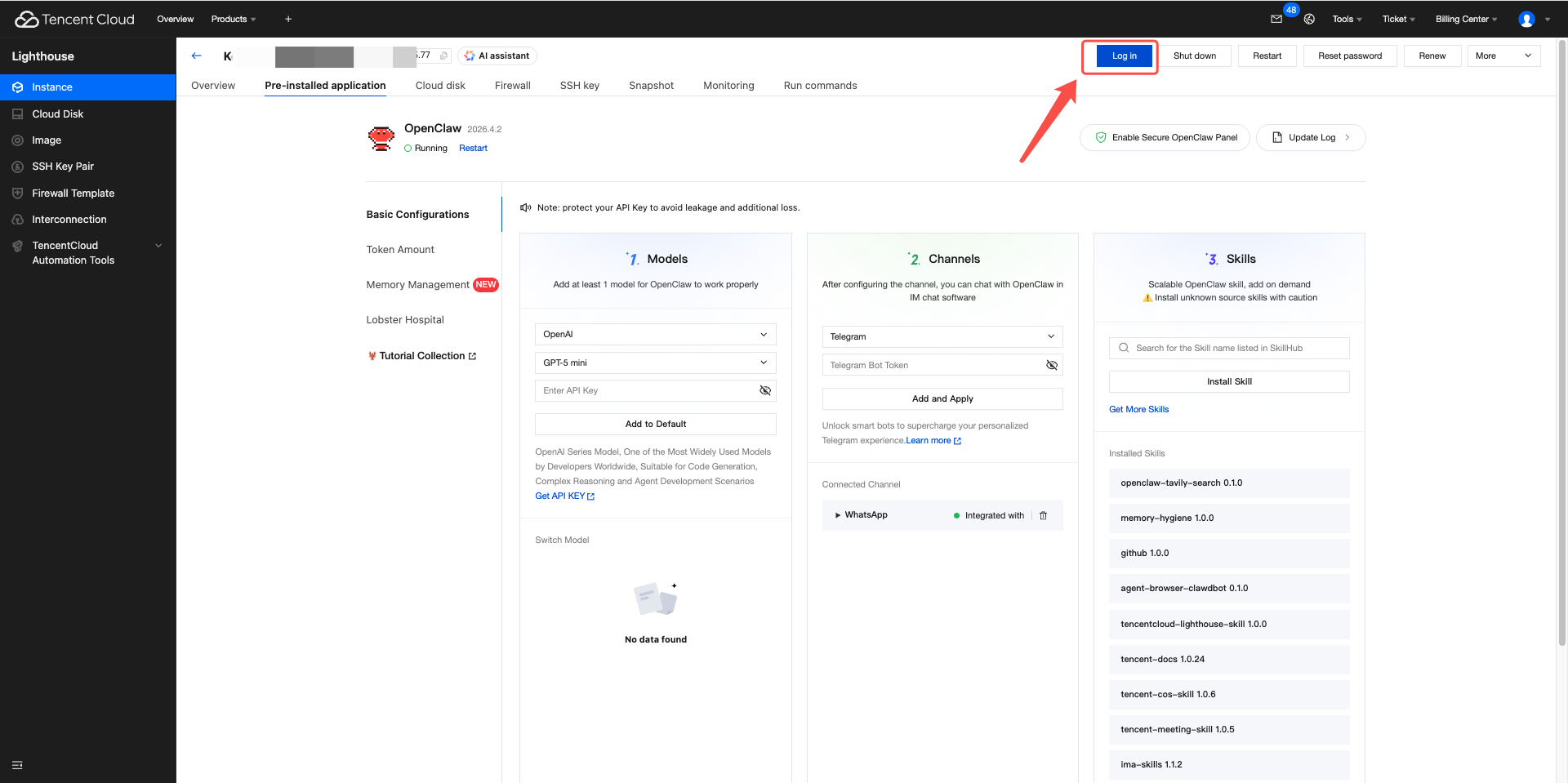
Locate the instance where OpenClaw is deployed, and click the Login button.
4.2 Edit the Configuration File
Enter the following command in the terminal to open the OpenClaw configuration file:
vim ~/.openclaw/openclaw.json
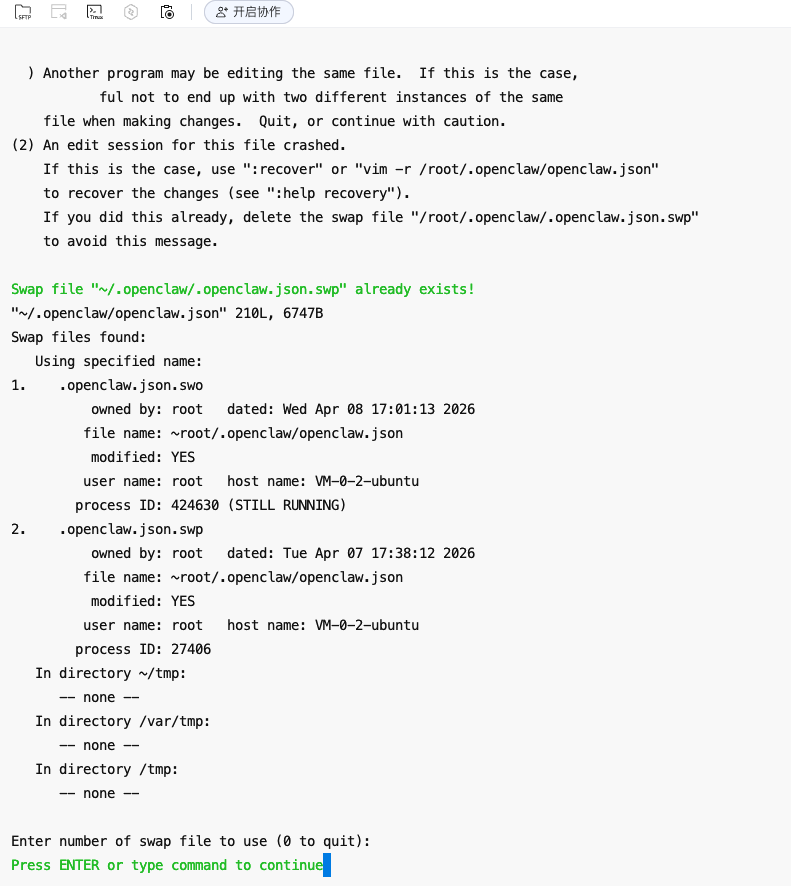
⚠️ Note: If a swap file prompt appears (e.g.,
[O]pen Read-Only, (E)dit anyway, (R)ecover, (D)elete it, (Q)uit, (A)bort):If you are certain that no other window or process is currently editing this file, simply press: D
This will delete the old
.swpfile and open the editor normally. This is the most common approach.If you are concerned about unsaved content from a previous session, press R first to recover, verify the content, and then save and exit.
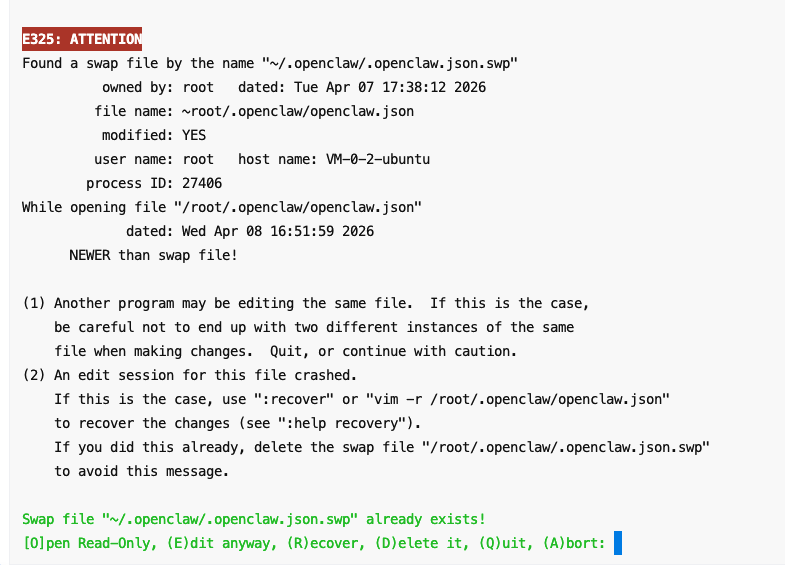
If the following screen appears, press Enter:
4.3 Modify the dmPolicy Configuration
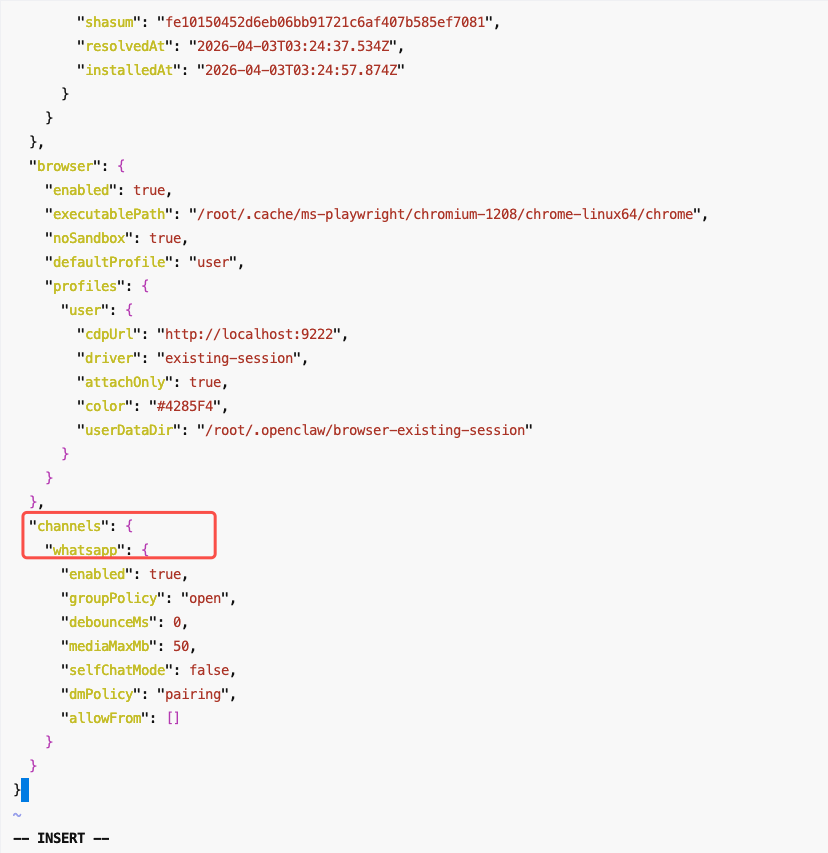
In the configuration file, locate the channels.whatsapp section and find the WhatsApp field:
"channels": {
  "whatsapp": {
    "enabled": true,
    "groupPolicy": "open",
    "debounceMs": 0,
    "mediaMaxMb": 50,
    "selfChatMode": false,
    "dmPolicy": "pairing",
    "allowFrom": []
  }
}
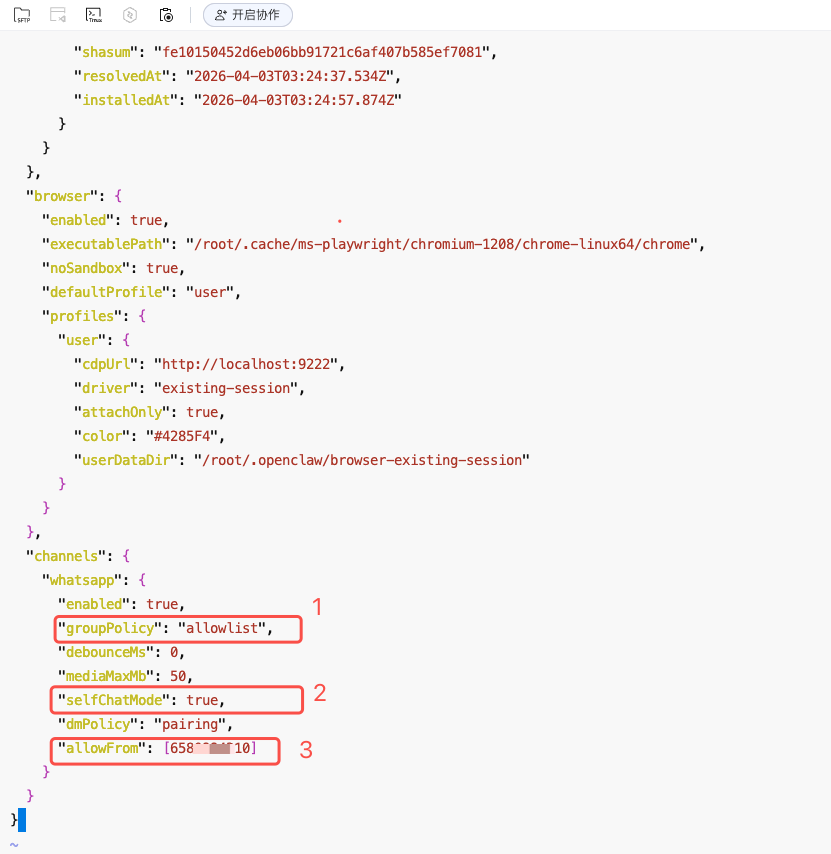
In practice, dmPolicy is not the only parameter that needs adjustment. To ensure WhatsApp access control works properly, you typically need to configure selfChatMode, allowFrom, and groupPolicy together.
Only when these settings are configured in coordination can you achieve truly "accessible yet controllable" access management.
Core Configuration Parameters
| Parameter | Function | Recommended Setting |
|---|---|---|
dmPolicy |
Controls the private chat trigger mode | Set according to the target mode |
groupPolicy |
Controls whether group chats trigger responses | Recommended to restrict or disable |
selfChatMode |
Whether to respond to messages sent by yourself | Recommended to set to false |
allowFrom |
Whitelist of allowed contacts | Must be populated in Allowlist mode |
Configuration by Mode
| Target Mode | Configuration Details |
|---|---|
| Private Mode | "dmPolicy": "private" — Only authorized users can access; it is recommended to also set "selfChatMode": false |
| Allowlist Mode | "dmPolicy": "allowlist" — Populate "allowFrom" with the allowed contact IDs. Format: e.g., for +65 12345678, enter 6512345678 |
| Pairing Mode | "dmPolicy": "pairing" — Only users who have completed pairing can access |
| Open Mode | "dmPolicy": "open" — All private messages will trigger a response (⚠️ Not recommended for production use) |
Modification example and recommendations:
4.4 Save and Exit
After completing the modifications, follow these steps to save and exit:
-
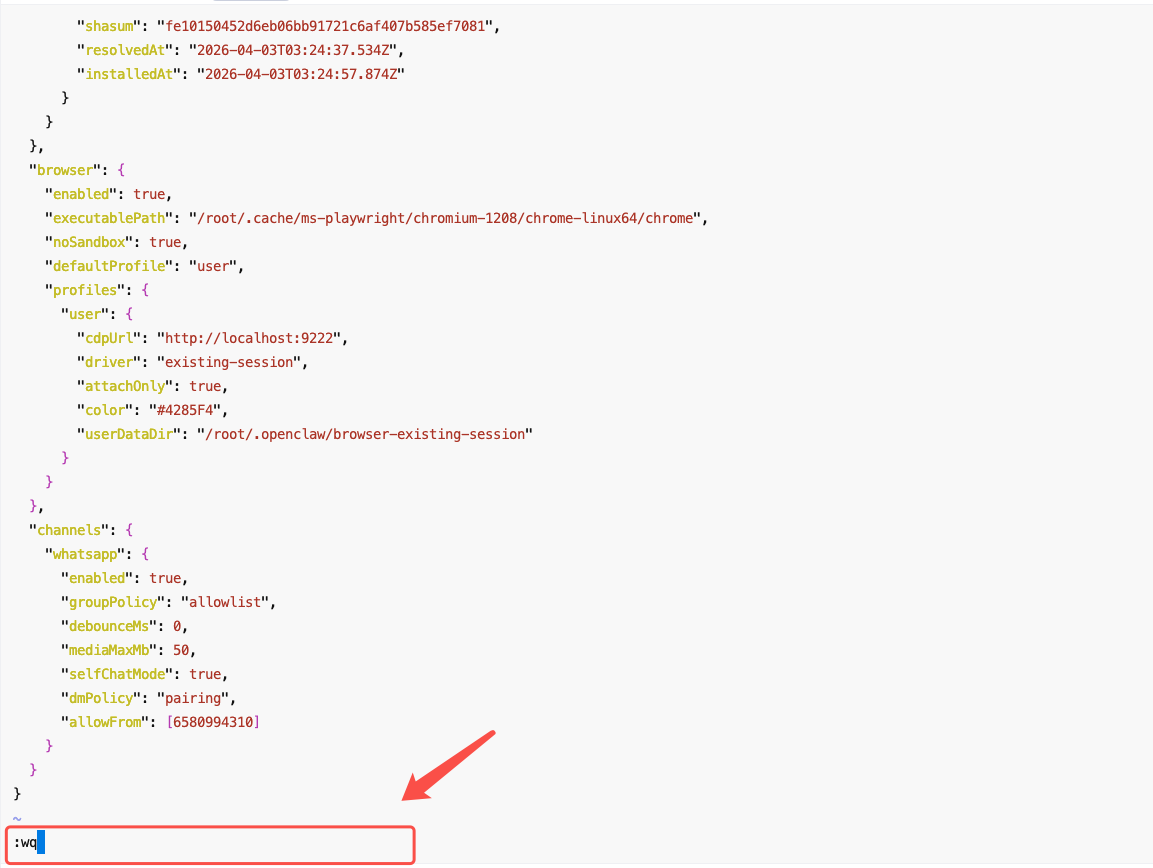
Press the
Esckey to exit edit mode (make sure-- INSERT --in the bottom-left corner disappears). -
Type
:wq(with a colon in English input mode).
-
Press
Enterto confirm.
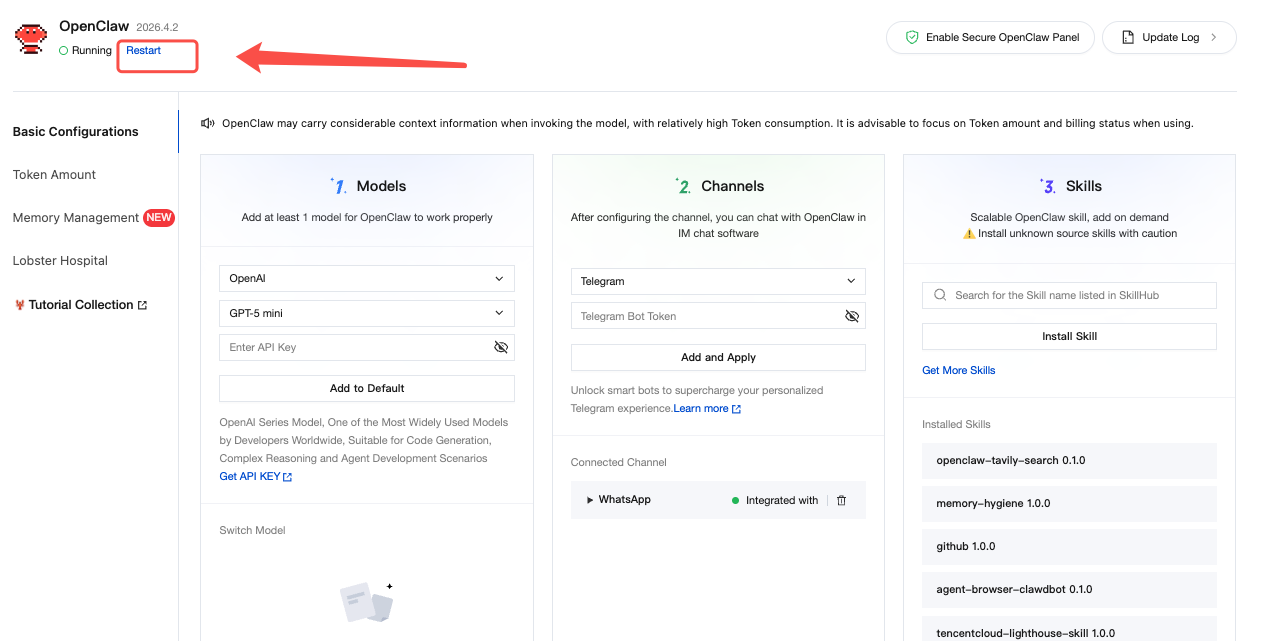
4.5 Restart the Service
After modifying the configuration, you must restart the service for the changes to take effect:
5. Frequently Asked Questions (FAQ)
5.1 What should I do if the configuration changes don't take effect?
Please verify that you have restarted the OpenClaw service after making the changes.
5.2 What should I enter in the allowFrom field?
Enter the contact IDs (WhatsApp numbers) that you want OpenClaw to respond to. For example, "allowFrom": [6512345678, 8613800138000] means only messages from these two numbers will receive a response.
5.3 Can I switch between the three modes at any time?
Yes. Simply follow this tutorial to modify the dmPolicy value again, save the file, and restart the service to complete the switch.
5.4 What if I'm not familiar with Vim?
| Action | Key | Description |
|---|---|---|
| Enter edit mode | i |
Enters INSERT mode |
| Exit edit mode | Esc |
Returns to command mode |
| Save and exit | :wq |
Write and quit |
| Force quit | :q! |
Quit without saving |
More Tutorials
For more practical tutorials on OpenClaw in the cloud
Such as one-click deployment of OpenClaw, integration with QQ/WeChat/DingTalk/Lark/Discord/Telegram/WhatsApp, installation and use of Skills, please see:Mastering OpenClaw | One-click, second-level deployment guide for OpenClaw (Clawdbot) in the cloud.
Welcome to join the discussion!
A Discord has been created, and everyone is welcome to join and explore advanced ways to use Moltbot (Clawdbot) together!
More Tutorials
For more practical tutorials on OpenClaw in the cloud, such as one-click deployment of OpenClaw, integration with QQ/WeChat/DingTalk/Lark/Discord/Telegram/WhatsApp, installation and use of Skills, please see Mastering OpenClaw | One-click, second-level deployment guide for OpenClaw (Clawdbot) in the cloud.
🚀 Developer Community & Support
1️⃣ OpenClaw Developer Community
Unlock advanced tips on Discord
Click to join the community
Note: After joining, you can get the latest plugin templates and deployment playbooks
2️⃣ Dedicated Support
Join WhatsApp / WeCom for dedicated technical support
| Channel | Scan / Click to join |
|---|---|
| WhatsApp Channel |

|
| WeCom (Enterprise WeChat) |

|
Learn more on the official page: Tencent Cloud OpenClaw