File Preloading
Overview
File preloading caches selected files to nodes in the specified resource group in advance to enhance the start-up speed and stability of training tasks or online services (in LLM training scenarios, the duration of loading files into POD memory can be shortened from 2h to 5min). This document mainly introduces how to add files and preload them into the resource group, as well as how to mount cached files in modules such as training or reasoning.
Prerequisites
1. Created resource group
Please go to Console > Resource Group Management to create a resource group in advance and add nodes. For the procedure, please see Create Resource Group.
2. Activated COS
The file preloading feature only supports adding files from built-in models or COS storage instances. Please go to Console - Cloud Object Storage and enable the storage service as prompted. For the operation process, see Quick Start.
COS (Cloud Object Storage): COS is a distributed storage service provided by Tencent Cloud to store massive files, with advantages like high scalability, low cost, reliability and security. Through diverse methods such as console, API, SDK and tools, users can easily and quickly integrate COS to perform file upload, download and manage multiple formats, achieving massive data storage and management.
Add File
1. Select left sidebar Platform Management > Resource Group Management, enter File Preloading. Supports adding cached files at the global dimension for all resource groups and loading files to resource groups.

2. Click the Add File button to show the pop-up as follows. It supports selecting files from built-in model and COS storage types.
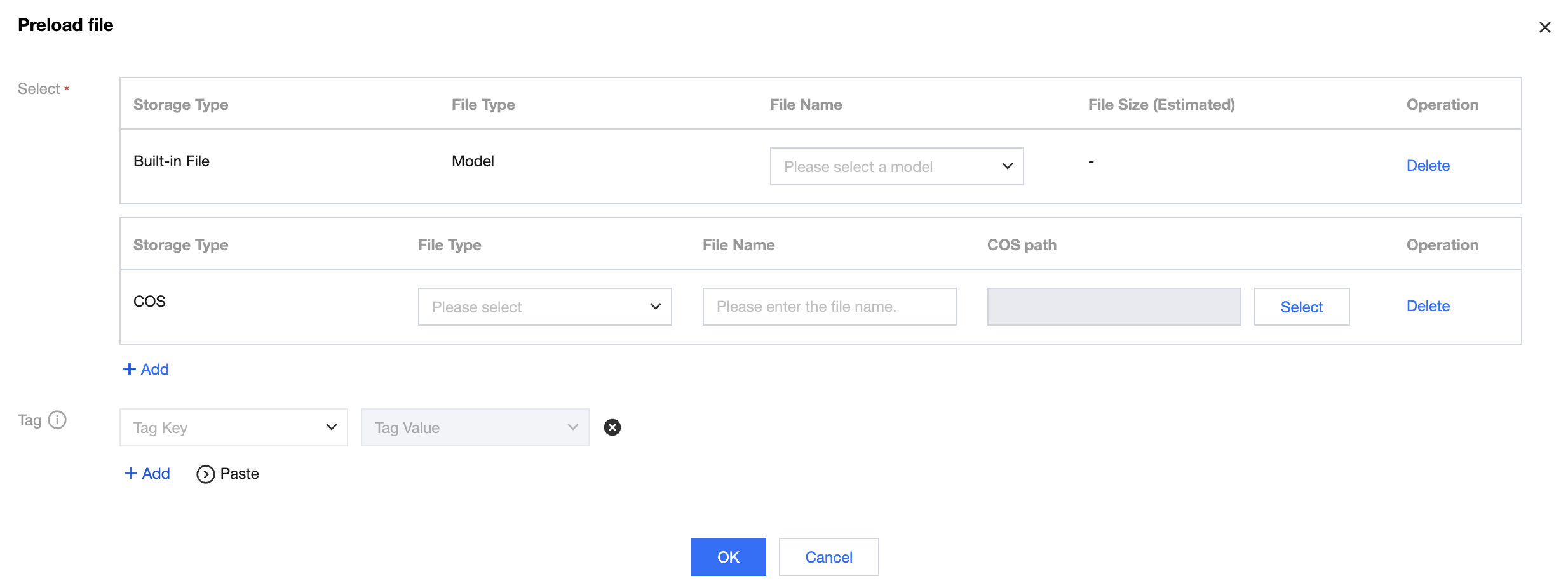
Configuration parameters and their descriptions are as follows:
Storage type | Field Name | Description |
Built-in file | File Type | Indicates the type tag of a preloaded file, used to identify the file's type and purpose when mounting in task-based modeling or online service addition. (Remark: Currently only support built-in files of the "model" type. Later versions will gradually scale-out file objects such as "mirror" and "dataset".) |
| File Name | The platform supports preload of built-in file objects. Required. The option source is models listed in the Large Model Plaza. |
| File Size | Estimated size of built-in files occupying disk space. |
COS | File Type | Only used for tagging the type of preloaded files, options include "model", "mirror", "dataset". |
| File Name | Definition and description of preloaded files. Required, supports Chinese and English, digits, underscore "_", and hyphen "-". Must start with Chinese and English or digits, with a maximum length of 256 characters. |
| COS path | Indicates the specific path of the file source. Only supports selecting a folder, does not support selecting a specified file. |
3. After selecting the file, click Confirm. The added file will be displayed in the list.
Preloading Files
1. Click Preloading in list operations to load selected files to multiple resource groups.
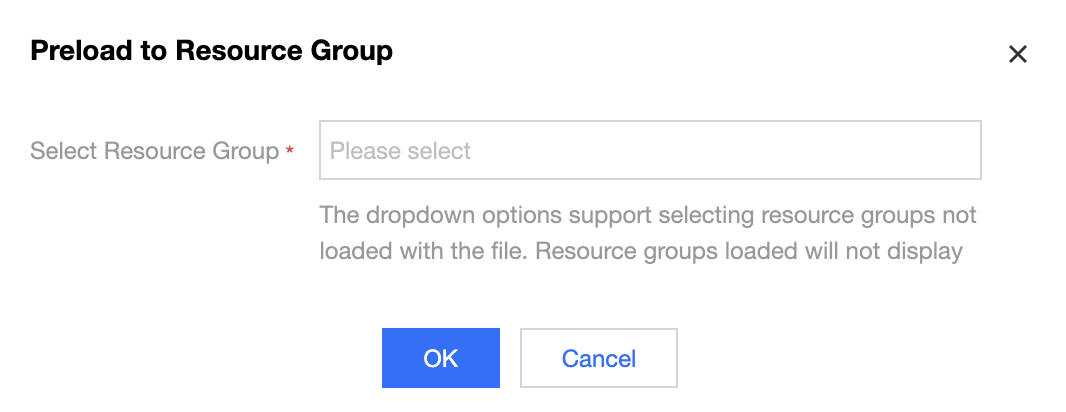
2. After selecting a resource group, click Confirm. The platform will execute the loading task on each node of the selected resource group.
Managing Files
In the list on the file preloading page, you can view the loading status at the global dimension as well as loading details of each resource group. Meanwhile, it also supports operations such as updating or deleting files.
Node Status
After adding files, the initial status of newly added data in the list is "to be loaded". Only when files are added to any resource group will the subsequent status circulation be triggered: loading > loaded/partially loaded/exception > remove from. The status description is as follows:
Status | Description | Status Transition |
to be loaded | The file is not loaded on all resource groups. Note: At this point, the file is not yet loaded, so update is unclickable. | 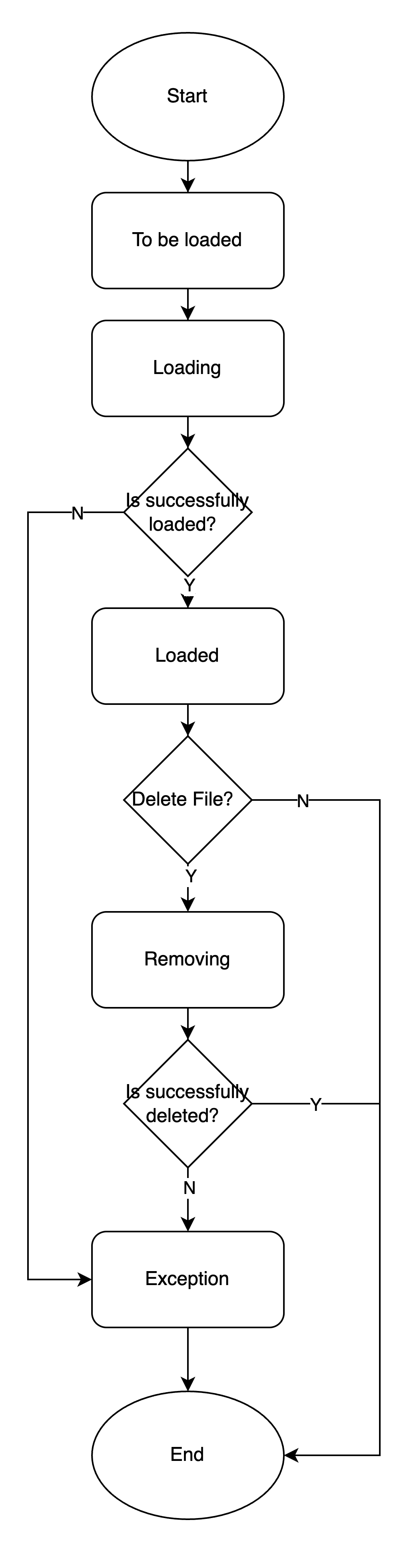 |
loading | The file is loading on all nodes of the specified resource group. Display only when all resource groups are in loading status. | |
Exception | An exception occurred while loading or removing the file. Display only when all resource groups are in abnormal status. Hover over the right icon to display the specific error message. When multiple resource groups have loading exceptions, the exception message of the first resource group is shown. | |
loaded | The file is successfully loaded on all nodes within all resource groups. Display only when all resource groups are in loaded status. Hover over the right icon to display all loaded resource group names. Click view detail to view the complete list. | |
partially loaded | Indicates that partial resources groups have successfully loaded the file, but some resource groups are in exception or still loading. Display when any resource group is in loaded status. | |
Removing | Indicates the file is being removed from all nodes within the resource group. Display when any node is in removing status. Upon completion, data is deleted synchronously from the list. Note: Since the file is being removed, you cannot click Delete repeatedly. | |
View Details
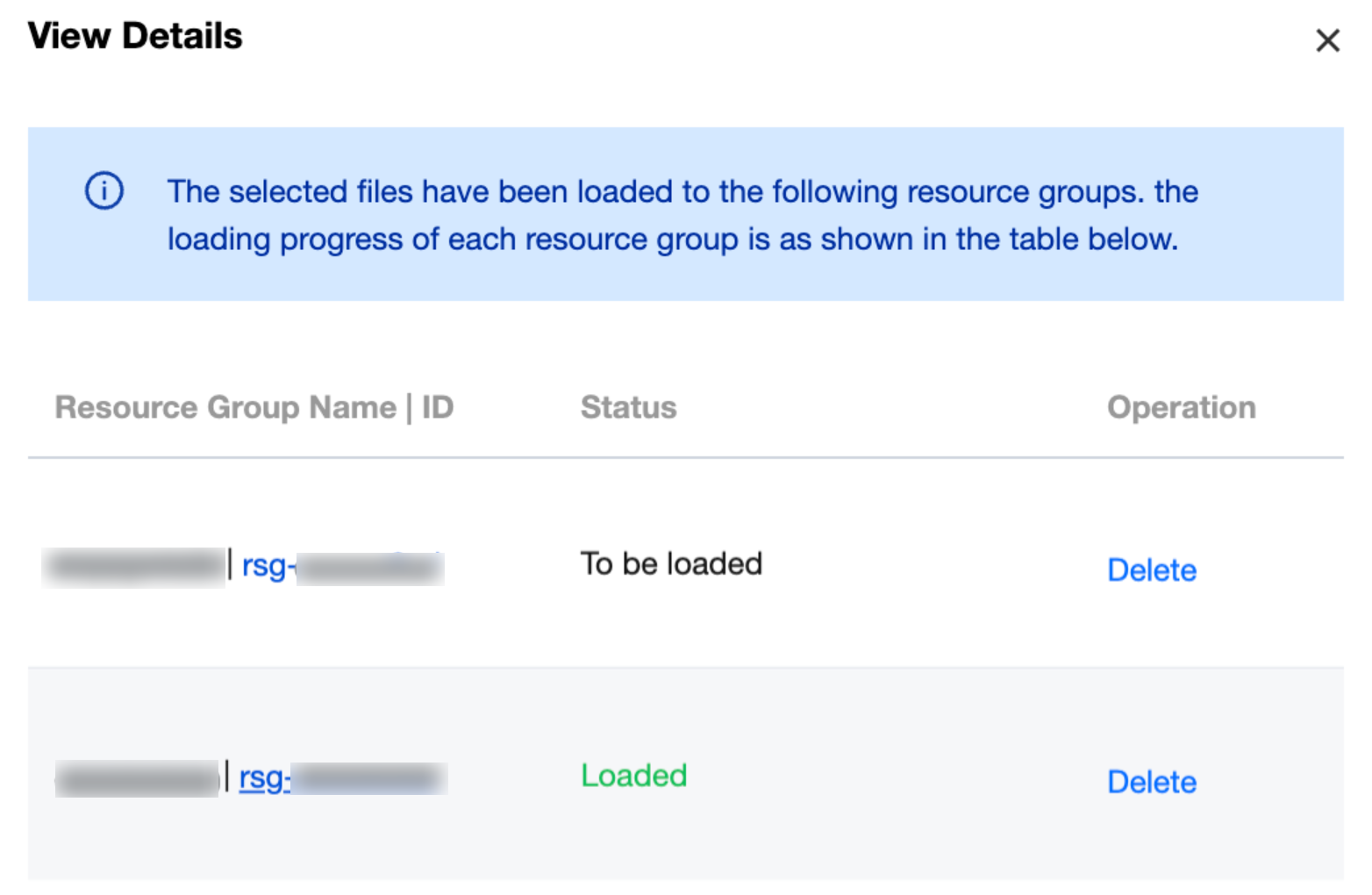
Click the list Filename to view all resource group details loading this file in a popup, including resource group name | ID, loading status, and progress.
Click Resource Group ID to redirect to the File Preloading Tab page of the specified resource group details page.
Click Delete to remove selected files from a single resource group.
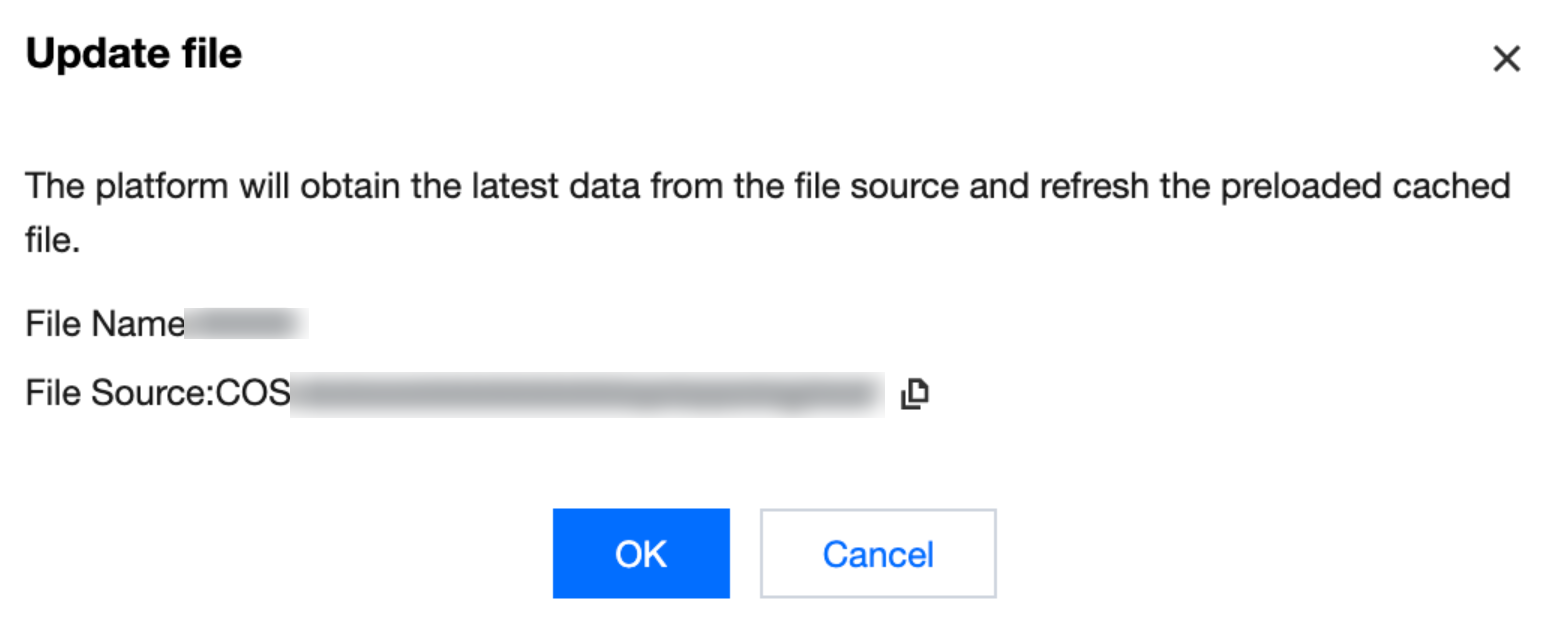
Updating
Click the list Refresh in operation to obtain the latest data from the source path and update the preloaded cache files.
Note: The update operation logic is incremental update. After triggering the update, the file will re-enter the "loading" status (same as the process during creation).
Example of incremental update: Suppose a directory has 8 files loaded, then 4 files are deleted and 3 files are added. After the incremental update, there should be 7 files (rather than 11).
Delete
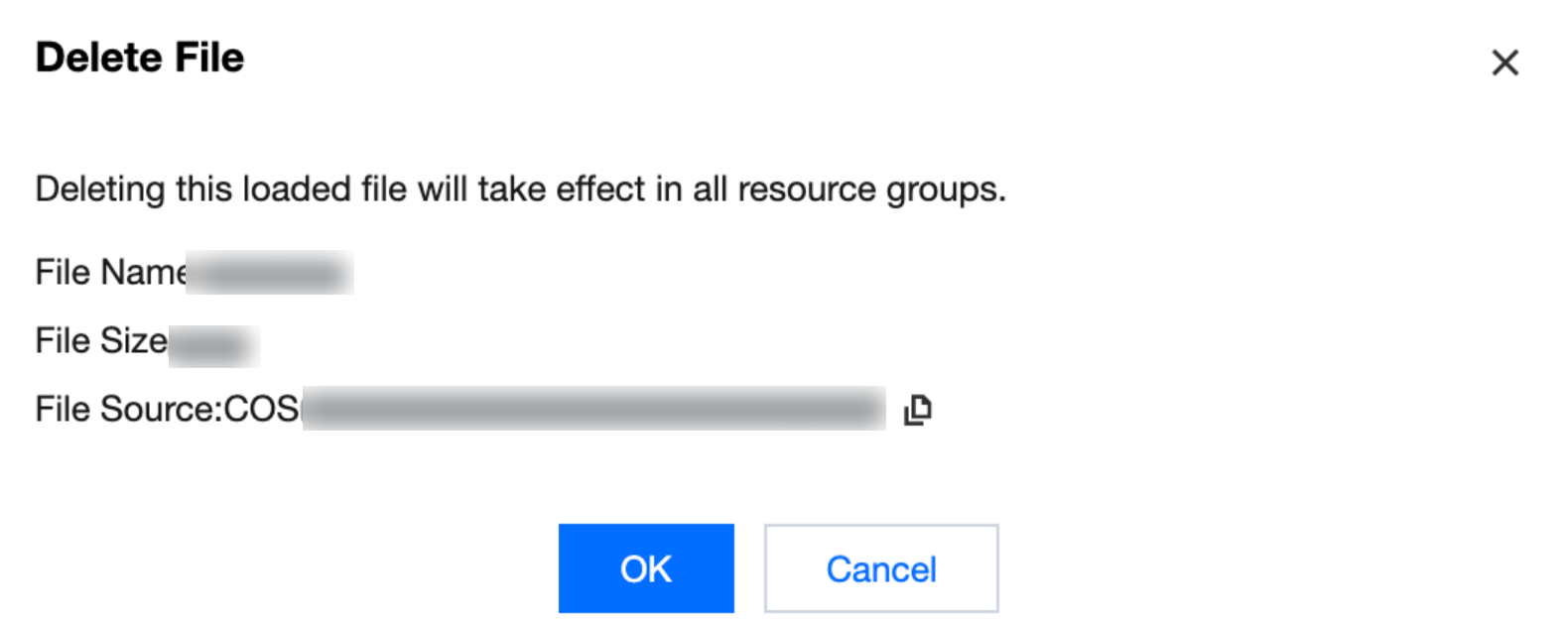
Click the Delete button in the list operation to delete the file from ALL loaded resource groups.
Note:
Click Confirm, and the node will enter the "Removing" status and delete the file information from the list.
Using Preloading Files
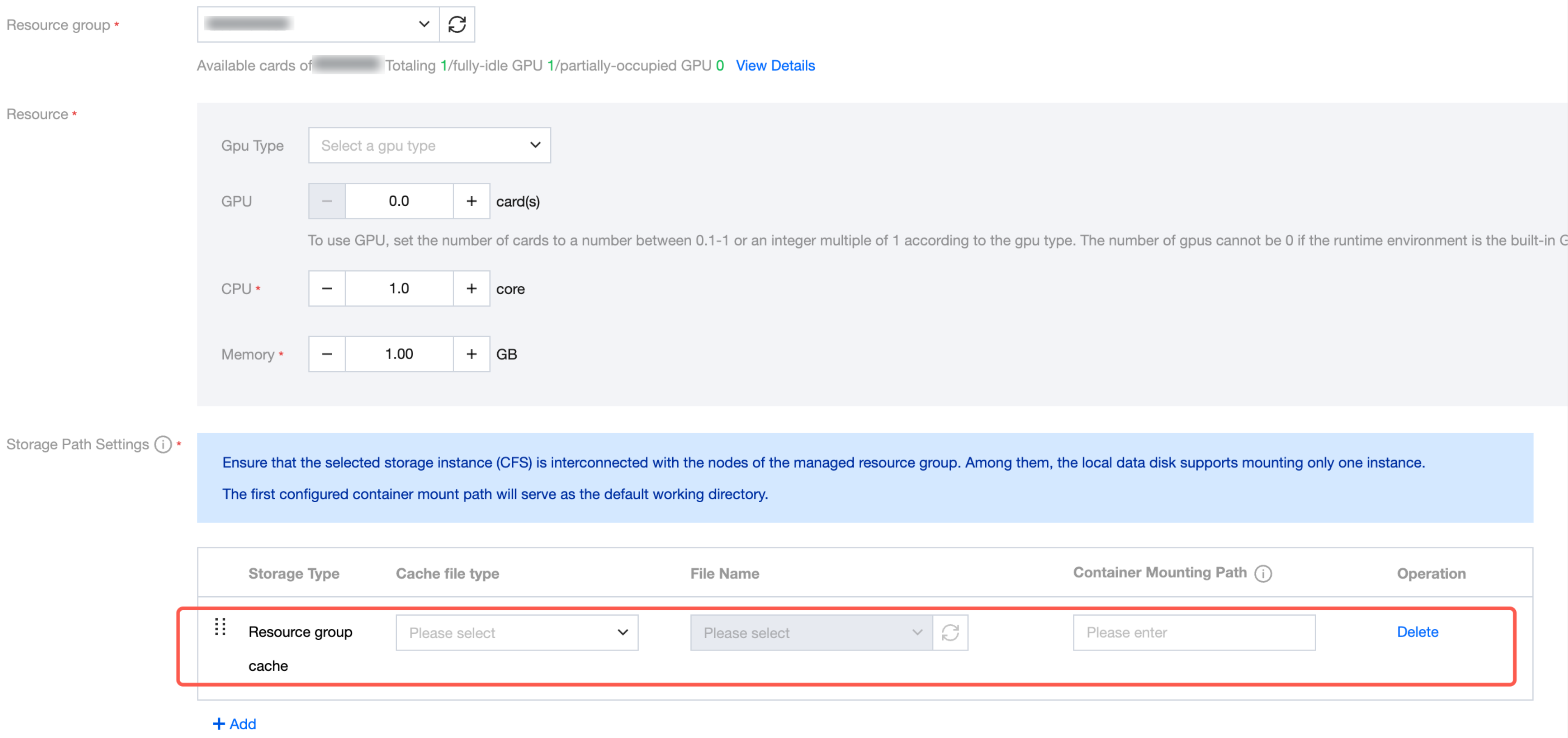
When creating task-based modeling/development machine/online service/model evaluation tasks or services, select the mount type "Resource Group Cache" to mount preloaded files within the resource group to the containers of the task/services. The following is an example using "development machine": Suppose model file "model_file" is preloaded in resource group A.
1. Enter the development machine module, click Create. On the Create page, select resource group A and configure the "storage path".
2. Select the mount type "Resource Group Cache", sequentially configure the file type as "model", and select file "model_file" in the drop-down list of Filename.
3. Submit a task to mount the preloaded model file "model_file" from the selected resource group A to the development machine instance.
Help and Support
Was this page helpful?
You can also Contact sales or Submit a Ticket for help.
Help us improve! Rate your documentation experience in 5 mins.
Feedback