tencent cloud

Tencent Cloud Super App as a Service

Perjanjian
Perjanjian Pemrosesan dan Keamanan Data
DokumentasiTencent Cloud Super App as a Service

Practical Tutorial for Superapps

Mode fokus
Ukuran font
Terakhir diperbarui: 2026-02-28 09:25:36

1. Initialization

When developing a superapp, you need to import the SDK header file into the AppDelegate:
//TCSAS
#import <TCMPPSDK/TCMPPSDK.h>
Initialize the TMAServerConfig object based on the configuration file (for details on obtaining the configuration file, see the SDK Quick Integration). Use the TMAServerConfig to initialize the mini program engine.
The SDK supports direct engine initialization, preparing network connections in advance, and updating base library and configuration information to speed up mini program loading. It can also support initialization when needed.

NSString *filePath = [[NSBundle mainBundle] pathForResource:@"tcsas-ios-configurations" ofType:@"json"];
if(filePath) {
TMAServerConfig *config = [[TMAServerConfig alloc] initWithFile:filePath];
[[TMFMiniAppSDKManager sharedInstance] setConfiguration:config];
}
You can set up the implementation instance of the open API as needed. If integrating extended modules, prepare the initialization of the extended API.
[TMFMiniAppSDKManager sharedInstance].miniAppSdkDelegate = [MIniAppDemoSDKDelegateImpl sharedInstance];
MIniAppDemoSDKDelegateImpl must implement the TMFMiniAppSDKDelegate protocol. See Introduction and the MIniAppDemoSDKDelegateImpl file in the superapp project.

2. Open a mini program

When opening the mini program, the system will check whether there is a locally cached one. If not, it will automatically download the mini program from the remote server and then open it. If a cached version is available, the local mini program will be opened first while the system checks in the backend for any new versions on the server.
Note:
If a new version is available, it will be downloaded, and the next time you open the mini program, the updated version will be used.
// Open the mini program using the mini program appid

// @param appID Mini program appid
// @param verType The version type of the mini program to open
// @param scene Scene value
// @param firstPage The first page of the mini program to open
// @param paramsStr The parameter used to open the mini program
// @param parentVC The view controller from which to present the scan view controller
// @param completion Error callback
- (void)startUpMiniAppWithAppID:(NSString *)appID
verType:(TMAVersionType)verType
scene:(TMAEntryScene)scene
firstPage:(NSString * _Nullable)firstPage
paramsStr:(NSString * _Nullable)paramsStr
parentVC:(UIViewController *)parentVC
completion:(void (^)(NSError * _Nullable))completion;
Supported parameters for options:
Name
Required
Type
Description
appID
True
NSString
The appid of the mini program to open.
verType
True
TMAVersionType
The type of the mini program to open.
scene
True
TMAEntryScene
The scene value for opening the mini program.
firstPage
False
NSString
The first page of the mini program to open.
paramsStr
False
NSString
The parameters to pass when opening
parentVC
True
UIViewController
The view controller from which to present the scan view controller.
completion
True
block
Error callback.

2.1 Open a mini program by mini program appid

On the home page of the superapp, open the released version (that has been approved and released online) of the mini program from the mini program list.

On the superapp homepage list, you can open the official version (approved and released) of the mini program. See the example below:

[[TMFMiniAppSDKManager sharedInstance] startUpMiniAppWithAppID:info.appId
verType:TMAEntrySceneNone
scene:TMAEntrySceneAIOEntry
firstPage:nil
paramsStr:[NSString stringWithFormat:@"noServer=%@",noServerStr]
parentVC:self
completion:^(NSError * _Nullable error) {
}];
Note:
The appid is the ID of the mini program, which can be obtained from the mini program developer or via the mini program search API.

2.2 Scan the QR code to open a mini program

The mini program SDK provides a capability to open the mini program by scanning the QR code. You need to integrate the extension library TCMPPExtScanCode before scanning the QR code.
[[TMFMiniAppSDKManager sharedInstance] startUpMiniAppWithQRCodeWithParentVC:self completion:^(NSError * _Nullable err) {
}];
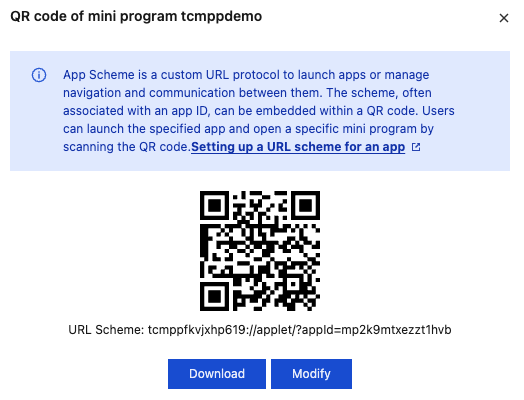
Starting from version 2.0.9, the QR code for the released version of a mini program can be generated and modified in the console. Once the superapp scheme is configured, you can open the mini program by scanning the QR code with the system camera.
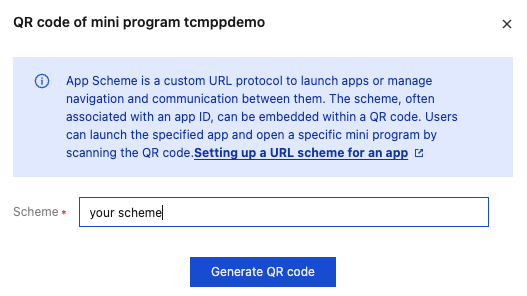
Go to Superapp management - Mini program approval - Available in the console, click Download QR code in the Operation column, and the following pop-up appears:


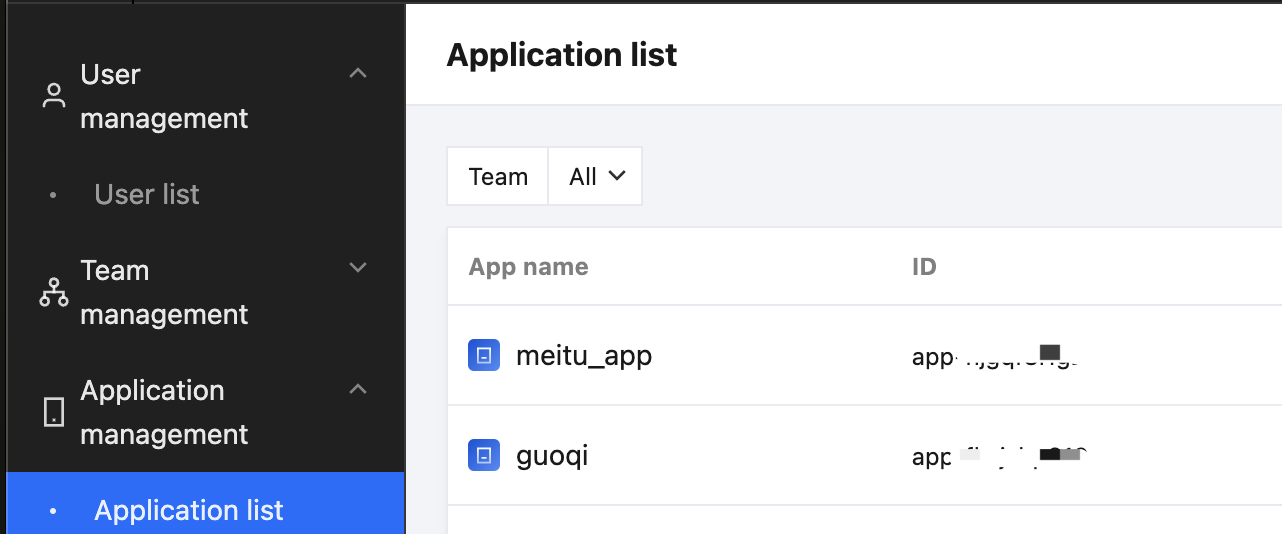
The default scheme is tcmpp plus last few characters of the appid, which can be found through Superapp management - Superapp list.


The superapp needs to return the scheme protocol name using the getAppScheme delegate API. Example code:

- (NSString *)getAppScheme{
return @"tcsas";
}
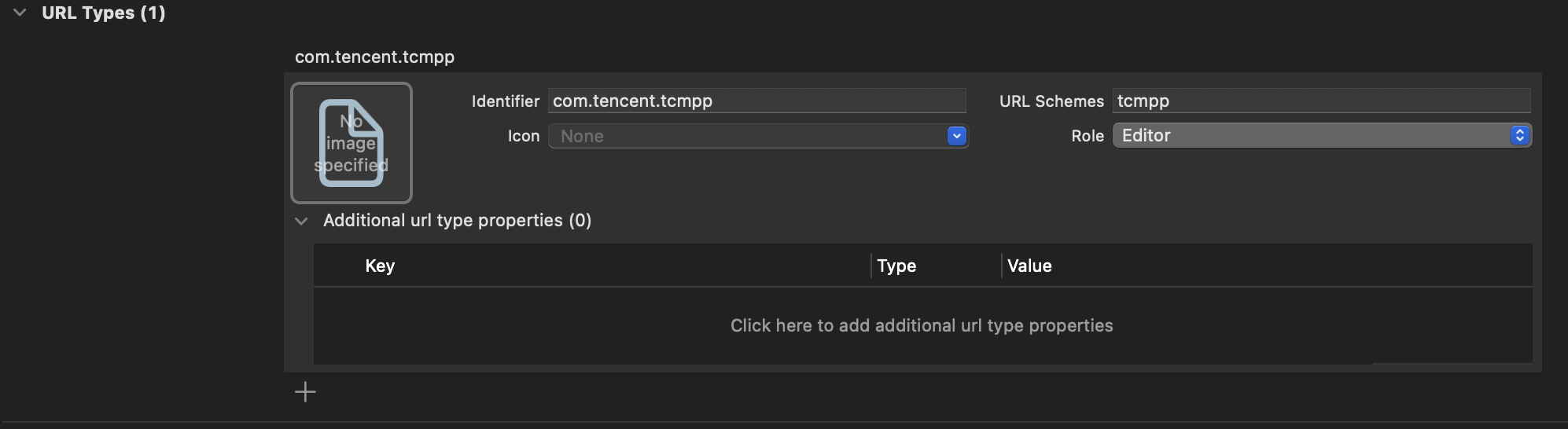
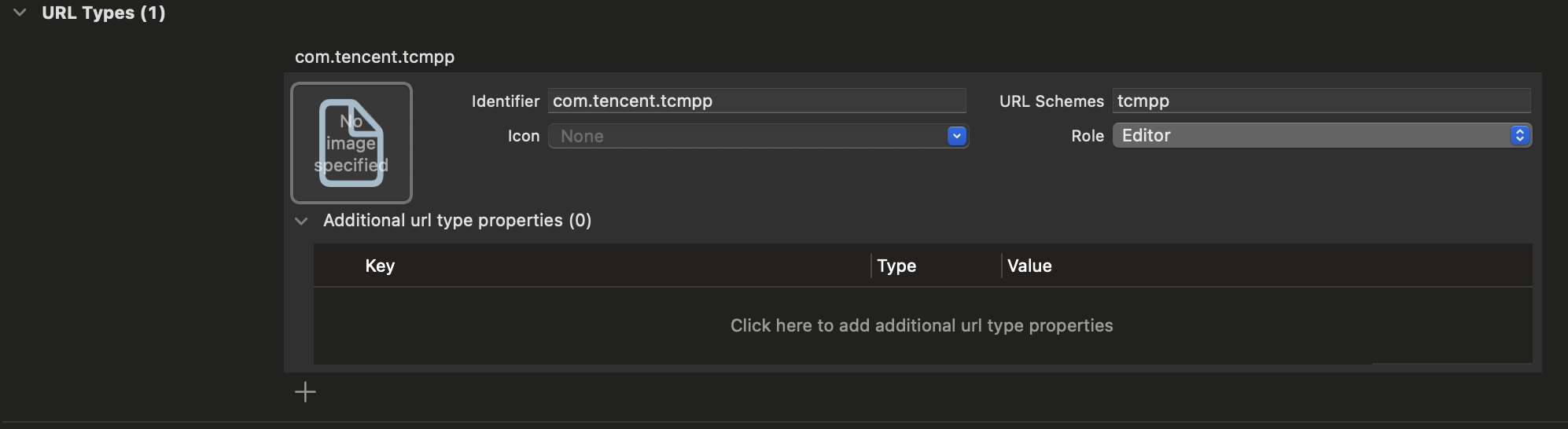
In the main project's info.plist file, configure the same scheme under URL Types:

Implement the handleOpenUrl method in the openUrl method. See the example below:

- (BOOL)application:(UIApplication *)app openURL:(NSURL *)url options:(NSDictionary<UIApplicationOpenURLOptionsKey, id> *)options {
if ([[TMFMiniAppSDKManager sharedInstance] handleOpenUrl:url]){
return YES;
}
return YES;
}
Once completing the above steps, you can scan the QR code in the console with the system camera to open the released version of the mini program.

3. Display the mini program list

3.1 Use the search API to retrieve all mini programs

The mini program SDK provides an API for searching mini programs online by keywords and categories. If the keyword and category are empty, all mini programs will be returned:
[[TMFMiniAppSDKManager sharedInstance] searchAppletsWithName:@"" completion:^(NSArray<TMFAppletSearchInfo *> * _Nonnull result, NSError * _Nonnull aError) {

}];

3.2 Retrieve the previously used mini programs

// Get information about all recently opened mini programs
///@return An array of mini programs <TMFMiniAppInfo>
- (NSArray *)loadAppletsFromCache;
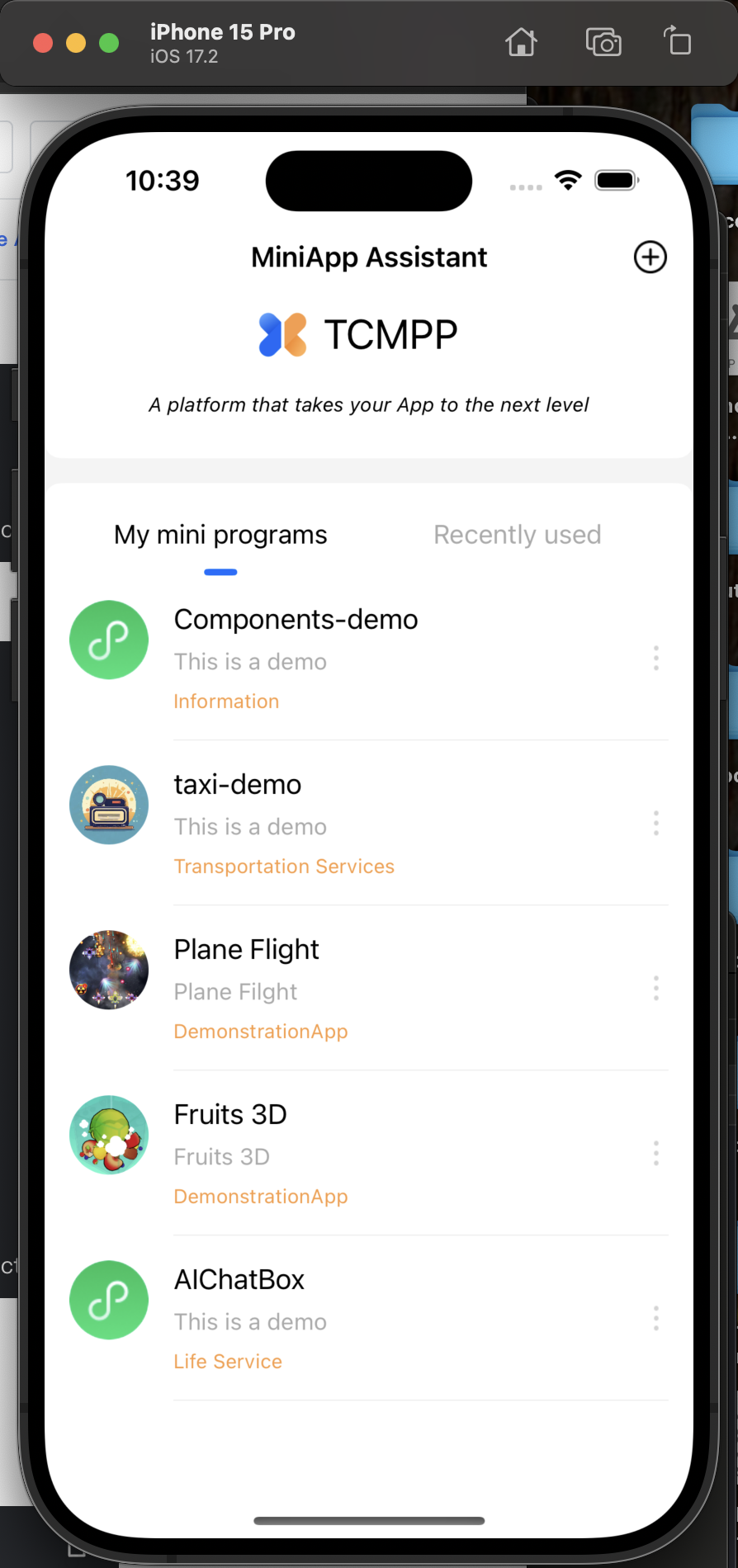
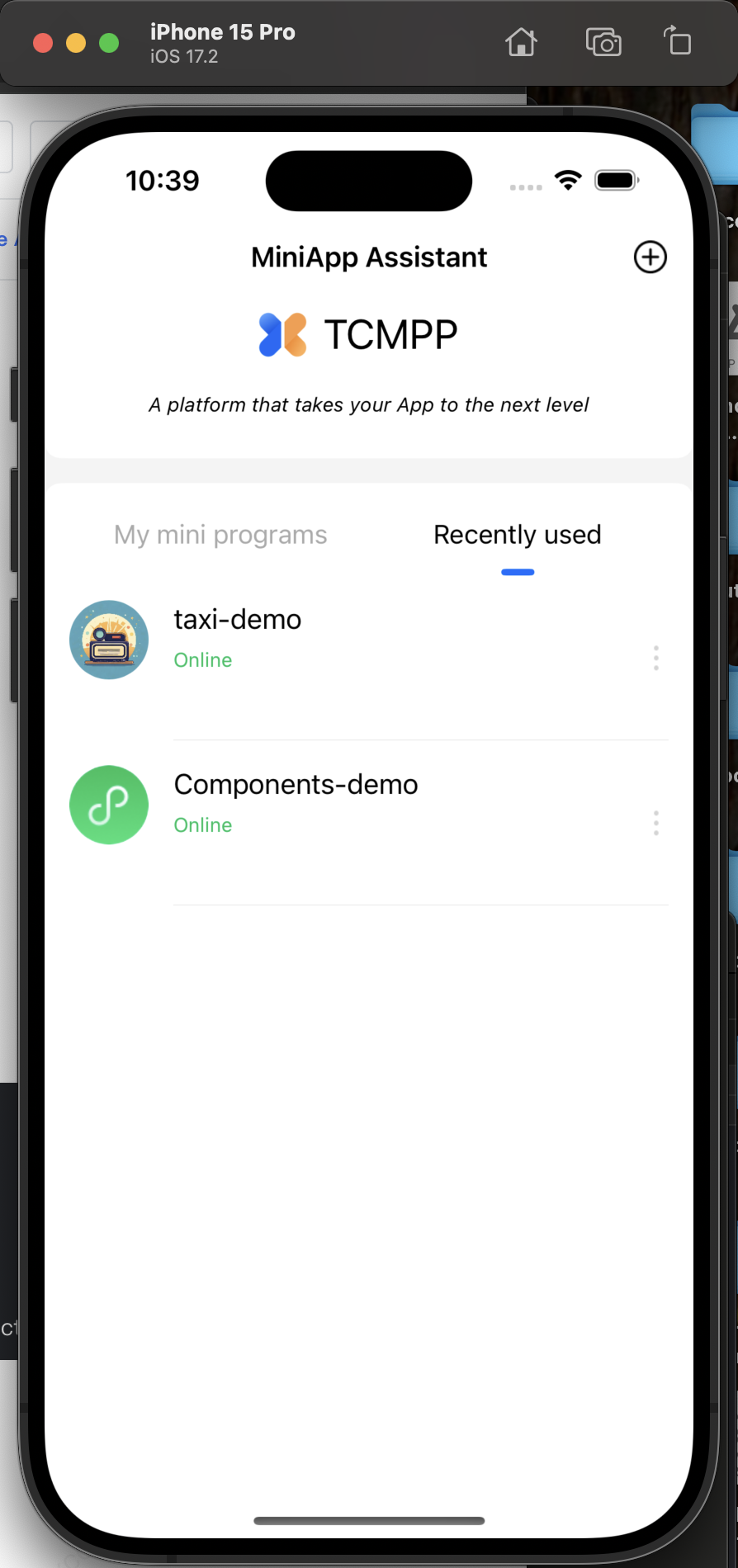
Example code for the data source of "My mini programs" and "Recently used" on the home page of the superapp:
NSArray *list = [[TMFMiniAppSDKManager sharedInstance] loadAppletsFromCache];
self.recentList = [NSMutableArray arrayWithArray:list];
if (self.demoList) {
[self.demoList removeAllObjects];
} else {
self.demoList = [[NSMutableArray alloc] init];
}
[[TMFMiniAppSDKManager sharedInstance] searchAppletsWithName:@"" completion:^(NSArray<TMFAppletSearchInfo *> * _Nullable datas, NSError * _Nullable error) {
[self.demoList addObjectsFromArray:datas];
if (self.selectIndex == 0) {
self.dataSource = self.demoList;
}
[self.tableView reloadData];
}];


4. Switch the language

The SDK engine currently supports Simplified Chinese, Traditional Chinese, English, French, Arabic, and Indonesian. The language of the mini program can be set using the delegate API:
/**
* @brief Gets current language set by the superapp
* @return Format: "zh-Hans"
*/
- (NSString *)getCurrentLocalLanguage;
On the language settings page of the superapp, you can set the language:

- (void)tableView:(UITableView *)tableView didSelectRowAtIndexPath:(NSIndexPath *)indexPath {
NSString *language = @"en";
if (indexPath.row == 0) {
language = @"zh-Hans";
} else if (indexPath.row == 1) {
language = @"en";
} else if (indexPath.row == 2) {
language = @"fr";
} else if (indexPath.row == 3) {
language = @"id";
}
[[LanguageManager shared] setCurrentLanguage:language];
/// Note that you need to terminate all mini programs
[[TMFMiniAppSDKManager sharedInstance] terminateAllApplications];
}
Note:
When switching languages, the delegate class returns the type of language set after the switch. Example code:
- (NSString *)getCurrentLocalLanguage {
return [[LanguageManager shared] currentLanguage];
}

5. Switch the account

The mini program SDK provides open APIs for implementing features that are provided by superapps, such as login, user information retrieval, and payment.
Note:
Starting from version 2.1.0, if you want to use the default implementation, you need to return the obtained UID (the current user account identifier in the superapp) to the SDK engine through the delegate API after logging into the superapp. For example, after logging in to the superapp or switching the account, if the UID is set in [DemoUserInfo sharedInstance].userId, the implementation of the delegate API is as follows:
- (NSString *)getAppUID {
return [DemoUserInfo sharedInstance].userId;
}
Note:
When logging out, you need to terminate all mini programs. Example code:
[[TMFMiniAppSDKManager sharedInstance] terminateAllApplications];

6. Customize the capsule button

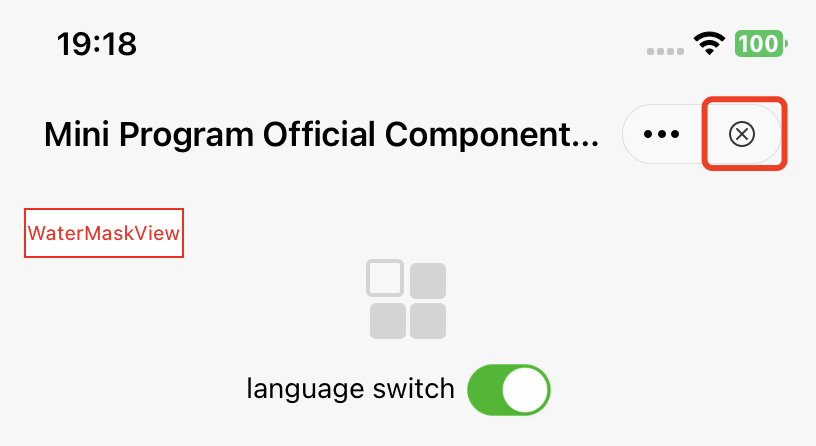
Customize the Close button event listener

You can customize the Close button event listener to allow the superapp to receive callback events when the Close button is tapped.
Close button in the image:

API description:

#pragma mark Exit retention
- (BOOL)shouldDetainUser:(TMFMiniAppInfo *)app;
This API is triggered when the user taps the Close button. If it returns YES, a pop-up will appear to retain the user. If it returns NO, the mini program will exit directly.

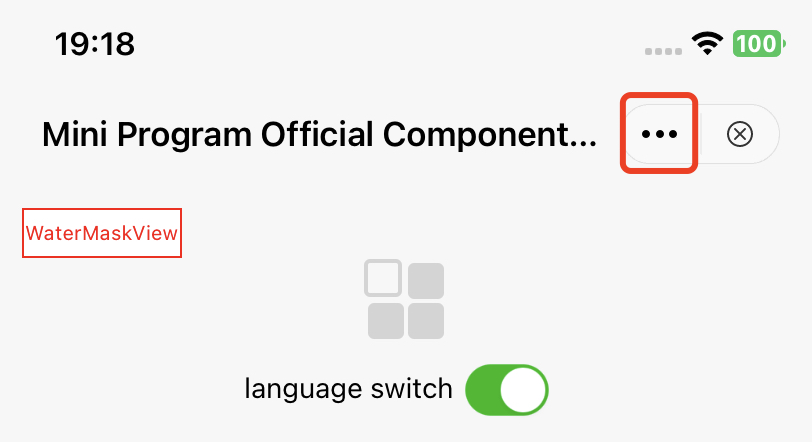
Customize the More button event listener

You can customize the More button event listener to allow the superapp to receive callback events when the More button is tapped.
More button in the image:

API description:

// Tap the capsule button to call up the panel
/// If this method is not implemented, showActionSheetWithTitle:cancelButtonTitle:cancelAction:otherButtonTitleAndActions:dismissBlock:presentingViewController: will be called.
// @param app Mini program information
// @param cancelButtonTitle Cancel the title
// @param cancelAction Cancel the operation
// @param otherButtonTitleAndActions Other buttons and response operations
// @param dismissBlock The operation that needs to be performed after the panel is closed (must be called to ensure the proper running of the feature).
// @param parentVC The view controller that presents the panel

- (void)showMoreButtonActionSheetWithApp:(TMFMiniAppInfo *)app
cancelButtonTitle:(nullable NSString *)cancelButtonTitle
cancelAction:(nullable dispatch_block_t)cancelAction
otherButtonTitleAndActions:(nullable NSArray *)otherButtonTitleAndActions
dismissBlock:(nullable dispatch_block_t)dismissBlock
parentVC:(UIViewController *)parentVC;

Customize the extended menu of the More button

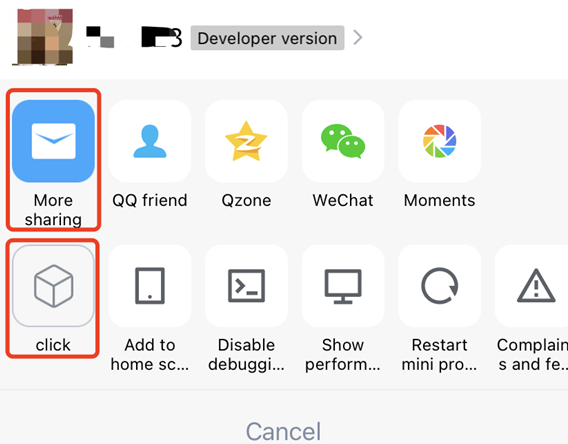
When a user triggers the tap event for the More button, a list of optional extension buttons will pop up, as illustrated in the default list below:


Method 1

By overriding the customizedConfigForShare method, you can customize the sharing channels and determine their display order.
API description:

// In the superapp, you can customize the sharing channels and determine their display order. This feature is currently implemented in the ActionSheet triggered by tapping the More button or the button component (open-type="share").
// 1. Default channels: QQ friends, Qzone, WeChat, and Moments (for specific types, see MAUIDelegateShareViewType). They are determined by the developer and the display order can only be changed within the superapp.
// 2. Custom sharing channels: Customized in the superapp (set the type to MAUIDelegateShareViewTypeCustomizedShare, and when defining MAShareTarget, the value must be greater than 100. In the mini program page, onShareAppMessage will return the sharing content, which will be uniformly handled through shareMessageWithModel, allowing the superapp to process each ShareTarget individually.)
// 3. Custom events: Customized in the superapp (set the type to MAUIDelegateShareViewTypeCustomizedAction).
// The display order of the above three types of channels supports mixed arrangement


- (NSArray<TMASheetItemInfo *> *)customizedConfigForShare;
Example:

- (NSArray<TMASheetItemInfo *> *)customizedConfigForShare {
NSMutableArray *arrays = [[NSMutableArray alloc] init];
TMASheetItemInfo *item1 = [[TMASheetItemInfo alloc] initWithTitle:@"More sharing" type:MAUIDelegateShareViewTypeCustomizedShare shareTarget:100 shareKey:@"my"];
item1.icon = [UIImage imageNamed:@"icon_moreOperation_shareChat"];
[arrays addObject:item1];

TMASheetItemInfo *item2 = [[TMASheetItemInfo alloc] initWithTitle:@"click" type:MAUIDelegateShareViewTypeCustomizedAction action:^(TMASheetActionParams * _Nullable params) {
NSLog(@"Tap");
}];
item2.icon = [UIImage imageNamed:@"icon_moreOperation_collect"];
[arrays addObject:item2];
return arrays;

}

The display effect is as follows:


Method 2

You can add or delete buttons on the extended menu by using customizedConfigForMoreButtonActions in the TMFMiniAppSDKDelegate protocol.
- (void)customizedConfigForMoreButtonActions:(NSMutableArray *)moreButtonTitleAndActions withApp:(TMFMiniAppInfo *)app{
/*
// Add a custom sharing channel
TMASheetItemInfo *item = [[TMASheetItemInfo alloc] initWithTitle:@"Share" type:MAUIDelegateShareViewTypeCustomizedShare shareTarget:100 shareKey:@"my"];
item.icon = [UIImage imageNamed:@"icon_moreOperation_shareChat"];
[moreButtonTitleAndActions addObject:item];
*/

/*
// Delete the “Copy link” button
NSMutableArray *newArrays = [[NSMutableArray alloc] initWithCapacity:moreButtonTitleAndActions.count];
for (TMASheetItemInfo *item in moreButtonTitleAndActions) {
if(item.type != MAUIDelegateShareViewTypeCopyLink) {
[newArrays addObject:item];
}
}

[moreButtonTitleAndActions removeAllObjects];
[moreButtonTitleAndActions addObjectsFromArray:newArrays];
*/
}

7. Customize internal mini program UIs

You can customize the internal mini program UIs by implementing the corresponding methods in TMFMiniAppSDKDelegate. For details, see the following table:
Mini program API
TMFMiniAppSDKDelegate method
wx.showLoading
- (void)showLoading:(TMALoadingInfo * _Nullable)infos;
wx.hideLoading
- (void)hideLoading;
wx.showToast
- (void)showToast:(TMAToastInfo *)infos;
wx.hideToast
- (void)hideToast;
wx.showActionSheet
(actionSheetType = 0)
- (void)showActionSheetWithTitle:(nullable NSString *)title
cancelButtonTitle:(nullable NSString *)cancelButtonTitle
cancelAction:(nullable dispatch_block_t)cancelAction
otherButtonTitleAndActions:(nullable NSArray *)otherButtonTitleAndActions
dismissBlock:(nullable dispatch_block_t)dismissBlock
presentingViewController:(UIViewController *)presentingViewController;
wx.showActionSheet
(actionSheetType = 1)
- (void)showShareViewWithTitle:(nullable NSString *)title
cancelAction:(nullable dispatch_block_t)cancelAction
otherButtonTitleAndActions:(nullable NSArray *)otherButtonTitleAndActions
dismissBlock:(nullable dispatch_block_t)dismissBlock
parentVC:(UIViewController *)parentVC;
wx.showModal
- (void)showAlertWithTitle:(nullable NSString *)title
withMessage:(nullable NSString *)message
actionBlocks:(nullable NSArray<AlertActionInfo*> *)actionTitleAndblocks
presentingViewController:(UIViewController*)presentingViewController;

8.Output SDK runtime logs

During the development phase, implement the log output proxy API to facilitate viewing logs in the console for troubleshooting.
Note:
It is recommended to disable log output when the superapp is released to ensure security and performance.
/// Output the log
/// @param level Log level. For more information, see PLTLogLevel.
/// @param msg Log message
- (void)log:(MALogLevel)level msg:(NSString *)msg;

9. Dark mode

Currently, the UI in the SDK follows the system theme. The superapp can set the current theme for the mini program through the delegate method getAppTheme.
- (NSString *)getAppTheme{
return @"dark";
}

10. Create shortcuts for mini programs

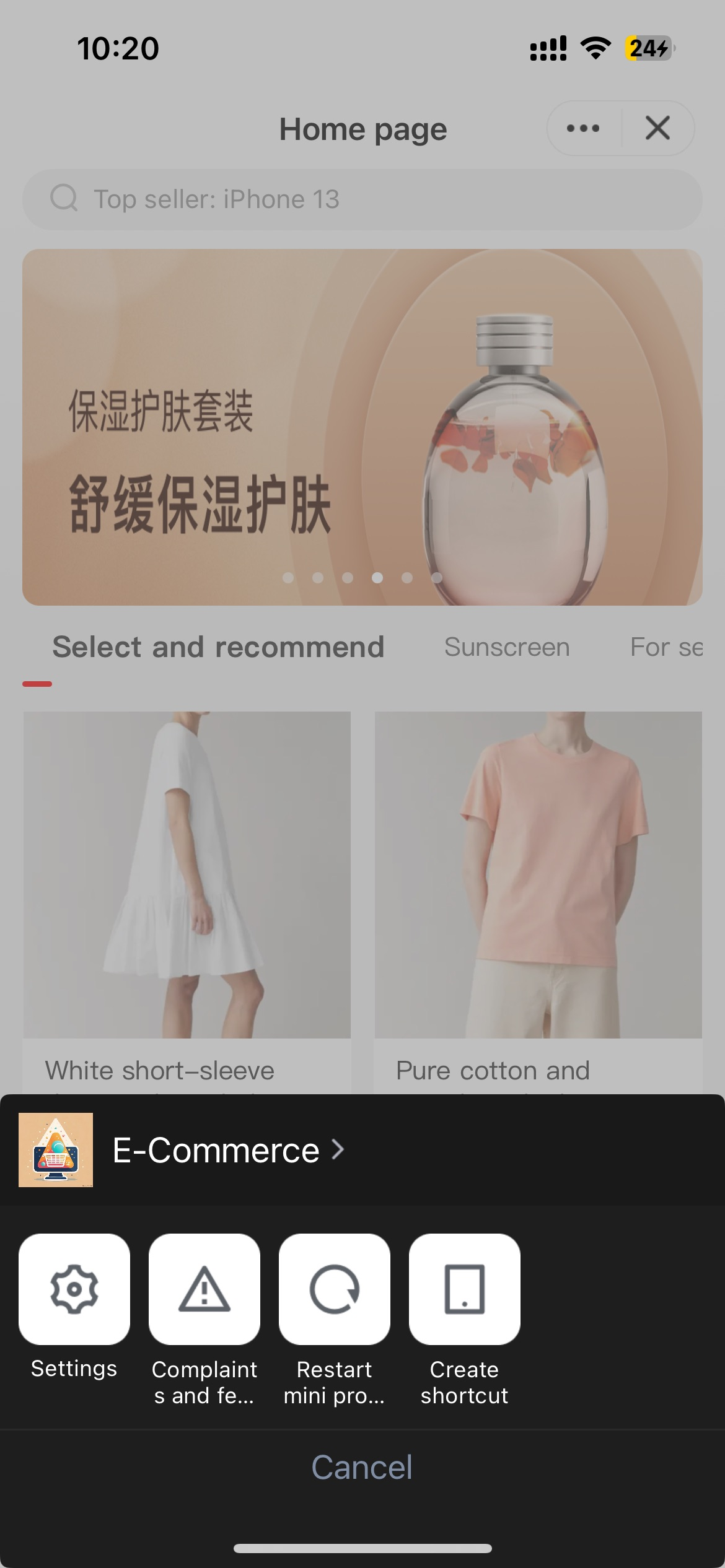
Tap More ··· in the top-right corner, and find the Create shortcut in the bottom of the screen.

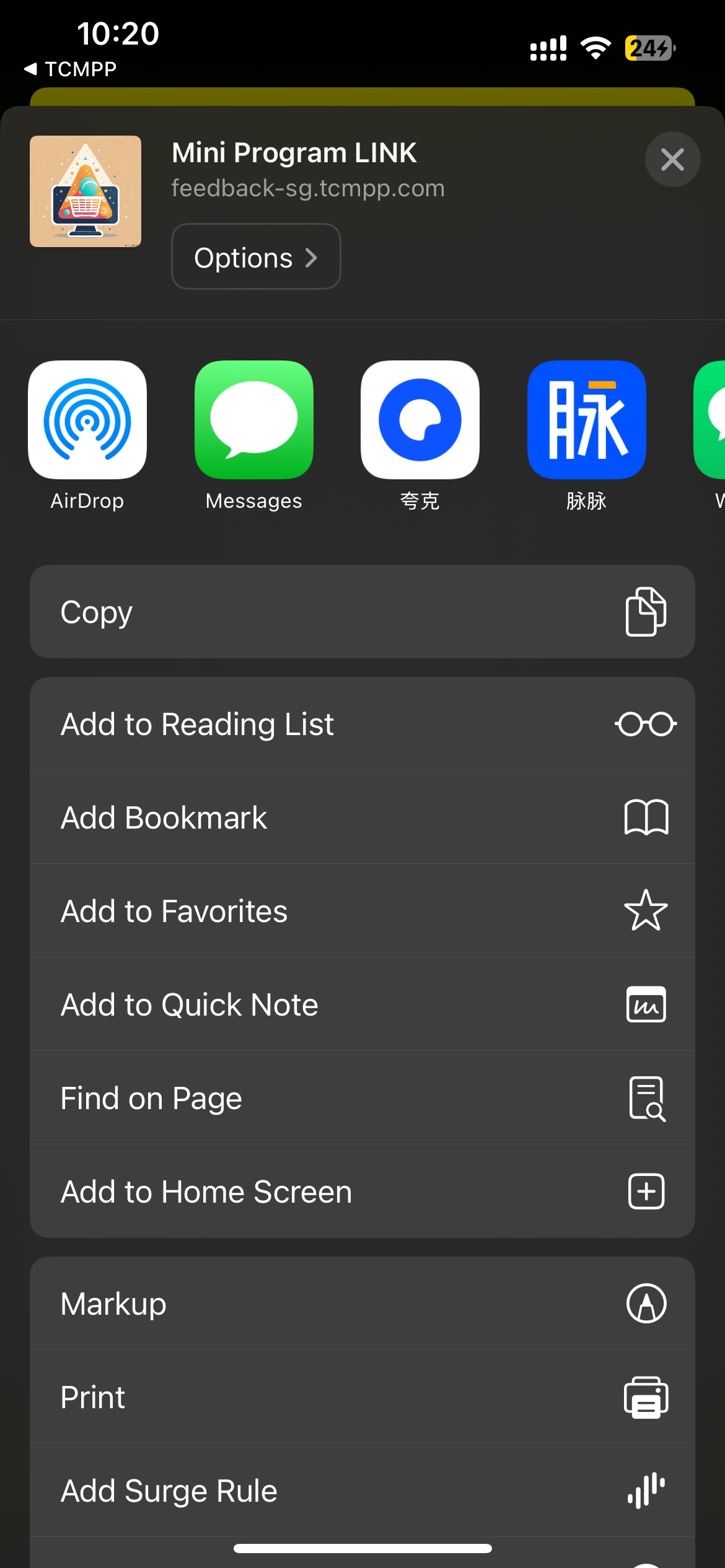
After tapping, it will redirect to the Safari page.

Tap Add to Home Screen to create a shortcut for the mini program. To use this feature, you need to complete the following configurations:
1. The superapp needs to return the scheme protocol name using the getAppScheme delegate API. Example code:

- (NSString *)getAppScheme{
return @"tcsas";
}
2. In the main project's info.plist file, configure the same scheme under URL Types:

3. Implement the handleOpenUrl method in the openUrl method. See the example below:

- (BOOL)application:(UIApplication *)app openURL:(NSURL *)url options:(NSDictionary<UIApplicationOpenURLOptionsKey, id> *)options {
if ([[TMFMiniAppSDKManager sharedInstance] handleOpenUrl:url]){
return YES;
}
return YES;
}
Once completing the above steps, you can open the released version of the mini program via the shortcut.

11. Custom APIs

No-UI type

The SDK engine provides an extension mechanism that allows the superapp to customize APIs for mini programs to call.
Implementation steps
1. Create a custom class and import TMAExternalJSPlugin.
#import <TCMPPSDK/TCMPPSDK.h>

@interface NativePluginTest : NSObject

@end
2. Declare TMA_REGISTER_EXTENAL_JSPLUGIN and add custom APIs using TMAExternalJSAPI_IMP().
Example
#import "NativePluginTest.h"
#import <TCMPPSDK/TCMPPSDK.h>

@implementation NativePluginTest

TMA_REGISTER_EXTENAL_JSPLUGIN;

// Custom synchronous API
TMAExternalJSAPI_IMP(testSync) {
TMFMiniAppInfo *appInfo = context.tmfAppInfo;
NSDictionary *data = params[@"data"];

NSLog(@"************ invokeNativePlugin testSync,appId:%@,data is %@",appInfo.appId, data);

TMAExternalJSPluginResult *pluginResult = [TMAExternalJSPluginResult new];
pluginResult.result = @{};
return pluginResult;
}

TMAExternalJSAPI_IMP(test) {
TMFMiniAppInfo *appInfo = context.tmfAppInfo;
NSDictionary *data = params[@"data"];

NSLog(@"************ invokeNativePlugin test,appId:%@,data is %@",appInfo.appId, data);

// Asynchronous processing, return the result to the mini program in the async callback
//{
// TMAExternalJSPluginResult *pluginResult = [TMAExternalJSPluginResult new];
// pluginResult.result = @{@"result" : result.data};
// [context doCallback:pluginResult];
// }
return nil;
}

@end
Usage in the Mini Program:
// Asynchronous API call
var opts = {
api_name: 'test',
success: function(res) {},
fail: function(res) {},
complete: function(res) {},
data: { // Input parameters
name : 'kka',
age : 22
}
}
wx.invokeNativePlugin(opts);

// Synchronous API call
var opts = {
api_name: 'testSync',
sync:true
}
var rst = wx.invokeNativePlugin(opts);

Advanced usage

Custom APIs can also be configured through the superapp configuration file, allowing direct calls in the mini program using wx.api.
1. Place the configuration in customapi-config.json. Example content:
{
"extApi":[{
"name": "test",
"sync": false,
"params": {
"data": ""
}
},
{
"name": "testSync",
"sync": true,
"params": {
"name": "",
"title": ""
}
}
]
}


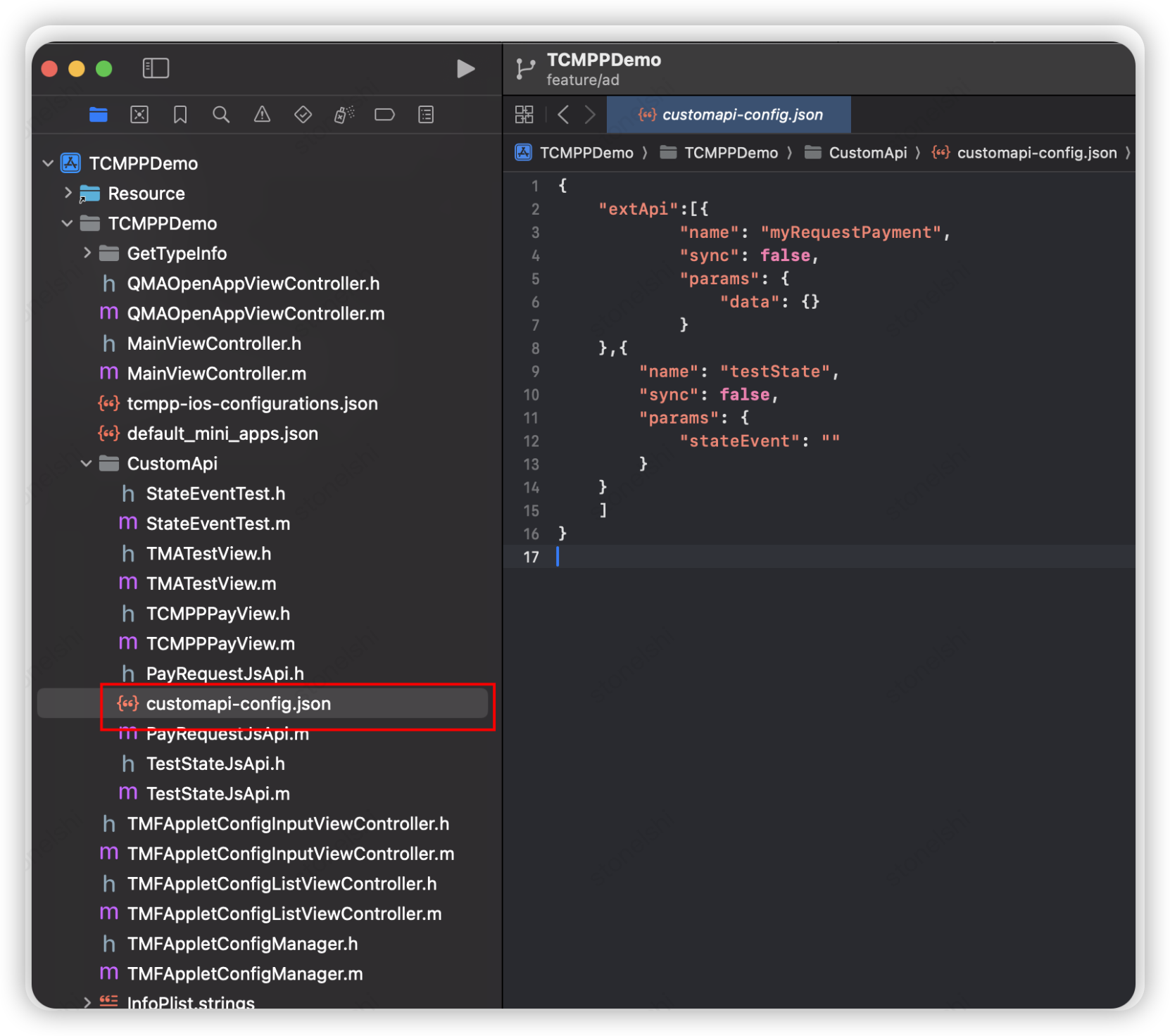
2. Put customapi-config.json into the iOS project:

3. Set the configuration file path during SDK initialization.
[[TMFMiniAppSDKManager sharedInstance] setCustomApiConfigFile:[[NSBundle mainBundle] pathForResource:@"customapi-config" ofType:@"json"]];
4. Call the custom API directly using wx.test() in the mini program.
// Asynchronous API call
var opts = {
success: function(res) {},
fail: function(res) {},
complete: function(res) {},
data: {
name : 'kka',
age : 22
}
}
wx.test(opts);

// Synchronous API call
var rst = testSync(opts);

Custom UIs

Custom UI components are supported. The custom component on the mini program side is <external-element>. If you want to use the custom UI component, please follow these steps:
1. After integrating the SDK, create a class (e.g., QMATestView) and import the TMAExternalJSPlugin.h file, making QMATestView conform to the TMAExternalElementView protocol.
2. Call the TMARegisterExternalElement method to register the QMATestView class as maTestView.
3. Implement the createWithParams and operateWithParams methods in the TMAExternalElementView protocol.
#import "QMATestView.h"
#import "TMAExternalJSPlugin.h"

@interface QMATestView () <TMAExternalElementView>

@end

@implementation QMATestView {
UILabel *_textLabel;
UIButton *_clickButton;
id<TMAExternalJSContextProtocol> _context;
}

TMARegisterExternalElement(maTestView);
+ (UIView *)createWithParams:(NSDictionary *)params context:(id<TMAExternalJSContextProtocol>)context {
QMATestView *testView = [[QMATestView alloc] initWithFrame:CGRectZero];
NSDictionary *testViewParams = QQ_Dict_DictValue(params, @"params");
[testView setText:QQ_Dict_StringValue(testViewParams, @"text")];
testView->_context = context;
return testView;
}

// Handle events from the mini program
- (void)operateWithParams:(NSDictionary *)param context:(id<TMAExternalJSContextProtocol>)context {
NSDictionary *data = QQ_Dict_DictValue(param, @"data");
NSDictionary *params1 = QQ_Dict_DictValue(data, @"params1");
NSInteger age = [QQ_Dict_NumberValue(params1, @"age") integerValue];
NSString *name = QQ_Dict_StringValue(params1, @"name");
qq_weakify(self);
[MAUtils executeOnThread:[NSThread mainThread] block:^{
qq_strongify(self);
if (self) {
self->_textLabel.text = [NSString stringWithFormat:@"name = %@ , age = %ld",name,(long)age];
// Return the result to the mini program
TMAExternalJSPluginResult *result = [TMAExternalJSPluginResult new];
result.result = @{@"result":@"success"};
[context doCallback:result];
}
}];
}

Send events to the mini program

To send events from the custom native component to the mini program, first record the context in the createWithParams:context: method:
_context = context;
When sending events, do it like this:
- (void)onClickButton:(UIButton *)button {
_textLabel.text = @"What do you want me to do";
// Assemble data and send the event
NSString *data = [MAUtils JSONStringify:@{@"externalElementId":_elementId,@"type": @"elvisgao callback"}];
[_context doSubscribe:kTMAOnExternalElementEvent data:data];
}

Usage in the mini program

1. Include the mini program WXML:
<external-element
id="comp1"
type="maTestView"
_insert2WebLayer
style="width: 200px;height: 100px;"
bindexternalelementevent="handleEvent"
></external-element>
Note:
The type must be agreed upon with the native side. If not in the same layer, do not set the _insert2WebLayer attribute.
The bindexternalelementevent can listen for operations passed from native, with callback parameters including:

{
target,
currentTarget,
timeStamp,
touches,
detail, // Parameters passed by native
}
2. Create an instance in the mini program JS.

this.ctx = wx.createExternalElementContext('comp1');
Note:
The parameter of wx.createExternalElementContext is the ID of the element in the WXML.
3. Call the instance method in the mini program:
this.ctx.call({
params1: {
name: 'name1',
age: 11
},
params2: {
name: 'name2',
age: 22
},
success: (e) => {
console.log('====operate success=====', e)
},
fail: (e) => {
console.log('====operate fail=====', e)
},
complete: (e) => {
console.log('====operate complete=====', e)
}
})
Note:
The instance provides a call method with success, fail, and complete callbacks. The parameters distinguish the method calls, and the base library will invoke the method to pass parameters to native.
Bantuan dan Dukungan

Apakah halaman ini membantu?

masukan