tencent cloud

Tencent Cloud Observability Platform

Release Notes and Announcements
Release Notes
Product Introduction
Overview
Strengths
Basic Features
Basic Concepts
Use Cases
Use Limits
Purchase Guide
Tencent Cloud Product Monitoring
Application Performance Management
Mobile App Performance Monitoring
Real User Monitoring
Cloud Automated Testing
Prometheus Monitoring
Grafana
EventBridge
PTS
Quick Start
Monitoring Overview
Instance Group
Tencent Cloud Product Monitoring
Application Performance Management
Real User Monitoring
Cloud Automated Testing
Performance Testing Service
Prometheus Getting Started
Grafana
Dashboard Creation
EventBridge
Alarm Service
Cloud Product Monitoring
Tencent Cloud Service Metrics
Operation Guide
CVM Agents
Cloud Product Monitoring Integration with Grafana
Troubleshooting
Practical Tutorial
Application Performance Management
Product Introduction
Access Guide
Operation Guide
Practical Tutorial
Parameter Information
FAQs
Mobile App Performance Monitoring
Overview
Operation Guide
Access Guide
Practical Tutorial
Tencent Cloud Real User Monitoring
Product Introduction
Operation Guide
Connection Guide
FAQs
Cloud Automated Testing
Product Introduction
Operation Guide
FAQs
Performance Testing Service
Overview
Operation Guide
Practice Tutorial
JavaScript API List
FAQs
Prometheus Monitoring
Product Introduction
Access Guide
Operation Guide
Practical Tutorial
Terraform
FAQs
Grafana
Product Introduction
Operation Guide
Guide on Grafana Common Features
FAQs
Dashboard
Overview
Operation Guide
Alarm Management
Console Operation Guide
Troubleshooting
FAQs
EventBridge
Product Introduction
Operation Guide
Practical Tutorial
FAQs
Report Management
FAQs
General
Alarm Service
Concepts
Monitoring Charts
CVM Agents
Dynamic Alarm Threshold
CM Connection to Grafana
Documentation Guide
Related Agreements
Application Performance Management Service Level Agreement
APM Privacy Policy
APM Data Processing And Security Agreement
RUM Service Level Agreement
Mobile Performance Monitoring Service Level Agreement
Cloud Automated Testing Service Level Agreement
Prometheus Service Level Agreement
TCMG Service Level Agreements
PTS Service Level Agreement
PTS Use Limits
Cloud Monitor Service Level Agreement
API Documentation
History
Introduction
API Category
Making API Requests
Monitoring Data Query APIs
Alarm APIs
Legacy Alert APIs
Notification Template APIs
TMP APIs
Grafana Service APIs
Event Center APIs
TencentCloud Managed Service for Prometheus APIs
Monitoring APIs
Data Types
Error Codes
Glossary

Printing Request and Checkpoint Logs in JMeter

PDF
포커스 모드
폰트 크기
마지막 업데이트 시간: 2025-03-10 22:14:21
In PTS, the overall situation of requests and checkpoints can be viewed in the TCOP Console > PTS > Test Scenarios under Service Details and Checkpoint Details. The details of sending and receiving individual requests can be viewed in the console under Request Samples. For specific viewing methods, see Report Interpretation.
If there are other requirements for viewing requests or checkpoints in addition to the content in Report Interpretation, for example:
View other request details not recorded in request sampling.
View the configured assertion check failure messages.
View the request content when the assertion check fails.
Others
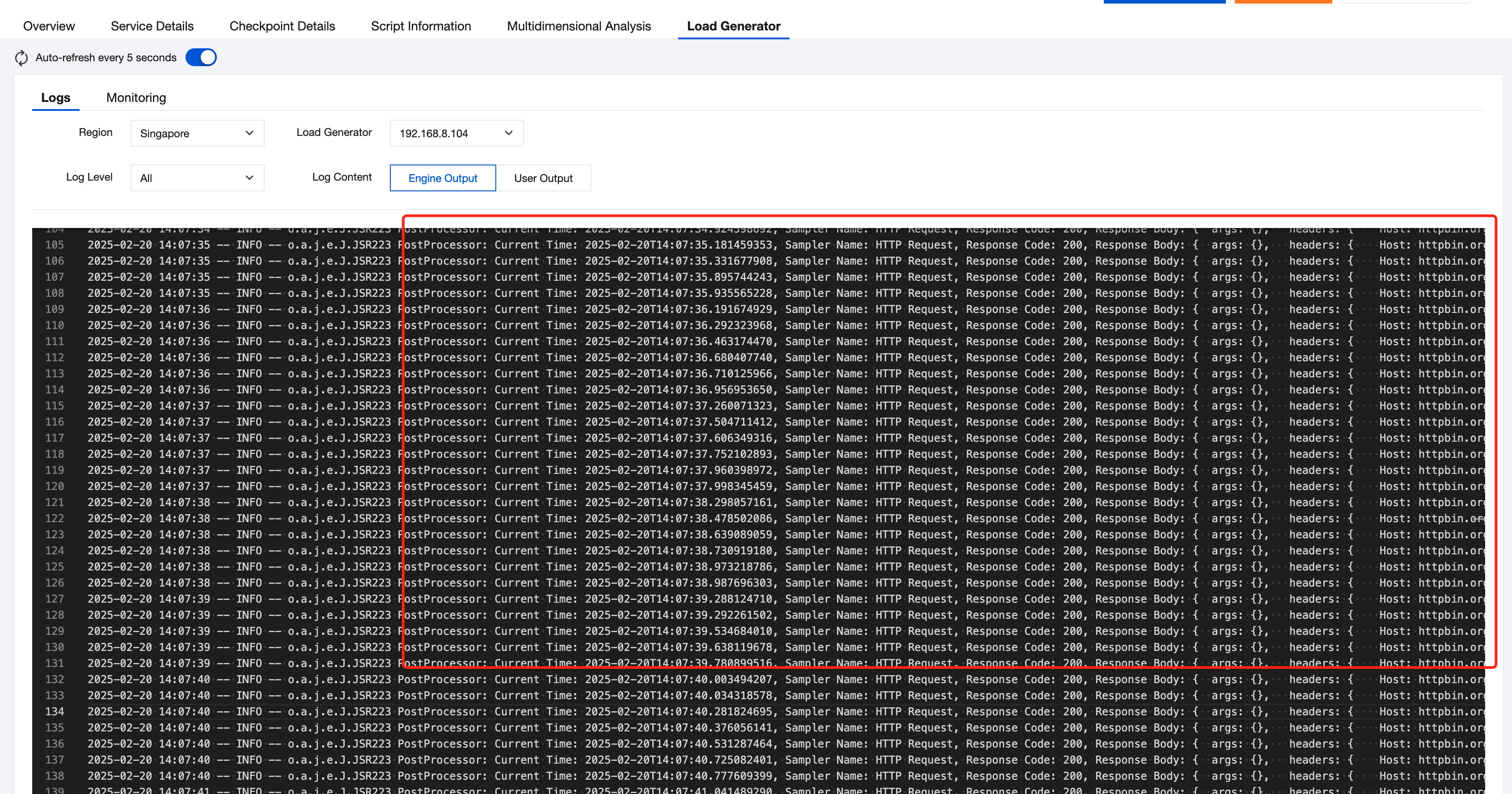
You can print the content you want to view in Engine Output under Pressure Tester > Logs during execution through log printing.
Notes:
Printing extra logs during the execution of the performance testing task will occupy the resources of the performance testing machine, and the rate of log collection and display in the console is limited. If not necessary, it is not recommended to use this method during formal performance testing.

Request Logs

According to the execution order in JMeter, the execution status of requests can be known in the stages after the Sampler is requested. Therefore, you can add a JSR223 PostProcessor after the Sampler of JMeter. As the name implies, the JSR223 PostProcessor can be used after the Sampler to print request details to the engine logs for viewing through a script.
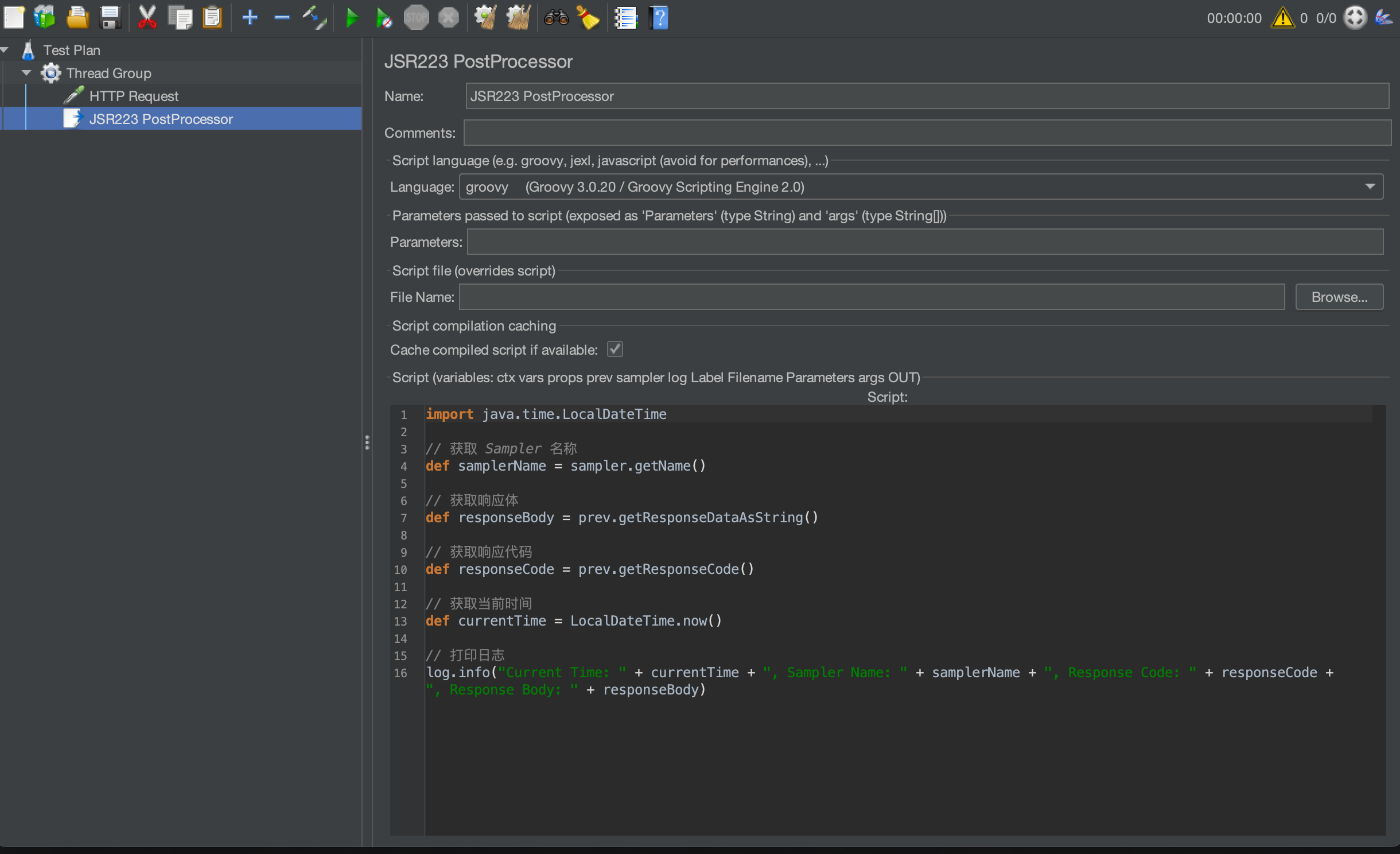
The following is a sample of the Groovy script, where prev represents the result of the request sampling, SampleResult. You can see JMeter Official Documentation for the corresponding methods. If there is any other content to be printed, you can obtain and output the data as needed.
import java.time.LocalDateTime

// Obtain the Sampler name.
def samplerName = sampler.getName()

// Obtain the response body.
def responseBody = prev.getResponseDataAsString()

// Obtain the response code.
def responseCode = prev.getResponseCode()

// Obtain the current time.
def currentTime = LocalDateTime.now()

// Print logs.
log.info("Current Time: " + currentTime + ", Sampler Name: " + samplerName + ", Response Code: " + responseCode + ", Response Body: " + responseBody)


Execute the JMX script on PTS. In Engine Output on the Load Generator tab page in the console, you can view the printed request logs.


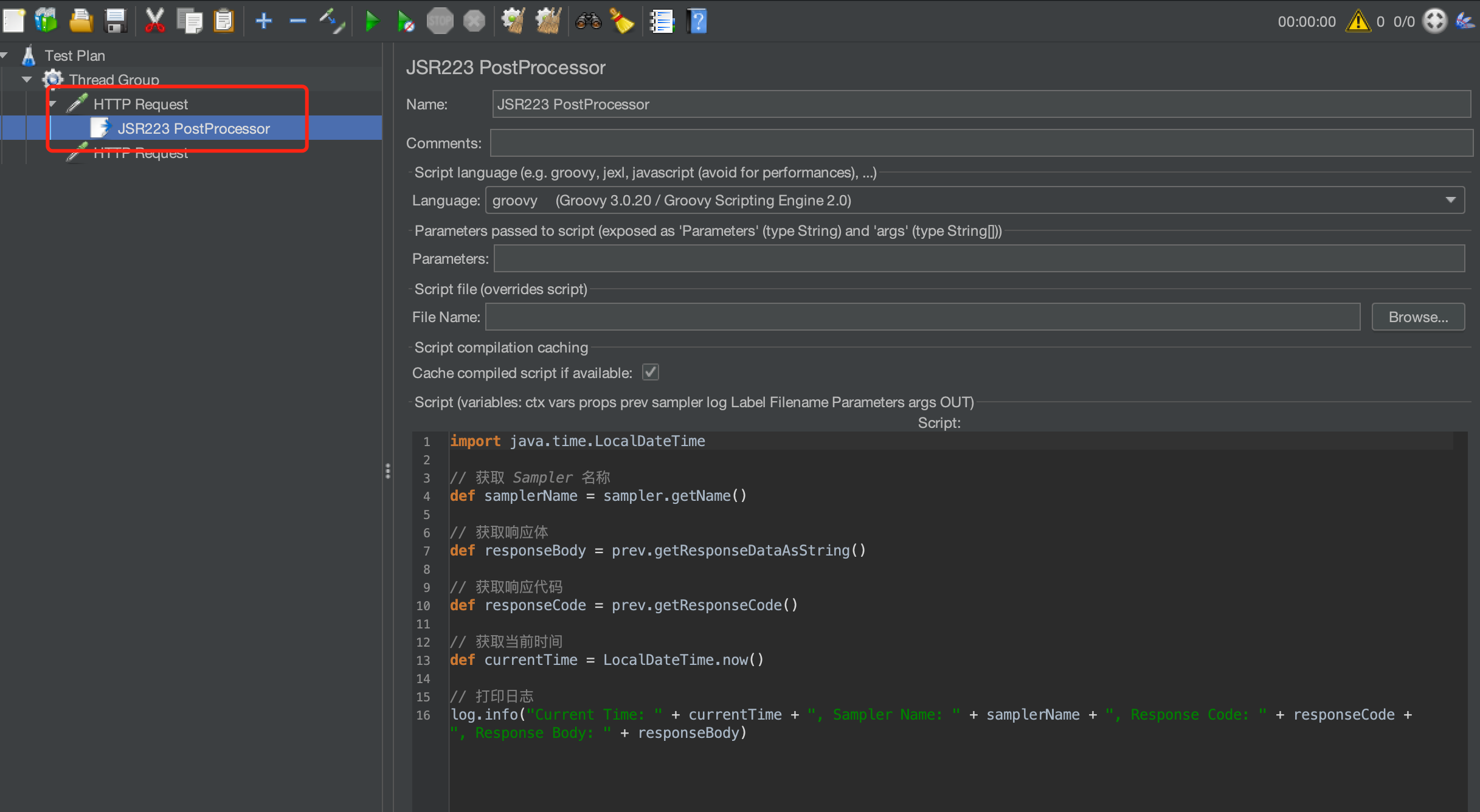
If there are multiple requests in the script but you only need to print details of a single request without printing all of them, you can put the Post Processor into the corresponding request, as shown in the figure below.


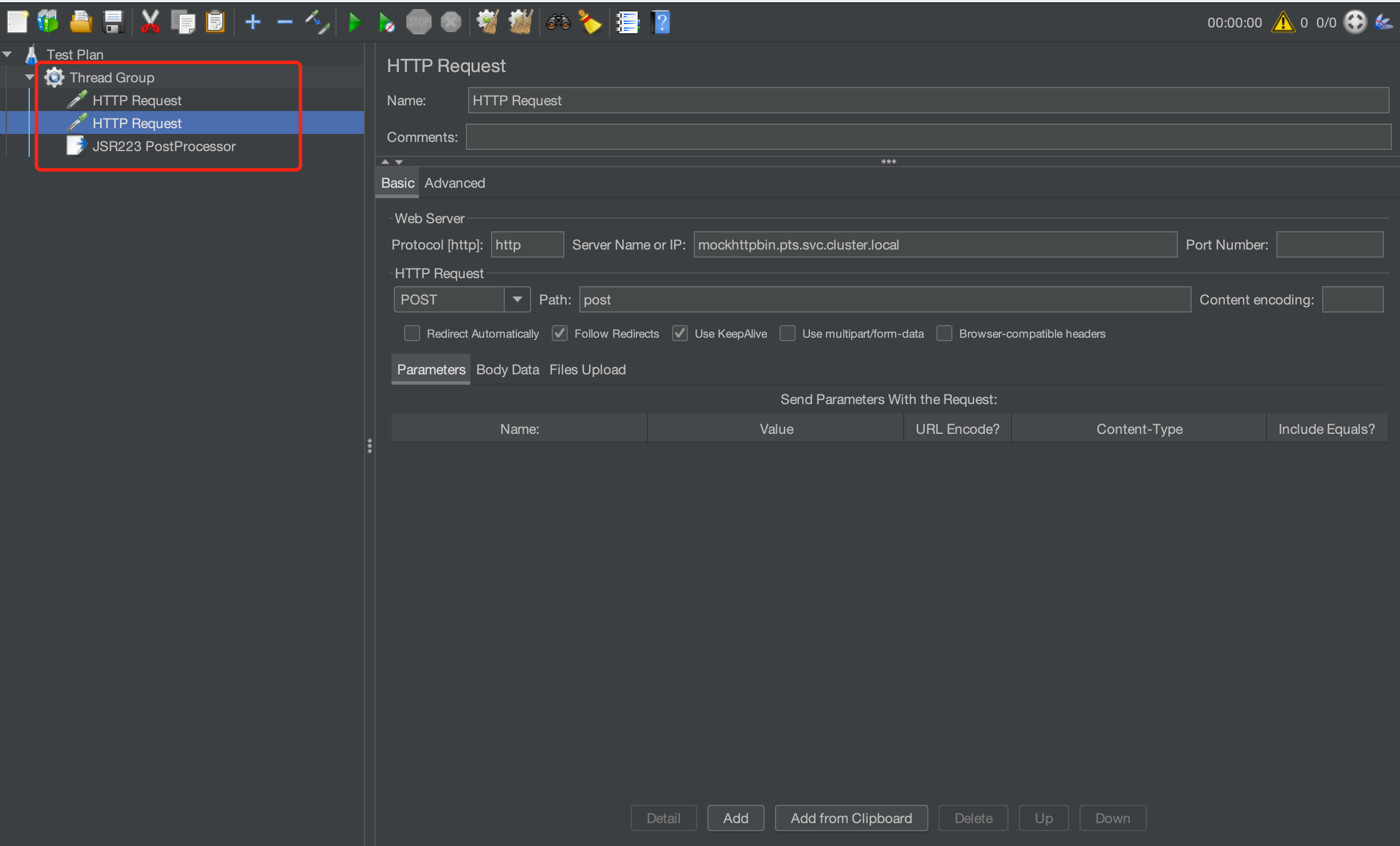
If you need to print all request details, you can put the Post Processor in a parallel position with the request, as shown in the figure below.


Checkpoint Logs

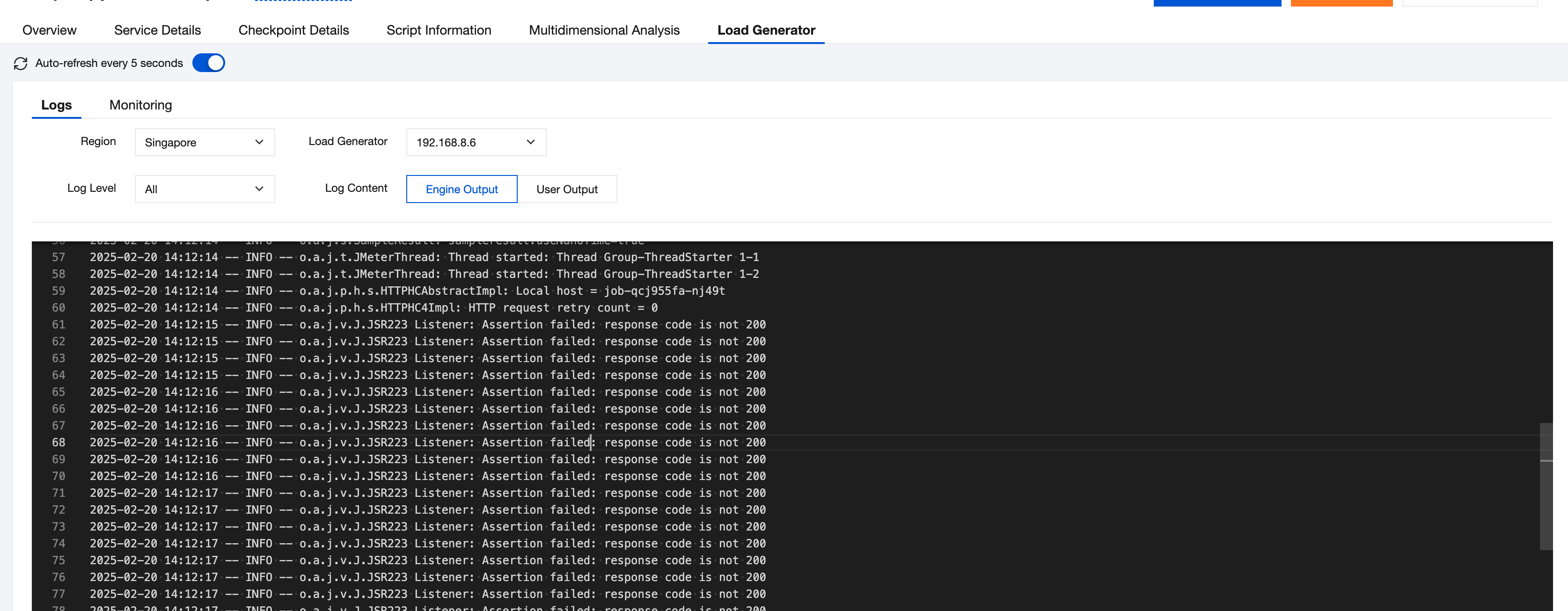
According to the execution order in JMeter, the results for checkpoints cannot be obtained by using the Post Processor because in that execution stage, the assertion check has not been executed. The assertion check results can be known only in the stage where the Listener is used. Therefore, you can use the JSR223 Listener to print the checkpoint details to the engine logs for viewing through a script. The following is a sample of the Groovy script. You can see JMeter Official Documentation for AssertionResult returned by the getAssertionResults() method.
import org.apache.jmeter.assertions.AssertionResult;

// Obtain assertion results.
AssertionResult[] results = prev.getAssertionResults();

// Traverse assertion results.
for (int i = 0; i < results.length; i++) {
AssertionResult result = results[i];
if (result.isFailure() || result.isError()) {
// Print assertion failure or error messages.
log.info("Assertion failed: " + result.getFailureMessage());
}
}
Execute the JMX script on PTS. In Engine Output on the Load Generator tab page in the console, you can view the printed logs.


Here, only the assertion check results and failure messages are printed. If necessary, you can also print the details of the failed assertion check requests according to the previous request logs.
import org.apache.jmeter.assertions.AssertionResult;

// Obtain assertion results.
AssertionResult[] results = prev.getAssertionResults();

// Traverse assertion results.
for (int i = 0; i < results.length; i++) {
AssertionResult result = results[i];
if (result.isFailure() || result.isError()) {
// Print assertion failure or error messages.
log.info("Assertion failed: " + result.getFailureMessage());

// Obtain the Sampler name.
def samplerName = sampler.getName()
// Obtain the response code.
def responseCode = prev.getResponseCode()

log.info("Sampler Name: " + samplerName + ", Response Code: " + responseCode)
}
}
If there are multiple assertion checks in the JMX script, and you need to print a single or all of them, you can put the Listener in different positions accordingly by referring to the previous method of printing logs with multiple requests.
도움말 및 지원

문제 해결에 도움이 되었나요?

피드백