Deleting Files
Download
フォーカスモード
フォントサイズ
This article will guide you on how to delete files in the Professional Version through the console.
Preparations
The VOD service has been activated, and a Professional Version application has been created. For instructions on creating a Professional Version application, please refer to Quick Start.
Files have been uploaded. For file upload, please refer to Uploading Files.
Operation Steps
Deleting a Single File
1. Log in to the VOD console, click Application Management on the left sidebar to enter the application list page.
2. Locate the application for which you want to delete a file, and click its name to enter the application storage page.
3. On the application storage page, select the bucket containing the file you want to delete, and click its name to enter the bucket file list page.
4. On the bucket file list page, find the file you want to delete and click Delete under Actions.

5. In the Confirmation Popup, click Confirm to delete the file.
Notes:
The file will be permanently deleted from Tencent Cloud, cannot be restored, and cannot be accessed through CDN nodes.
Batch Deleting Files
1. Log in to the VOD console, click Application Management on the left sidebar to enter the application list page.
2. Locate the application for which you want to delete a file, and click its name to enter the application storage page.
3. On the application storage page, select the bucket containing the file you want to delete, and click its name to enter the bucket file list page.
4. On the bucket file list page, check the files you want to delete, and click Batch Delete at the top of the file list.
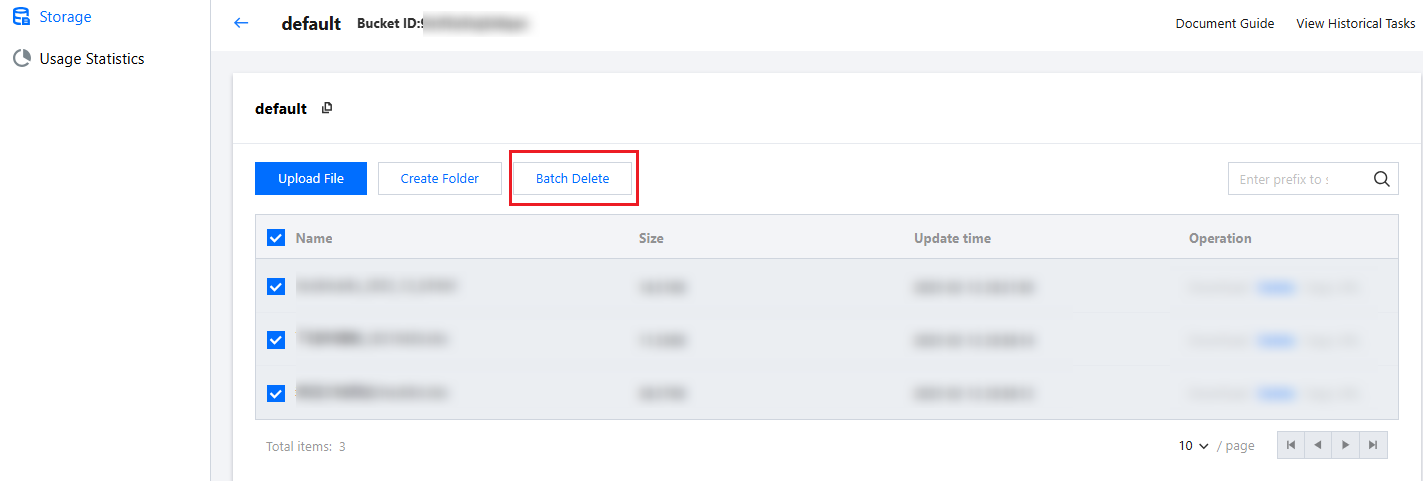
5. In the Confirmation Popup, click Confirm to delete the files in batch.
Notes:
The file will be permanently deleted from Tencent Cloud, cannot be restored, and cannot be accessed through CDN nodes.
フィードバック