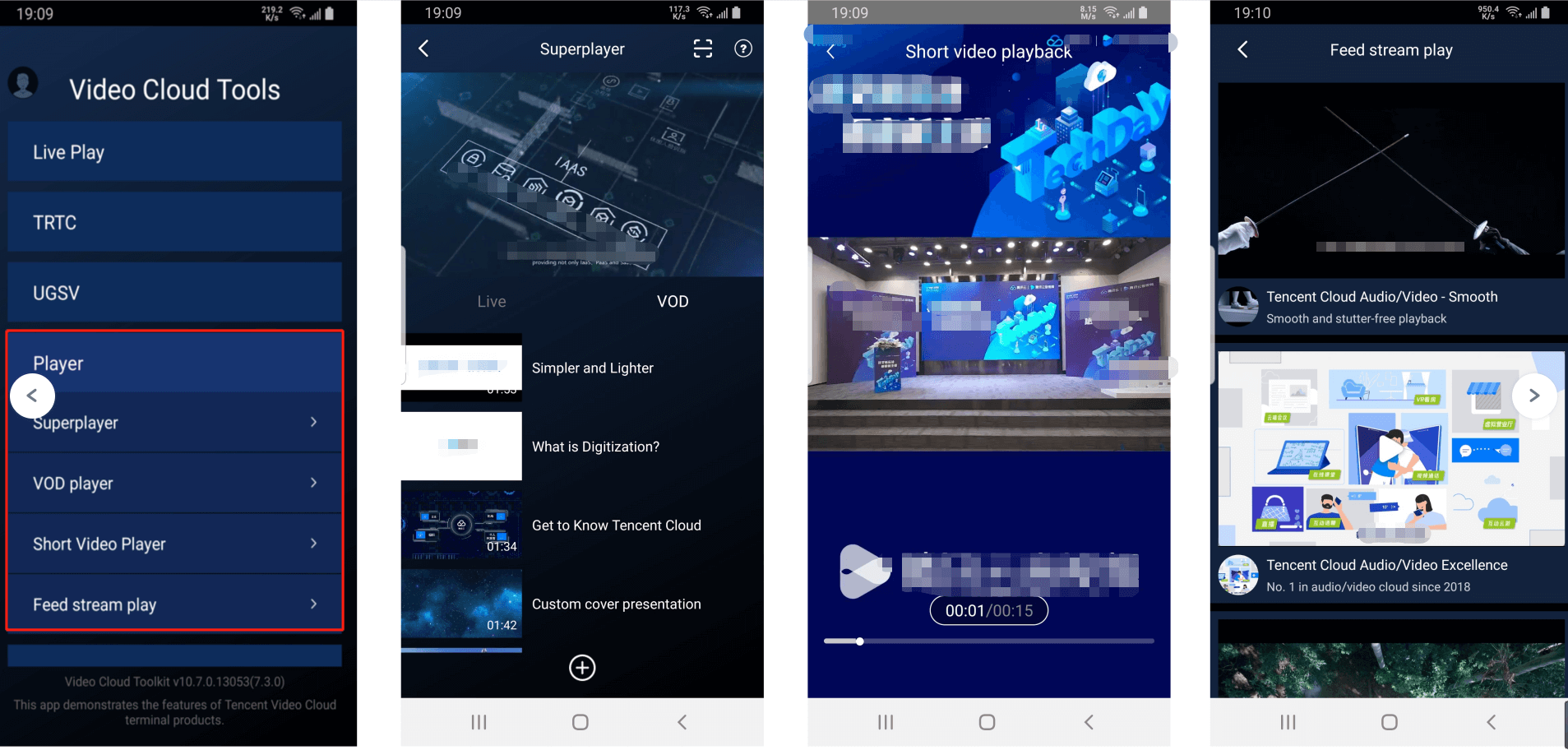
The Player SDK demo provides complete product-grade interactive UIs and business source code for you to use on demand.
Demo
Demos
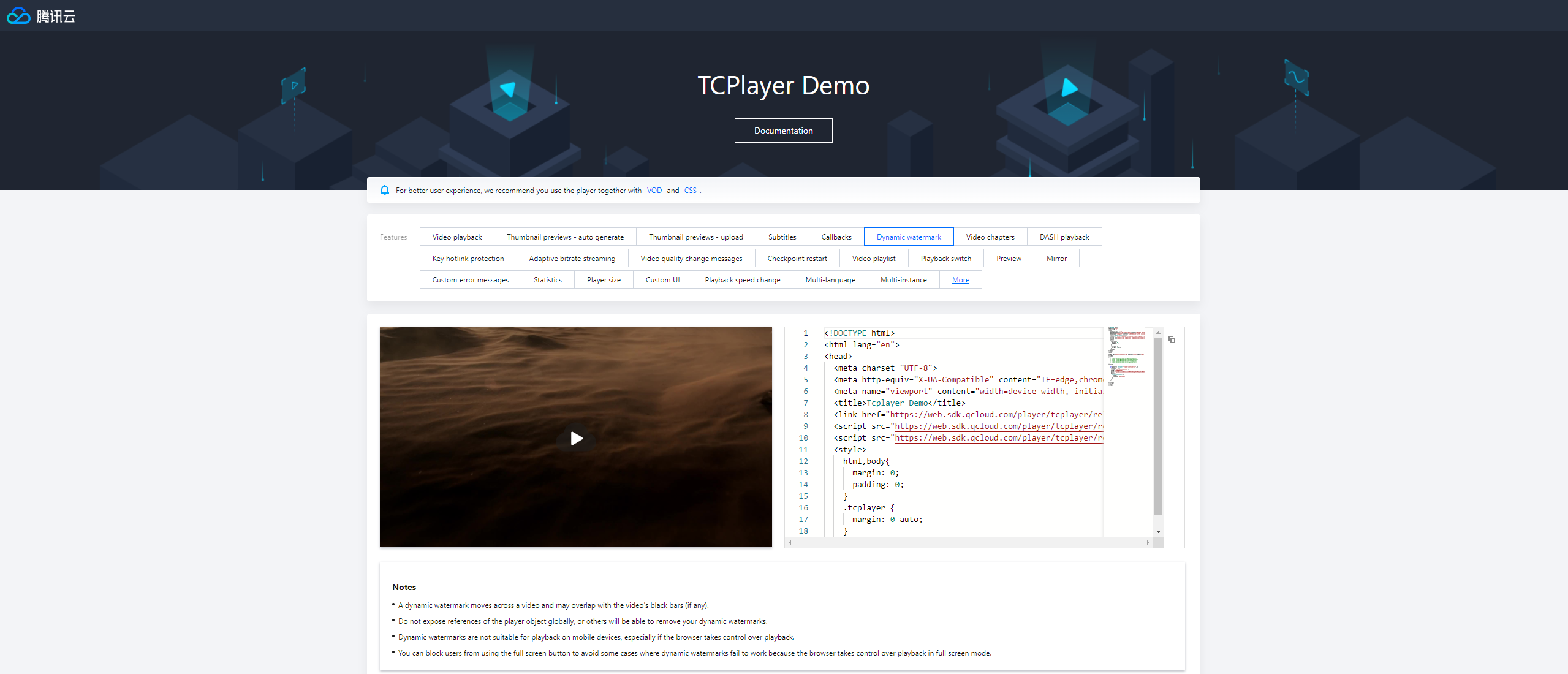
Player for web (TCPlayer)
TCPlayer supports video playback in a browser on a PC or mobile device. It provides demo pages for you to compare and view the video playback features and code. You can modify the code samples to view the effect of modified features in the playback area in real time.
Develop and Debug Demo
To help developers better understand how to use the Player SDK, the Player SDK mobile version offers a demo source code for development and debugging, along with instructions on interfacing. You can follow the steps below for usage.
Step 1: Access the Demo project source code
You can visit the following GitHub address to access the demo source code for debugging, or download the corresponding ZIP package.
The Player SDK for mobile (iOS & Android & Flutter) requires access to a License for use.
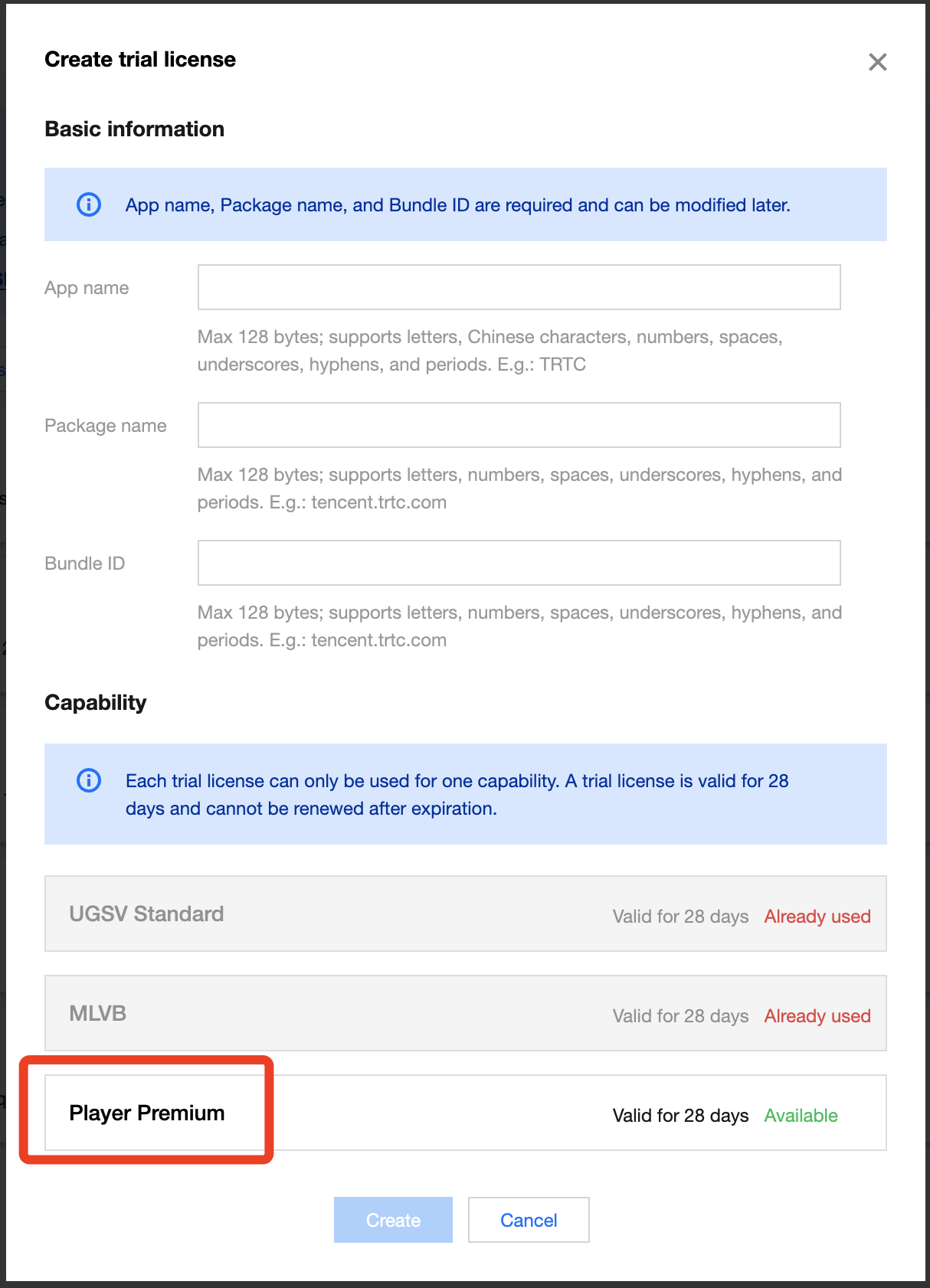
1. Sign in to the VOD console or CSS console, select License Management > Mobile License on the left menu, and click Create Trial License.
2. Fill in the App Name, Package Name, and Bundle ID according to your actual needs, check the feature module Player Premium Version, and click Confirm.
Package Name: Please peek at the build.gradle file in the App directory for the applicationId.
Bundle ID: Please peek at the xcode for the project's Bundle Identifier.
Note:
If the Package Name or Bundle ID applied for in the Tencent Cloud Console is inconsistent with the actual Package Name or Bundle ID in the project, playback will fail.
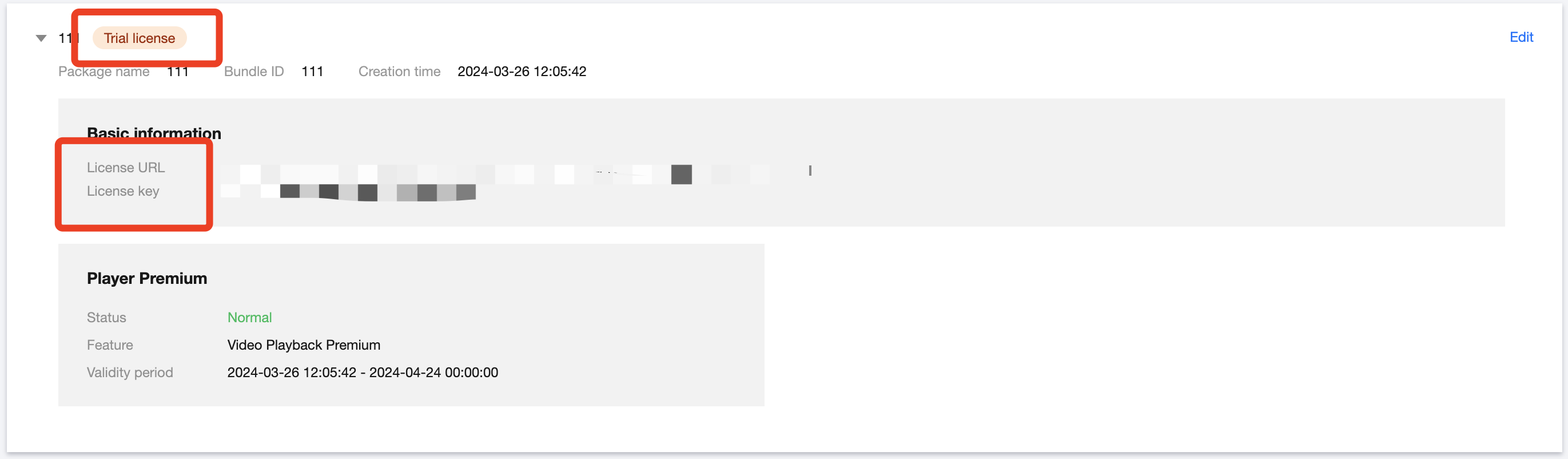
3. After the trial version License is successfully created, the page will display the generated License information. Upon SDK initialization, the License URL and License Key are required; please save the following information carefully.
4. After accessing the Licence URL and Licence Key, please refer to the tutorial below to configure them in the Demo project.
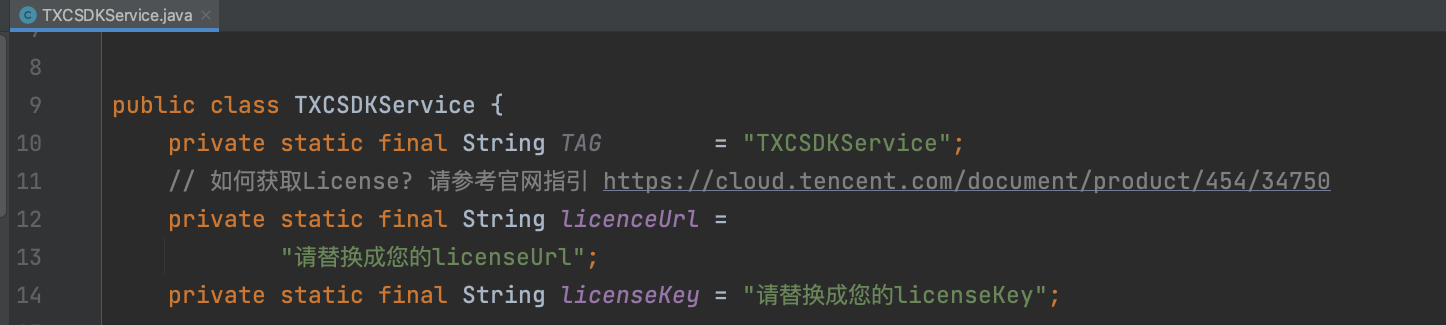
Android configuration for Licence
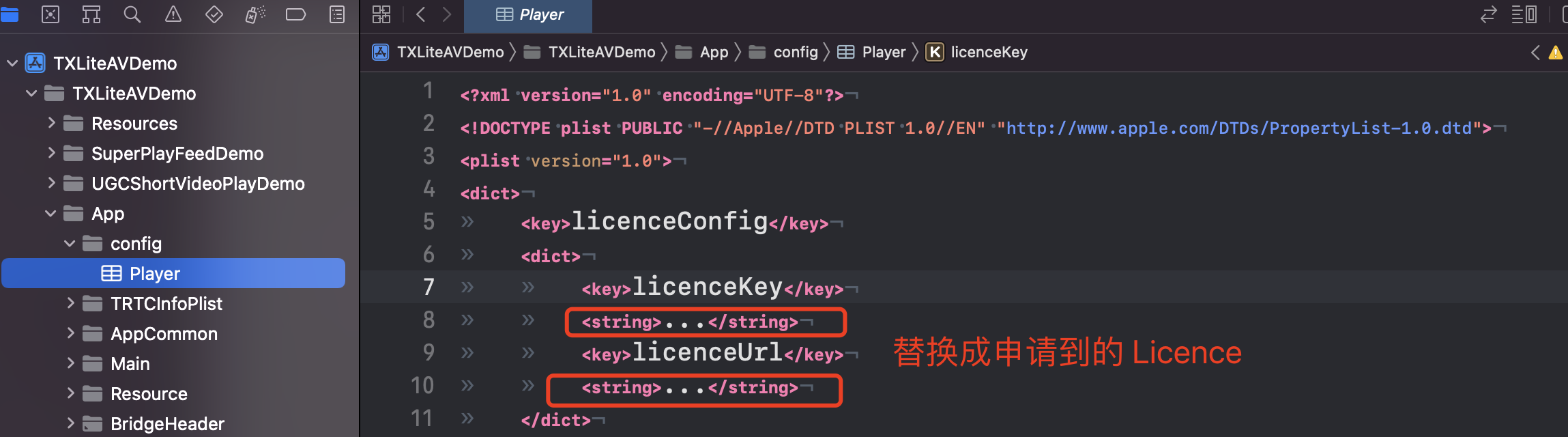
iOS configuration for Licence
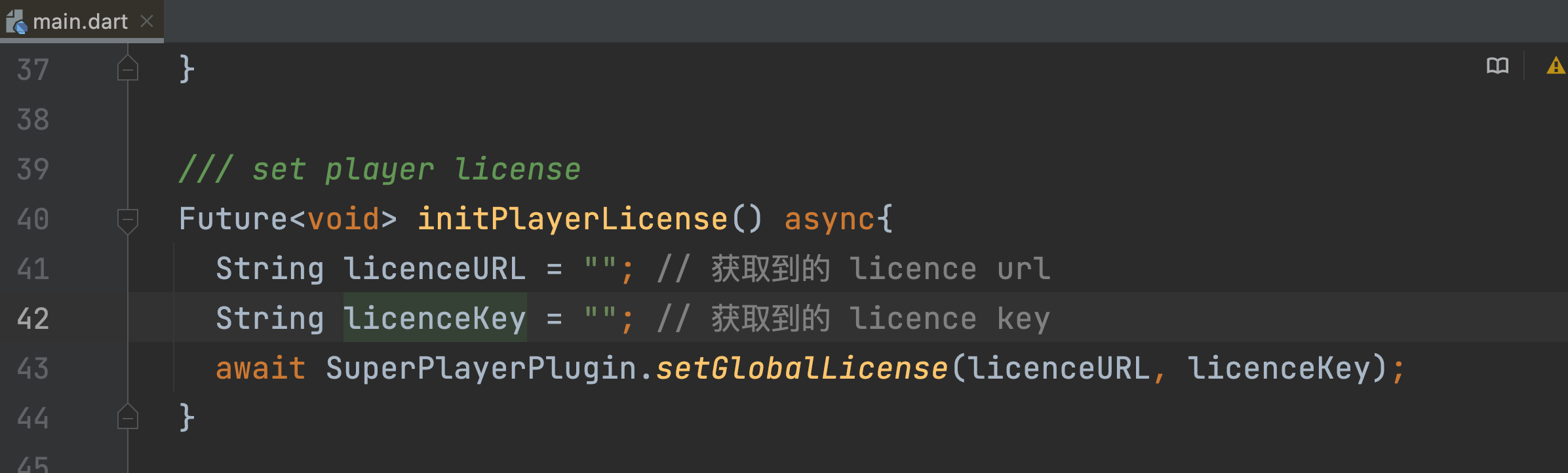
Flutter configuration for Licence
Open the Demo/app/src/main/java/com/tencent/liteav/demo/TXCSDKService.java file, and replace the Licence URL and License Key with the applied Licence content.
Open the Demo/TXLiteAVDemo/App/config/Player.plist file, and replace the Licence URL and Licence Key with the applied Licence content.
Open the Flutter/example/lib/main.dart file, and replace the Licence URL and Licence Key with the applied Licence content.