If the permission configuration has been deployed in the account, changes in the configuration will not be automatically updated to the corresponding account. You need to manually redeploy for the changes to take effect.
Prerequisites
When changes occur in the permission configuration (adding or removing a preset policy), you need to redeploy.
Directions
Redeploying the Permission Configuration on the Permission Configuration Page
2. In the left sidebar, click CAM Synchronization > Configuring Permission.
3. On the Configuring Permission page, click the target permission configuration name.
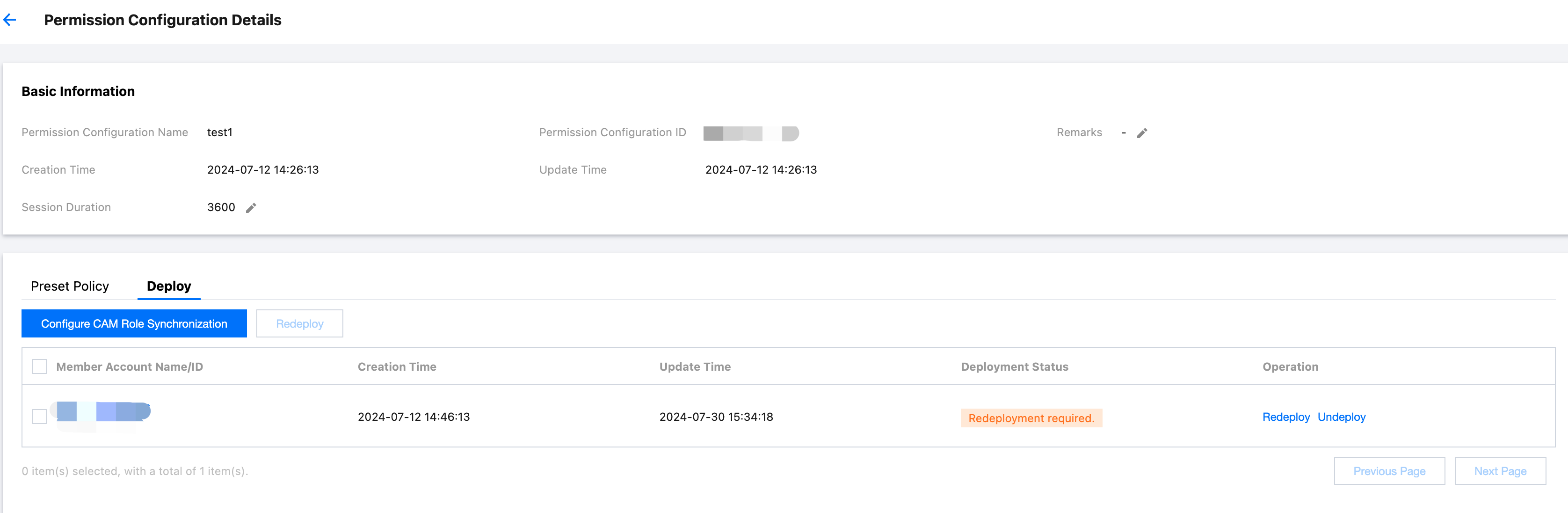
The system will automatically identify the permission configuration that needs redeployment, and its Deployment Status will be displayed as Need to Be Redeployed.
4. Click the Deployment tab.
5. Select the target account name.
The system will automatically identify the RD account that needs redeployment of access configuration, and its Deployment Status will be displayed as Redeployment required.
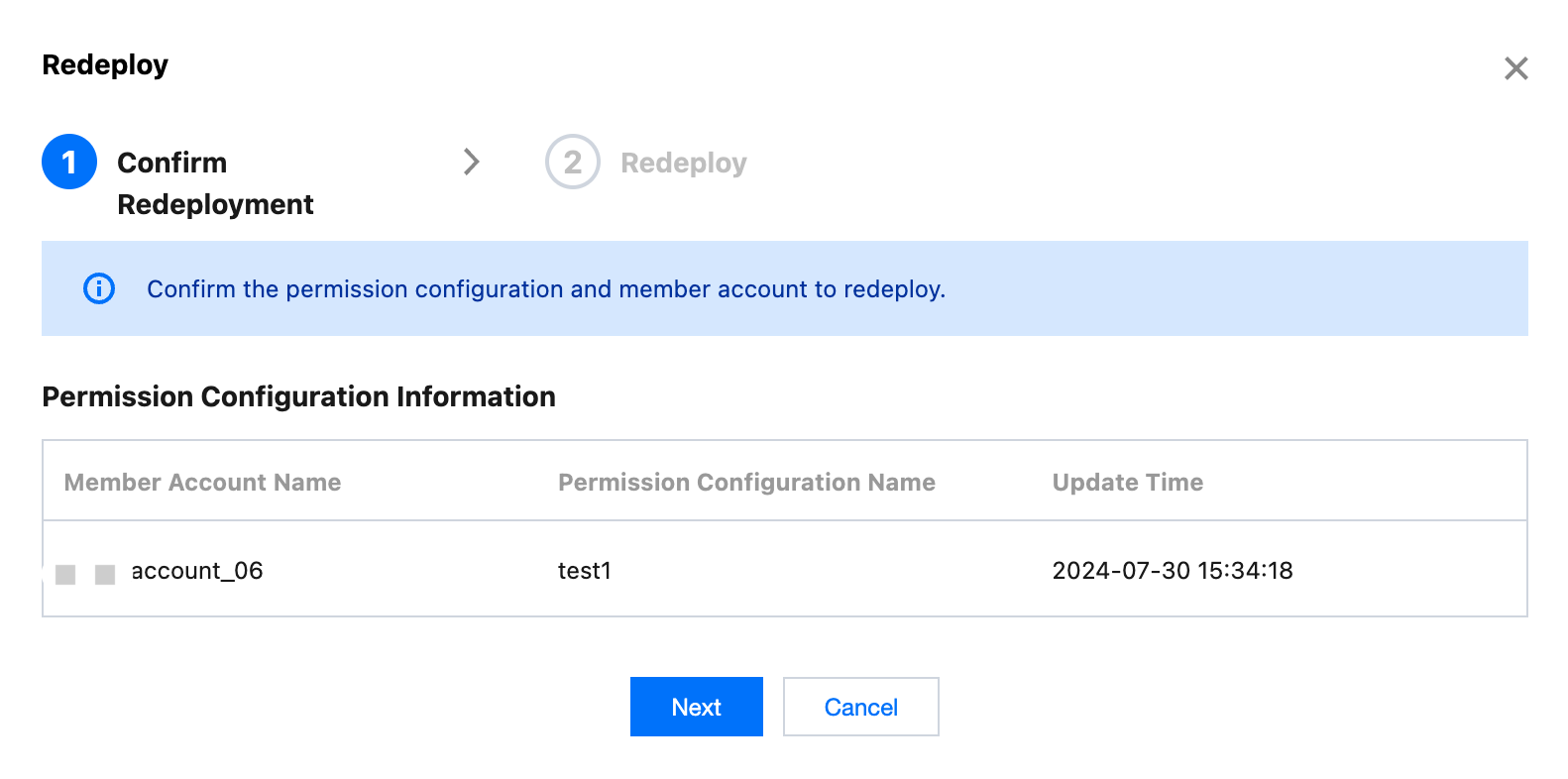
6. Click Redeploy, confirm the following information on the Redeploy page, and click Next.
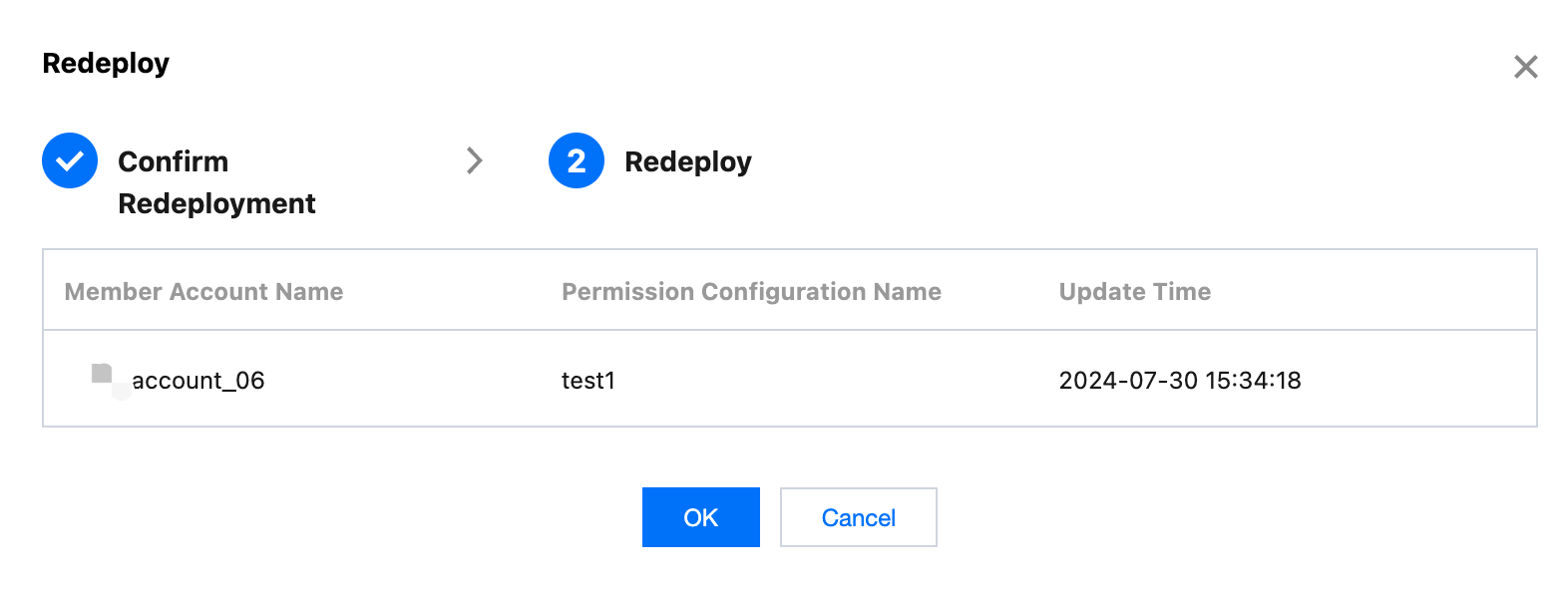
7. Click OK.
8. After deployment, the Deployment Status will be displayed as Succeeded to deploy.
Redeploying the Permission Configuration on the Multi-account Permission Management Page
2. In the left sidebar, click CAM Synchronization > Multi-account Permission Management.
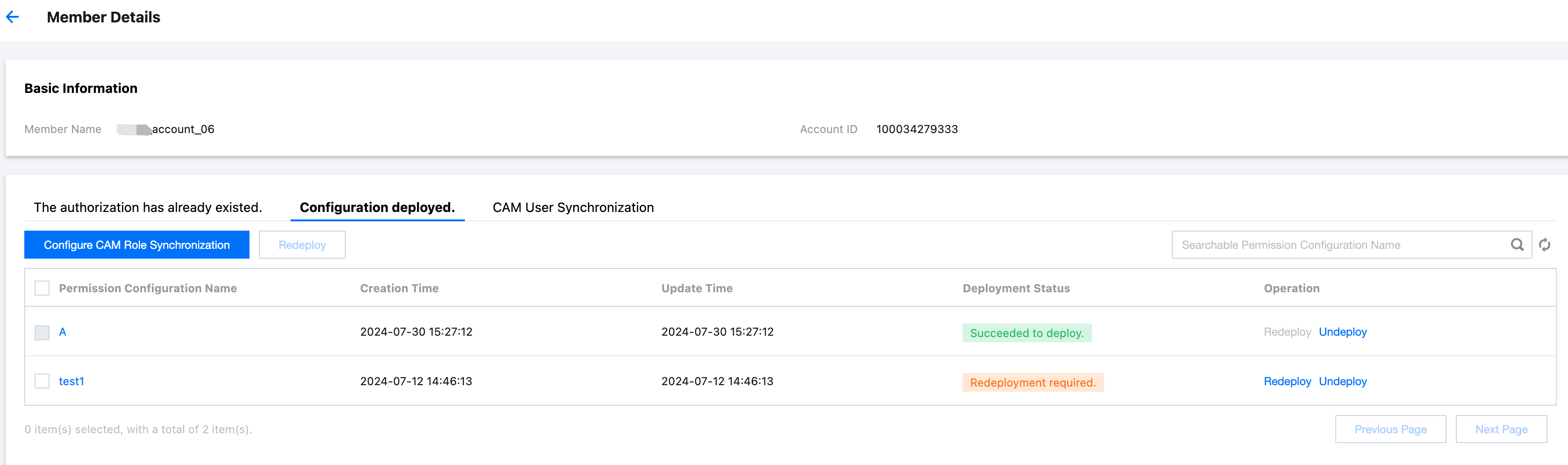
3. On the Multi-account Permission Management page, select the target account.
4. Click the Deployed Configuration tab.
5. Select the access configuration that needs to be redeployed.
The system will automatically identify the access configuration that needs redeployment, and its Deployment Status will displayed as Redeployment required.
6. Click Redeploy and follow the on-screen instructions.
7. After deployment, the Deployment Status will be displayed as Succeeded to deploy.