tencent cloud

Tencent Cloud Organization

Product Introduction
Overview
Concepts
Purchase Guide
Operation Guide
Console Overview
Organization Settings
Department Management
Member Account Management
Member Finance Management
Member Access Management
Resource Management
Member Audit
Identity Center Management
API Documentation
History
Introduction
API Category
Making API Requests
Organization Settings APIs
Department and Member Management APIs
ListOrganizationIdentity
Unified Member Login APIs
Organization Service Management APIs
Organization Management Policy APIs
Resource Sharing APIs
Identity Center Management APIs
Identity Center User Management APIs
Identity Center User Group Management APIs
Identity Center Management SCIM Synchronization APIs
Identity Center Single Sign-On Management APIs
Identity Center Permission Configuration Management APIs
Identity Center Multi-Account Authorization Management APIs
Identity Center Sub-User Synchronization Management APIs
Data Types
Error Codes
TCO API 2018-12-25
Related Agreement
Statement of Tencent Cloud Customers’ Tencent Cloud Organization
FAQs
Concept
Basic
Operation
Glossary

Configure CAM Role Synchronization

PDF
Mode fokus
Ukuran font
Terakhir diperbarui: 2024-07-31 14:17:23

Overview

Based on the group account organizational structure, you can set allowed access users or user groups for each account, as well as their permission configuration.
This document provides an example of deploying permission configuration on a member account (Account1) for a user (user1) from the Identity Center. The permission configuration defines access only to CVM, ensuring that the user (user1) from the Identity Center can only access CVM resources in the member account (Account1).

Prerequisites

Make sure you have created permission configuration.
In this example, the permission configuration has been bound to preset policies, with no user-defined policies created.
Make sure you have created or synchronized a user.
In this example, a user (user1) is created with the Identity Center. For details, refer to Manage Users.

Directions

1. Go to TCO > Identity Center.
2. In the left sidebar, click CAM Synchronization > Multi-Account Authorization Management.
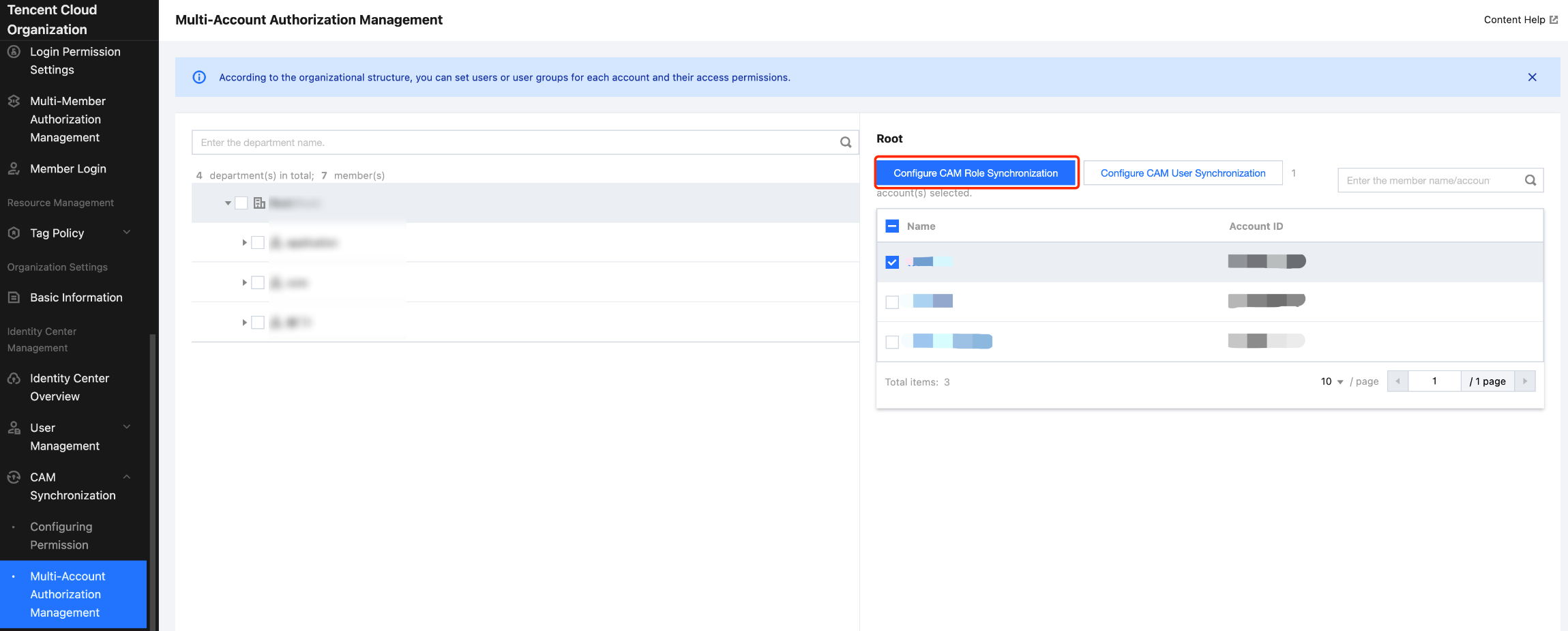
3. On the Multi-Account Authorization Management page, select the target account.
In this example, select the member account (Account1).
4. Click Configure CAM Role Synchronization.


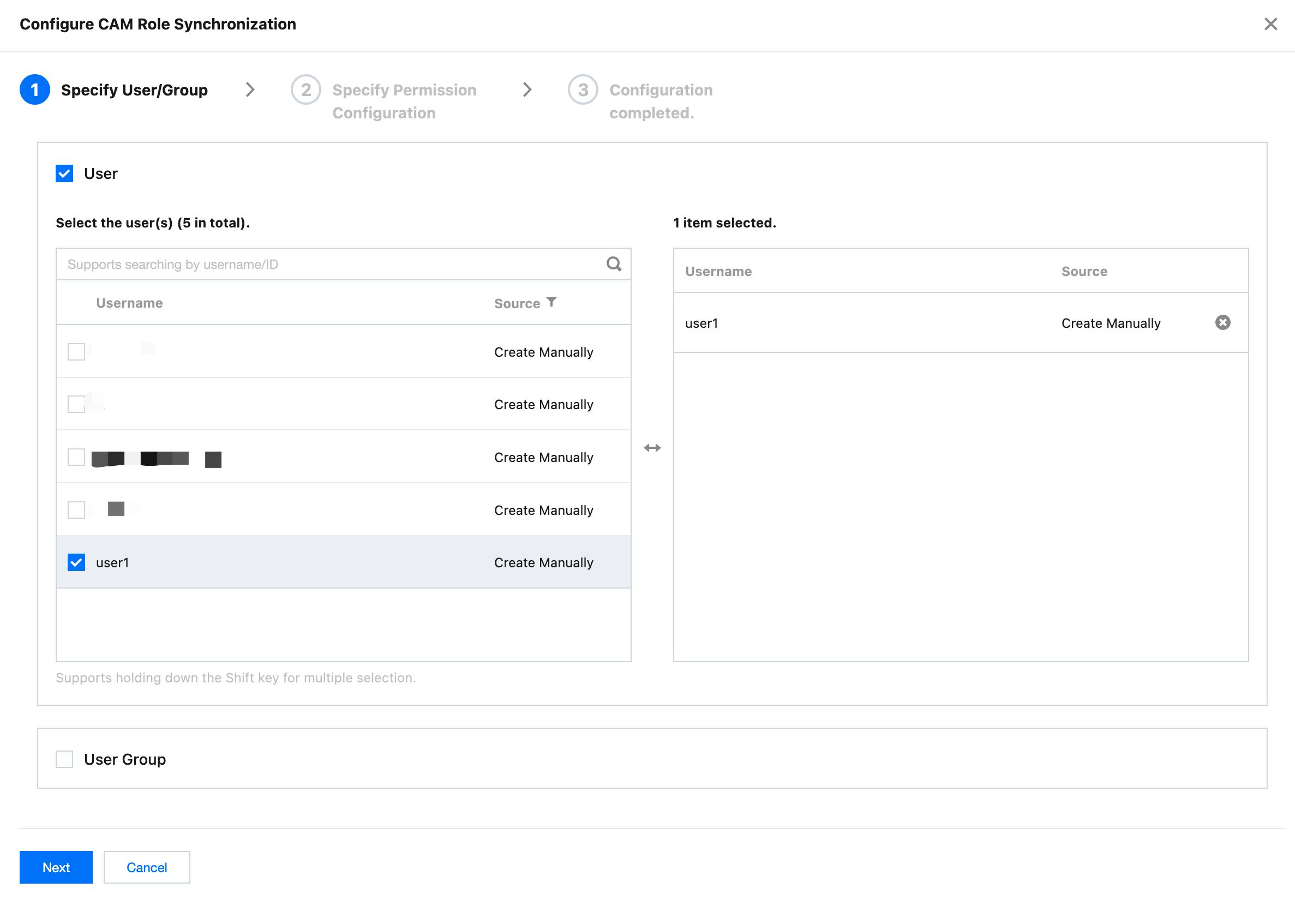
5. On the Configure CAM Role Synchronization page, select the target user or user group, and then click Next.
In this example, select the user (user1).


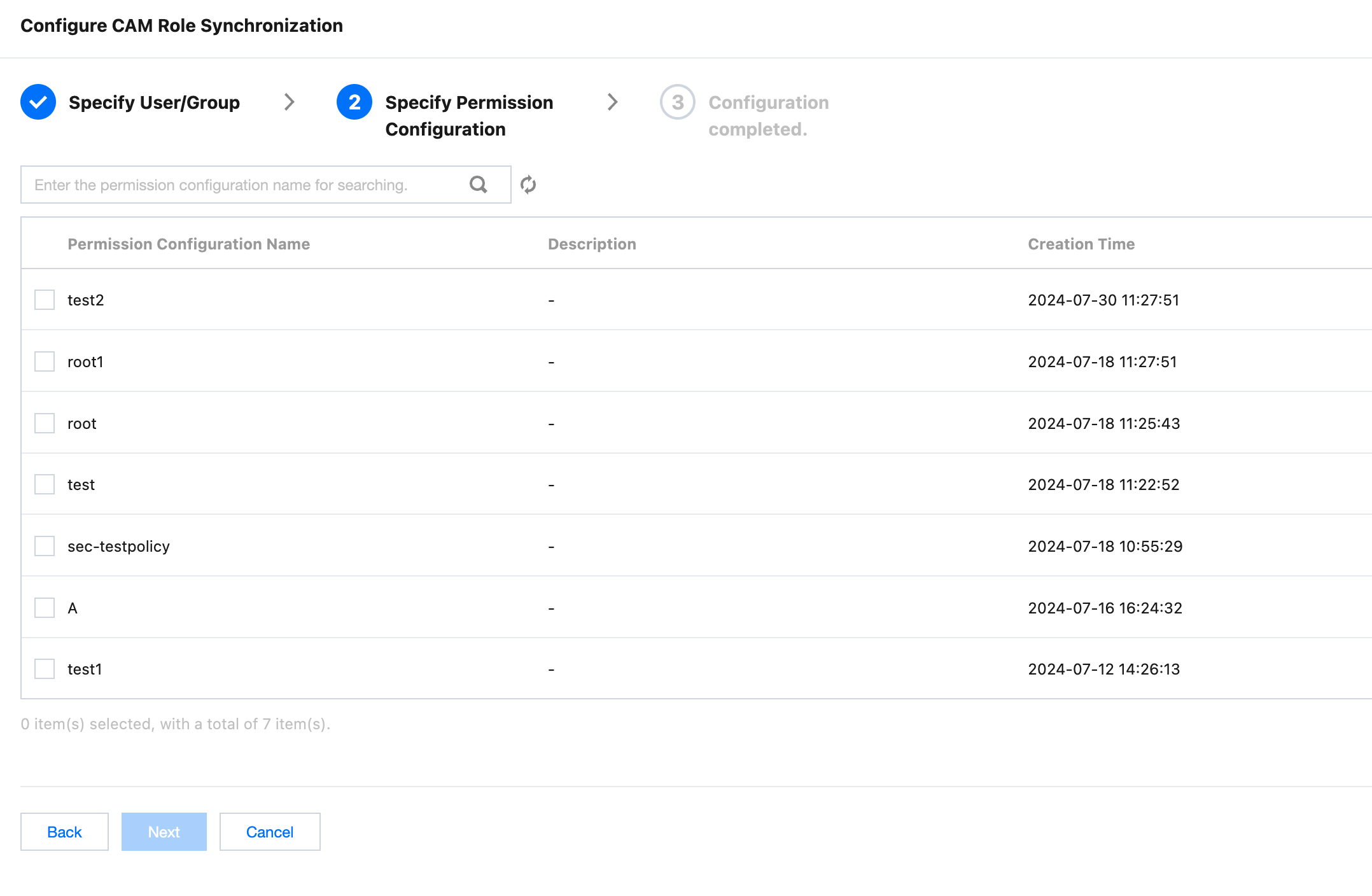
6. Select the target Permission Configuration, and then click Next.


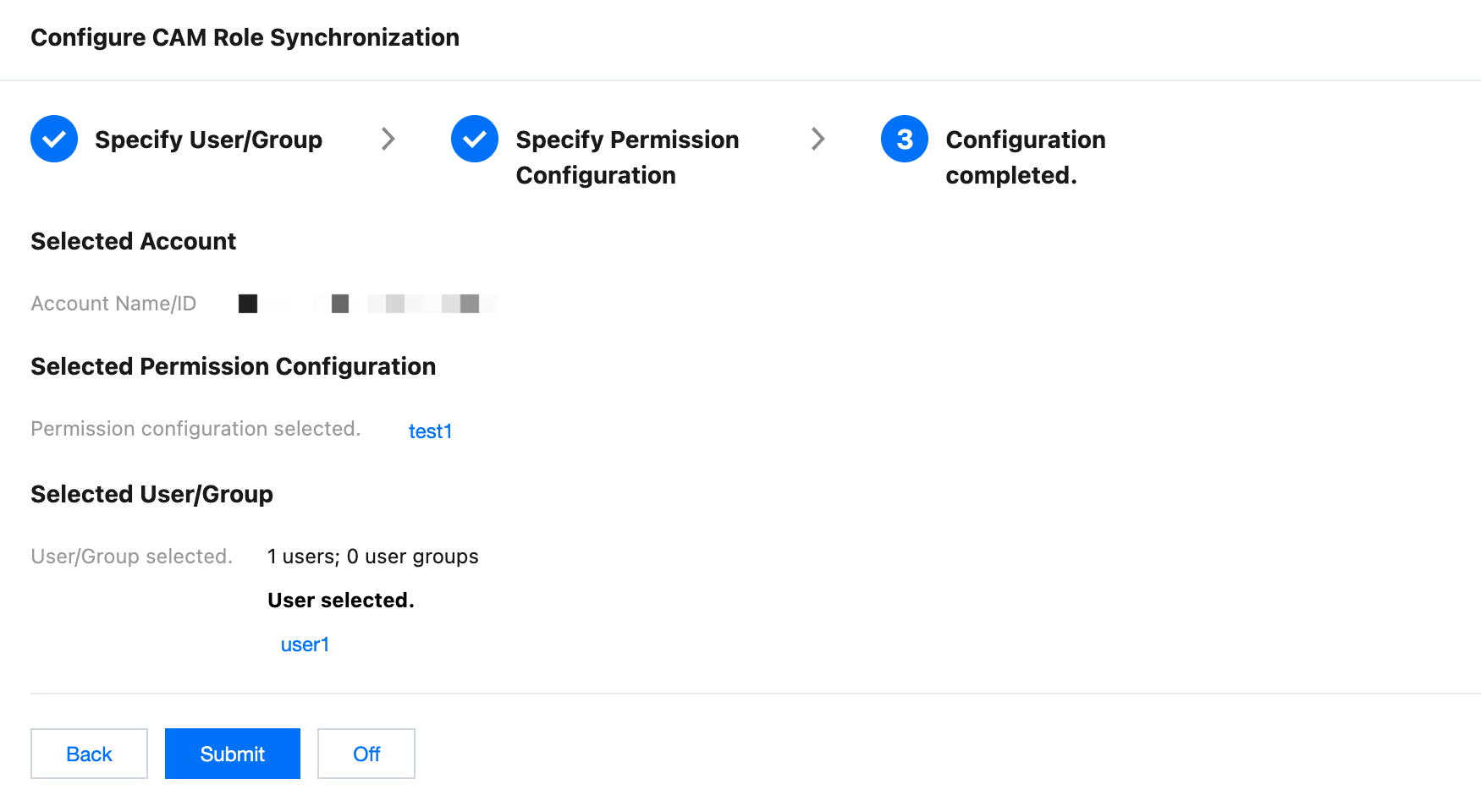
7. Review the configuration information, and then click Submit.


8. Wait for the configuration to finish, and then click Completed.

Result Verification

1. Log in to the Group Account Identity Center Portal using the Identity Center user (user1).
For detailed operations, refer to Identity Center User Login.
2. On the CAM Role Login tab, click Show Details in the permission column of the member account (Account1).
3. On the permission panel, click Log in in the Action column of the target permission configuration.
4. Access CVM resources in the member account (Account1) as a CAM Role.
Note:
Since only access to CVM is configured, you can only access CVM Resources. If you need to access other resources, modify policies in the permission configuration and redeploy the permission configuration.
Bantuan dan Dukungan

Apakah halaman ini membantu?

masukan