Add or Delete an MFA Device
Download
Mode fokus
Ukuran font
Background
Multi-Factor Authentication (MFA) is a simple and effective security authentication method. It adds an extra layer of protection outside username and password. When logging in with the password of an Identity Center of Group Account, MFA authentication will be forced open to strengthen service security. This document describes detailed operations for identity center users to add or delete an MFA device.
Operation Steps
Adding an MFA Device
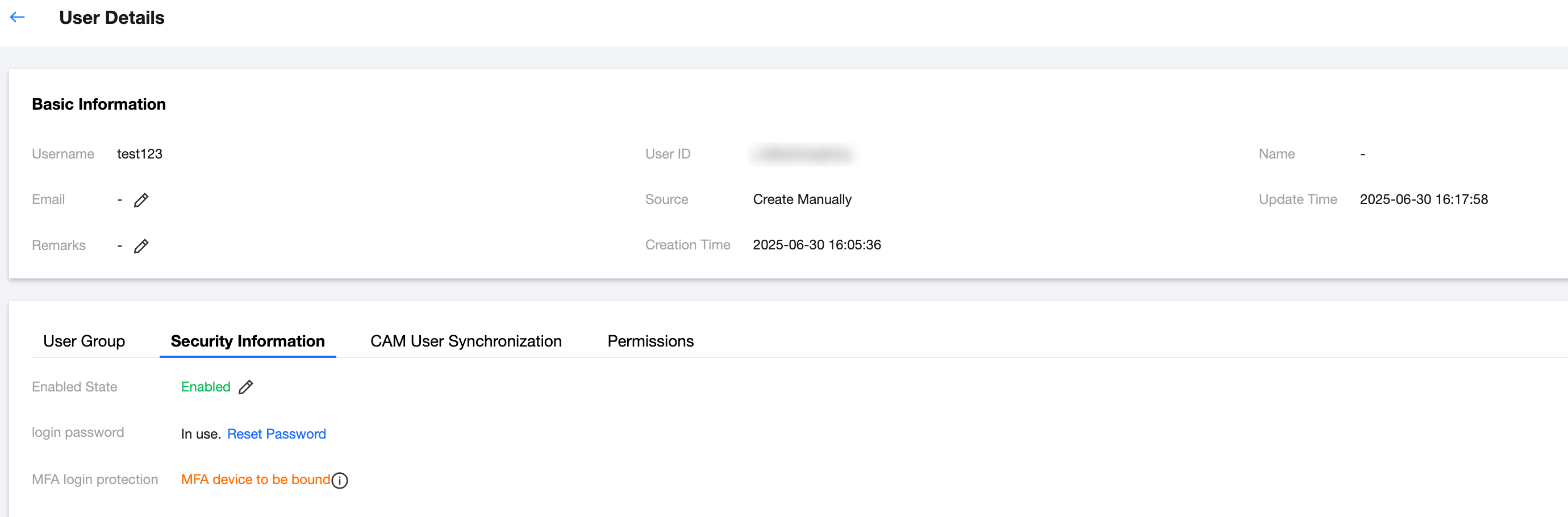
MFA login protection is enabled by default. When an identity center user logs in to the User Portal with username and password, and the MFA login protection status is MFA device to be bound, they will be required to add an MFA device.
The MFA login protection status is MFA device to be bound in two cases:
logging in for the first time
Admin deleted the MFA device
Adding an MFA Device Procedure
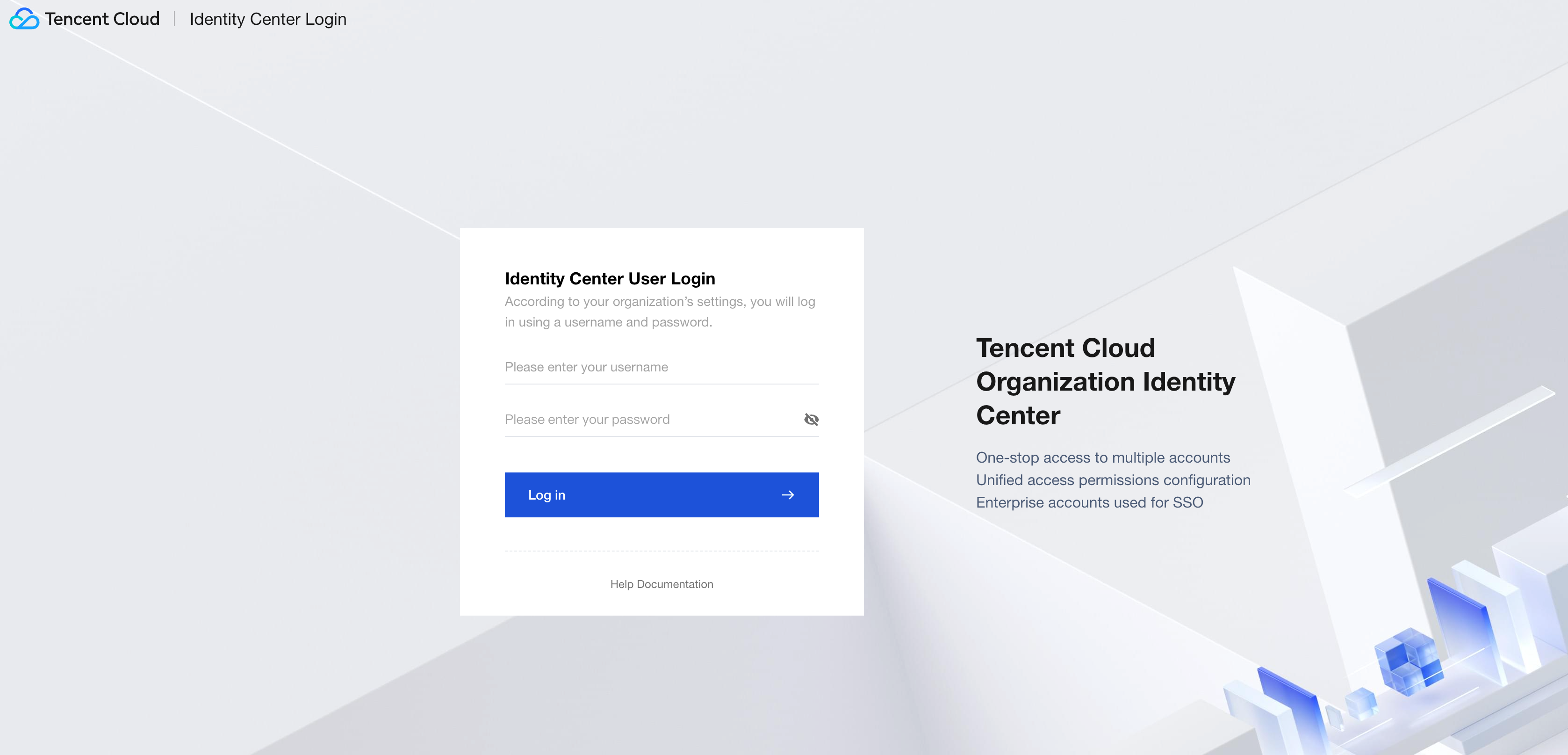
1. Identity center users click to access User Login URL, enter username and password, then click Log in.
2. Enter the Enable MFA device verification page. This example uses an Android phone with Google Authenticator for demonstration.
Note:
Users are advised to download an MFA device support app on a mobile device (such as a mobile phone). Google Authenticator and Microsoft Authenticator are now supported.

3. On your Android phone, open the Microsoft Authenticator app, click Scan QR code, and scan the QR code on the Enable MFA Device Verification page to add a device.
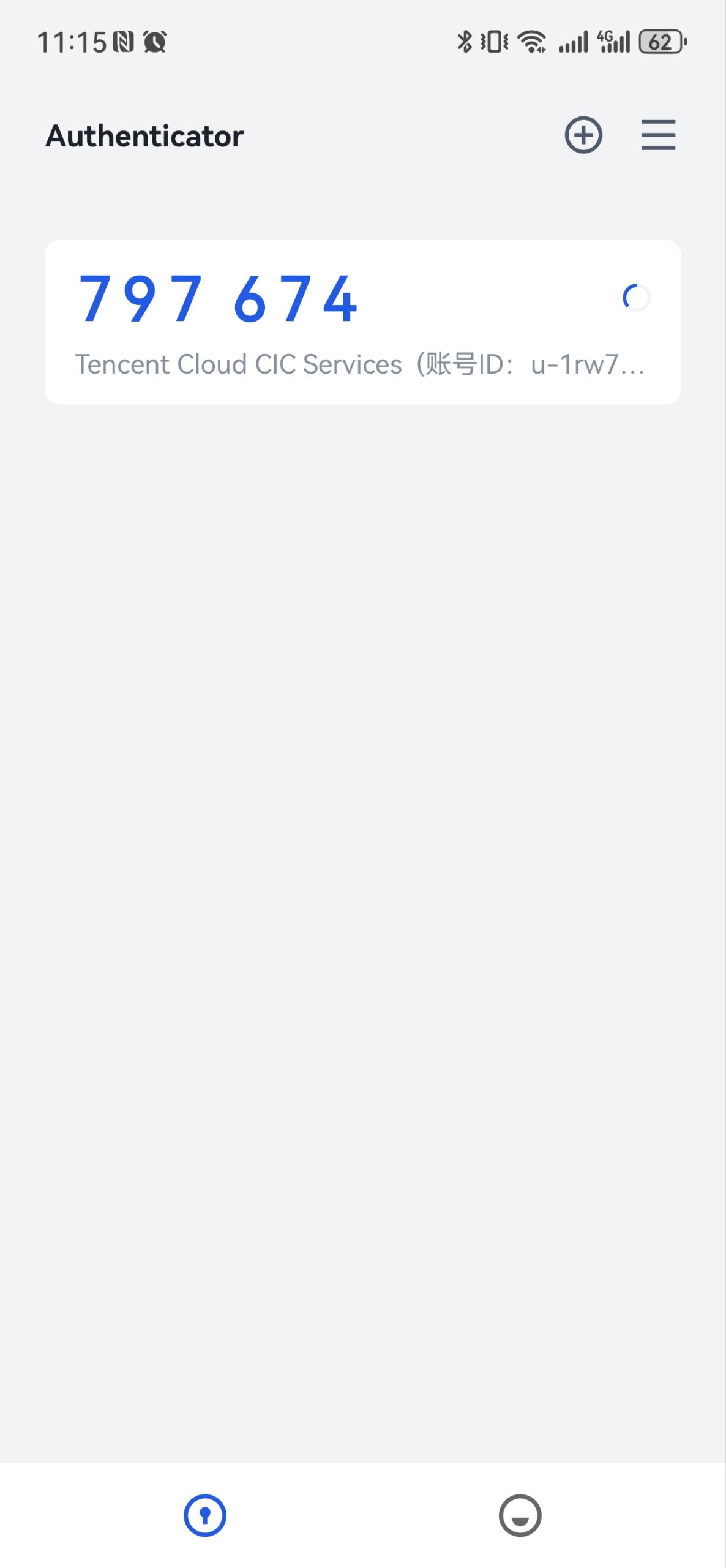
4. Once added successfully, the Tencent Cloud CIC Services app will appear on your mobile device. Enter the displayed 6-digit verification code in the Enable MFA Device Verification page at the MFA Verification Code Input location, then click Confirm.
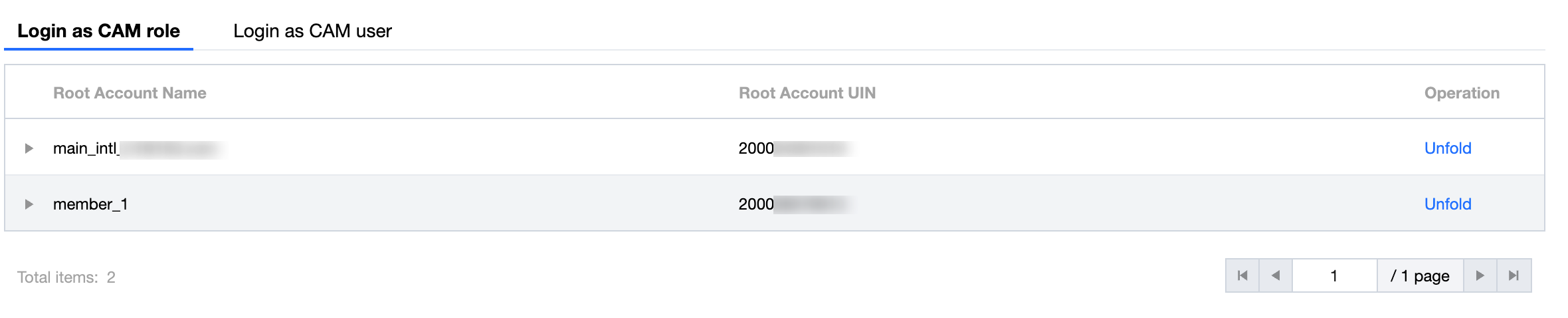
5. After successful verification, enter the identity center account selection page.
Deleting an MFA Device
1. Log in to Tencent Cloud Organization > Identity Center.
2. In the left sidebar, select User Management > User.
3. On the User List page, click the target username to enter the User Details page.
4. Click the Security Information tab, then click Unbind under MFA login protection.
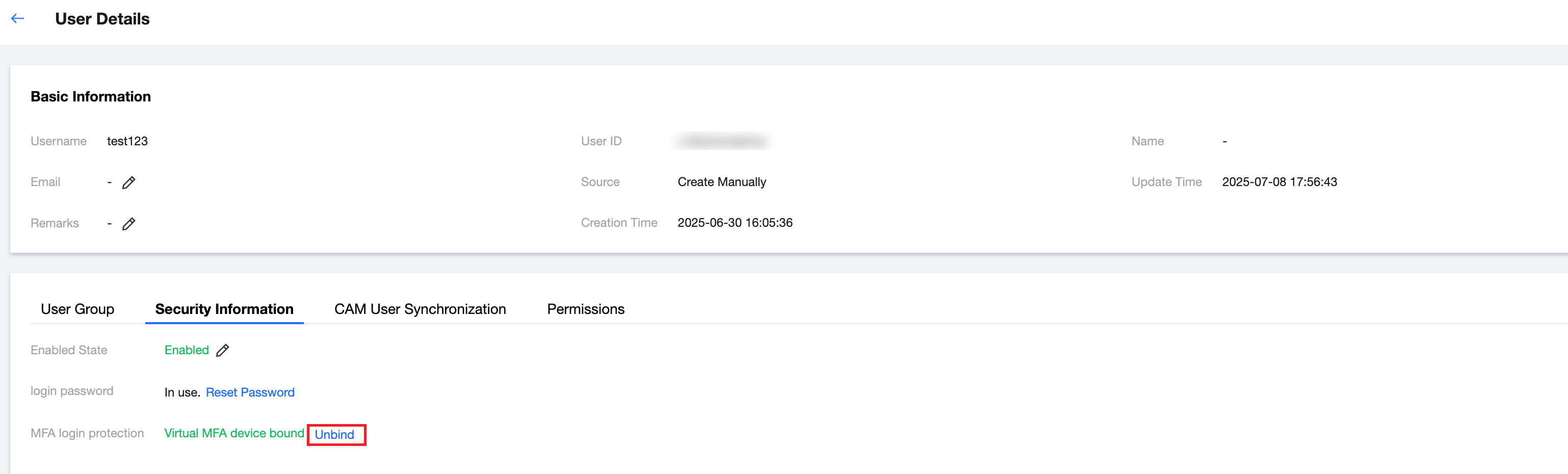
5. In the MFA device deletion dialog box, click Confirm Unbinding to complete the deletion.
Note:
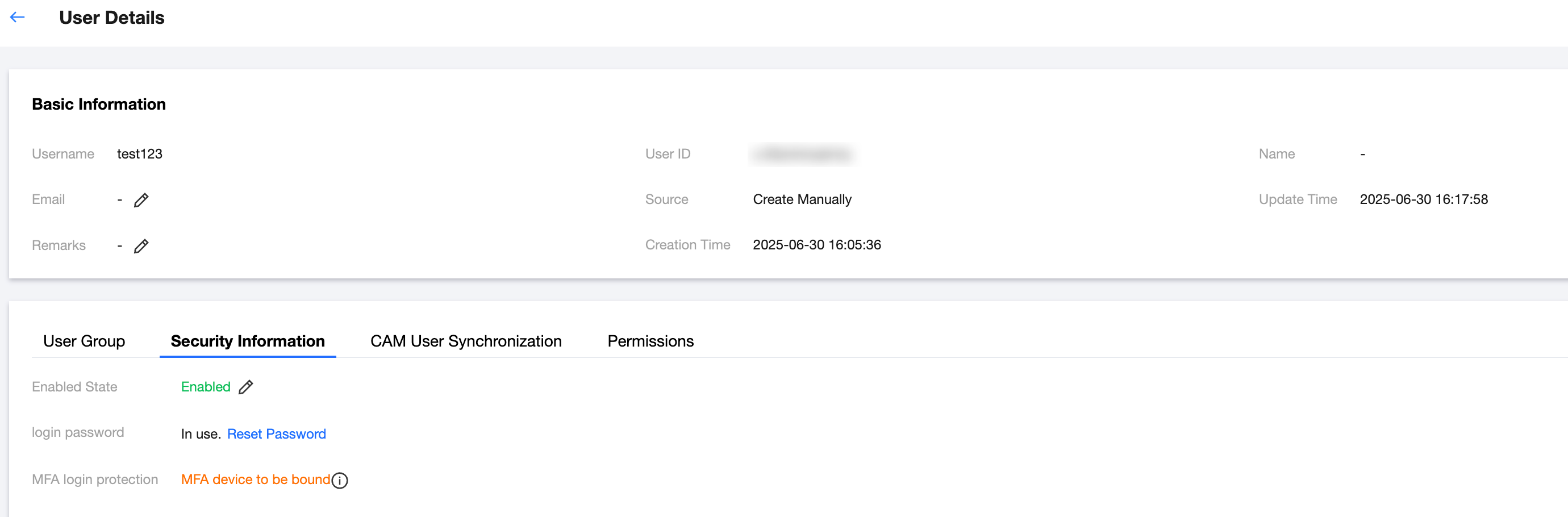
Next time when logging in, the user must rebind the MFA device.
Bantuan dan Dukungan
Apakah halaman ini membantu?
Anda juga dapat Menghubungi Penjualan atau Mengirimkan Tiket untuk meminta bantuan.
masukan