Supports grouping agents by function and business type (e.g., pre-sales, after-sales, complaints). Incoming calls can be assigned to a skill group and then flexibly routed to specific agents based on their status. If there is no need to group agents, create a skill group and add all agents to it.
Adding Skill Groups
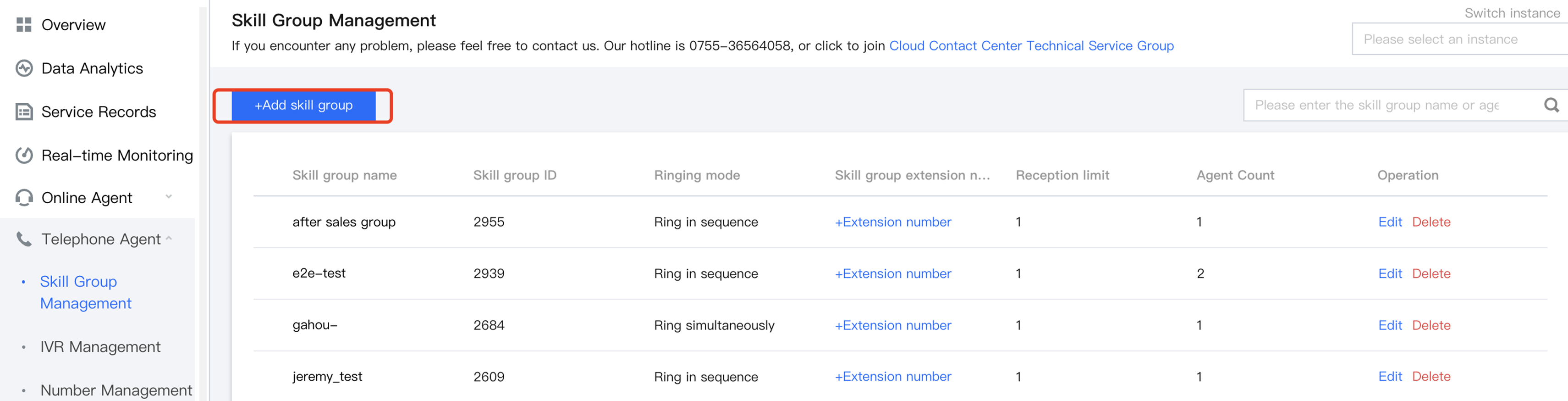
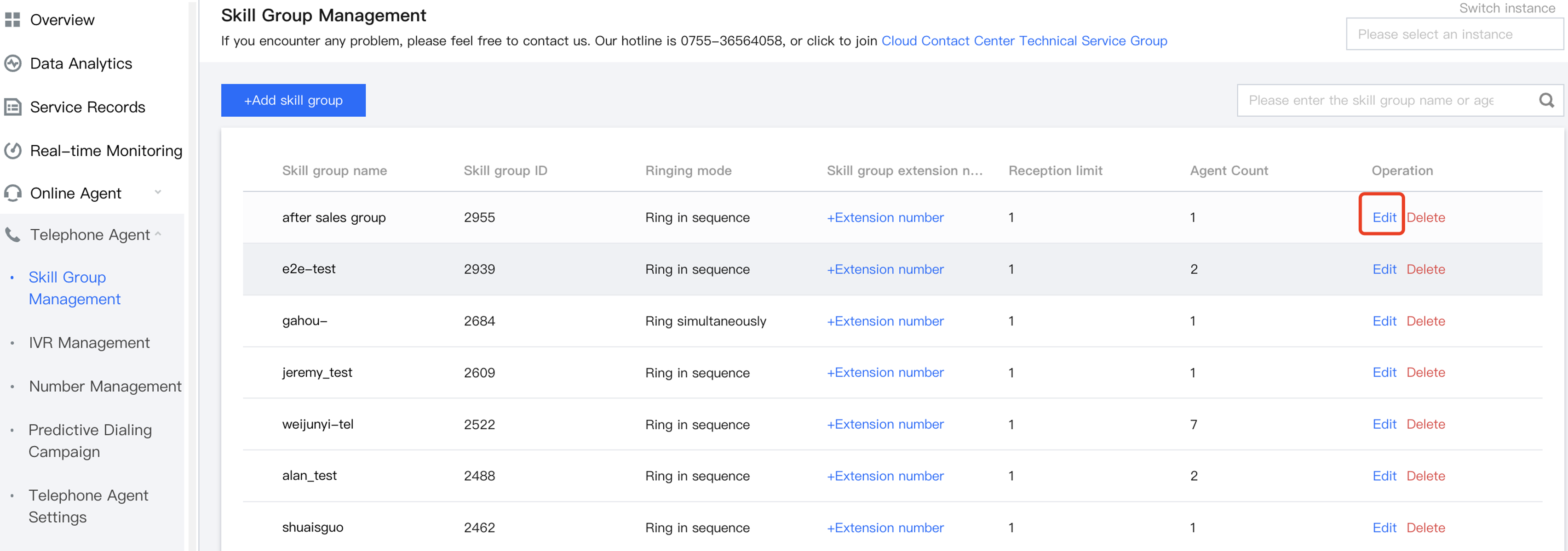
1. Go to the Cloud Contact Center management console and choose Telephone Agent > Skill Group Management in the left navigation bar to enter the skill group management page. Click Add skill group.
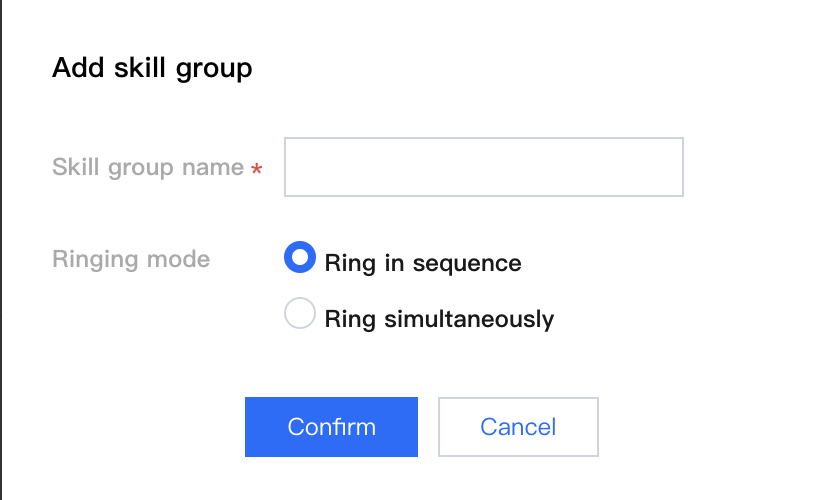
2. Fill in the name of the skill group in the Add Skill Group dialogue box, select the ringing mode, and click Confirm.
Note:
For inbound calls, if you want the agents/phones in the skill group to ring in turn according to their priority, select Ring in sequence. If you want all agents/phones (no more than 2 in total) to ring at the same time, select Ring simultaneously.
Adding Agents to the Skill Group
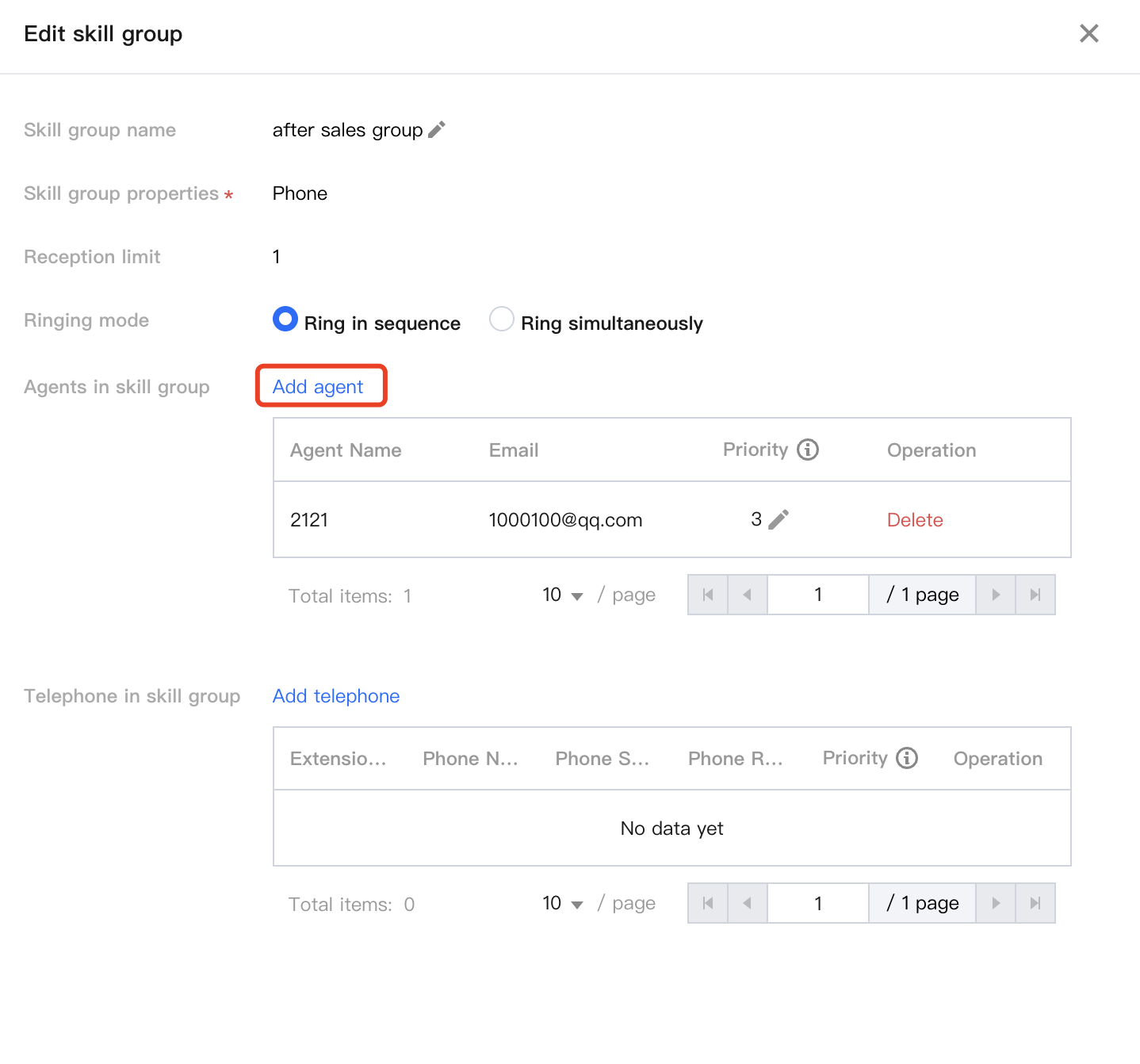
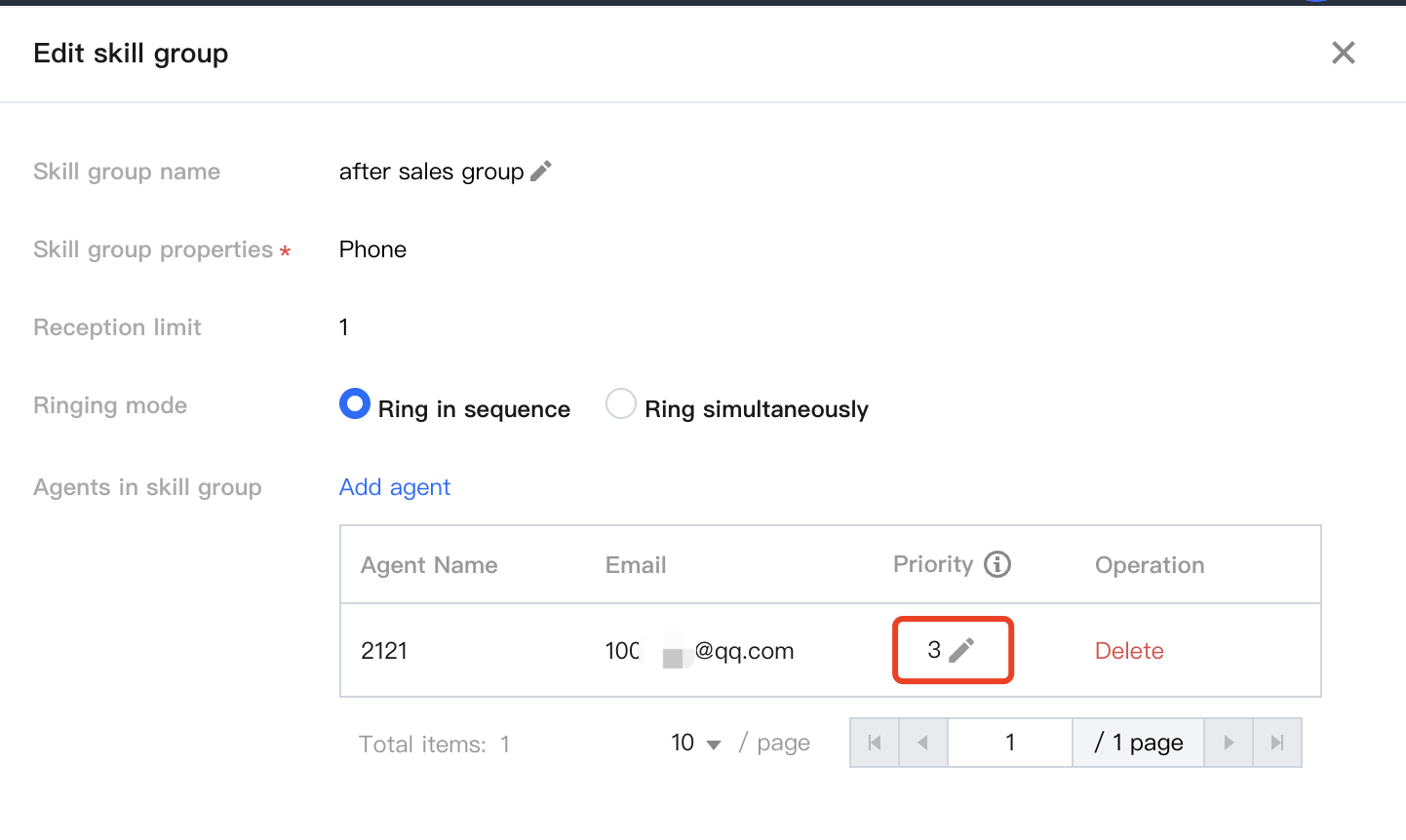
1. Click Edit in the operation column of the target skill group, and click Add agent next to Agents in Skill Group.
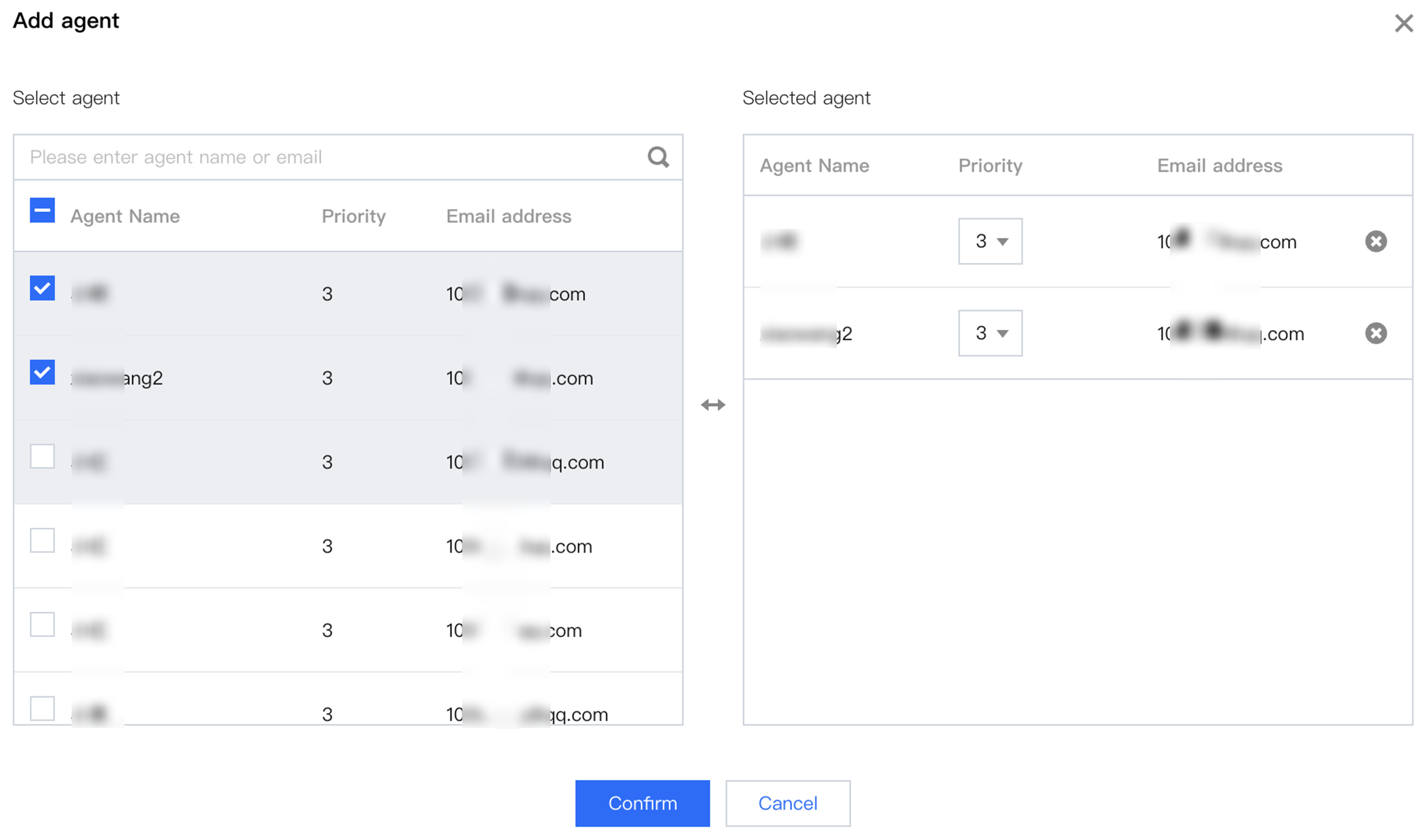
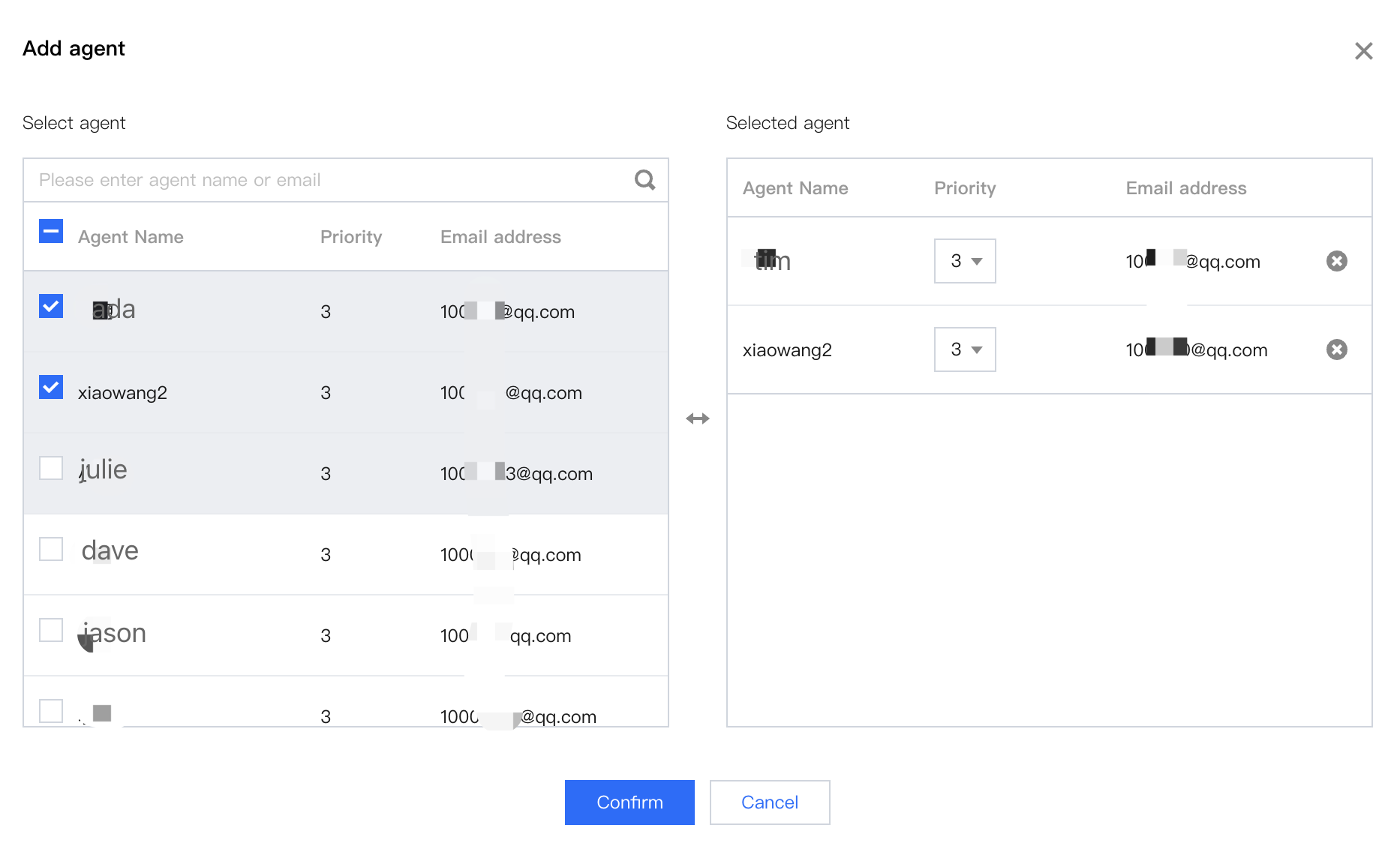
2. Select the agent that you want to add to the skill group from the agent list, and then click Confirm.
Setting Service Priority for Sequential Ringing
If you have configured sequential ringing and the routing capability is set to Allocate according to the priority of the agent in the skill group, the system will allocate the inbound call to the high priority agent. The highest priority is 1 and the lowest is 5 for the agents, with the default being 3.
Deleting Agents from the Skill Group
Click View Group Members in the target skill group, and click Delete in the operation column of the member list to remove the specified agent from the skill group.
Editing and Deleting Skill Groups
Edit skill group: You can change the name of the skill group by clicking Edit in the target skill group.
Delete skill group: You can delete the target skill group by clicking Delete in the target skill group. The skill group cannot be deleted if there are agents in it.