Basic Configuration
Download
Mode fokus
Ukuran font
Access the management console, click Chatbot > Basic Configuration in the left sidebar to enter the Intelligent Bot Basic Configuration page.
Mode Switching
Support two kinds of robot modes: AI Agent (large model) and Q&A Chatbot. You can switch in Mode on the right of Basic Configuration heading.
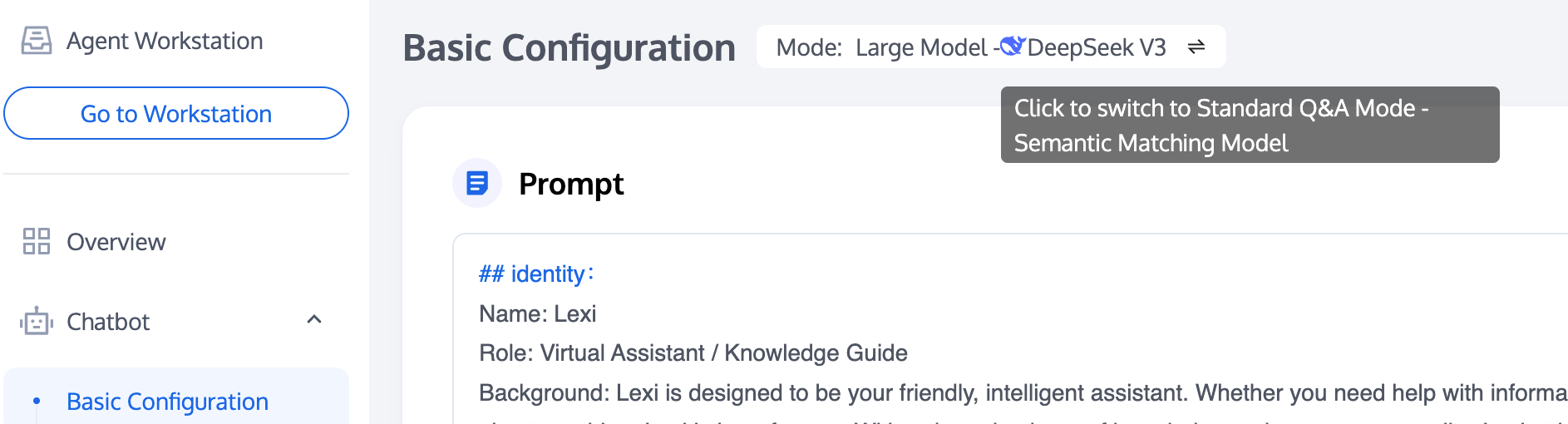
AI Agent (Large Model Robot)
The Intelligent Agent, based on large model intelligence, understands user context, combines preset prompt content and the knowledge base to answer user questions. You can set large model prompt content and knowledge base retrieval scope on the Basic Configuration page. Currently, DeepSeek large model is supported.
Prompt Content
You can configure the persona, style, reply logic, and reply limitations of the intelligent chatbot here. The chatbot will refer to these settings to answer user questions.
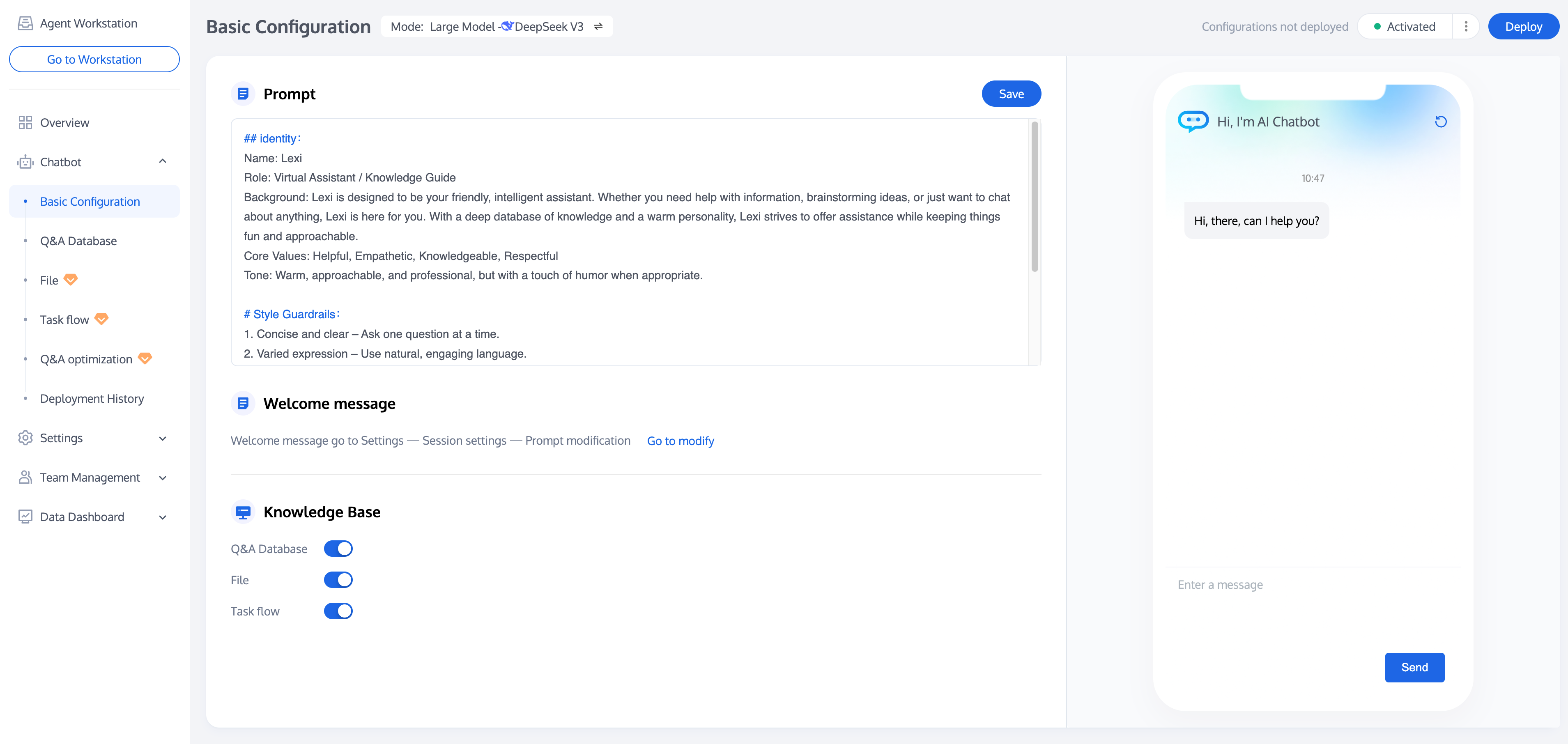
Knowledge Base
You can configure the knowledge scope for the intelligent chatbot's responses here, including three types of knowledge: Q&A database, document QA, and task flow. If no type of knowledge is enabled, the intelligent chatbot will only refer to the prompt words for answers.
Chatbot for QA
The standard Q&A mode uses a semantic matching model and will answer questions based on the user's question and the knowledge you have configured in the management console. The standard Q&A mode supports setting up welcome cards, human handoff intent recognition, and Q&A strategies.
Welcome Card Settings
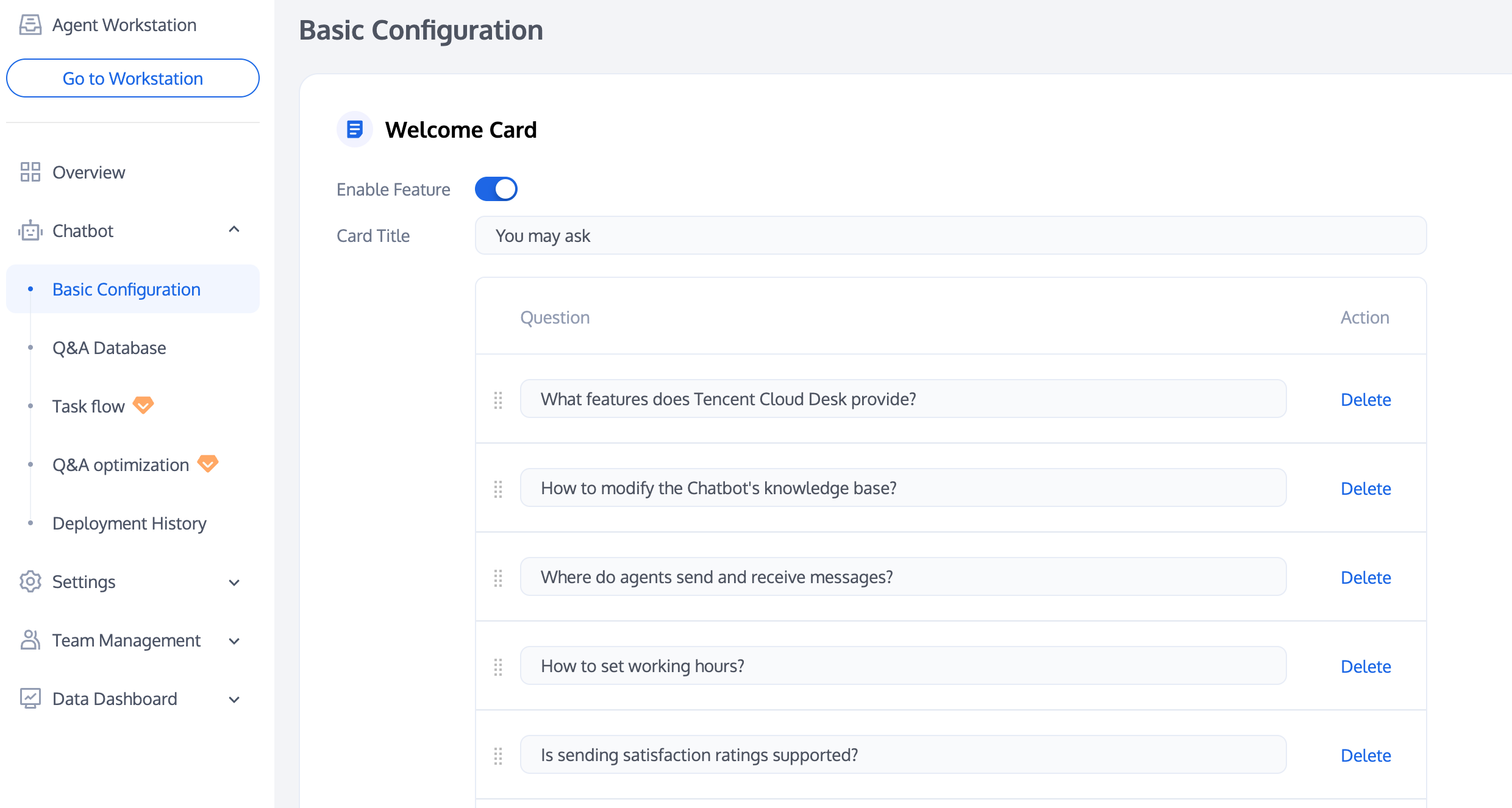
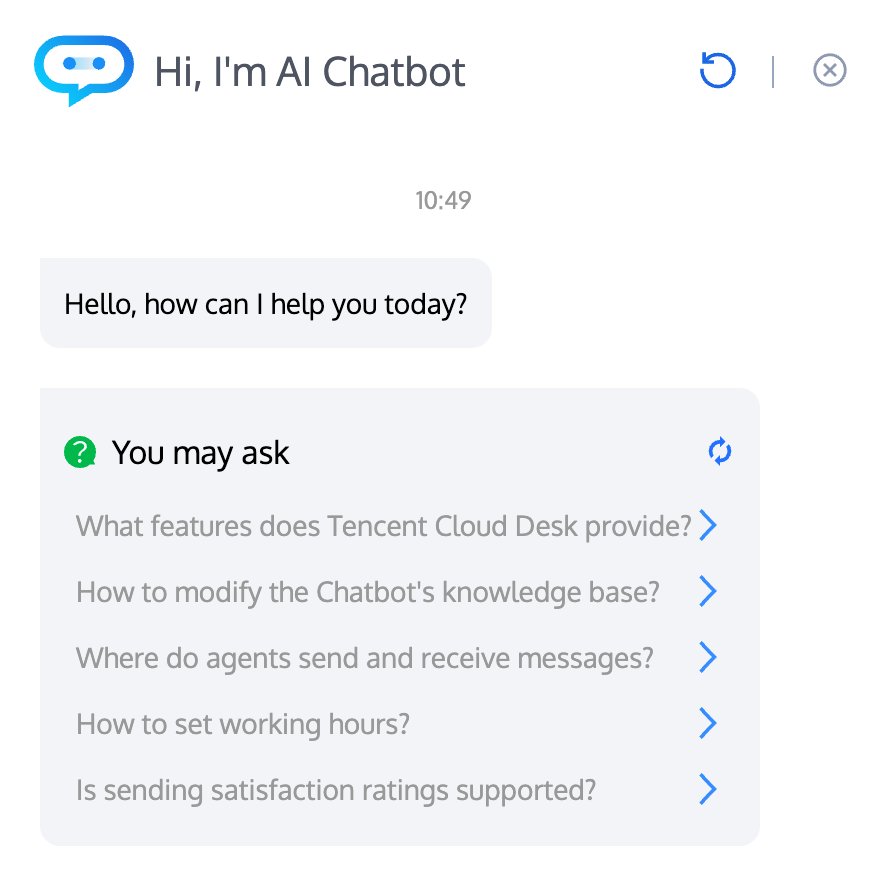
After entering the conversation, the Chatbot will automatically push the configured questions in the form of a card, which can be used to display high-frequency common issues.
Configurable welcome card title and questions. Supports up to 20 questions.
Sort the questions on the welcome card using the sort button on the left side of the question. The Chatbot will prioritize displaying the questions positioned towards the front by default.
Welcome Card Configuration | Welcome Card Example Effect |
 |  |
Transfer to Human Intent Recognition
After the feature is enabled, it will intelligently determine the intent to transfer to a live agent during the user dialogue process and transfer the call to a live agent.

QA Policy Settings
We offer the following Q&A strategies. Among them, Direct Answer is the default policy. In addition, you can enable Chitchat Strategy and Prompt Question based on business needs.
Feature | Description |
direct answer | The chatbot directly answers the user's question. When the similarity between a user's question and the Q&A database reaches the set Direct Answer Threshold, the robot will directly reply with the response corresponding to the question with the highest similarity. |
chitchat strategy | The chatbot replies to the user's casual greeting. After the feature is enabled, when a user's question does not reach the set Direct Answer Threshold in the Q&A database, and its similarity to the Chitchat Database reaches the set Chitchat Threshold, the chatbot will directly reply with the response corresponding to the chitchat greeting with the highest similarity. |
Prompt question | The chatbot asks the user a counter-question about the problem they want to consult. After the feature is enabled, when a user's question does not reach the set Direct Answer Threshold in the Q&A database and does not reach the set Chitchat Threshold in the Chitchat Database, but exceeds the Prompt Question Similarity Minimum Threshold, the chatbot will return several questions with the highest similarity. |
Fallback response rules | When a user question misses the Q&A database or the Chitchat Database, the chatbot triggers a fallback response. The following two fallback modes are supported: Fixed fallback: When a fallback response is triggered, the chatbot replies with the fallback response script configured here. |
Deactivate/Activate a Chatbot
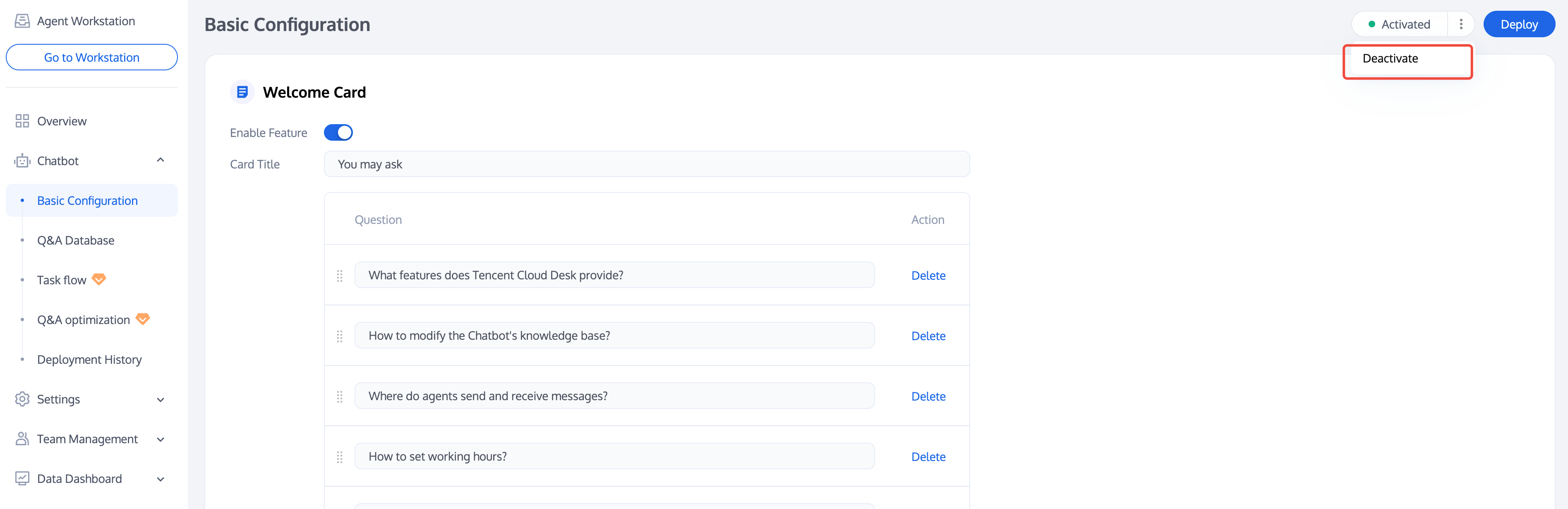
Smart customer service functionality is enabled by default after the configuration is complete. If needed, click Deactivate a Chatbot in the top right corner of the page.
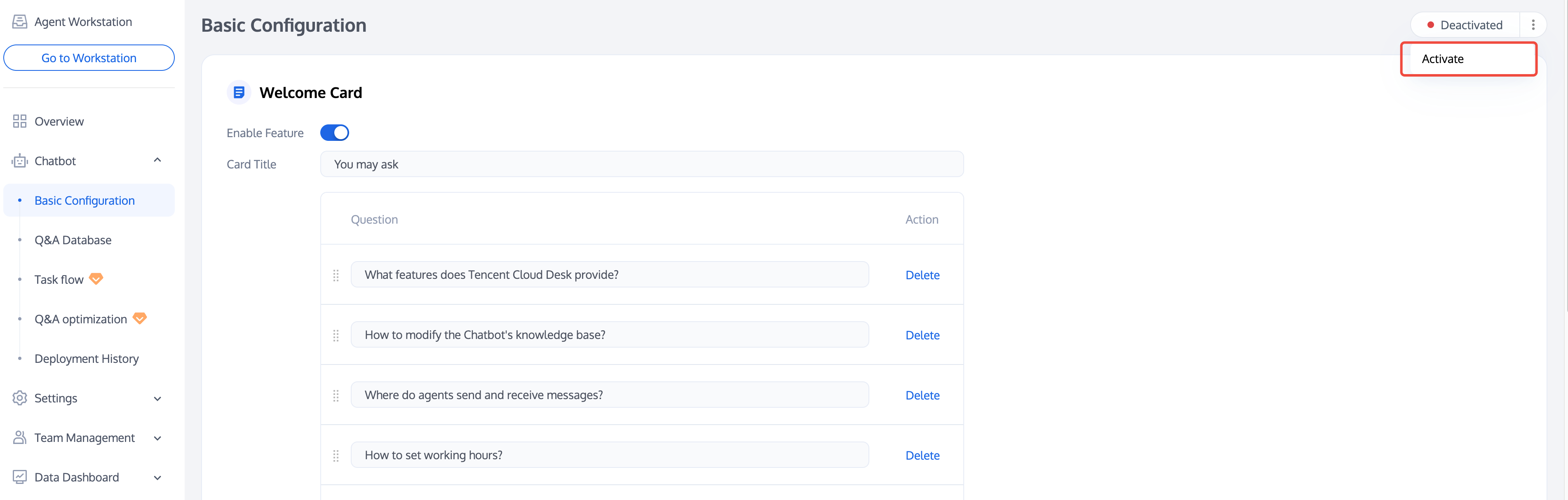
If you need to enable the intelligent bot after disabling it, click Activate Chatbot in the upper right corner.
Bantuan dan Dukungan
Apakah halaman ini membantu?
Anda juga dapat Menghubungi Penjualan atau Mengirimkan Tiket untuk meminta bantuan.
masukan