Node Function
The File Collection Node belongs to Information Collection Nodes, used to collect files at a specific stage in the workflow. When the workflow runs to the "File Collection Node", the system will send a file collection request to the user. At this point, the uploaded file will automatically proceed to the workflow and be undertaken by a specific field. The subsequent workflow can use this field for user's file acquisition.
Directions
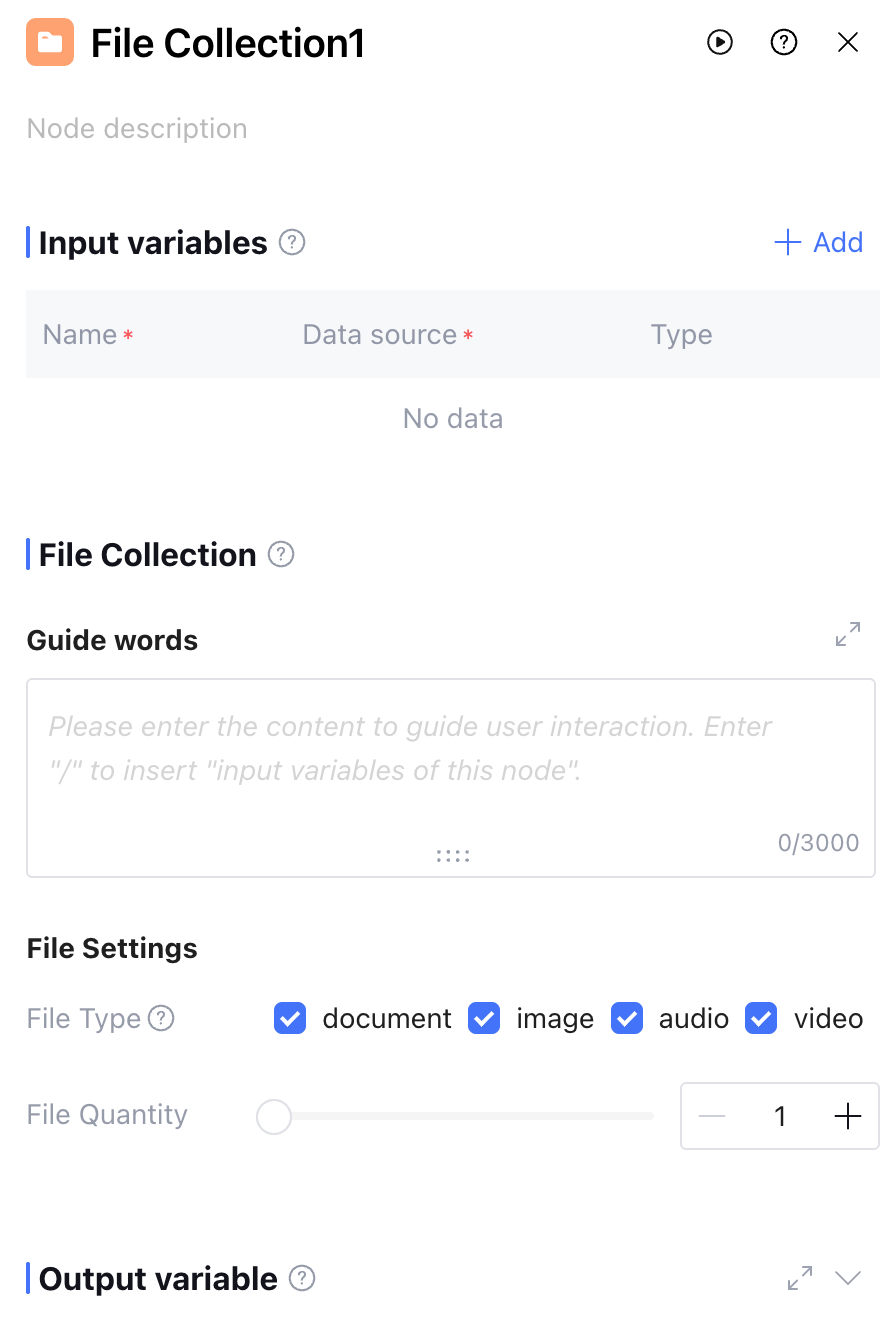
Input Variables
The input variable only takes effect inside the node and cannot be used cross-node. It supports up to 50 input variables to meet multi-input variable scene required. Click on Add and configure as follows to add input variables.
|
Variable Name | The variable name can only contain letters, digits, or underscores, must start with a letter or underscore. Required. |
Description | Description of this variable. Optional |
Data source | The data source of this variable supports two options: "refer" and "input". "Refer" allows selecting output variables from all preceding nodes, while "input" supports manually filling in a fixed value. Required |
Type | The data type of this variable cannot be selected and defaults to the variable type of "refer" or the string type of "input". |
File Collection
Guide words
Support guidance for file collection to ask or prompt user what kind of file to upload. The prompt input box supports referencing the node's input variable by entering "/".
File Settings
Support setting the file type and number of files to collect, including documents, images, audio, and video four types, with a maximum of 20 files.
Note:
In practice, the dialogue asks for file collection up to 3 times. If the expected file is still not collected after 3 attempts, that node moves backward. At this point, the FileList field is empty.
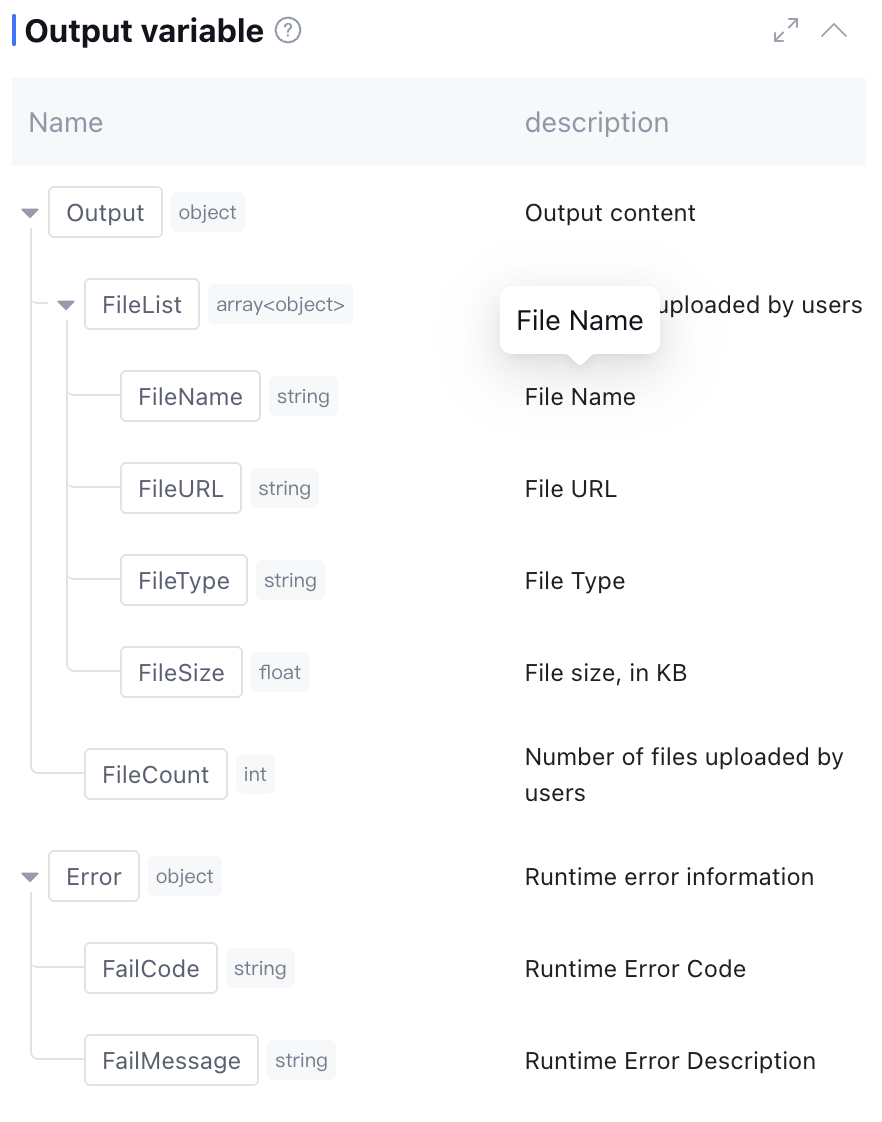
Output Variable
The node contains two output variables: one is the file list collected by the node (including the file name, address, type, and size), and the other is the runtime Error info (data type: object, this field is empty during normal operation). Manually add is not supported.
Node Example
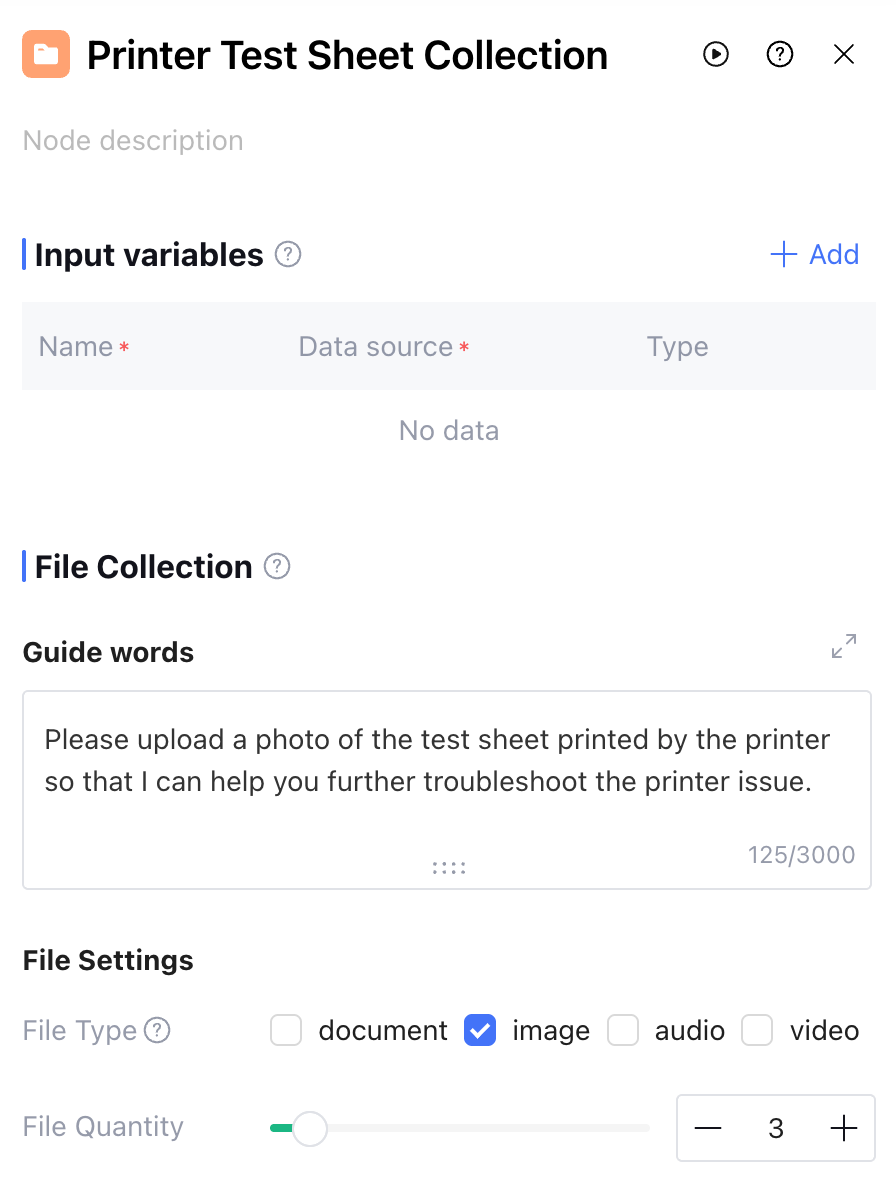
In the printer troubleshooting scenario, collect photos of printer test paper by setting a file collection node, then use the image recognition plug-in to identify the printing paper content, thereby judging whether the printer is functioning normally.
The complete workflow configuration is as follows: