This document shows you how to create, bind, unbind, modify, and delete a standby stream template. A standby stream shows a video or image that becomes active automatically when your live stream is interrupted, helping you improve viewing experience. Once the original stream is recovered, CSS will switch back.
Notes
After creating a template, you need to bind it to a push domain. The configuration takes effect 5-10 minutes after binding.
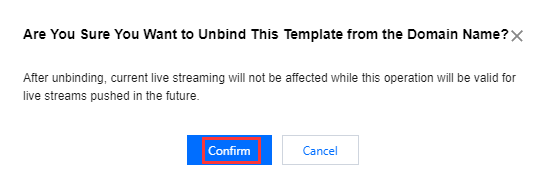
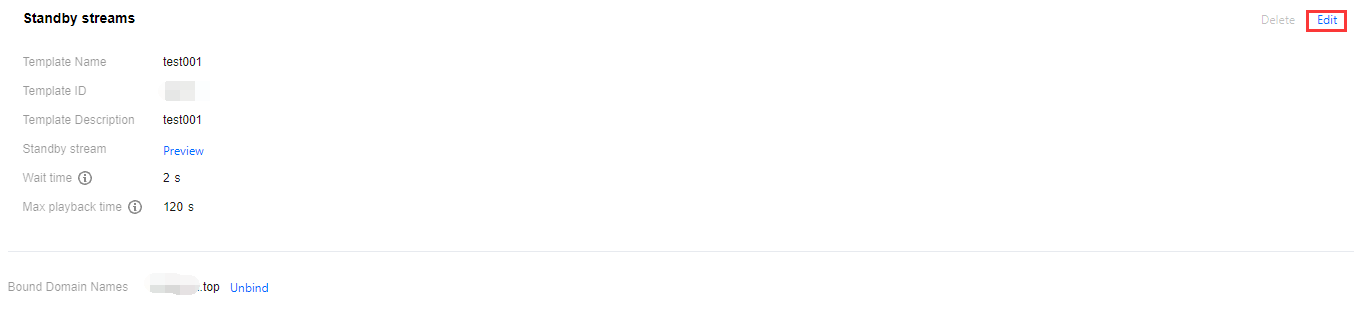
Binding, unbinding, or modifying a template affects only new live streams and not ongoing ones. To make the change apply to ongoing live streams, you need to stop them and push them again.
You can create up to 50 standby stream templates.
The system charges based on the standby stream duration. To avoid unnecessary costs, we recommend setting the "Max Playback Time" according to your actual needs. To query the list of streams currently in standby mode, you can call the Query Standby Stream List API. To stop a standby stream, you can call the Stop Standby Stream API.
1. Log in to the CSS console. Select Feature Configuration > Standby Streams on the left sidebar.
2. Click Create template.
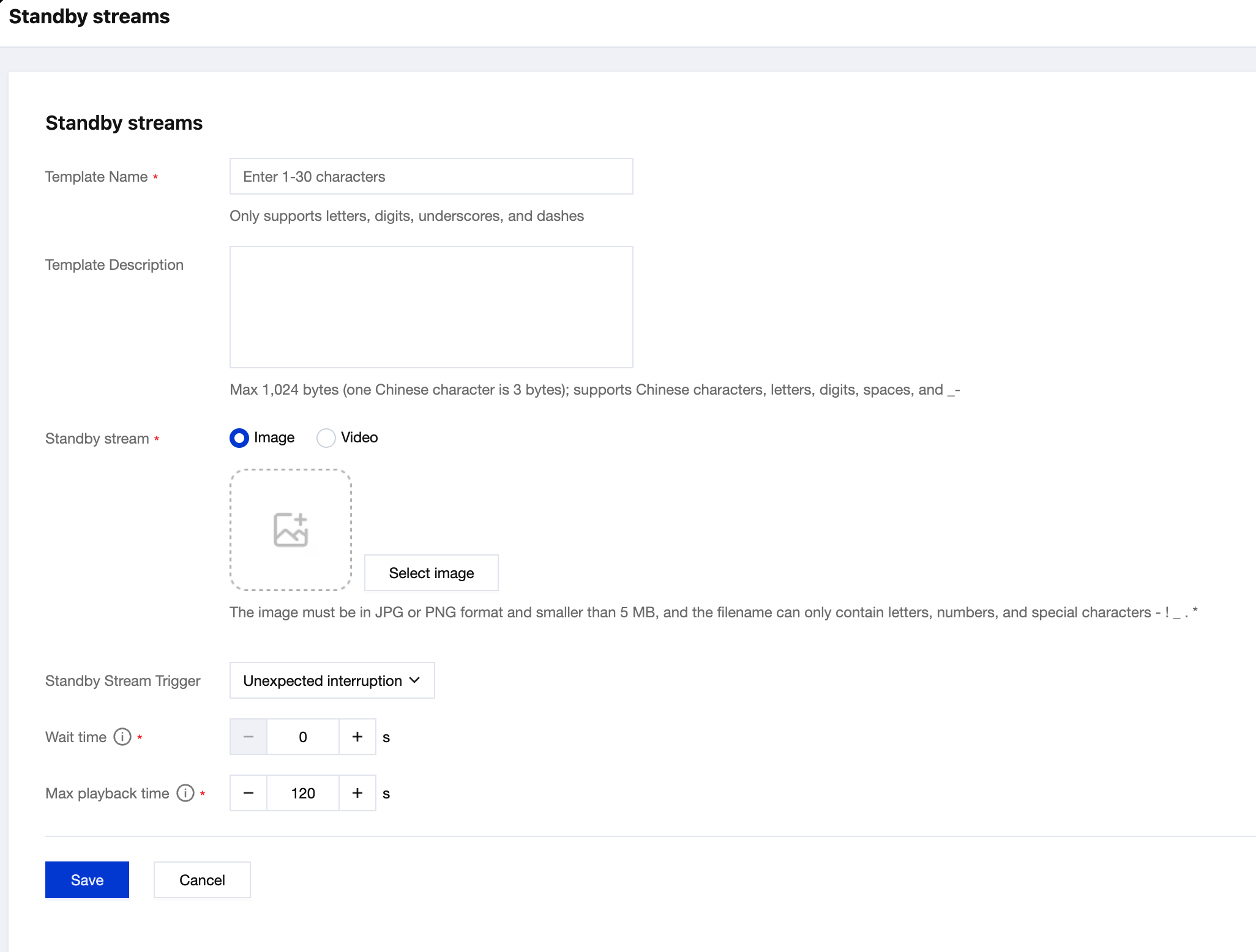
3. Enter a template name, which can be up to 30 characters long and can contain Chinese characters, letters, numbers, underscores (_), and hyphens (-).
4. Fill in the template description, which only supports Chinese, English, numbers, spaces, underscores, and hyphens, not exceeding 1024 bytes (Note: Chinese characters are counted as 3 bytes each).
5. Select the stream type, which can be image or video.
You can choose to upload images in JPG or PNG format, with a file size less than 5MB. The uploaded image file names only support: English, numbers, and the symbols - ! _ . *
You can enter a video URL, which supports FLV and MP4 format audio and video files. The required audio encoding format is AAC.
6. Standby stream trigger can be set to either "Unexpected interruption" or "Active or unexpected interruption".
7. Set the stream interruption waiting time (the waiting duration after the stream interruption before playing the standby content) to a value between 0 and 6 seconds.
8. Set the maximum standby content duration, with a default value of 120 seconds. This is the maximum playback duration for the standby content. If the standby content is shorter than this duration, it will be looped. The value cannot be greater than 1,000,000.
9. Click Save.
Binding a Domain Name
1. Log in to the CSS console and select Feature Configuration > Standby Streams on the left sidebar.
2. You can bind a domain to a template in one of two ways:
Bind a domain to an existing template: Click Bind Domain Name in the top left.
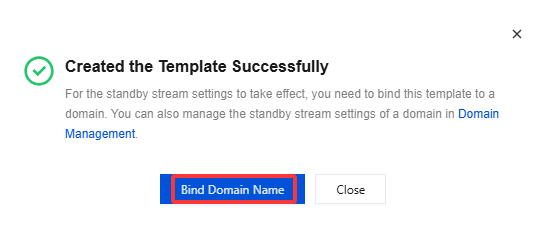
Bind a domain after creating a template: After creating a standby stream template, click Bind Domain Name in the dialog box that pops up.
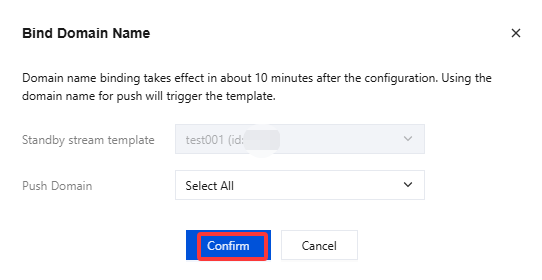
3. In the pop-up window, select a standby stream template and a push domain name (Multiple push domain names can be bound simultaneously) and then click Confirm.
Unbinding a Domain Name
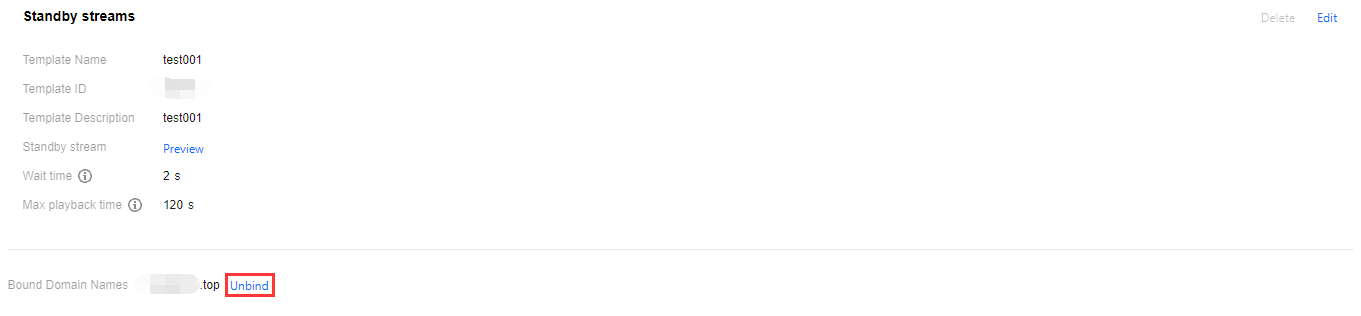
1. Log in to the CSS console and select Feature Configuration > Standby Streams on the left sidebar.