Backing up Data
Download
Mode fokus
Ukuran font
This document describes how to set backup parameters and download backup files via the TencentDB for PostgreSQL console.
Operation Scenarios
Currently, TencentDB for PostgreSQL High Availability Edition only supports physical backup:
Full backup: once a day at 01:00.
Incremental backup: for xlog files, backup will be performed once every 15 minutes or when the number of files reaches 60.
Data file retention period:Range: 7 to 1830 days.
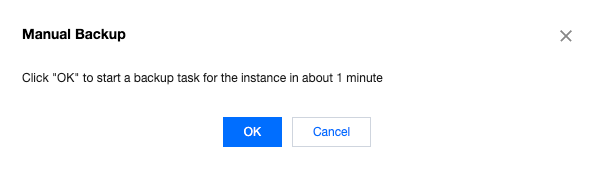
Manual Backup: If you initiate a backup task manually, the task will start within one minute after you click OK.
Directions
1. Log in to the TencentDB for PostgreSQL Console and click an Instance ID to enter the instance details page.
2. The system will initiate automatic backups by default. For detailed information, please refer to the Automatic Backup Settings.
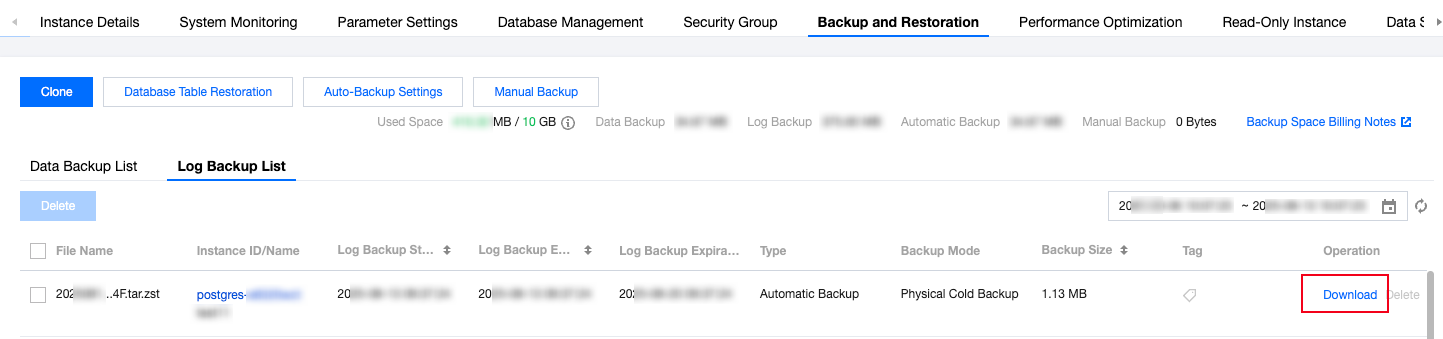
3. Backup data is available for download. On the instance management page, navigate to the Backup and Restoration section, then select either the Data Backup List or the Log Backup List. Choose the backup you wish to download and click Download in the Operation column.
Note:
Backup data in the Data Backup List is full backup, while that in the Log Backup List is incremental backup.
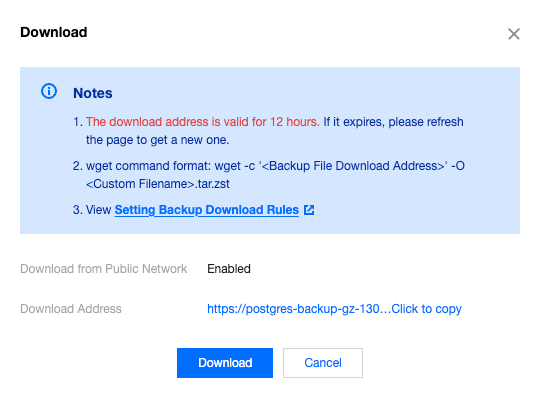
4. In the pop-up window, you can choose a VPC address or public network address to download the backup file.
Note:
To ensure data security, an address will be valid for 12 hours. After it expires, please refresh the page to get a new address. Please access a VPC address in a VPC.
5. In addition to automatic system backups, users can initiate manual backup tasks on demand. Simply click the Manual Backup button on the Backup and Restoration page to start a manual backup.
Note:
You can not initiate a manual backup during the execution of the routine auto backup tasks.
Manual backups can be deleted from the backup list to free up backup space, avoiding space waste and occupancy. If not manually deleted, they will be kept forever.

6. In the Manual Backup dialog, click OK.
Note:
The creation time of a manual backup relates to the actual capacity of the instance. Larger capacity results in longer creation time.
FAQs
Can backups exceeding the retention period still be downloaded or restored?
Expired automatic backup sets will be automatically deleted and cannot be downloaded or restored. You can manually backup instance data in the console, and manual backups are always saved.
Can backups be manually deleted?
Automatic backups within 7 days cannot be deleted. Those beyond 7 days can be deleted as needed, and the system will also delete automatic backups based on their corresponding retention durations. Manual backups can be manually deleted from the backup list; otherwise, they will be retained permanently.
Can data and log backups be disabled?
No, they cannot be disabled. However, you can lower the backup frequency and delete unnecessary to reduce the backup space usage.
How can I reduce backup space overhead?
Delete unnecessary manual backup data.
Lower the automatic backup frequency for non-core service data (at least twice a week).
Bantuan dan Dukungan
Apakah halaman ini membantu?
Anda juga dapat Menghubungi Penjualan atau Mengirimkan Tiket untuk meminta bantuan.
masukan