tencent cloud

TencentDB for PostgreSQL

Release Notes and Announcements
Release Notes
Product Announcements
Product Introduction
Overview
Features
Strengths
Scenarios
Information Security
Regions and AZs
Product Feature List
Large version lifecycle description
MSSQL Compatible Version
Billing
Billing Overview
Instance Type and Specification
Purchase Methods
Refund
Overdue Payments
Backup Space Billing
Database Audit Billing Overview
Getting Started
Creating TencentDB for PostgreSQL Instance
Connecting to TencentDB for PostgreSQL Instance
Managing TencentDB for PostgreSQL Instance
Importing Data
Migrating Data with DTS
Kernel Version Introduction
Kernel Version Overview
Kernel Version Release Notes
Viewing Kernel Version
Proprietary Kernel Features
Database Audit
Audit Service Description
Activating Audit Service
View Audit Logs
Modify audit services
Audit Performance Description
User Guide
Instance Management
Upgrading Instance
CPU Elastic Scaling
Read-Only Instance
Account Management
Database Management
Parameter Management
Log Management and Analysis
Backup and Restoration
Data Migration
Extension Management
Network Management
Access Management
Data Security
Tenant and Resource Isolation
Security Groups
Monitoring and Alarms
Tag
AI Practice
Using the Tencentdb_ai Plug-In to Call Large Models
Building Ai Applications with the Tencentdb Ai Plug-In
Combining Supabase to Quickly Build Backend Service Based on TencentDB for PostgreSQL
Use Cases
postgres_fdw Extension for Cross-database Access
Automatically Creating Partition in PostgreSQL
Searching in High Numbers of Tags Based on pg_roaringbitmap
Querying People Nearby with One SQL Statement
Configuring TencentDB for PostgreSQL as GitLab's External Data Source
Supporting Tiered Storage Based on cos_fdw Extension
Implement Read/Write Separation via pgpool
Implementing Slow SQL Analysis Using the Auto_explain Plugin
Using pglogical for Logical Replication
Using Debezium to Collect PostgreSQL Data
Set Up a Remote Disaster Recovery Environment for PostgreSQL Locally on CVM
Read-Only Instance and Read-Only Group Practical Tutorial
How to Use SCF for Scheduled Database Operations
Fix Table Bloat
Performance White Paper
Test Methods
Test Results
API Documentation
History
Introduction
API Category
Making API Requests
Instance APIs
Read-Only Instance APIs
Backup and Recovery APIs
Parameter Management APIs
Security Group APIs
Performance Optimization APIs
Account APIs
Specification APIs
Network APIs
Data Types
Error Codes
FAQs
Service Agreement
Service Level Agreement
Terms of Service
Glossary
Contact Us

Deleting Backup

PDF
Mode fokus
Ukuran font
Terakhir diperbarui: 2025-08-14 16:41:45
This document will describe how to delete backups and how to modify the expiration time of backups.
Note:
To ensure the continuity of data recovery within 7 days, automatic backups and log backup sets from the past 7 days are undeletable.
Manually backed up data, automatic backups, and log backup sets that exist for more than 7 days can be deleted. Data cannot be recovered after deletion.
Note that after automatic backups and log backup sets are deleted, the continuity between backup data is compromised, which can cause the inability to restore to a specified time point, i.e., time point recovery (PITR) cannot be performed.

Directions

1. Log in to the TencentDB for PostgreSQL console, select a region, and click an Instance ID to access the instance management page.
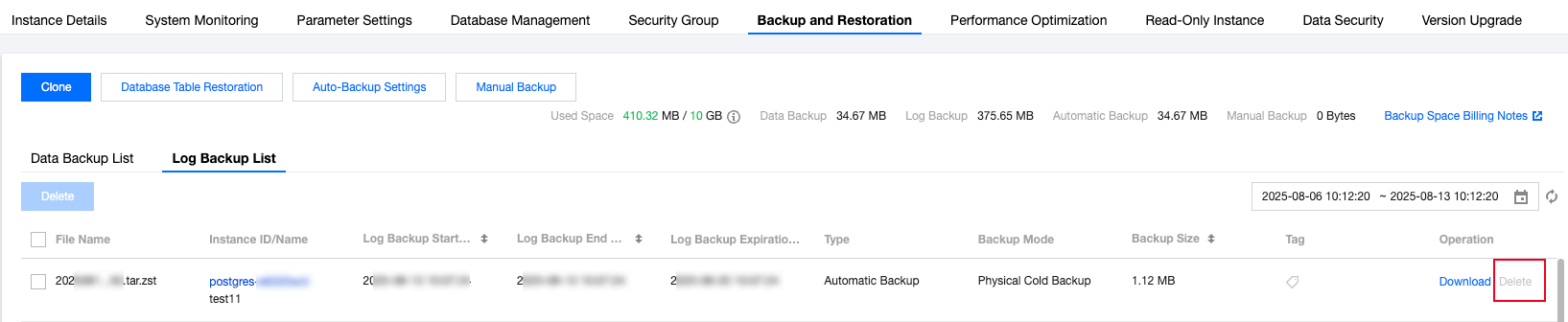
2. Navigate to the Backup and Restoration page, and in the Data Backup List or Log Backup List, locate the Operation column and click Delete.

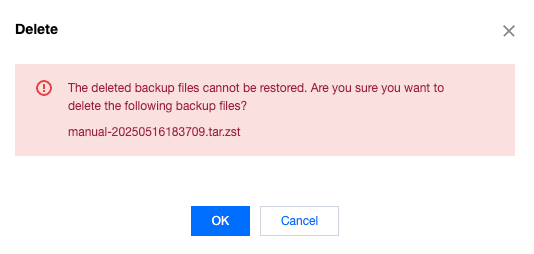
3. A pop-up notification will display the backup file name. The file suffix indicates the time point when the backup was generated. Based on this time, you can determine the backup file to be deleted and click OK.


Set Backup Expiration Time

The system sets the backup expiration time. Backups older than this time will be automatically deleted and cannot be downloaded or restored. The system default value is 7 days. You can choose one of the following methods to modify the expiration time:

Modify Separately

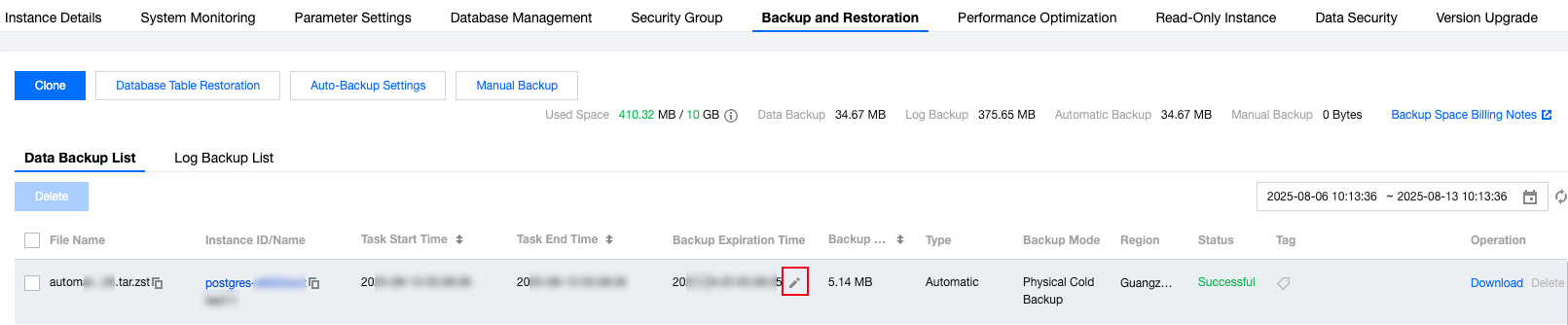
If you only want to change the duration of a specific backup file, you can click on the

of the backup expiration time on the Backup and Restoration tab in instance management.

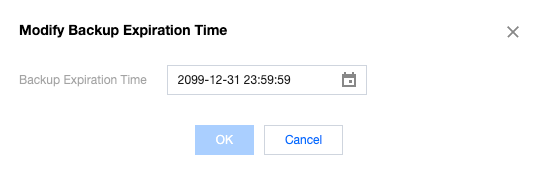
In the pop-up dialog box, select the backup expiration time and click OK.


Modification of Retention Time Configuration

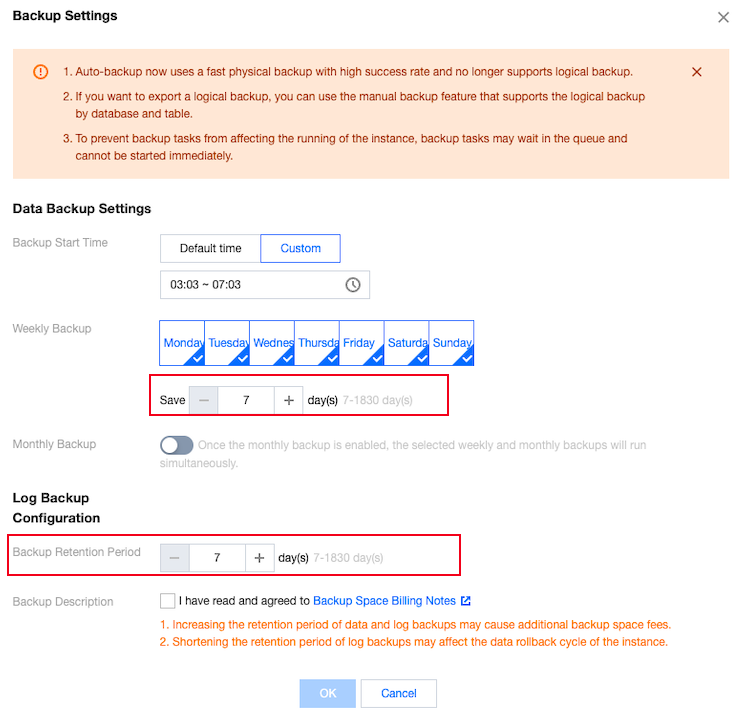
If you wish to uniformly modify the duration of backup files' existence, you can click Auto-Backup Settings on the Backup and Restoration tab in instance management. You can modify the backup retention days, with a supported range of 3-1830 days. Backup files generated after the configuration modification will adopt the new retention time.
Note:
Modification of retention time does not affect generated backup files. If you need to modify the retention time of generated backup files, please see Modify Separately.

Additionally, if you wish to permanently save the backup file, you can directly click Manual Backup to back up the current database data. Data from manual backups will be continuously stored.
Bantuan dan Dukungan

Apakah halaman ini membantu?

masukan