tencent cloud

Data Transfer Service

Release Notes and Announcements
Release Notes
Announcements
Product Introduction
Overview
Data Migration
Data Sync
Data Subscription (Kafka Edition)
Strengths
Supported Regions
Specification Description
Purchase Guide
Billing Overview
Configuration Change Description
Payment Overdue
Refund
Getting Started
Data Migration Guide
Data Sync Guide
Data Subscription Guide (Kafka Edition)
Preparations
Business Evaluation
Network Preparation
Adding DTS IP Addresses to the Allowlist of the Corresponding Databases
DTS Service Permission Preparation
Database and Permission Preparation
Configuring Binlog in Self-Built MySQL
Data Migration
Databases Supported by Data Migration
Cross-Account TencentDB Instance Migration
Migration to MySQL Series
Migrating to PostgreSQL
Migrating to MongoDB
Migrating to SQL Server
Migrating to Tencent Cloud Distributed Cache
Task Management
Data Sync
Databases Supported by Data Sync
Cross-Account TencentDB Instance Sync
Sync to MySQL series
Synchronize to PostgreSQL
Synchronization to MongoDB
Synchronize to Kafka
Task Management
Data Subscription (Kafka Edition)
Databases Supported by Data Subscription
MySQL series Data Subscription
Data Subscription for TDSQL PostgreSQL
MongoDB Data Subscription
Task Management
Consumption Management
Fix for Verification Failure
Check Item Overview
Cutover Description
Monitoring and Alarms
Supported Monitoring Indicators
Supported Events
Configuring Metric Alarms and Event Alarms via the Console
Configuring Indicator Monitoring and Event Alarm by APIs
Ops Management
Configuring Maintenance Time
Task Status Change Description
Practical Tutorial
Synchronizing Local Database to the Cloud
Creating Two-Way Sync Data Structure
Creating Many-to-One Sync Data Structure
Creating Multi-Site Active-Active IDC Architecture
Selecting Data Sync Conflict Resolution Policy
Using CLB as Proxy for Cross-Account Database Migration
Migrating Self-Built Databases to Tencent Cloud Databases via CCN
Best Practices for DTS Performance Tuning
FAQs
Data Migration
Data Sync
FAQs for Data Subscription Kafka Edition
Regular Expressions for Subscription
Error Handling
Common Errors
Failed Connectivity Test
Failed or Alarmed Check Item
Inability to Select Subnet During CCN Access
Slow or Stuck Migration
Data Sync Delay
High Data Subscription Delay
Data Consumption Exception
API Documentation
History
Introduction
API Category
Making API Requests
(NewDTS) Data Migration APIs
Data Sync APIs
Data Consistency Check APIs
(NewDTS) Data Subscription APIs
Data Types
Error Codes
DTS API 2018-03-30
Service Agreement
Service Level Agreements

Data Sync Guide

PDF
Mode fokus
Ukuran font
Terakhir diperbarui: 2022-09-02 15:04:25

References

Overall process

Serial Number
Operation Process
Description
1
Prepare
Before creating a data sync task, you need to prepare the source and target databases and a network environment as instructed in Overview to meet the environment requirements.
2
Create a data sync task
This section provides only a basic sample sync task. For more scenarios, see Data Sync from MySQL to TencentDB for MySQL.
3
View the sync progress or perform other operations
You can view the overall sync progress and perform operations such as verification and retry as instructed in Viewing Task.
You can view various data sync metrics as instructed in Viewing Monitoring Metric.
4
Compare the sync items and stop the task
After the sync task is done, check whether the source and target database have the same content and manually stop the sync task as instructed in Stopping Task.

Sample data sync task

1. Log in to the data sync purchase page, select appropriate configuration items, and click Buy Now.
2. After successful purchase, return to the data sync list, and you can see the newly created data sync task. You need to configure it before you can use it.
3. In the data sync list, click Configure in the Operation column to enter the sync task configuration page.


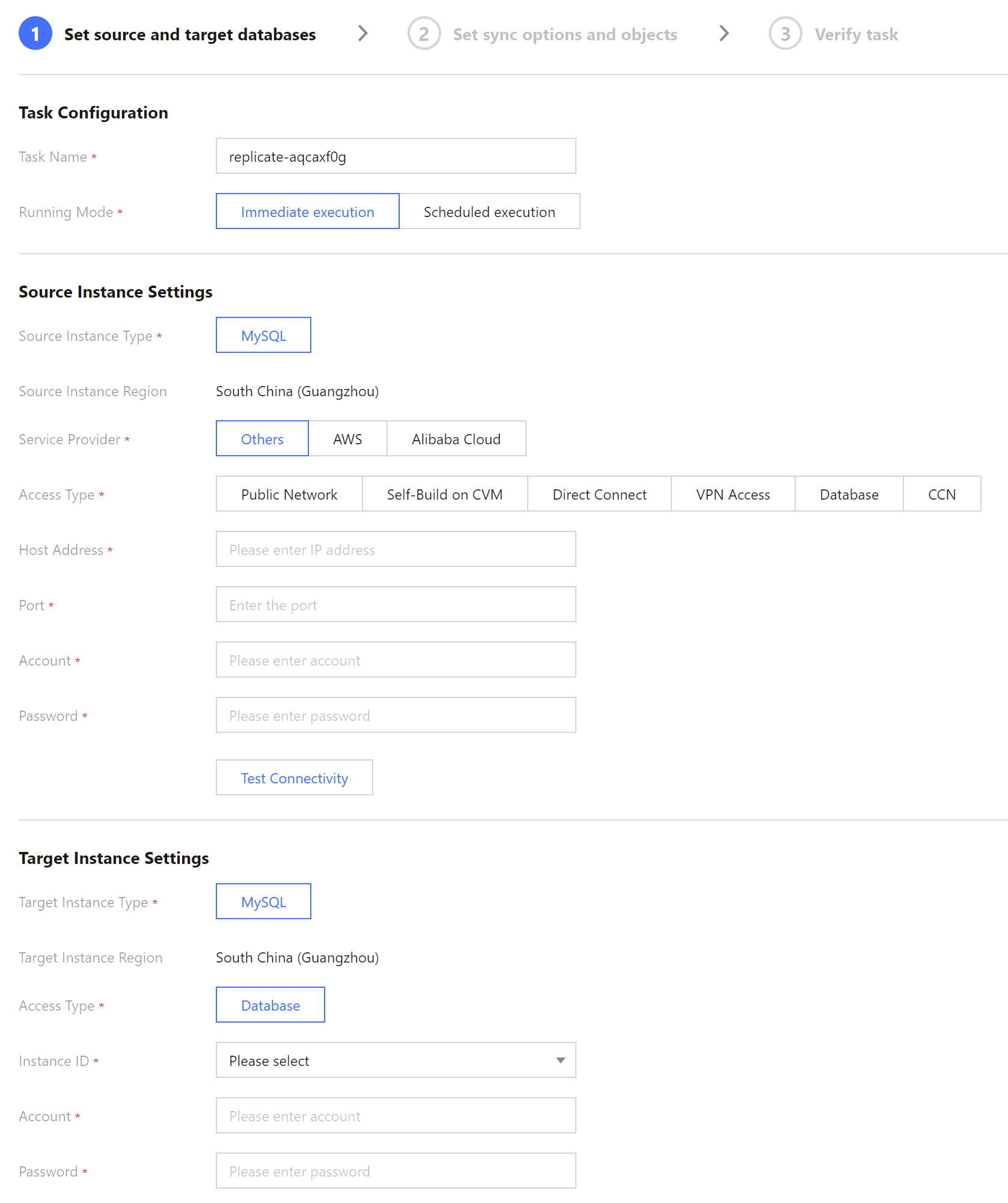
4. On the sync task configuration page, configure the source and target instances and their accounts and passwords, test the connectivity, and click Next.


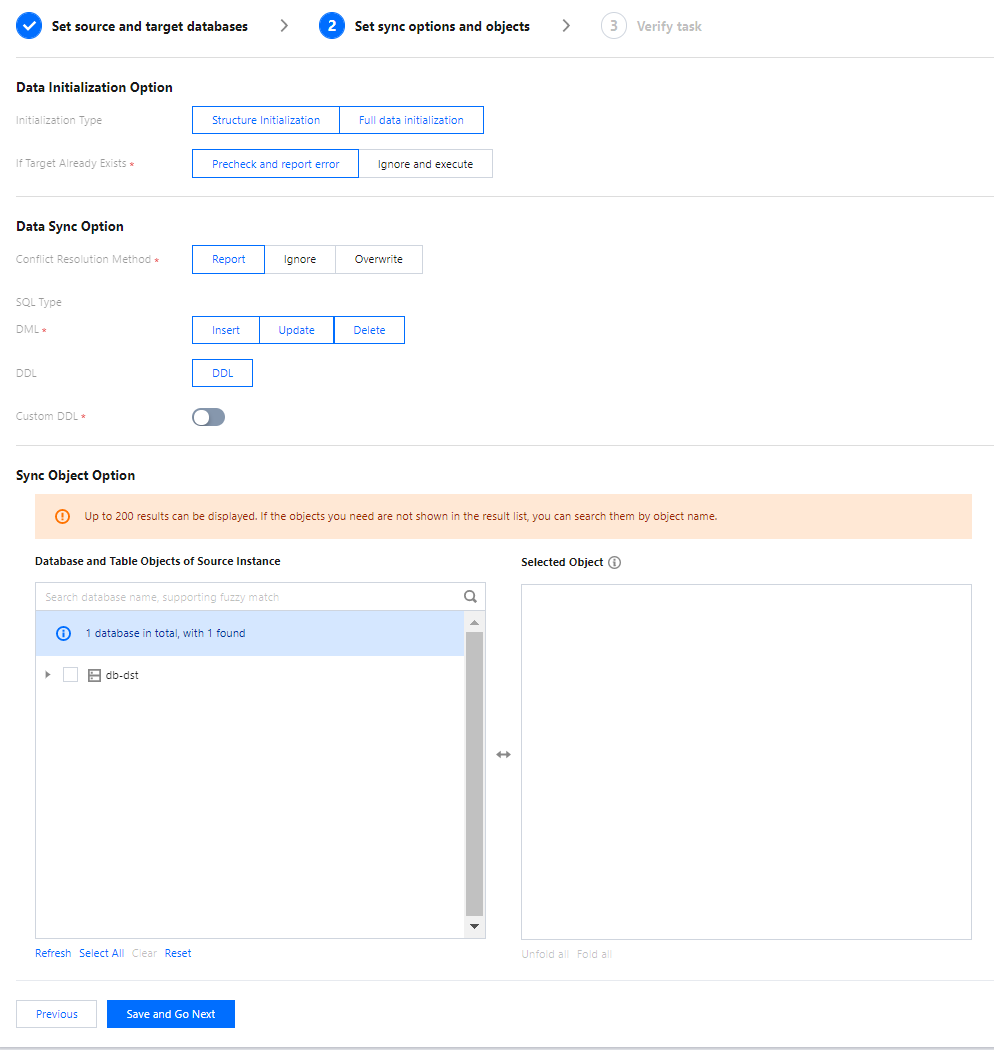
5. On the Set sync options and objects page, set the data initialization, data sync, and sync object options and click Save and Go Next. able renaming: If needed, hover over the right side of a selected object, and the Edit icon will be displayed. Click it and then enter a new name in the pop-up window.


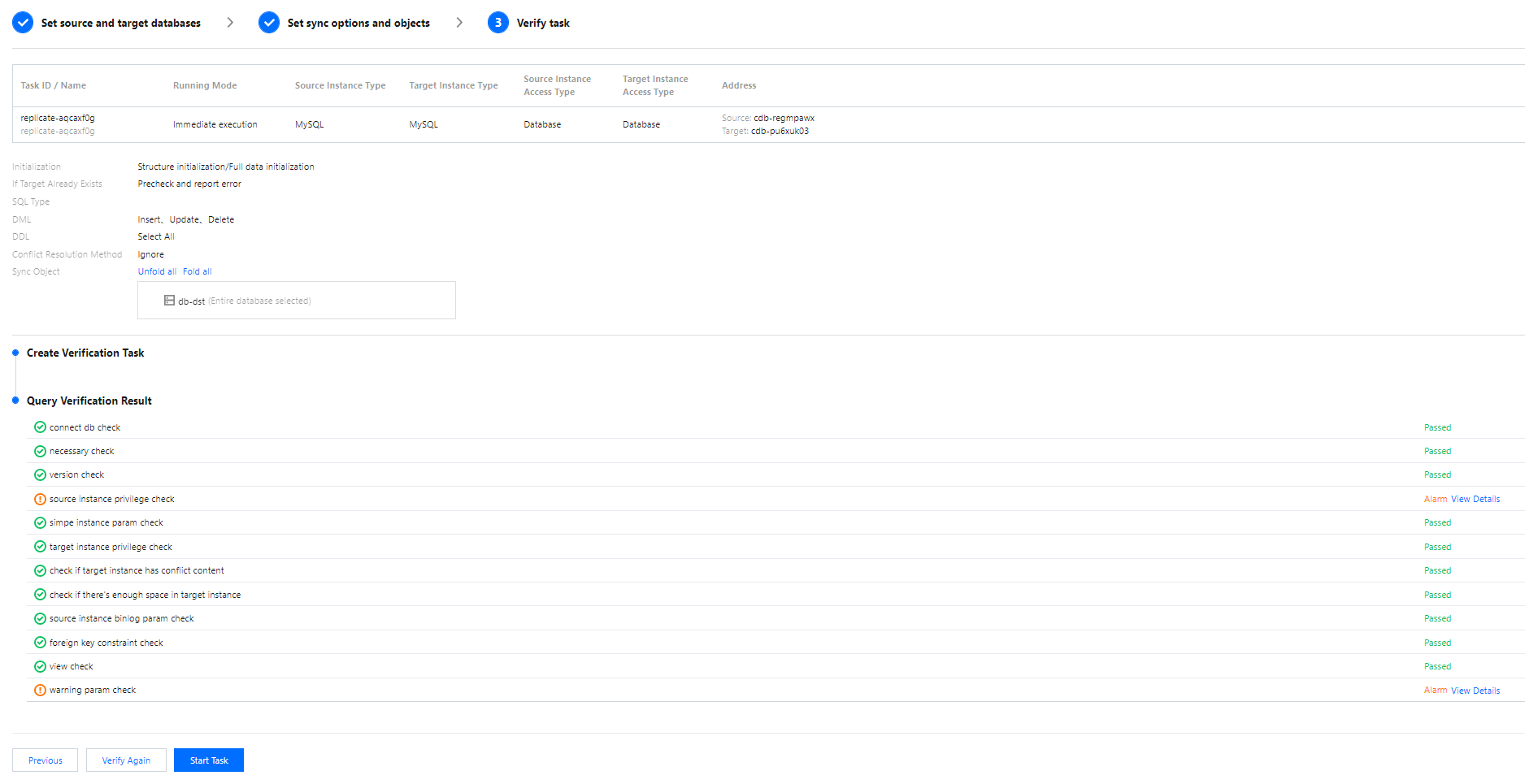
6. On the Verify task page, complete the verification. After all check items are passed, click Start Task.
Note:
If an alarm is displayed in the verification result, it will not affect the task start, but we recommend you click View Details to get the suggestions for adjustment.

7. Return to the data sync task list, and you can see that the task has entered the Running status.
Note:
You can click More > Stop in the Operation column to stop a sync task. You need to ensure that data sync has been completed before stopping the task.

Bantuan dan Dukungan

Apakah halaman ini membantu?

masukan