Budget Management
ダウンロード
フォーカスモード
フォントサイズ
Overview
The budget management feature lets you configure, track, and set budget alerts (Expense Alert) to help control your costs.
Create budget
1. Log in to the Tencent Cloud with your customer account and enter the Billing Center.
2. On the left sidebar, select Cost Management > Budget Management to enter the budget management page.
3. Click New to create a budget.
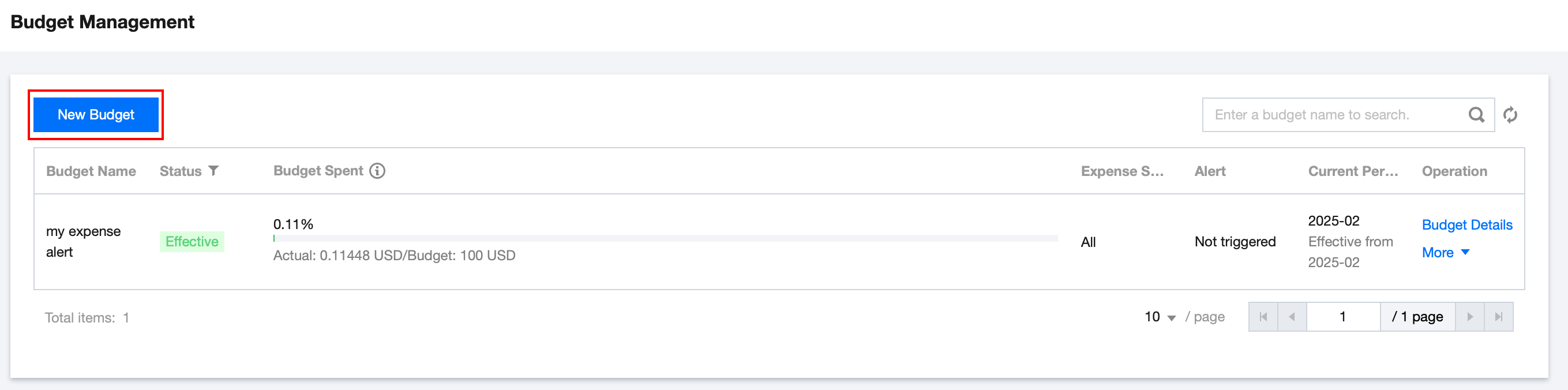
4. In the Edit budget window, configure the following:
Basic Information: Enter a name for the budget, which will be displayed in the budget list.
Budgeting Information:
Budget Period: Support monthly and daily period for the budget.
Effective Time: Support effective indefinitely, it will continue being effective with no end time defined.
Start Time: Budget will be effective.
Budgeting Method: Support fixed method.
Monthly/Daily Budget Amount: Enter the amount of cost you plan to incur during each budget period. That is total cost of the bill.
Expense Scope: Support all expenses of all dimensions.
Advanced Settings: Spend type support total amount (that is total cost of the bill).
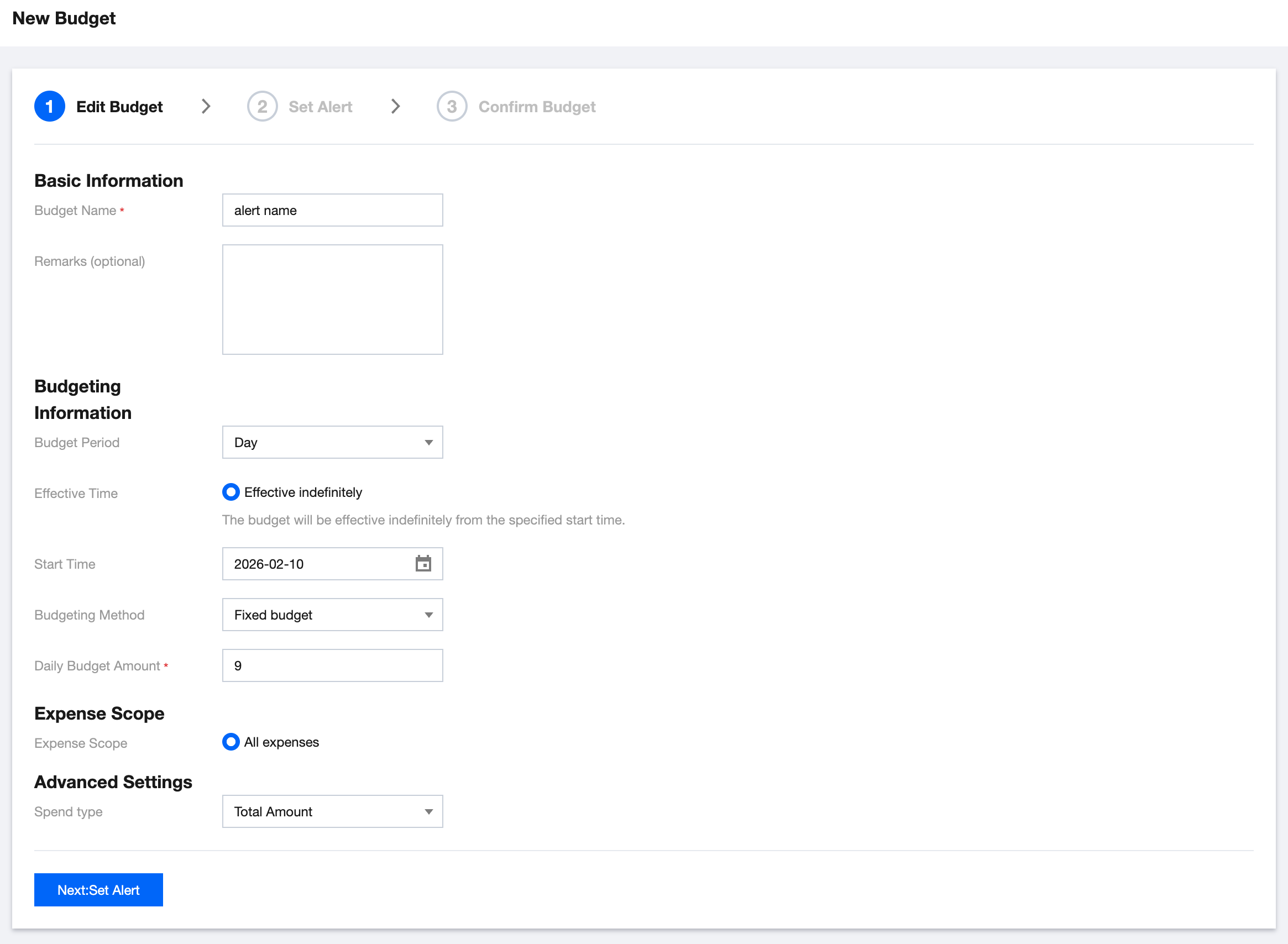
5. After filling in all the information, click Next: Set Alert to configure alerts.
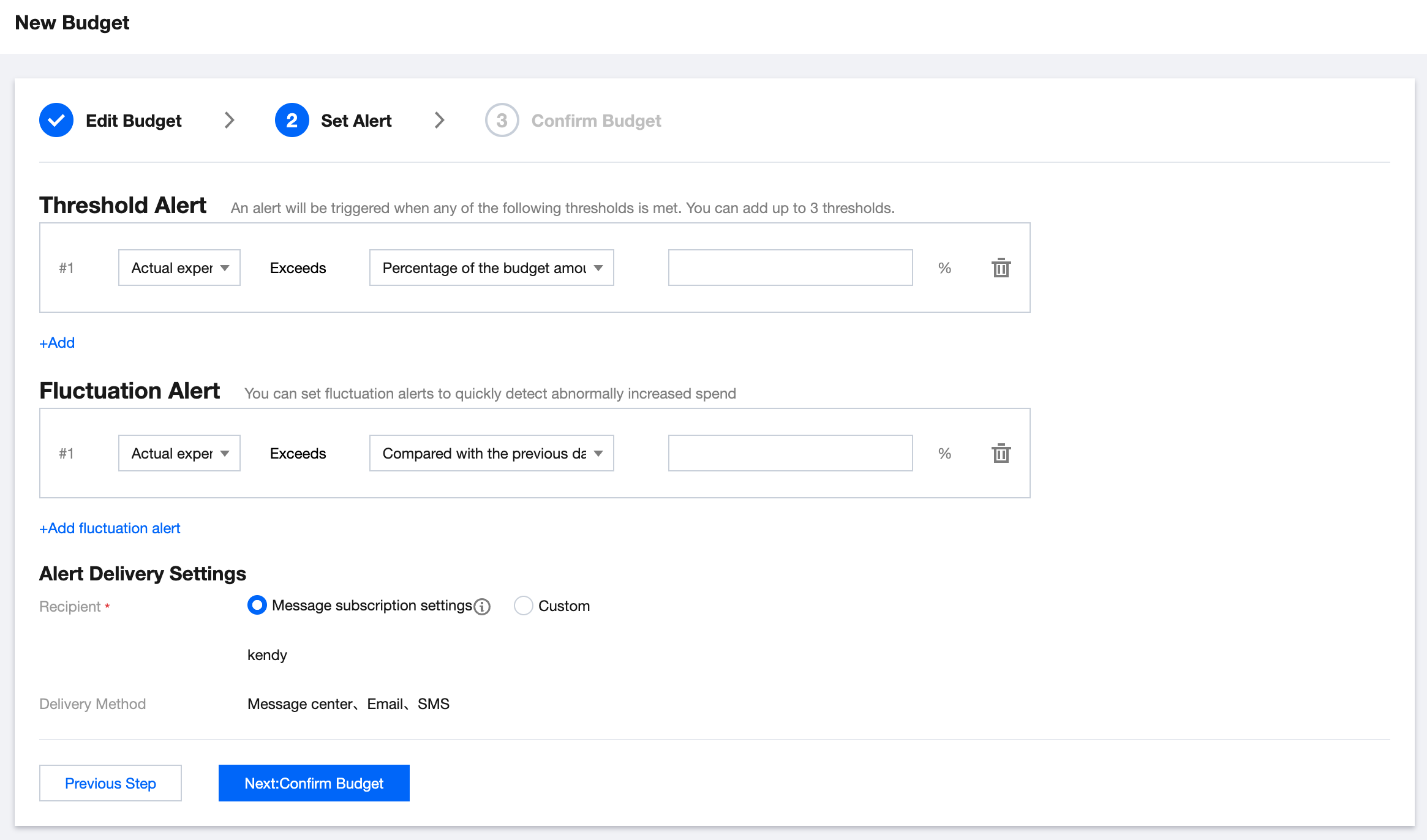
Threshold Alert: An alert is triggered if any one of the configured threshold conditions is met within the budget period. You can add up to 3 thresholds.
Percentage of budgeted amount: An alert is triggered when actual expenses reach or exceed the budget amount multiplied by the set percentage.
Fixed value: An alert is triggered when actual expenses reach or exceed the set fixed amount.
Note:
The same alert will only be triggered once per monitoring cycle.
If multiple alerts are triggered simultaneously, the alerts will be combined into a single alert notification.
If you edit a threshold amount after an alert has been triggered, the alert will be resent the next time the system checks the threshold status.
Fluctuation Alert: Regardless of the budget period, alerts are triggered when expenses show an abnormal increase compared to the previous period, meeting the configured fluctuation criteria. You can add up to 3 fluctuation criteria.
Compared with the previous day: An alert is triggered when the actual expenses for the current day increase by the specified percentage compared to the previous day.
Compared with the previous month: An alert is triggered when the actual expenses for the current month increase by the specified percentage compared to the previous month.
Alert Delivery Settings: Set recipient and delivery method as required.
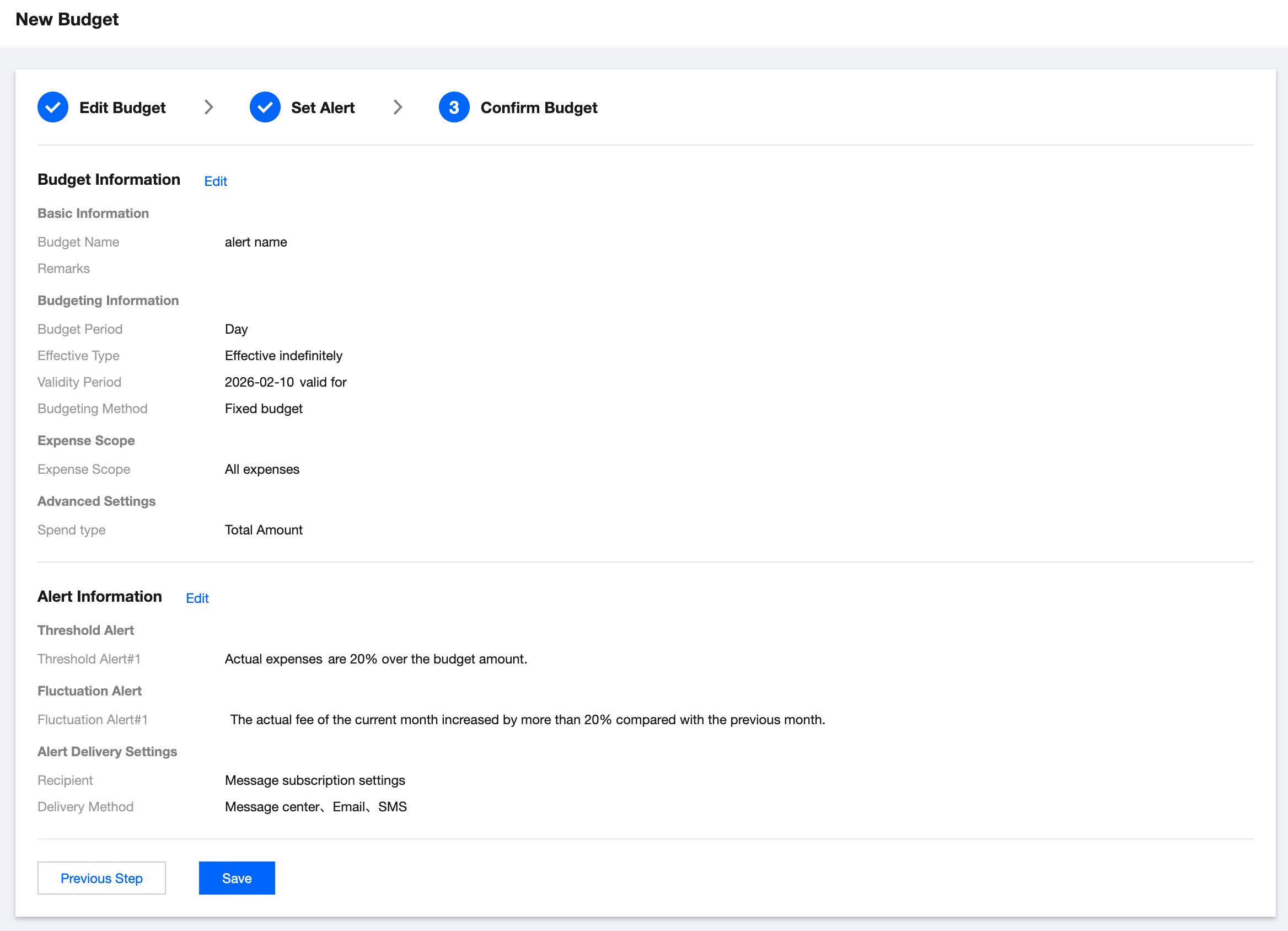
6. Click Next:Confirm Budget to confirm the budget. Review the budget information, alert thresholds, alert details, and other settings for your budget. If they are all correct, click Save.
Budget list
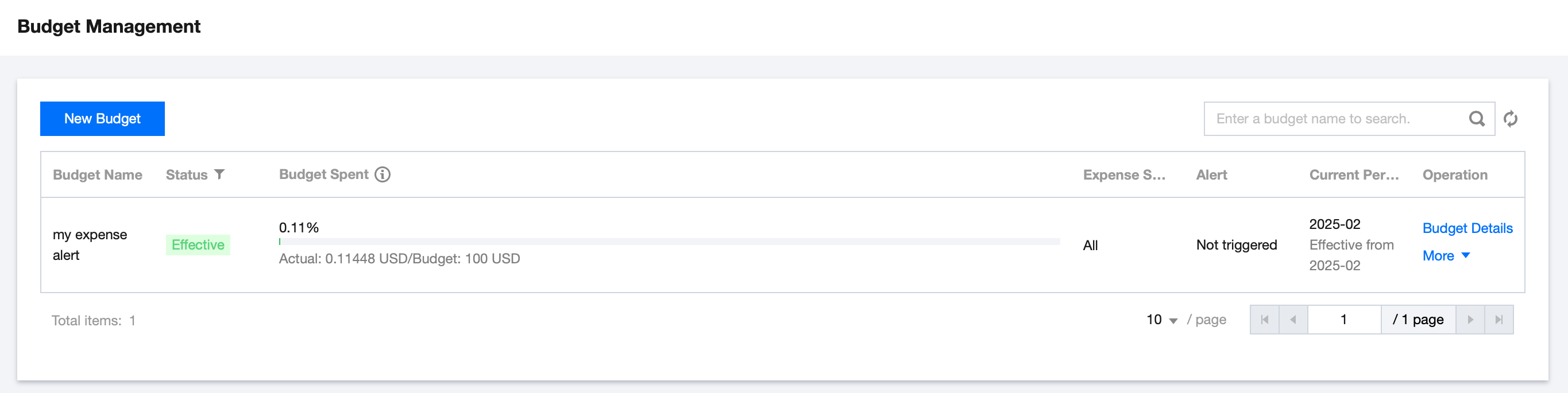
The budget management page displays a list of configured budgets by default. You can view the relevant information of each budget configuration, including the budget name, status, budget spent in the current period, expense scope, number of alert in the current period, current period and validity period. You can also click the More button to edit or delete the budget.
Budget details
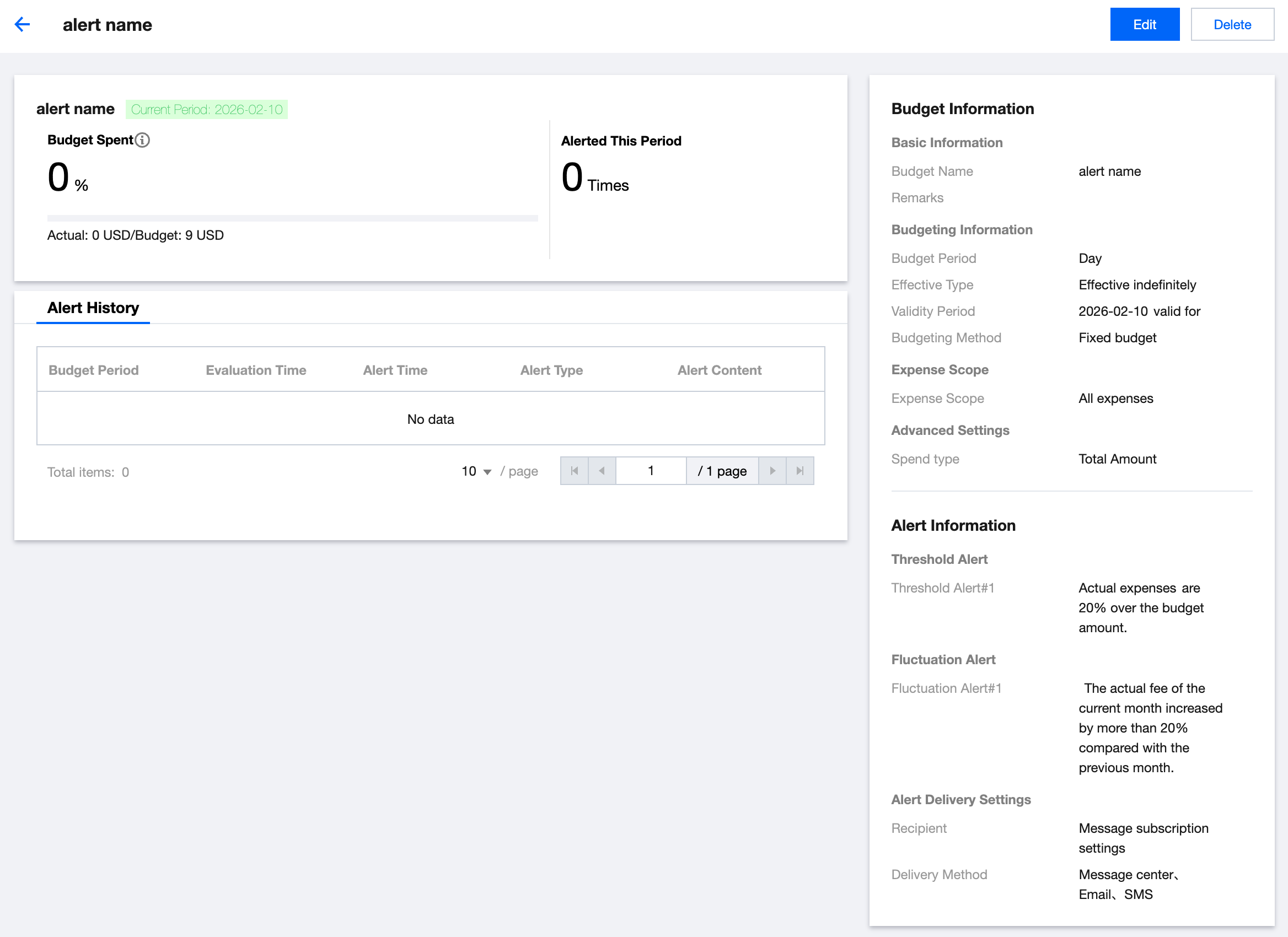
Click the budget name or the Budget Details button in the budget list to enter the budget details interface and further view the budget achievement history. You can also edit or delete the budget here.
Current period: You can view the relevant information of the budget in the current period: including the amount of budget already spent, the budget amount compared to your actual costs, and the number of alerts triggered.
Alert history: You can view all the alerts triggered in the history of this budget, including the alert time and alert content.
Budget information: You can view all the relevant configuration information of the budget configuration in the right panel.
Note:
To ensure the consistency and integrity of the budget, if there is a request for budget changes, it is recommended that you create a new budget instead of editing the budget.
Supplementary instructions for Organization-Customer
The Organization Customers under the Reseller, If the currently logged in a administrator account, the budgeted amount includes the administrator's own expenses and the expenses paid on behalf of all members. This can be distinguished by the Owner UIN. If the currently logged in is a member account, the budgeted amount are the expenses paid by administrator on behalf of this member.
フィードバック