Linux/Windows Instance: Online Password Resetting Fails or Invalid
ダウンロード
フォーカスモード
フォントサイズ
最終更新日: 2024-02-21 15:06:42
This document describes the symptoms and solutions when the online password reset operation for Tencent Cloud Lighthouse instances fails or does not take effect.
Symptom
After the online instance password reset, a message is displayed indicating Password Reset Failure.
After the online instance password reset, the new password does not take effect, and the login password is still the original one.
Possible Causes and Solutions
Linux Instances
Note:
Error messages may differ among different systems.
Cause
Error Prompt
Solution
The username does not exist.
chpasswd: line 1: user 'ubuntu' does not existchpasswd:
error detected,
changes ignored
The entered username does not exist. Please confirm whether the entered username is correct.
The chpasswd command is not found.
-bash: chpasswd: command not found
If the instance can still be logged in to normally, log in to the instance and execute command find -type f -name "chpasswd" to check whether chpasswd exists.
If the instance cannot be logged in to normally, you need to enter the rescue mode to check for exceptions in the chpasswd system file.
cannot lock /etc/passwd
cannot lock /etc/passwd;try again later.
Log in to the instance and execute the following command for recovery. If the instance cannot be logged in to normally, it is recommended that you restart the instance.
rm /etc/passwd.lock
rm /etc/shadow.lock
chpasswd: cannot open /etc/shadow
chpasswd: cannot open /etc/shadow
Log in to the instance and execute chattr +i /etc/shadow for repair. If you are unable to log in to the instance, you need to enter the rescue mode and execute chattr +i /etc/shadow following chroot for repair.
Errors are related to PAM authentication failed and other PAM related issues
PAM authentication failed
Log in to the instance and go to cd /etc/pam.d/ to check if the corresponding configuration has been modified. If you do not know how to modify it, you can back it up first and then copy the public image configuration. If you cannot log in to the instance, you need to enter the rescue mode for repair.
Windows Instances
Success Prompt Scenario
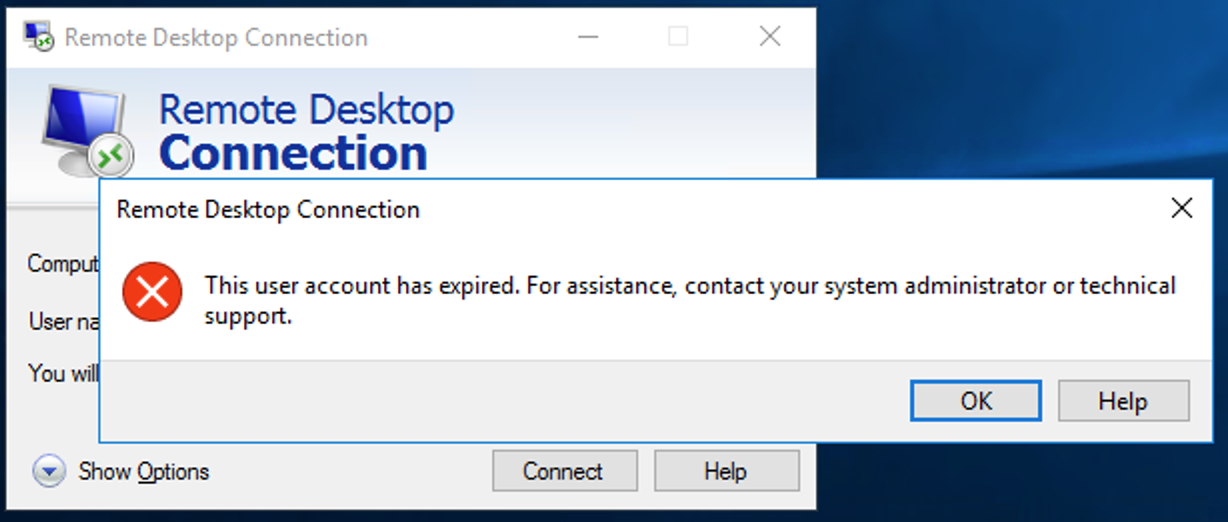
Scenario one: the account has already expired, but the prompt for successful password reset is still displayed.
Error prompt:
Solution: Use commands to set it to no expiration.
Scenario one: the username does not exist./entered username is incorrect.
Error prompt:
The user name could not be found.
More help is available by typing NET HELPMSG 2221.
Solution: Remind the user to check whether the entered username exists and whether it is correct, and if it is incorrect, please enter the correct username.
Scenario two: the password does not meet complexity requirements.
Error prompt:
The password does not meet the password policy requirements. Check the minimum password length, password complexity, and password history requirements.
More help is available by typing NET HELPMSG 2245.
Solution:
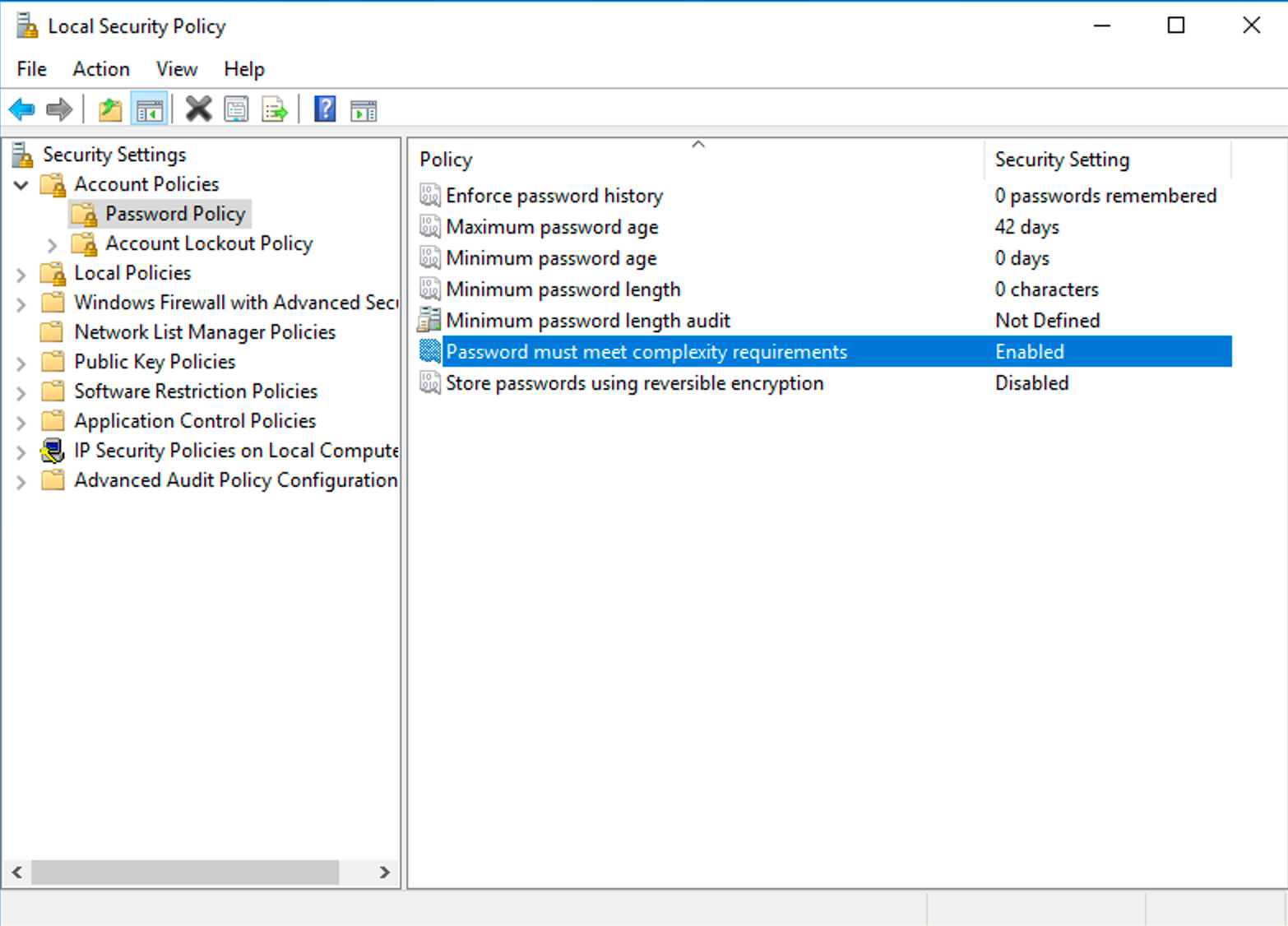
Run PowerShell as an administrator, enter secpol.msc and press Enter to open Local Security Policy. Expand Account Policies > Password Policy. Then, you can see that Password must meet complexity requirements is enabled by default.
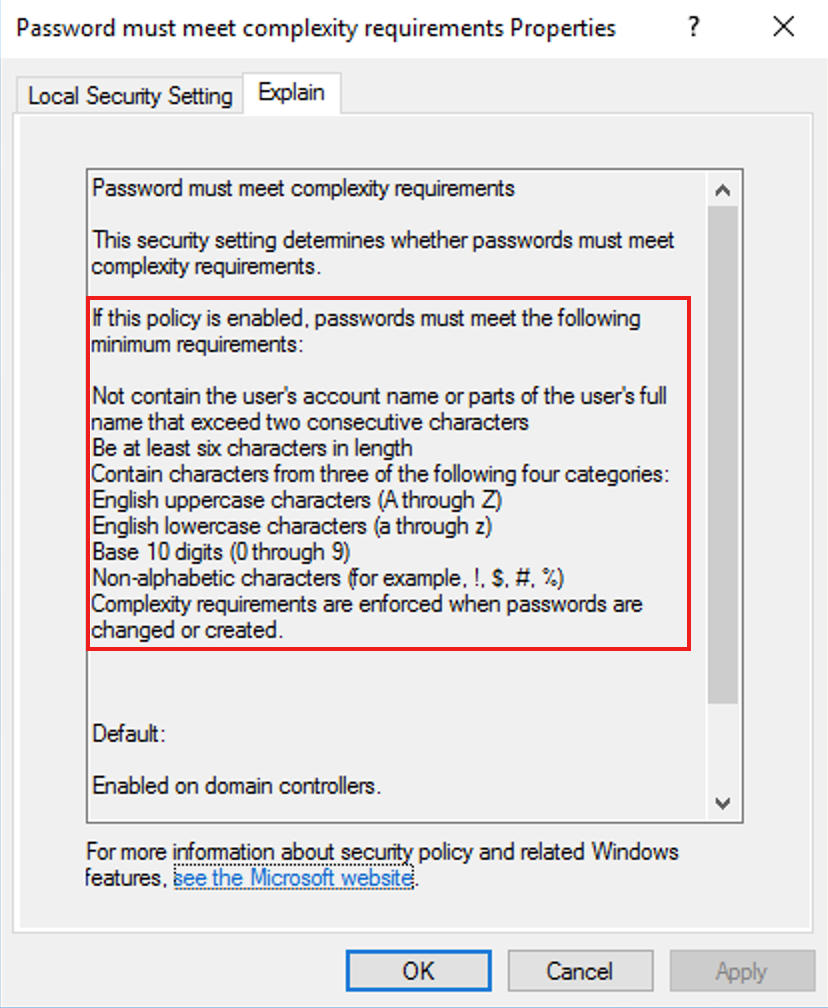
Right-click Password must meet complexity requirements and open Properties. The minimum password requirements are displayed:
The password cannot include the username (account name) string.
The password must contain a minimum of six characters.
The password must include at least three out of the four following categories: uppercase characters, lowercase characters, digits, and non-alphabetic characters.