The test feature lets you experience the basic effects of operating your application in the cloud and helps you select the most appropriate concurrency specification for your application. To meet your special business requirements and guarantee the optimal user experience, you also need to set up your own client program and backend service and connect to CAR's backend APIs and SDKs. You can use the demo to quickly launch your business. Directions
Prerequisites
You must perform the following steps before you can start a test:
2. Create a project, associate it with the uploaded application, and specify the concurrency specification. 3. Purchase a concurrency pack suitable for the project and bind it to the project.
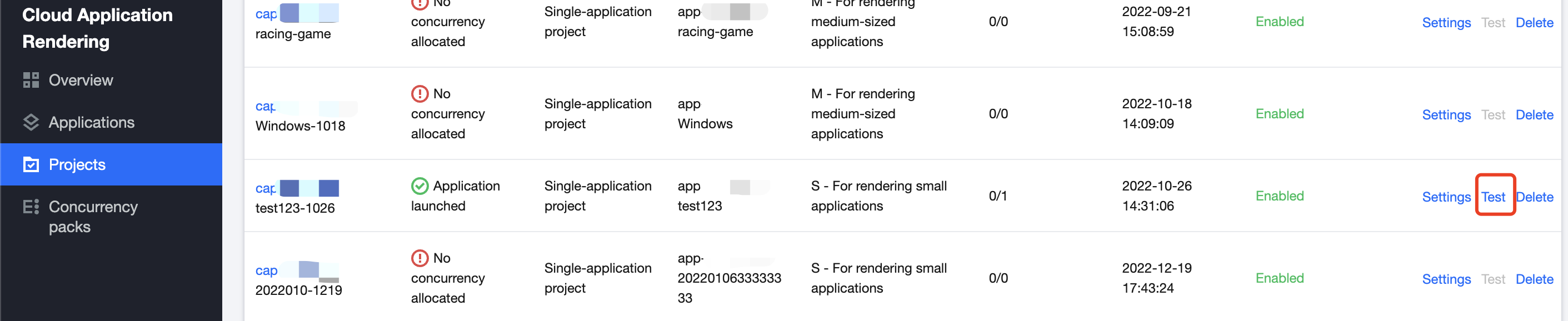
After completing the above steps, you can go to the Projects page n the CAR console to test the application.
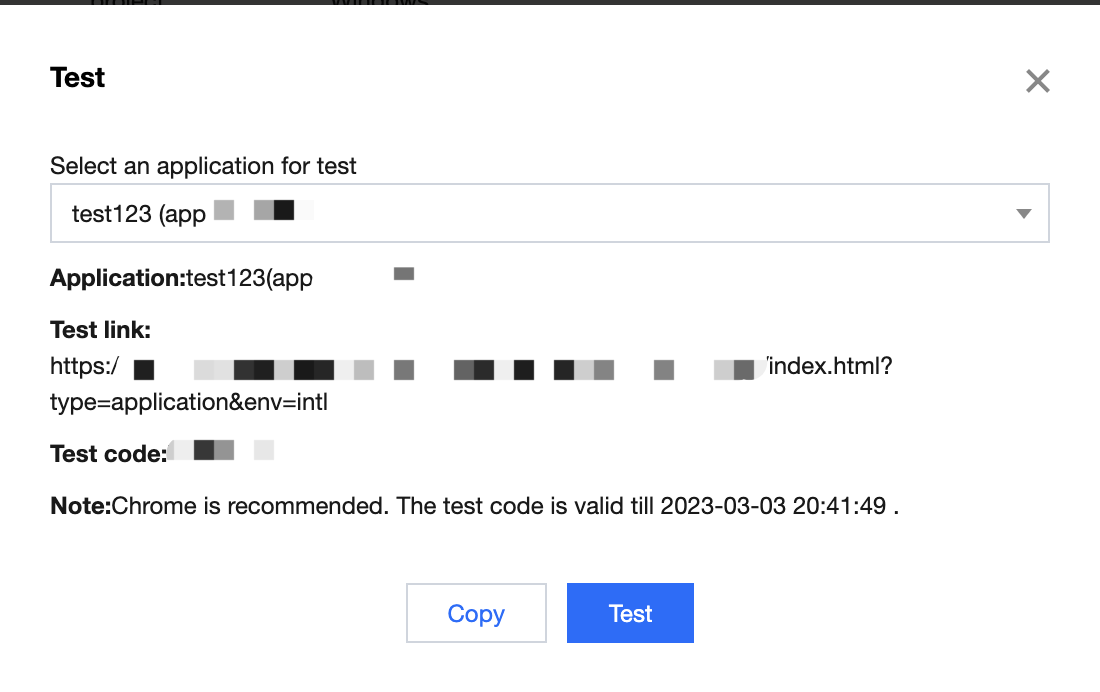
Step 1. Click Test to generate a test link and password
After you click Test, a test link and password will be generated automatically.
Note:
A password is valid for seven days. Each time you click Test, a new password will be generated, but the previously generated passwords will still be valid if they haven't expired.
While a password is still valid, you don't need to generate a new one to perform operations such as purchasing a concurrency pack and updating the application version.
Step 2. Test the effect
Open the test link and enter the password to access the cloud application. This lets you experience the effect of accessing and operating the application online. You can test different concurrency specifications to find the most appropriate one for your application.
Open the debug panel (Ctrl+~) in the toolbar on the Test page. You should pay attention to the following:
FPS (frame rate): In normal cases, the frame rate should be kept above 30. If you find that the frame rate suddenly drops when you enter certain scenes or perform certain operations, it may be due to a sudden increase in GPU computing power consumption that exceeds the capacity of the current concurrency specification and results in frame drop. In this case, we recommend you try using a higher concurrency specification.
RTT (round-trip time): When the RTT value exceeds 100 ms, it may result in noticeable latency. We recommend you first check for local network jitter. You can try accessing over a 4G/5G network. Additionally, if the concurrency region is too far from your physical location, it can also result in high RTT.
Region: The region where the concurrency is located. CAR can automatically schedule the nearest available concurrency based on the IP address of the end user. If you find that the concurrency region is too far away, it may be due to insufficient number of available concurrencies that are closer to the end user. You can contact us for assistance.
InstanceType (concurrency specification): CAR supports four concurrency specifications: S, M, L, and XL, which are suitable for rendering small, medium-sized, large, and extra large applications. For details, see the official billing documentation. If your application requires high computing power but is using a lower concurrency specification, it may lead to high CPU/GPU usage, causing lags or forced quits.
CpuUsage: If you notice a drop in FPS data, check if there is a CPU usage of 90-100%. If so, the current concurrency specification is insufficient. Try using a higher concurrency specification.
GpuUsage: Pay attention to the value of L (load). If you notice a drop in FPS data, check if there is an L value of 90-100%. If so, the current concurrency specification is insufficient. Try using a higher concurrency specification.
RequestId: If you have any questions, try to persist the connection and contact us with the RequestId. You can obtain the RequestId in the following methods:
If you use Chrome DevTools, you can obtain the RequestId of CreateSession on the Network tab.
If you have integrated to the CAR SDK, the returned values of the TencentCloud API include RequestId. We recommend you record it on the business backend. Common issues encountered during testing:
A message is displayed indicating that there are no available concurrencies:
Check whether there are any available concurrencies under the project in the console. When a user exits the application, it takes about one minute for the concurrency to be automatically cleared. Only then will the concurrency become available so that a new user can connect to it.
The application cannot start or occurs a black screen:
If the application uses window capturing mode, check whether the window title and class name are correctly entered. If they are configured incorrectly, a black screen will occur. The application starts slowly:
Generally, the prelaunch feature is used to load an application in advance so the application will already be running when a user connects to it. Because multi-application projects do not support prelaunch, the applications under those projects take a longer time to start.
For a single-application project, you can enable prelaunch so that the application will be loaded in seconds when the user connects to it.
When a user exits the application, the concurrency they were connected to will be repossessed, cleared, and reset. When the concurrency becomes idle, the application will be prelaunched again. If the next user enters the application as soon as the concurrency becomes available, the application may have not been completely prelaunched.
The latency is high or the RTT value is abnormal: We recommend you first check for local network jitter. You can try accessing over a 4G/5G network.
The application is slow: This may be because your application has high requirements for the computing power but the concurrency specification is low (such as S). We recommend you try using a higher concurrency specification.
A message is displayed indicating that the connection is interrupted: If you are using a company Wi-Fi network, we recommend you check whether the network meets the CAR service environment, i.e., if all UDP ports are open. You can also check for local network jitter antry accessing over a 4G/5G network.