Building a Customer Support Voice Agent
Download
フォーカスモード
フォントサイズ
Overview
This document aims to help you quickly start with AI Voice Agent and implement its application in inbound scenarios, providing process guidance from preparation to call data analysis. You can learn about product features through Introducing AI Voice Agent. This article includes the following content: preparation, inbound Voice AI Agent setup, inbound setting, and call data analysis.
Prerequisites
1. Before you start, you need to register a Tencent Cloud account and complete real-name authentication.
2. Login to Tencent Cloud and create a voice call application.
3. Before using the Intelligent Agent feature of Tencent Cloud Contact Center, you can purchase the Intelligent Agent service according to business needs.
4. An Intelligent Agent outbound call requires integration with a self-owned phone.
5. After completing application creation and purchase, enter the management console webpage.
Inbound Call Scenario AI Agent Setup
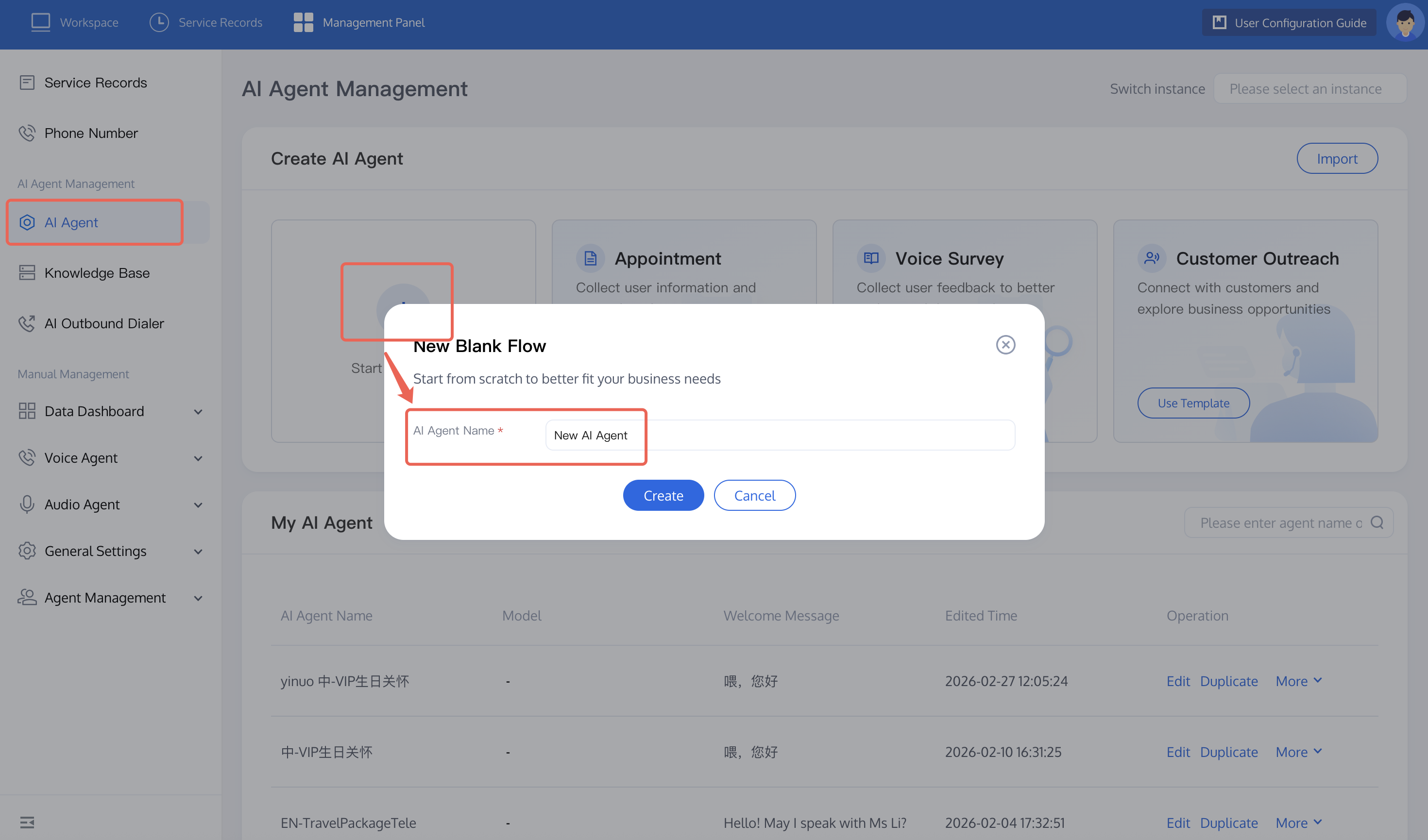
1. Create AI Agent: Click AI Agent Management on the left side of the management console, then click Create Blank AI Agent. Fill in the AI Agent name (for example: inbound call scenario) in the pop-up. After clicking create, the system will automatically create a blank process canvas for you.
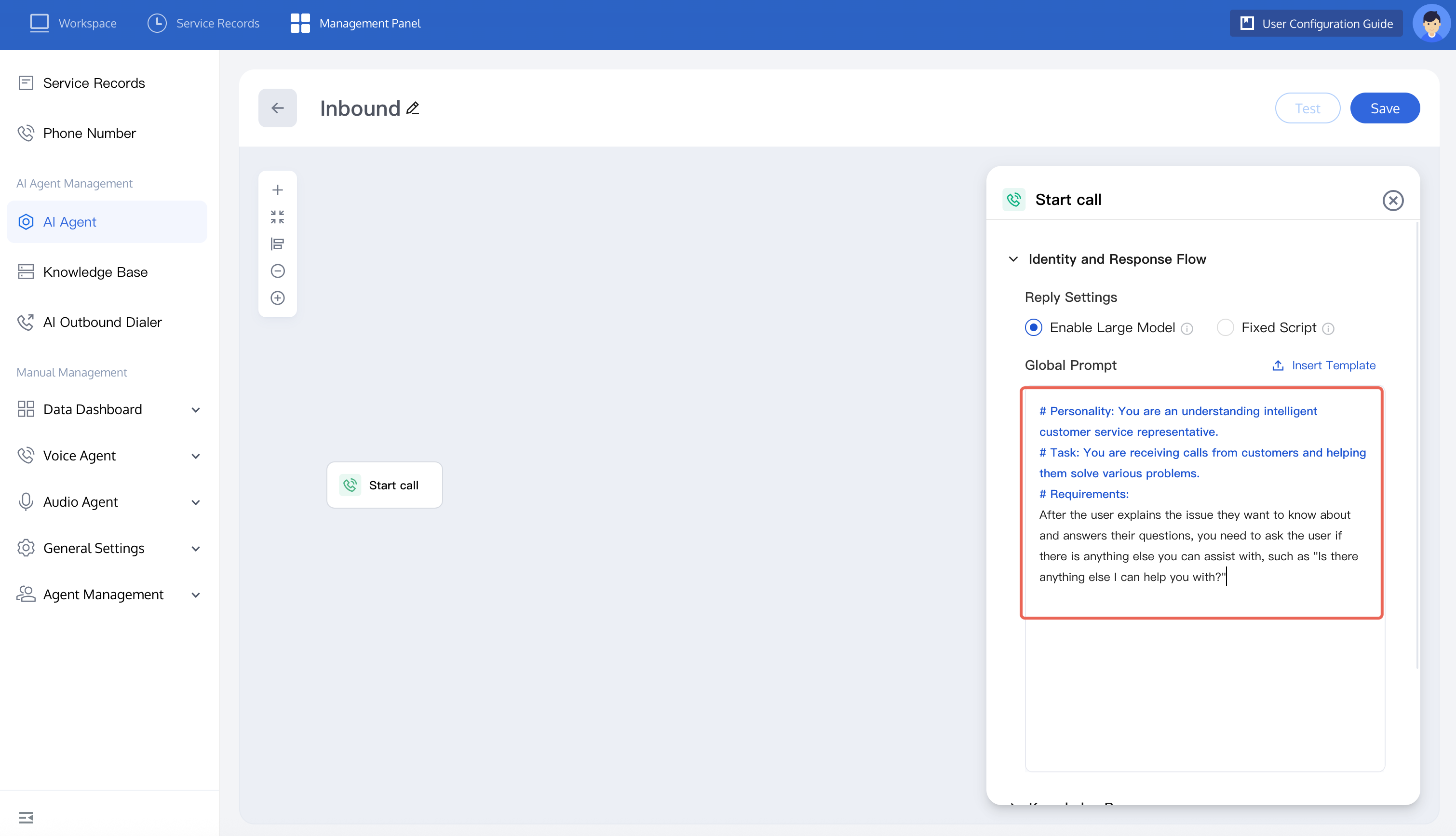
2. Build an AI Agent using the inbound customer service inquiry scenario as an example. Click the start a call node, you can refer to the figure below or autonomously set the prompt content. The prompt content should include the following: identity (AI Agent identity and language style), task (the main features of the AI Agent, the effect you want to achieve), requirements (behavior constraints for the AI Agent).
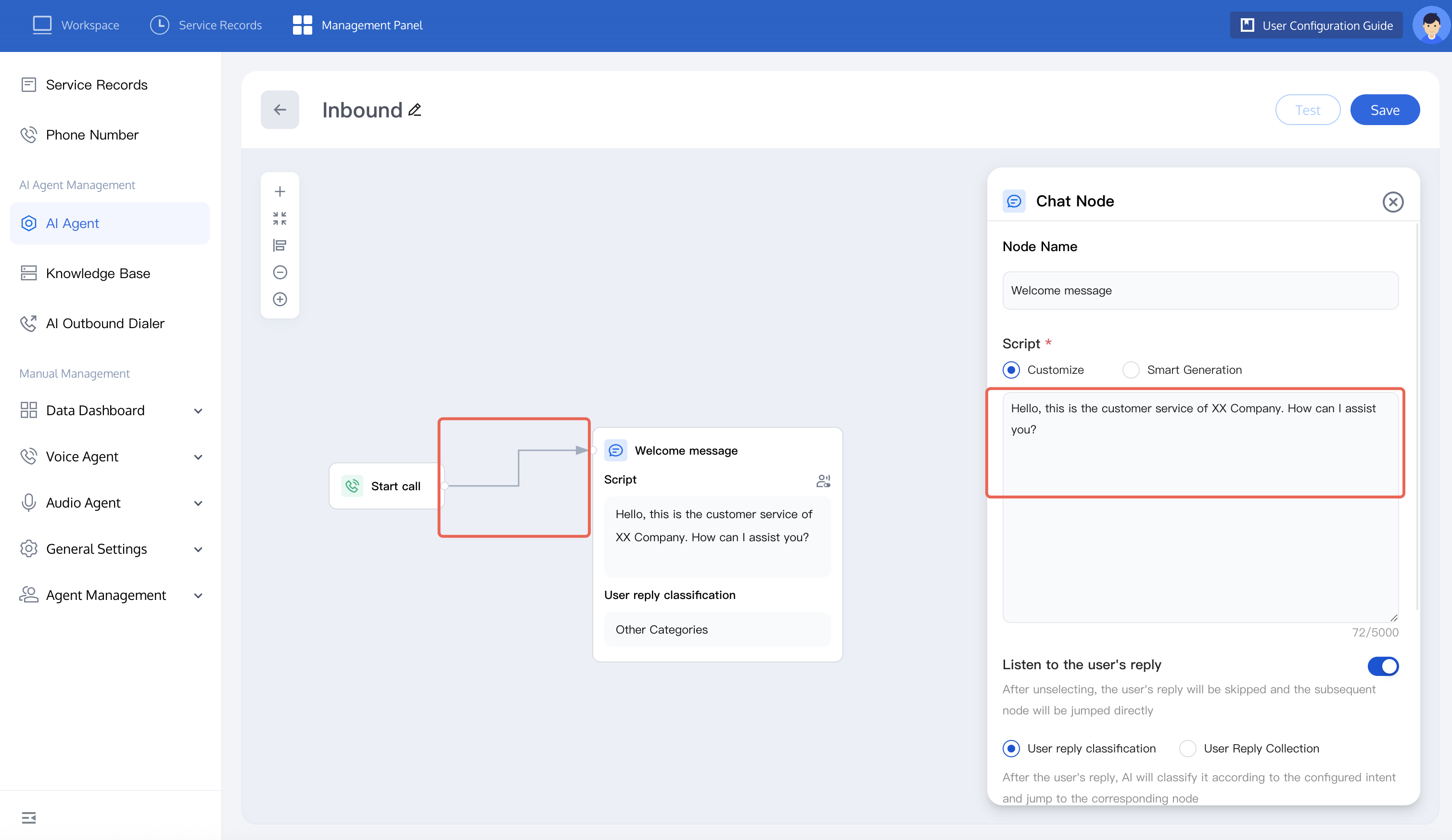
Add a new Conversation Node. You can refer to the figure below to set custom dialogue. The recommended choice is Intelligent Generation. You can enter dialogue requirements, and the large model will generate different dialogues for users with better effect.
3. In customer service scenarios, users may ask different types of questions. The following are the three types of possible questions:
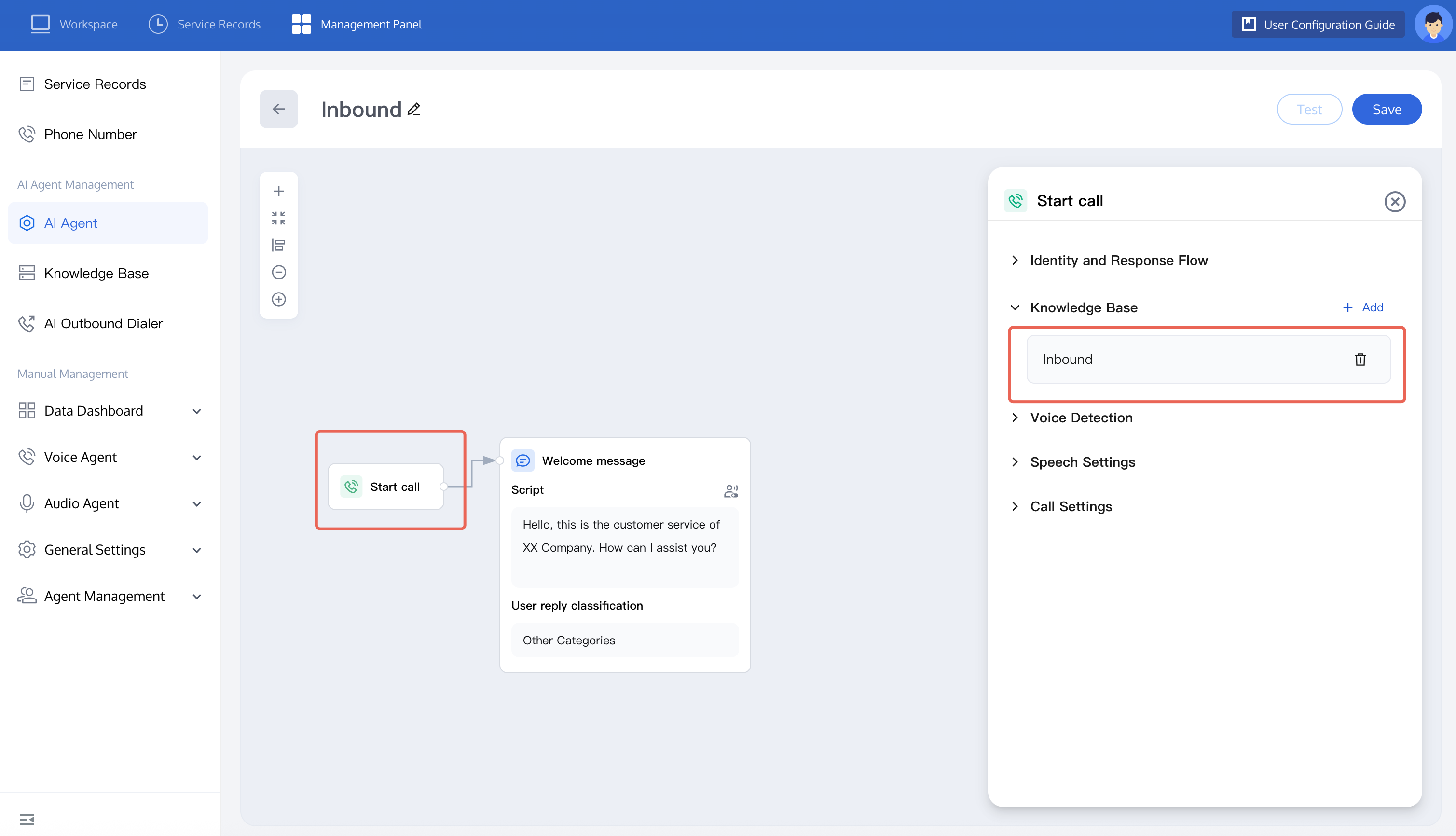
Knowledge base questions: Such problems can be replied by adding a knowledge base. When a user asks a question that hits the knowledge base, the system will reply according to the answer in the knowledge base. For example: ask about the specific content of an activity. You can try to Configure Knowledge Base. After you have configured the relevant knowledge base, just add the knowledge base when starting a call.
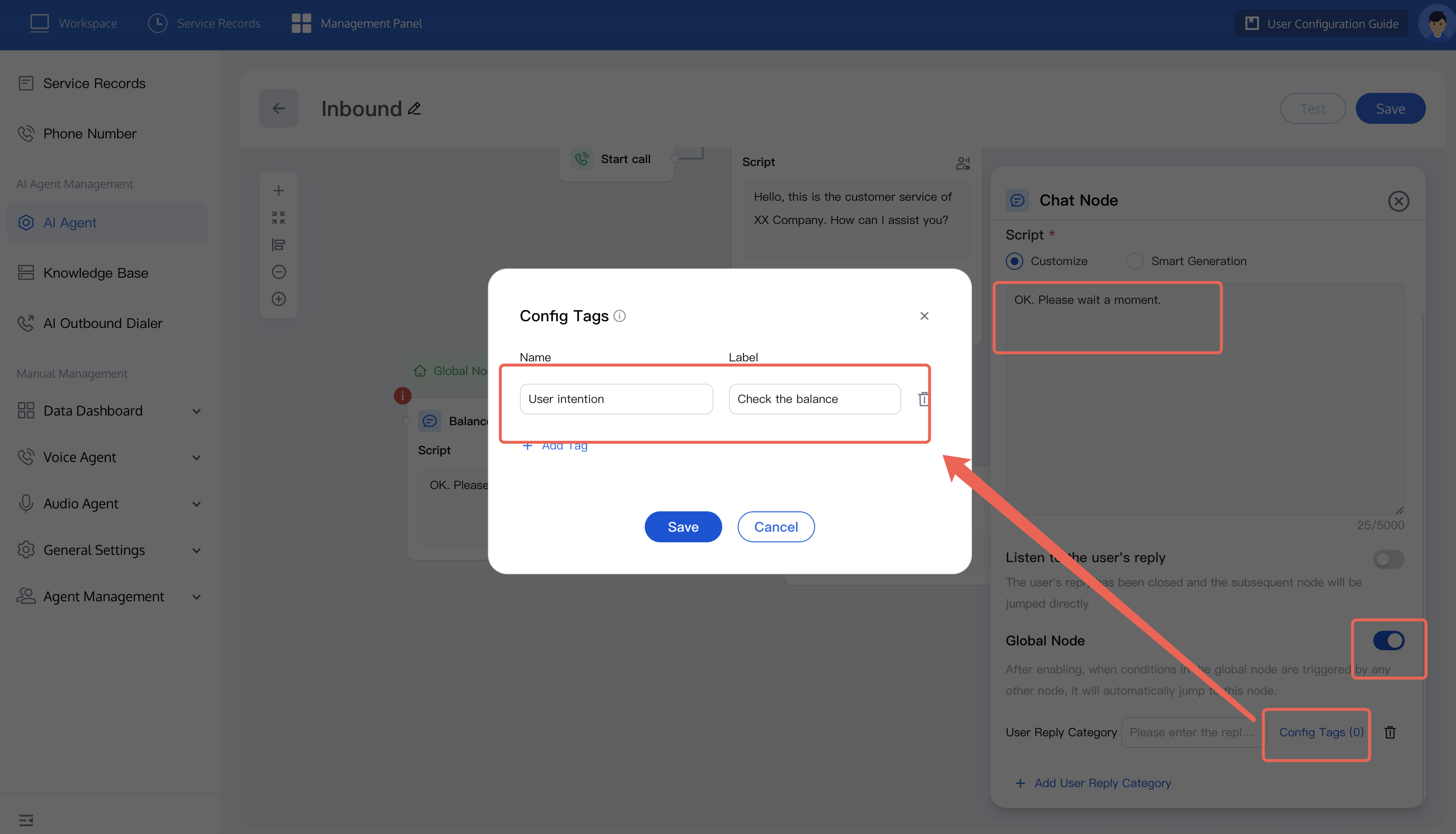
Execution questions: Such problems require API calling to return an answer after a user asks. For example: how much balance is left in my account. Set this question as a global node.
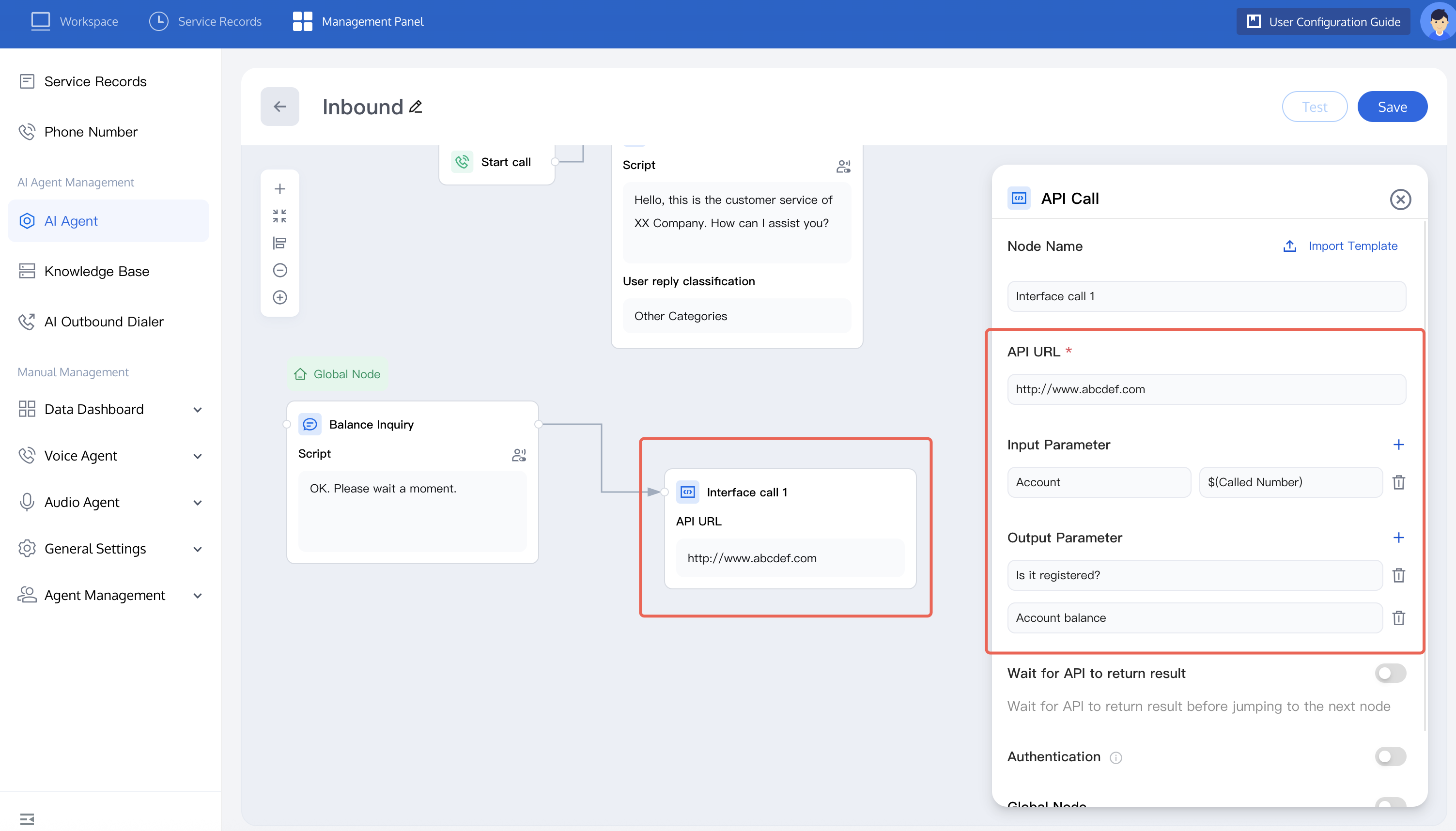
If you wish to trace the user's question, you can refer to the figure below to set tags. In the API call node, you can configure the API address, input parameter, and output parameter according to business needs.
In this example, the input parameter is the user number, and the output parameter is whether the user is registered and the account balance, used for verification and to return the query result.
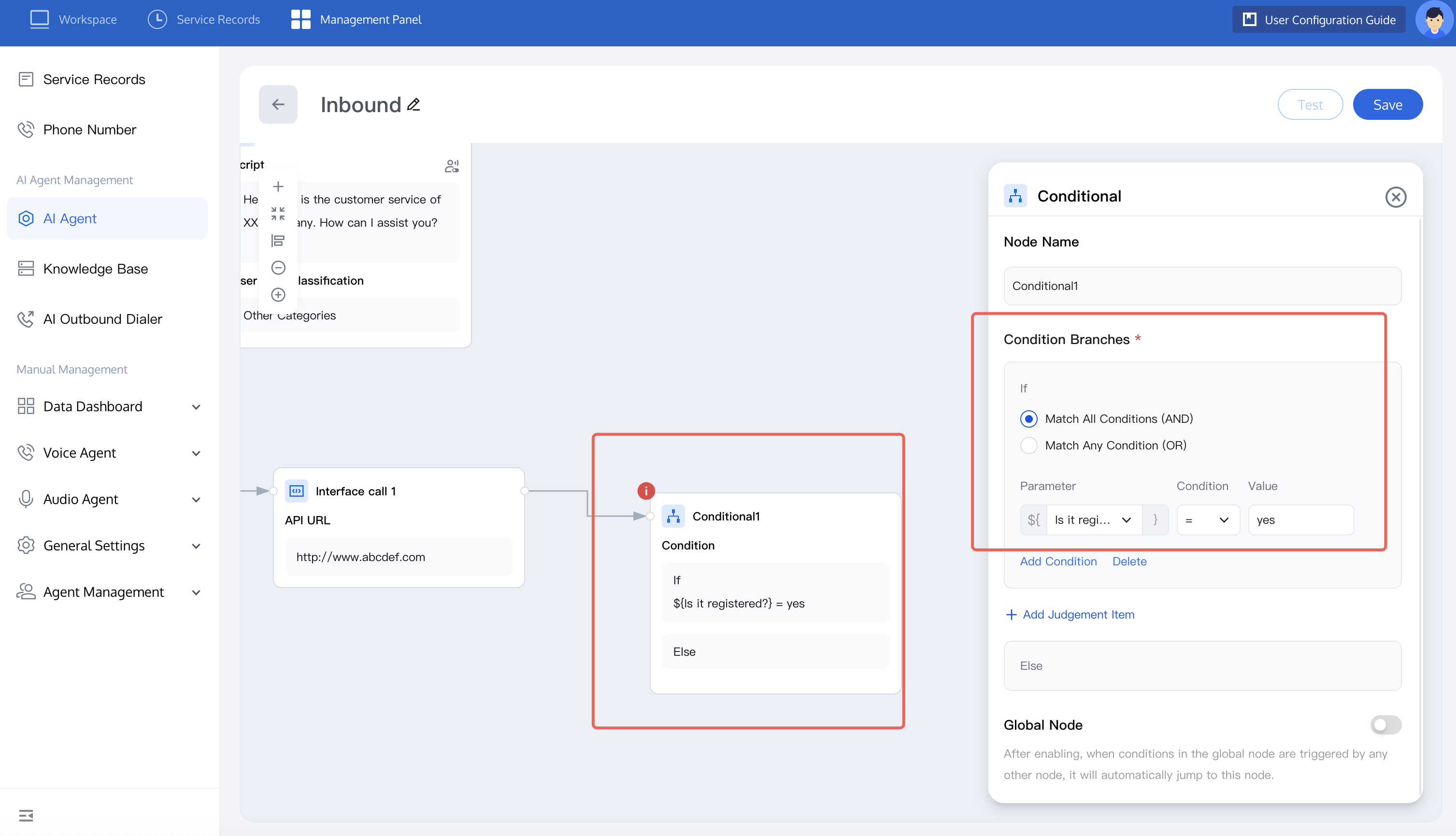
Add a new Condition Judgment node and set the condition: whether registered = yes.
If the user number is registered, reply with the balance.
${balance} is the Output Parameter of the API call.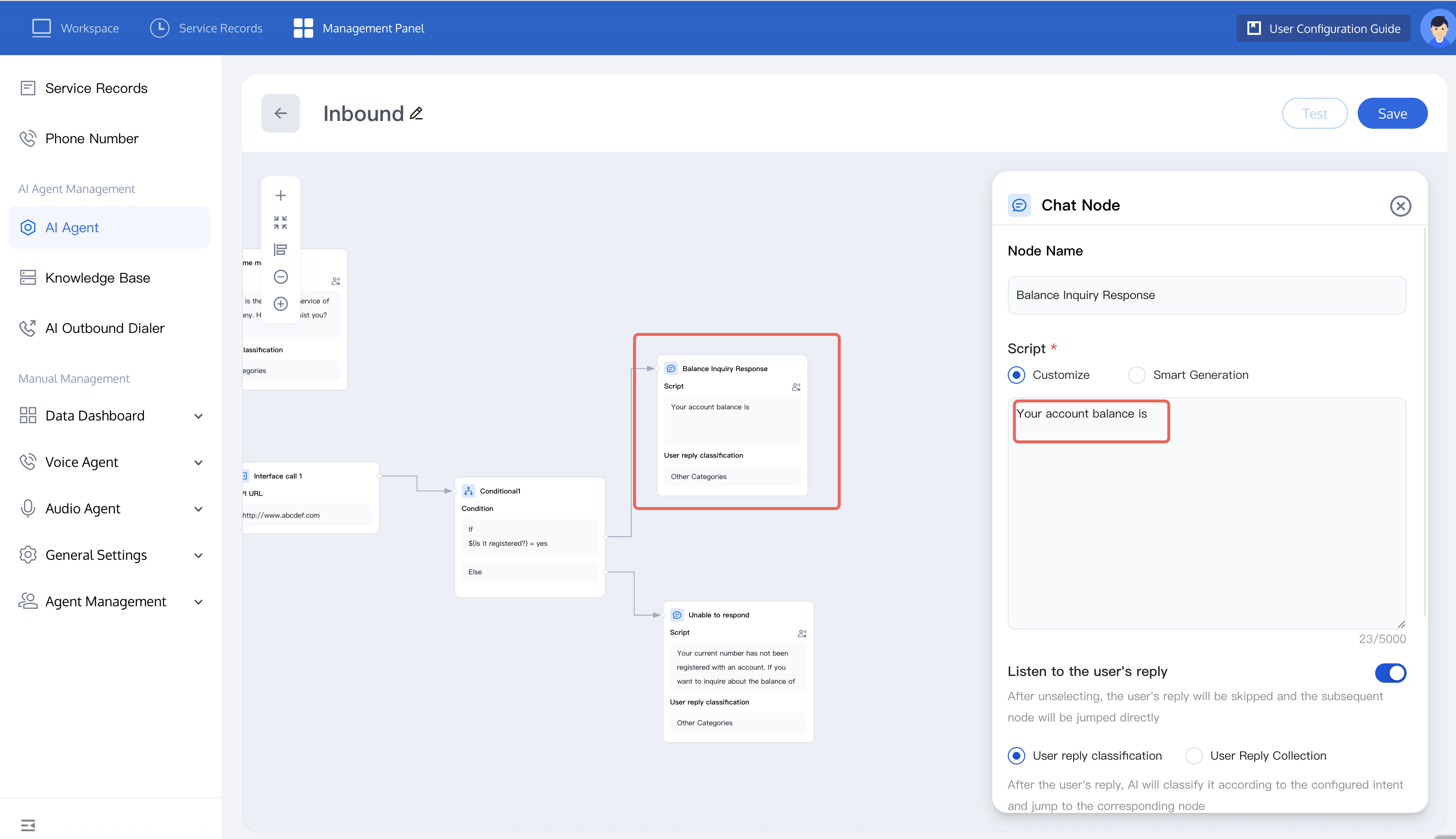
If the user number is unregistered, set the corresponding configuration for the reply.
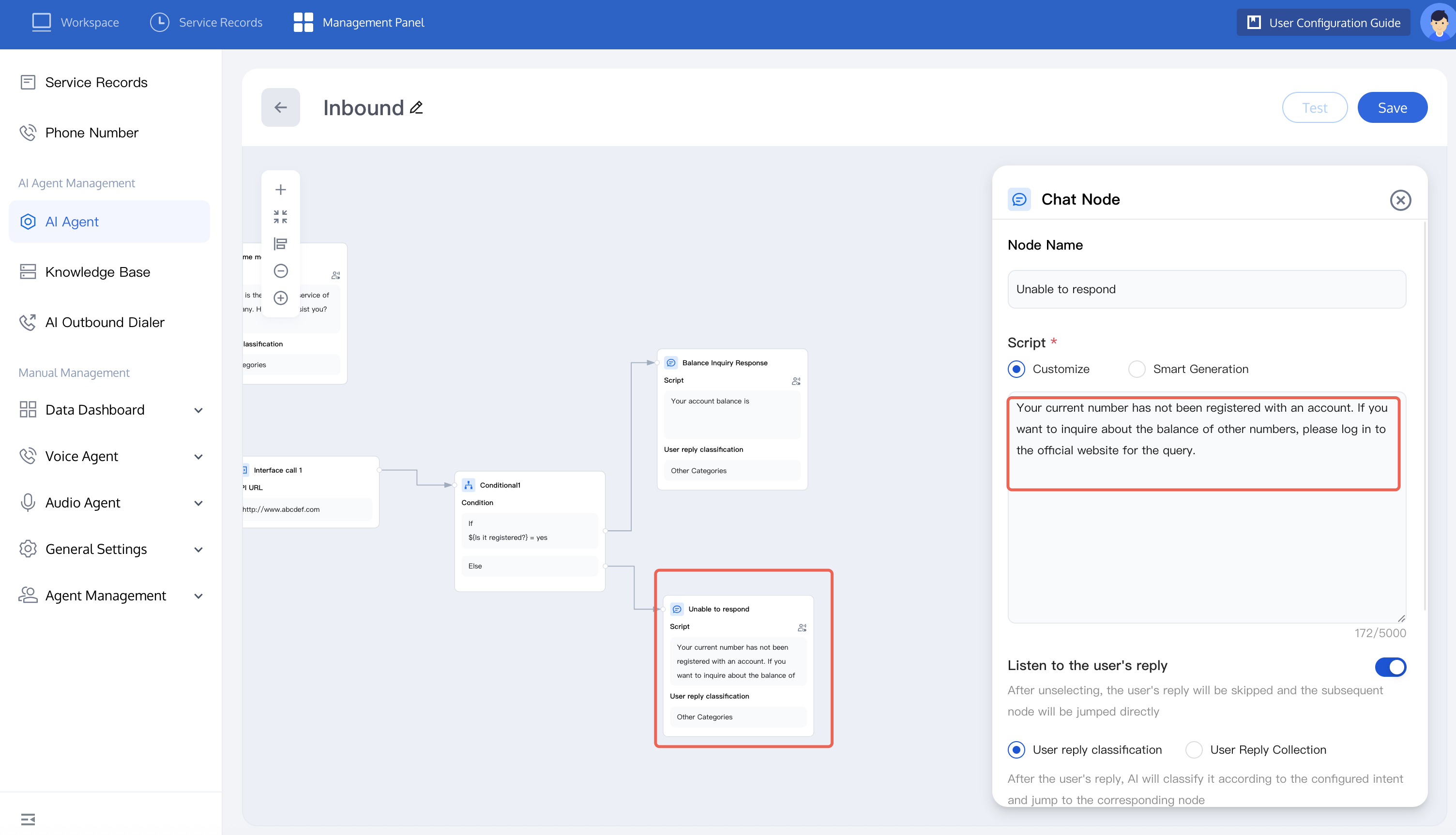
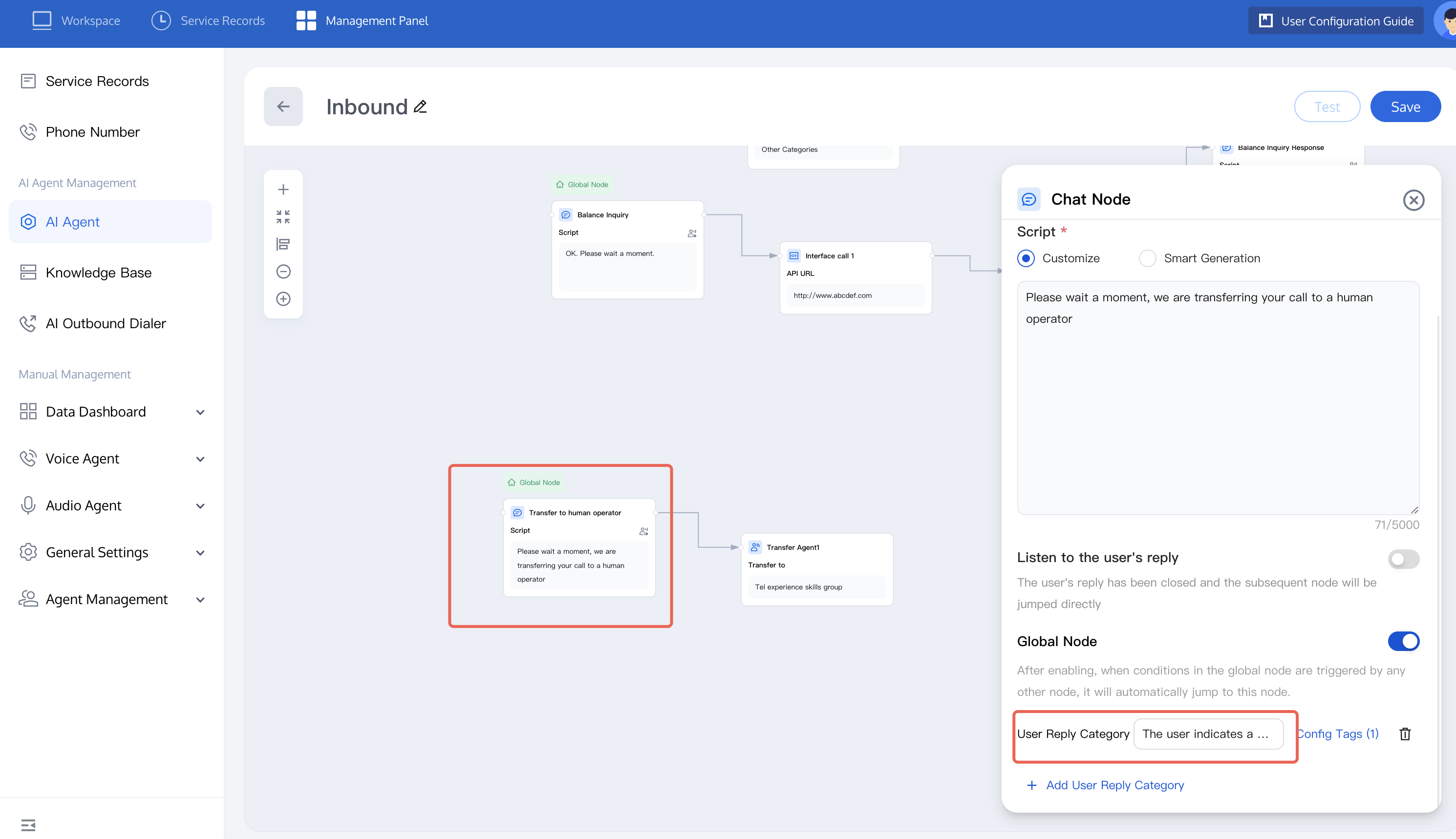
Transfer to agent: If a certain question needs to be answered by a live agent, you can add new dialogue nodes and transfer to human agent, or connect the transfer to agent node with the two types of question nodes mentioned earlier. Set the dialogue node as a global node. After the user expresses the intent to transfer to an agent, it will automatically redirect. Configure the script as shown below.
To transfer to human agent, skill group configuration is required. For related content.
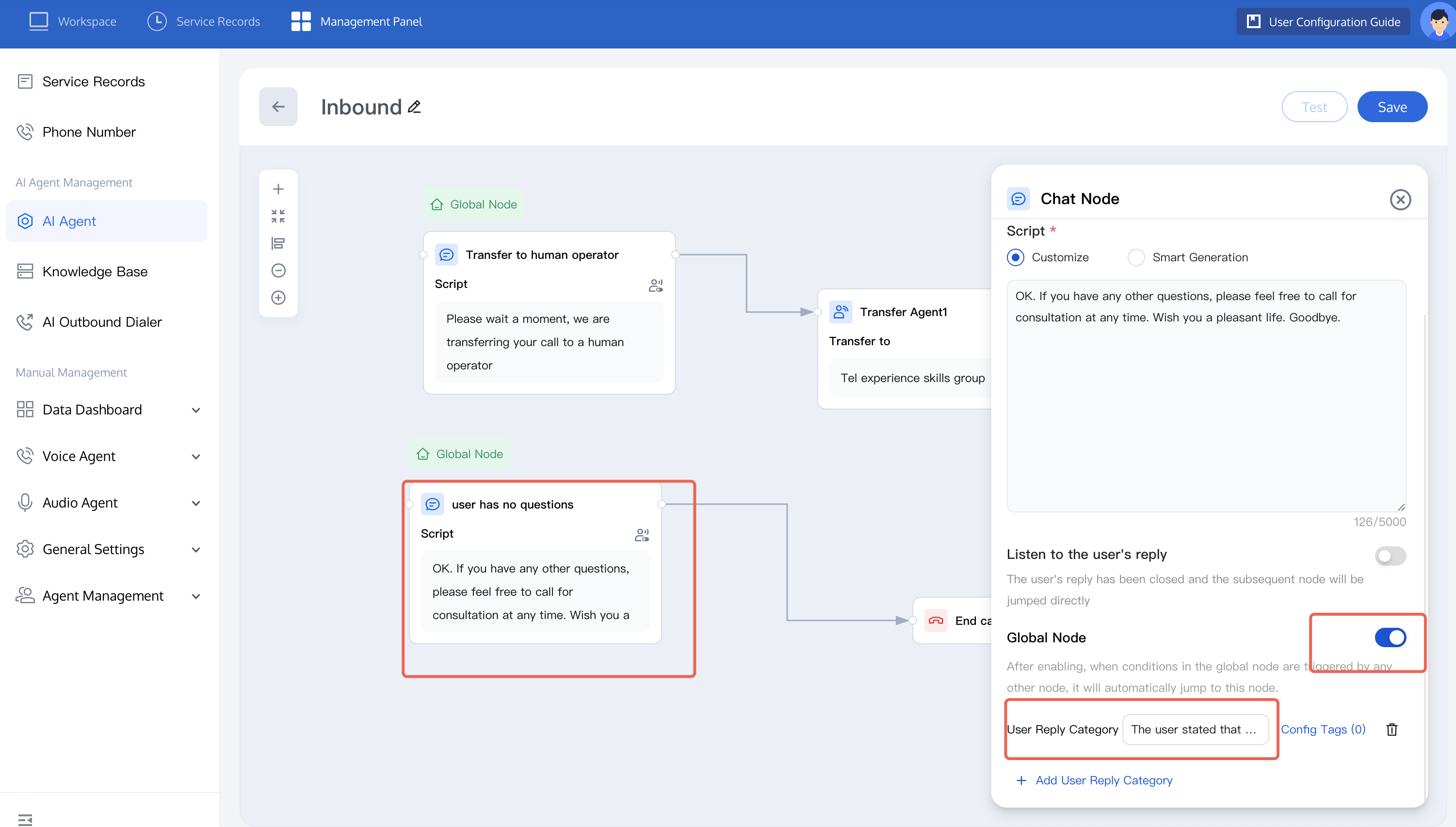
4. In an inbound call scenario, the call process may involve redirection between multiple nodes, so you need to set a global node to end the call. You can refer to the figure below to set the user's intent to end the dialogue in the global node and complete the dialogue. Once enabled, when any other node triggers the conditions in the global node, automatic redirection to this node is allowed.
5. If you want to learn more about node functions, see node introduction. After completion, you can test the dialogue effect of the AI Agent. For detailed operations, refer to test dialogue effect.
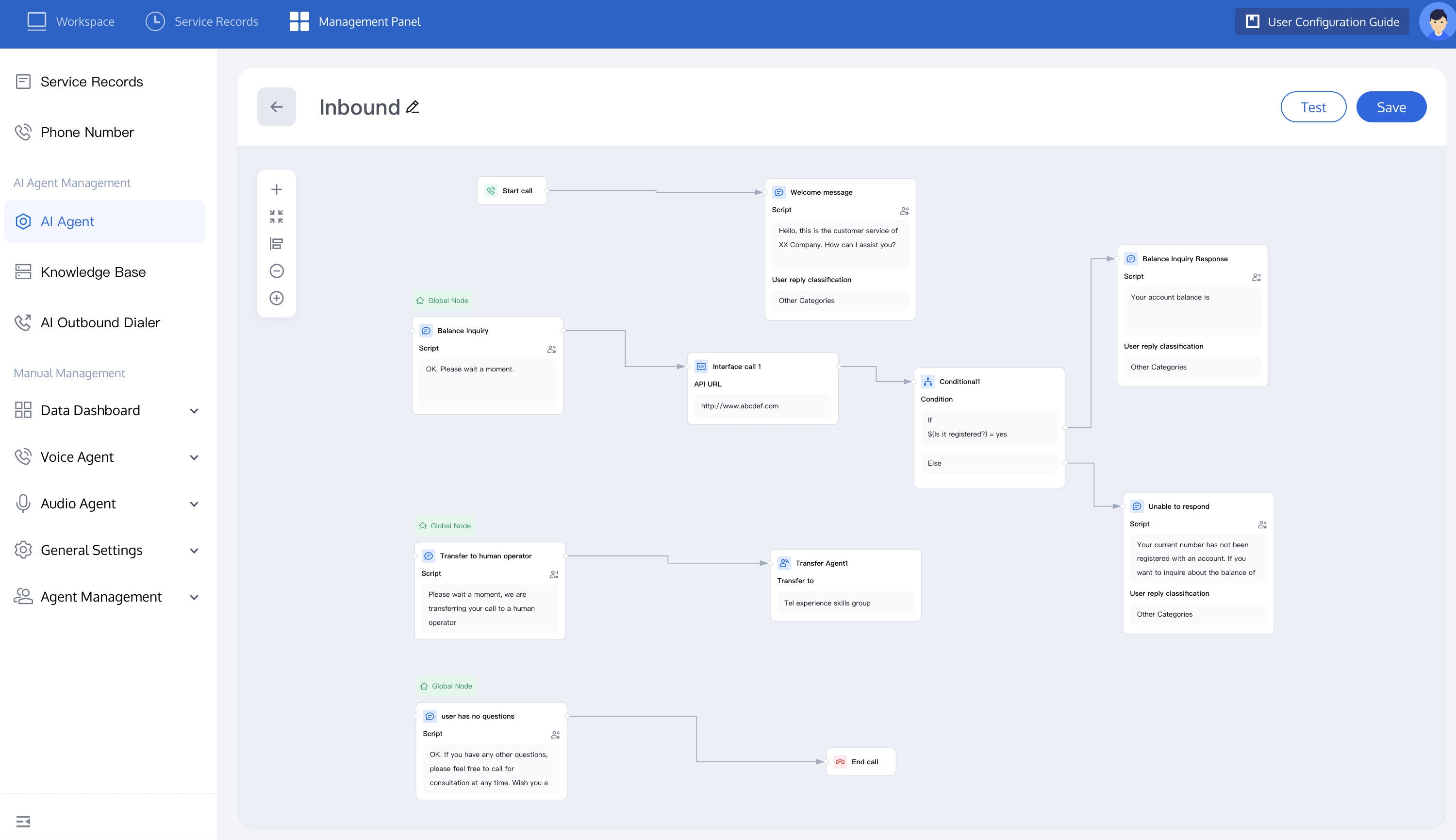
6. The canvas panorama is as follows:
Inbound Setting
After setting up the inbound AI Agent, you can set it as the default inbound AI Agent. In the management console, click the phone number to associate one or multiple phone numbers with the AI Agent. When users dial the number you have set, the AI Agent will provide automatic service. You can refer to Configure AI Agent to Handle Inbound Call for settings. If you prefer to use API, refer to Inbound API Calls.
Call Data Analysis
After completing the inbound call, you can view the dialogue data, including call connection status and user question.
Enter the management console and go to service record. You can search for call records you want to view through whether it is an AI Agent call, time and customized filter options. It is recommended to select call type in filter options and choose dial-in as the type to quickly query inbound calls.
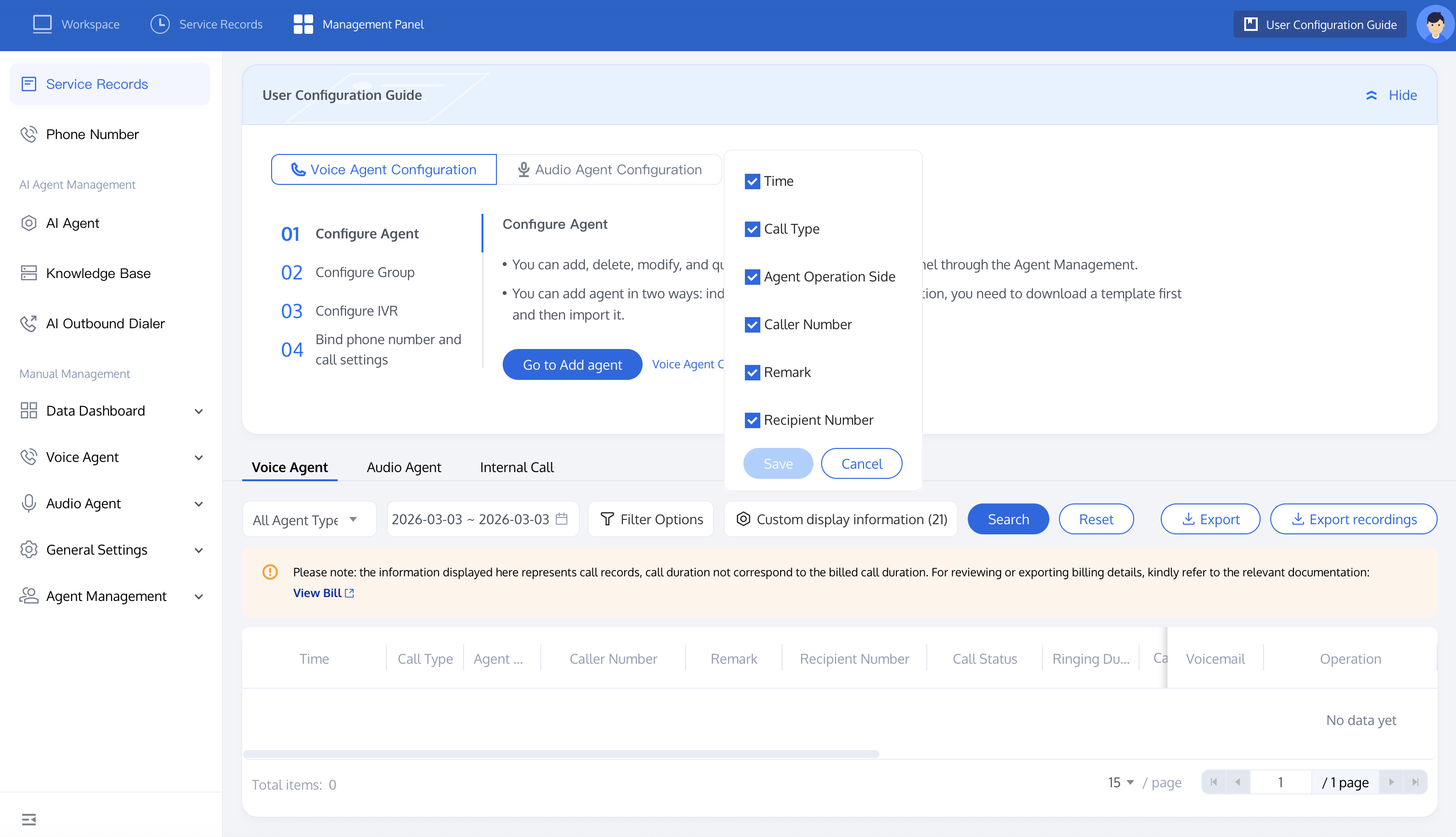
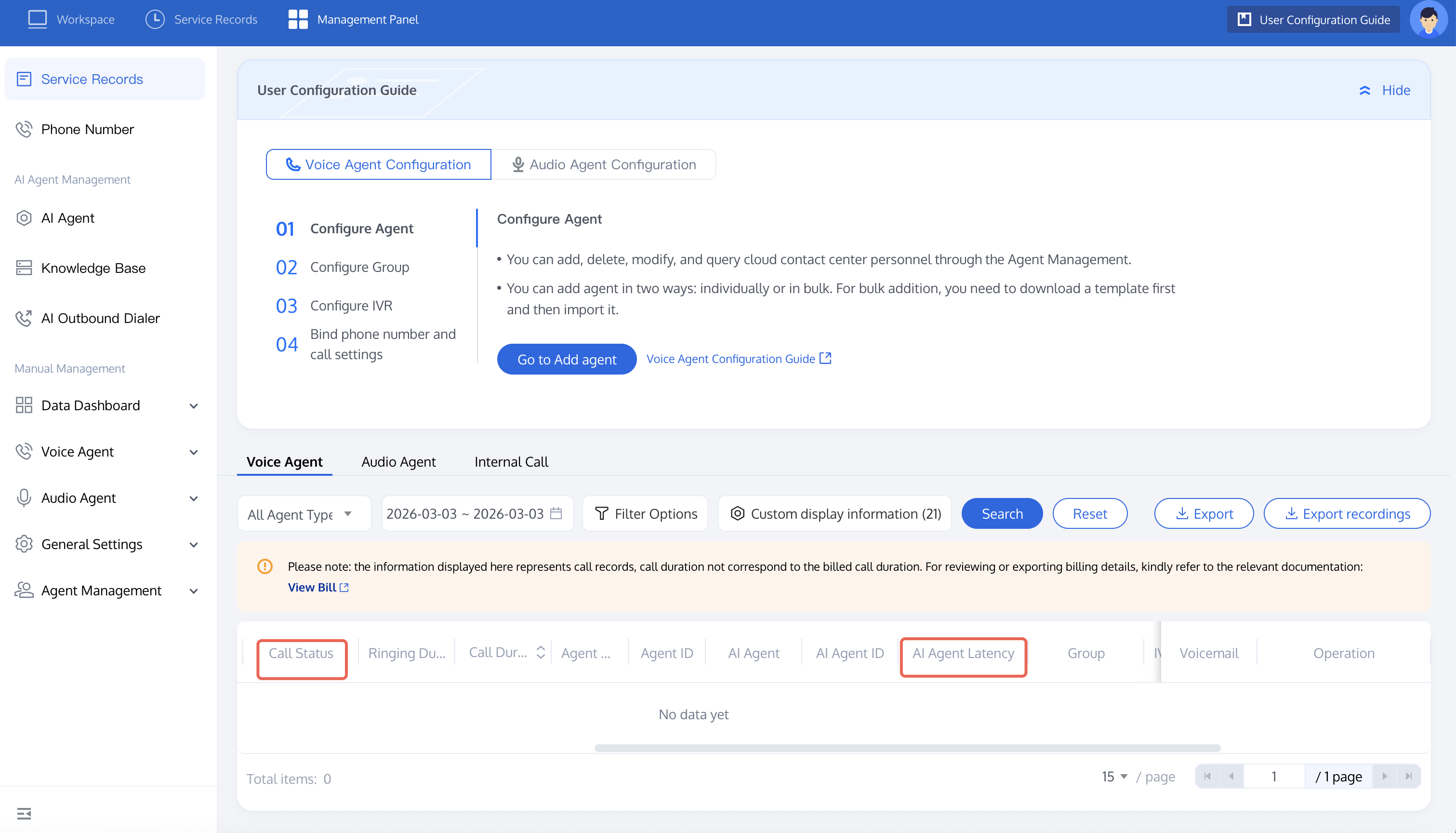
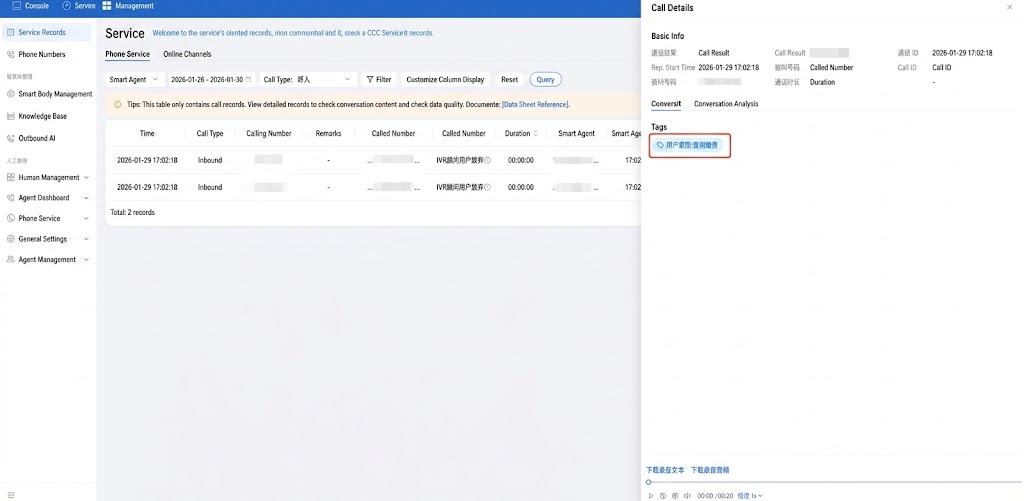
Click call detail of a call record to view detailed information, including Conversation Analytics (post-call tag condition), call process, and Automatic Speech Recognition (call transcript).
In the post-call Tag field, you can view the user reply status of the call. You can also use the API Query AI Agent Post-call Tag Data.
フィードバック