Security Group
Download
フォーカスモード
フォントサイズ
Scenarios
Security Group is a stateful virtual firewall with packet filtering capabilities, used to configure network access control for one or multiple cloud databases. It serves as a critical network security isolation mechanism provided by Tencent Cloud. A security group is a logical grouping where you can add cloud database instances within the same region that share identical network security isolation requirements. Cloud databases share lists of security groups with resources such as CVMs. Rules are matched within security groups based on configurations. For specific rules and limitations, see Security Group Overview.
Configure Security Groups for Cloud Database
Step 1: Creating a Security Group
1. Log in to the Cloud Virtual Machine (CVM) console.
2. In the left sidebar, select Security Group, select the region, click Create.
3. In the pop-up dialog box, complete the following configurations and click OK.
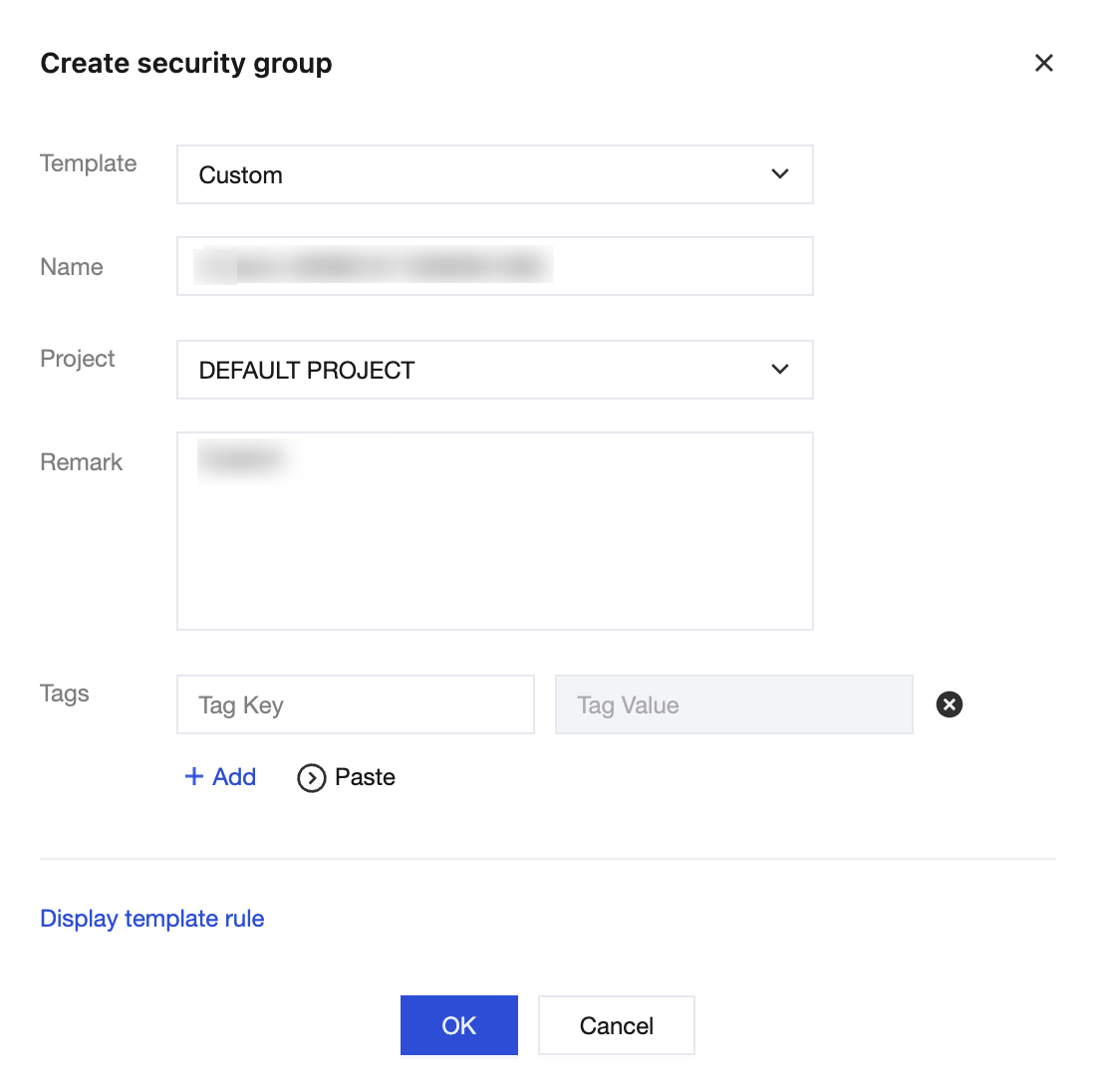
Template: Select an appropriate template based on the services to be deployed for database instances in the security group, simplifying configuration of security group rules. As shown in the table below:
Template | Description |
Open all ports | All ports are opened to the public network and private network by default, which has certain security risks. |
Custom | After the security group is successfully created, add the security group rules as required. |
Name: customize the name of the security group.
Project: Default Project is selected by default. You can assign it to other projects for easier management.
Remark: Custom, and a short description of the security group for easier management.
Tags: to configure tags for the security group, with no tags by default.
Step Two: Add Security Group Rules
1. On the Security Group page, in the row of the security group that requires rule configuration, click Modify rule in the Operation column.

2. On the Security group rules page, choose Inbound rules > Add rule.

3. Set the rules in the dialog box that pops up.
Type: Custom is selected by default. You can also choose other system rule templates, and selecting the MySQL(3306) type is recommended.
Source: the source (inbound rule) or destination (outbound rule) of traffic, specify one of the following options:
Specified Source/Destination | Description |
Single IPv4 address or IPv4 address range | Use CIDR notation (such as 203.0.113.0, 203.0.113.0/24, or 0.0.0.0/0, where 0.0.0.0/0 represents matching all IPv4 addresses). |
Single IPv6 address or IPv6 address range | Use CIDR notation (such as FF05::B5, FF05:B5::/60, ::/0, or 0::0/0, where ::/0 or 0::0/0 represents matching all IPv6 addresses). |
Refer to the security group ID. You can reference the ID of following security groups: ID of the Security Group other security group | The current security group indicates the CVM associated with the security group. The other security group represents another security group ID under the same project in the same region. |
- |
Protocol:port: Enter the protocol type and port range or you can also reference the protocol port or protocol port group in the Parameter Template.
Policy: Allow is selected by default.
Allow: Access requests of this port are allowed.
Reject: Data packets will be discarded without any response.
Remark: Custom, and a short description of the rule for easier management.
4. Click OK to complete adding the inbound rules to the security group.
Step 3: Configure Security Group
Security groups are instance-level firewalls provided by Tencent Cloud to control inbound traffic for cloud databases. You can bind security groups when purchasing TDSQL Boundless instances or bind them via the console after purchase.
1. Log in to the Console, locate the instance list, click Instance ID, and go to the Instance Management page.
2. On the Instance Management page, select Data Security, and click Configure Security Group.
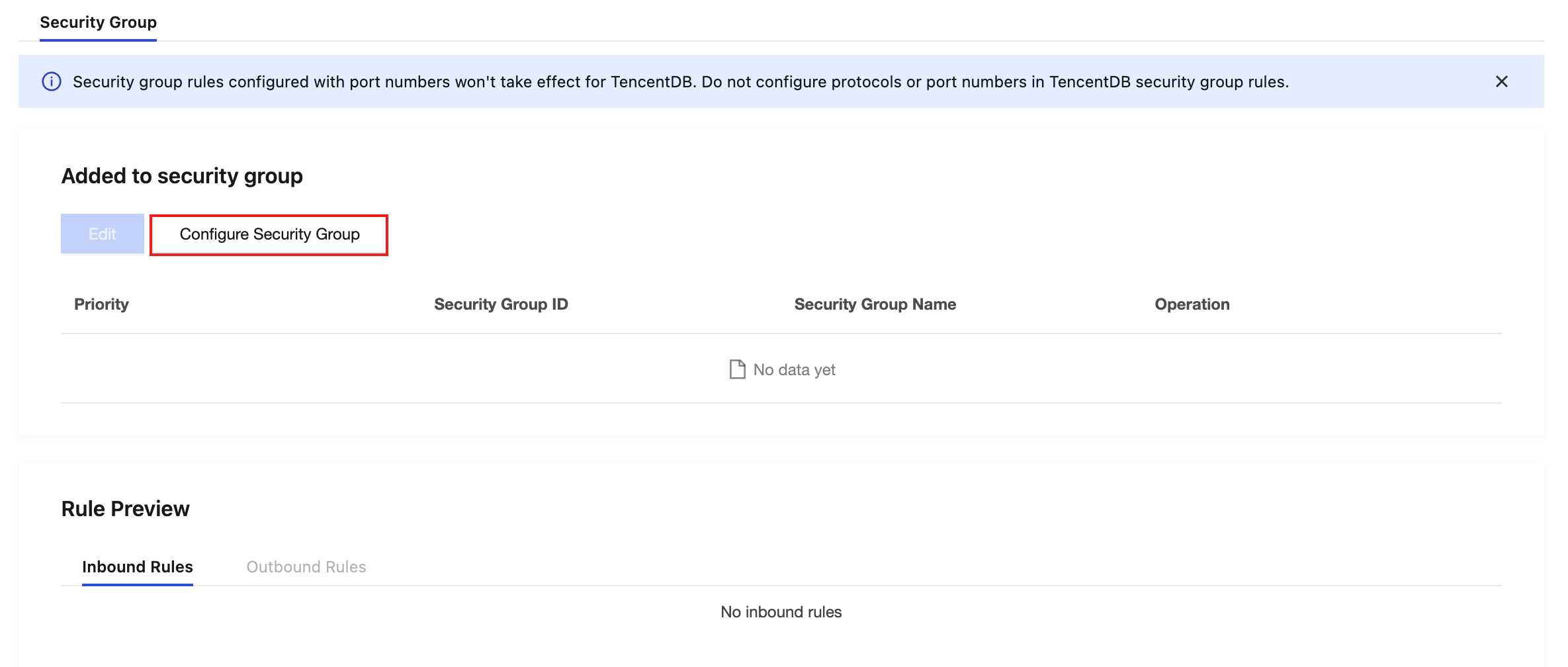
3. In the pop-up dialog box, select the security group to be bound, click OK to complete binding the security group to the cloud database instance.
フィードバック